Product Changelog.

What we've shipped in AssistLoop, newest first.

Email Channel: AI Answers Your Support Emails

Your AI agent now answers email. Forward your support inbox to AssistLoop, and the agent replies with answers from your own content while customers keep writing to the address they know.
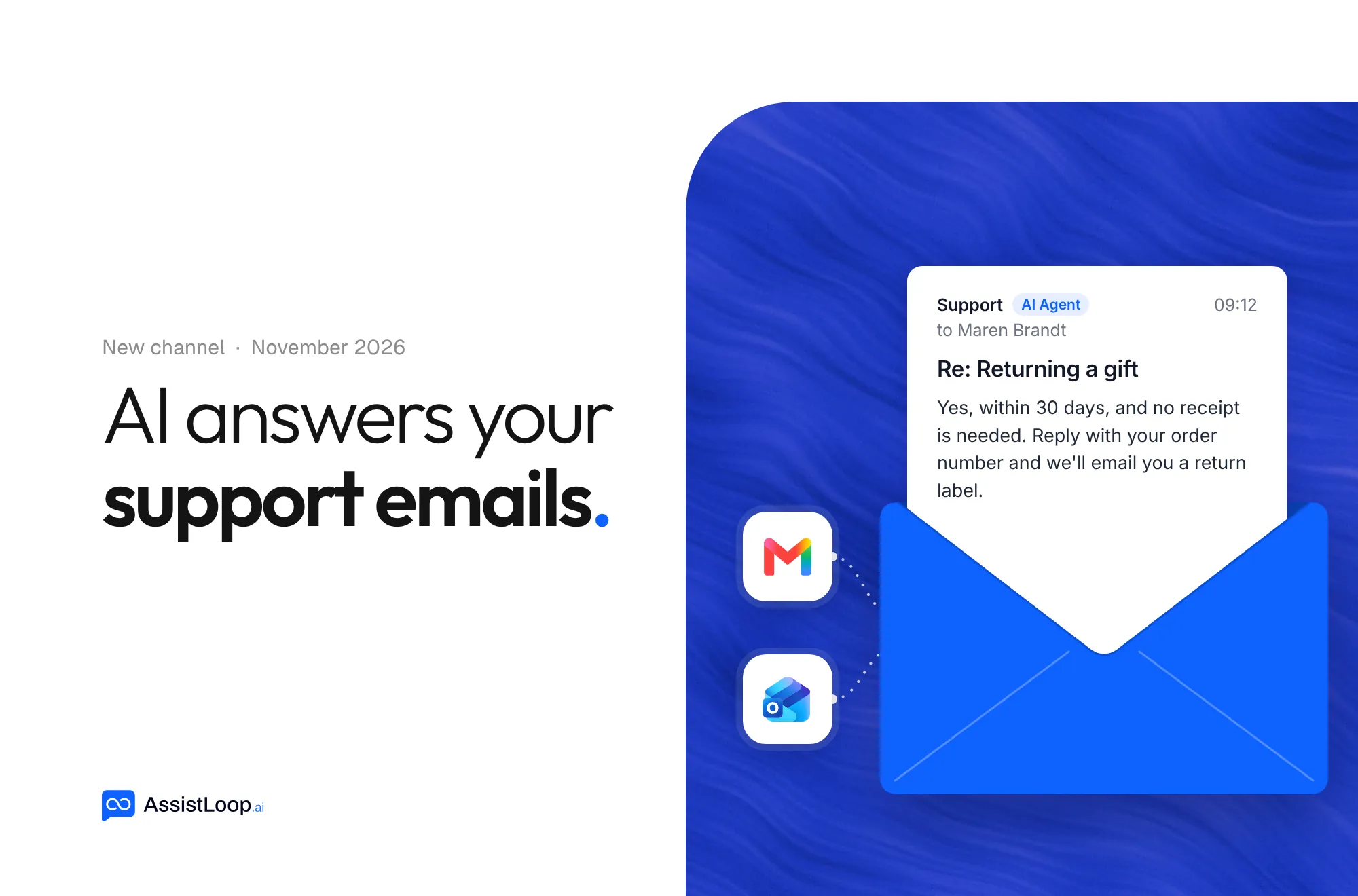
Your AI agent now answers email. Forward your support inbox to AssistLoop, and customers keep writing to the address they already use.

  • Forward from Gmail, Google Workspace, Microsoft 365 or any other mailbox.
  • The agent replies by email, with answers from your own content.
  • Emails land in the same inbox as your chats, and your team can reply themselves any time.
  • On Standard and Professional, replies can come from your own domain.

Available on paid plans. Compare plans →
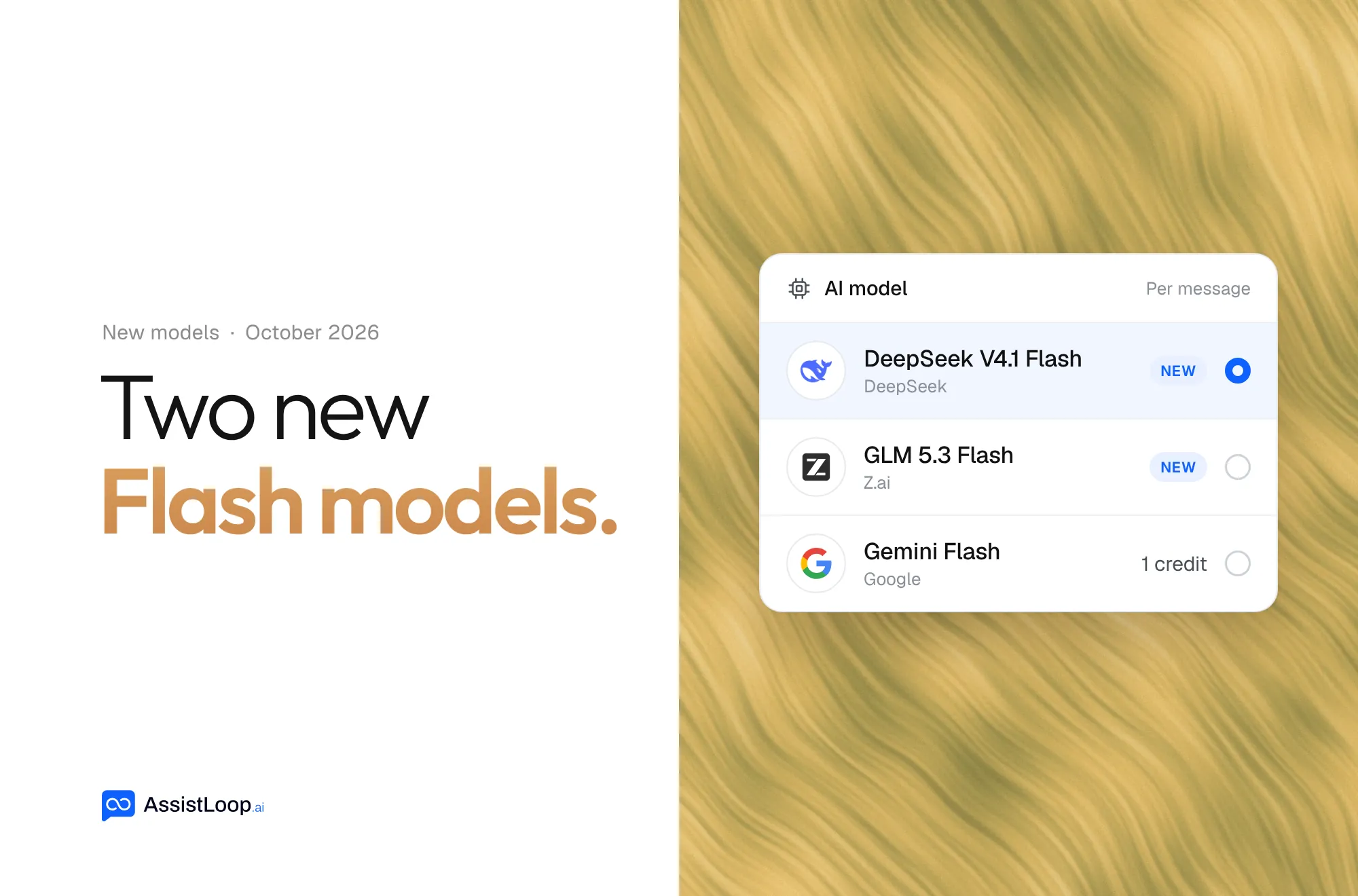
DeepSeek V4.1 Flash and GLM 5.3 Flash

Two new Flash models are now in the model picker: DeepSeek V4.1 Flash and Z.ai’s GLM 5.3 Flash.

Two new Flash models are now in the model picker: DeepSeek V4.1 Flash and Z.ai’s GLM 5.3 Flash.

  • More choice beyond OpenAI, Anthropic, Google and xAI.
  • See the credits per message before you select a model.
  • Switching needs no retraining. The next message uses the new model.

See all AI models →

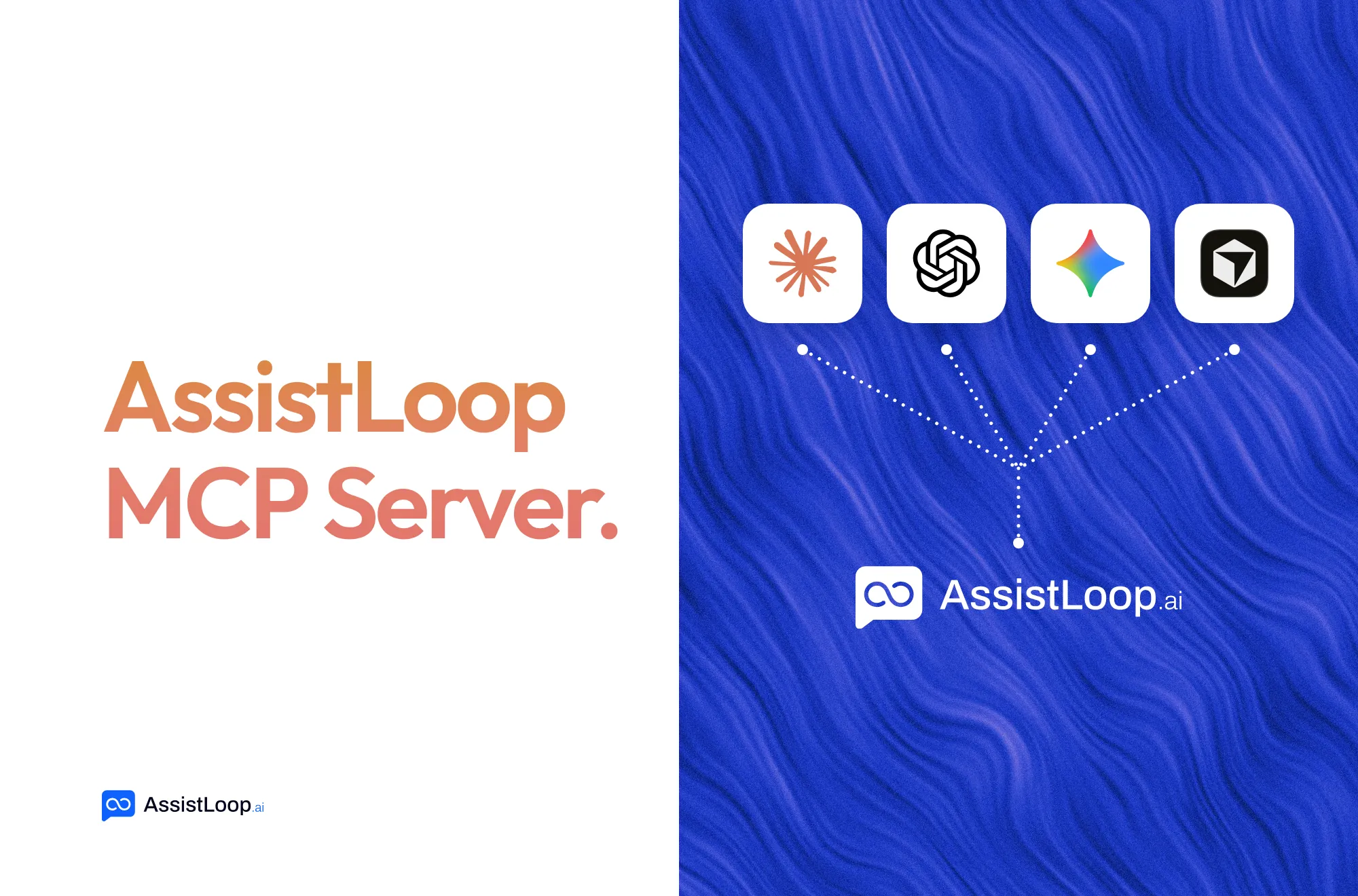
AssistLoop MCP Server

Connect Claude, ChatGPT or any MCP app to AssistLoop with one URL. Read conversations, reply to customers, handle tickets and train your agents from the AI tools you already use.

AssistLoop now has an MCP server. Connect Claude, ChatGPT, Cursor or any MCP app with one URL, and work in AssistLoop from the AI tools you already use.

  • Read conversations and see what customers are asking.
  • Reply to customers and handle tickets.
  • Train your agents from text, Q&A or website pages.
  • Sign in once in your browser. No API keys, and read-only access if you prefer.

Available on paid plans. Read the MCP docs →

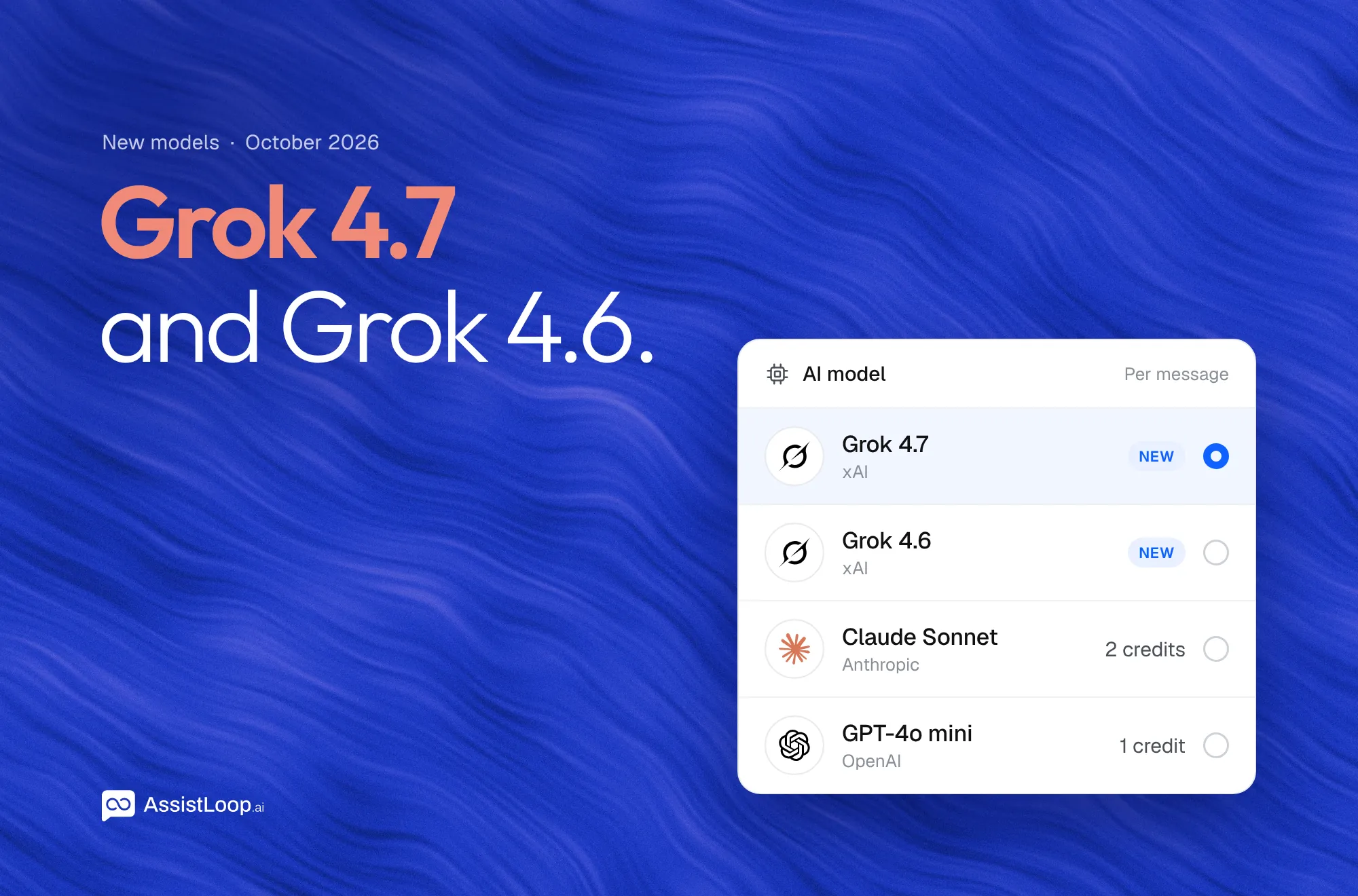
Grok 4.7 and Grok 4.6

xAI’s Grok 4.7 and Grok 4.6 are now in the model picker. Choose either one for any of your agents.

xAI’s Grok 4.7 and Grok 4.6 are now in the model picker. Choose either one for any of your agents.

  • Pick a different model for each agent, so each one fits its job.
  • See the credits per message before you select a model.
  • Switching needs no retraining. The next message uses the new model.

See all AI models →

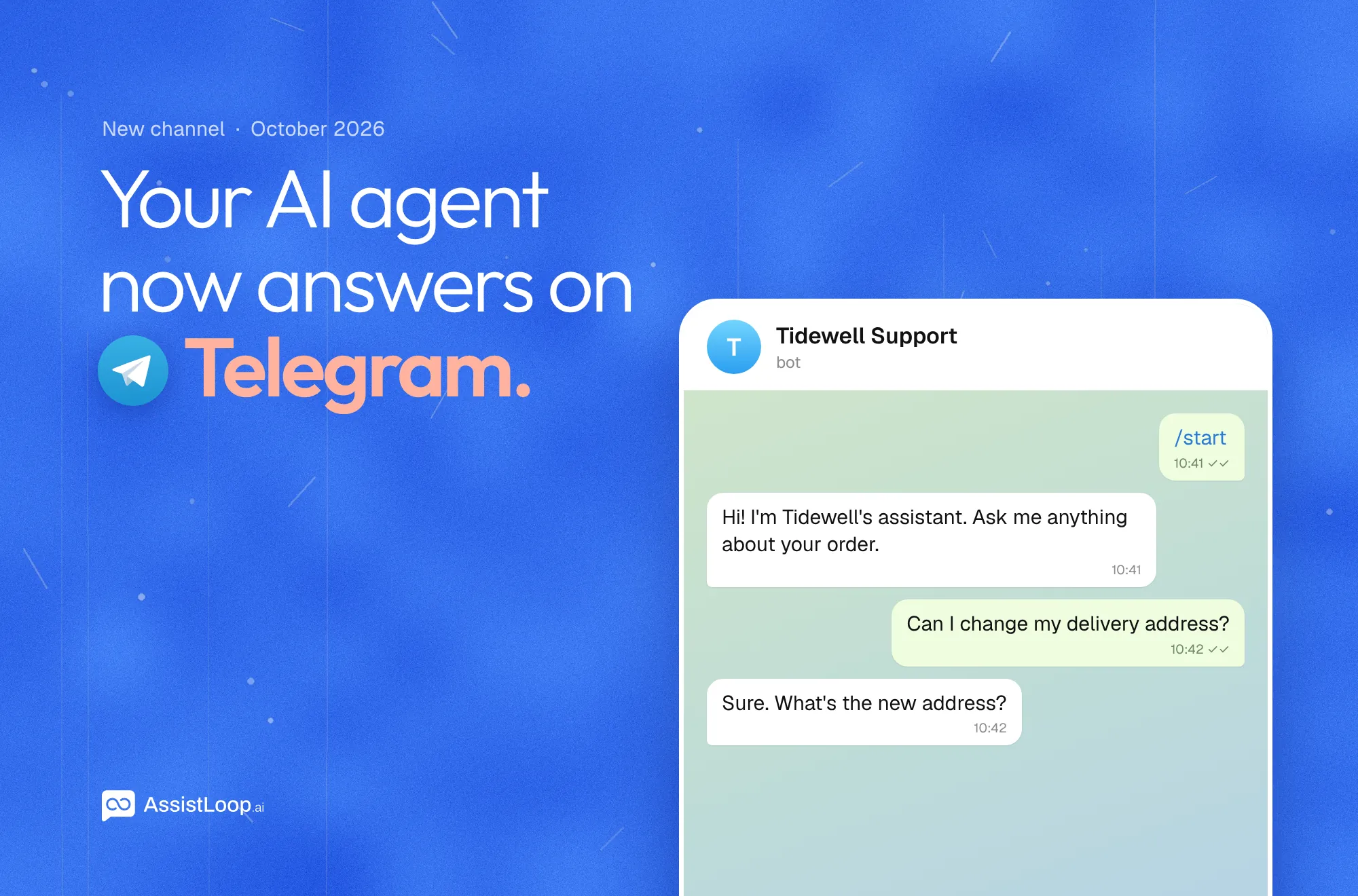
Telegram Channel

Your AI agent now answers on Telegram. Connect it as your Telegram bot, and customers get answers from your own content right in the app.

Your AI agent now answers on Telegram. Connect it as your Telegram bot, and customers get answers from your own content right in the app.

  • Runs as your own Telegram bot, trained on the same content as your website chat.
  • Telegram chats arrive in the same AssistLoop inbox as every other channel.
  • Your team can step in at any point with the full history.

Available on paid plans. See all channels →

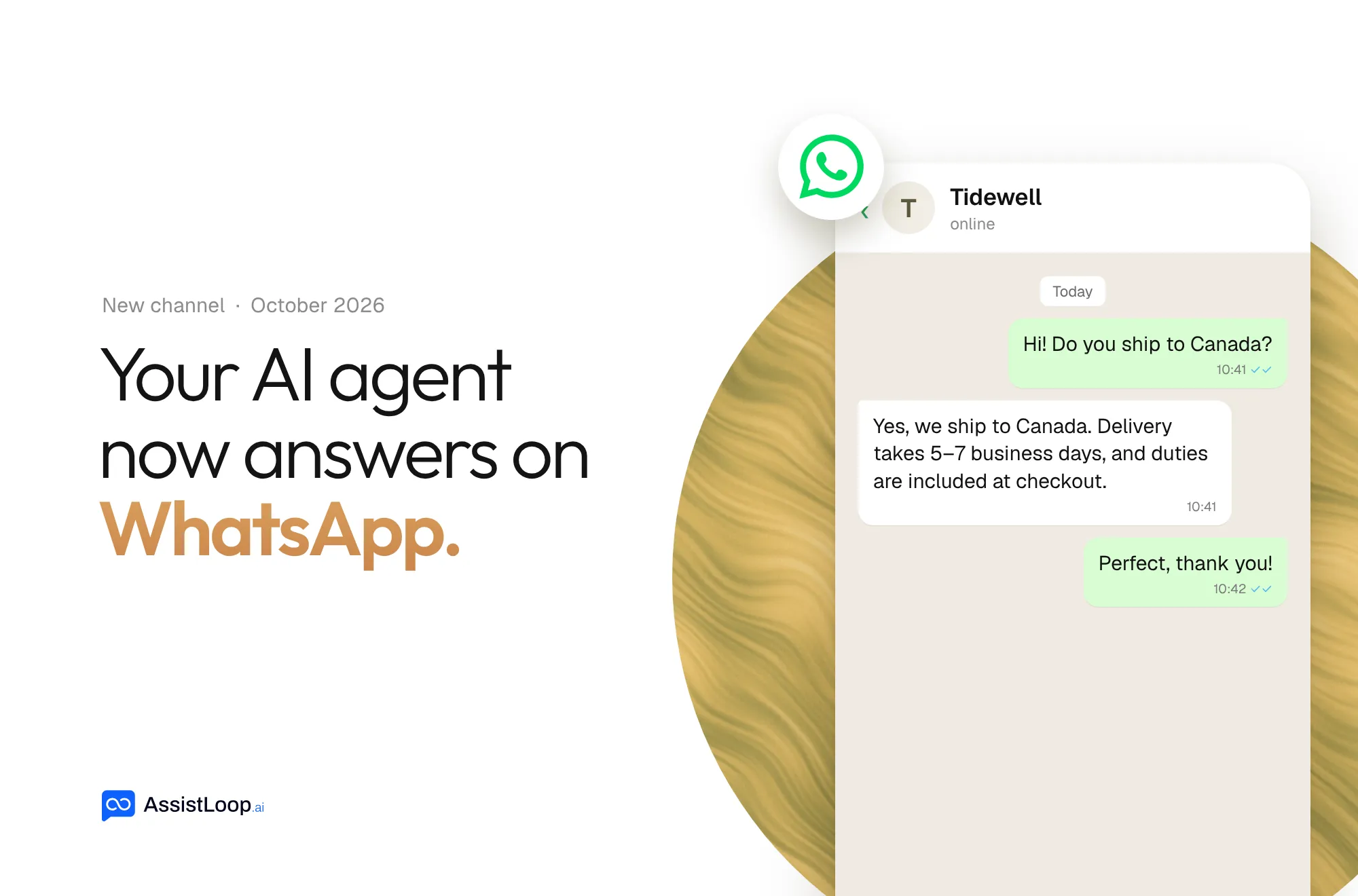
WhatsApp Channel

Your AI agent now answers on WhatsApp. Connect your WhatsApp Business number, and customers get answers from your own content, any time.

Your AI agent now answers on WhatsApp. Connect your WhatsApp Business number, and customers get answers from your own content, any time of day.

  • The same agent and training as your website chat.
  • WhatsApp chats land in your AssistLoop inbox with every other conversation.
  • A teammate can take over any chat with the full history, and the reply goes back on WhatsApp.
  • Answer from the iOS and Android apps when you’re away from your desk.

Available on paid plans. See all channels →

Claude Sonnet 5.5 and Haiku 5.5

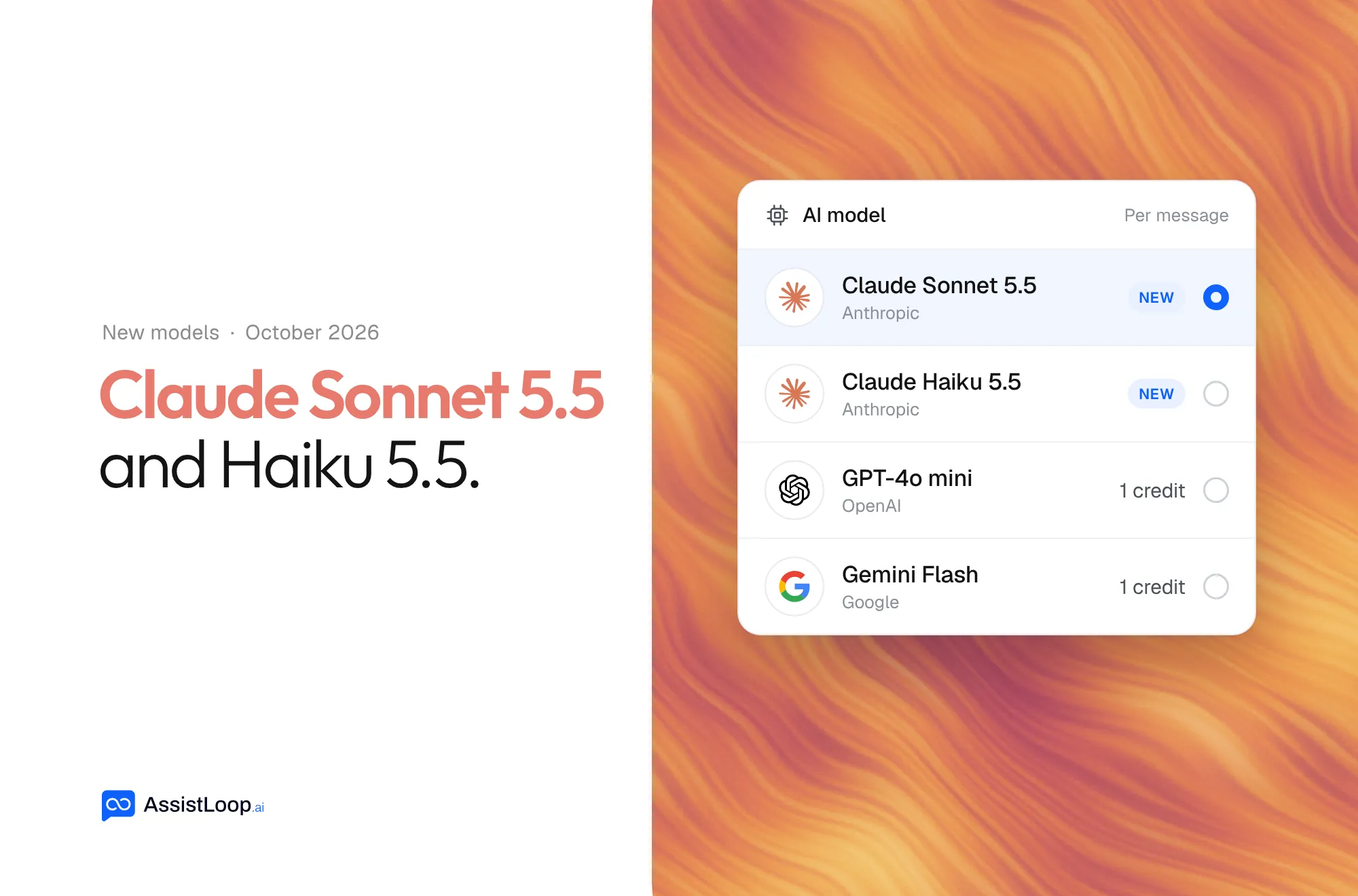
Anthropic’s Claude Sonnet 5.5 and Claude Haiku 5.5 are now in the model picker. Choose either one for any of your agents.

Anthropic’s Claude Sonnet 5.5 and Claude Haiku 5.5 are now in the model picker. Choose either one for any of your agents.

  • Claude Sonnet 5.5 for detailed answers and harder questions.
  • Claude Haiku 5.5 for quick, everyday replies.
  • Each model shows its credits per message before you select it.
  • Switching needs no retraining. The next message uses the new model.

See all AI models →

Block Visitor

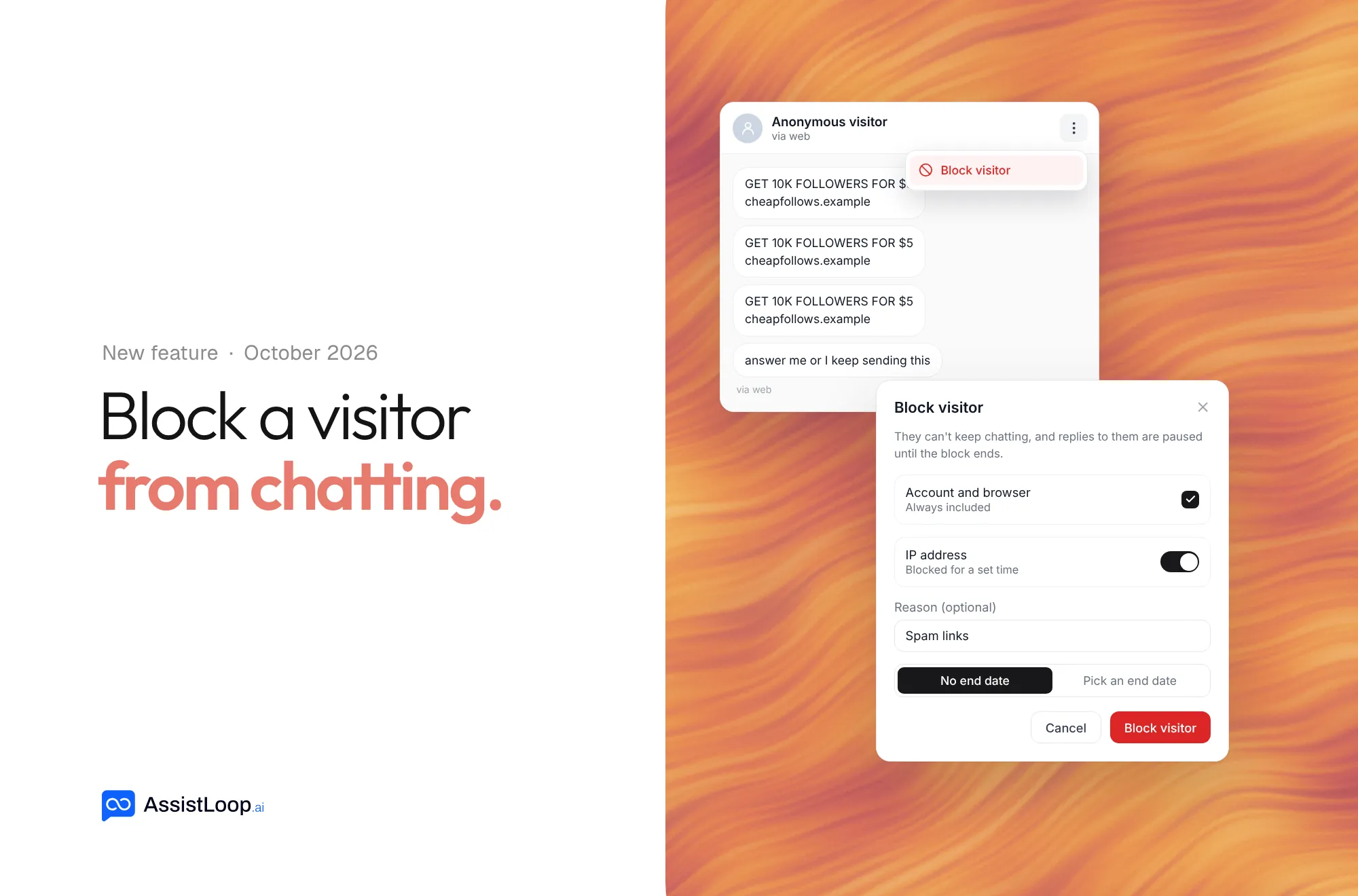
Stop an abusive or spam visitor from chatting with your agent.

Some visitors only send spam or abuse. You can now block them from the conversation menu, so they can't keep chatting with your agent.

  • The block covers their account and browser, and can also cover their IP address for a set time.
  • Add a reason and an end date if you like, or block with no end date.
  • Their widget updates straight away, and replies to them are paused until the block ends.
  • Blocked visitors are listed in one place, and you can unblock them at any time.

See live chat →

Visitor Engagement

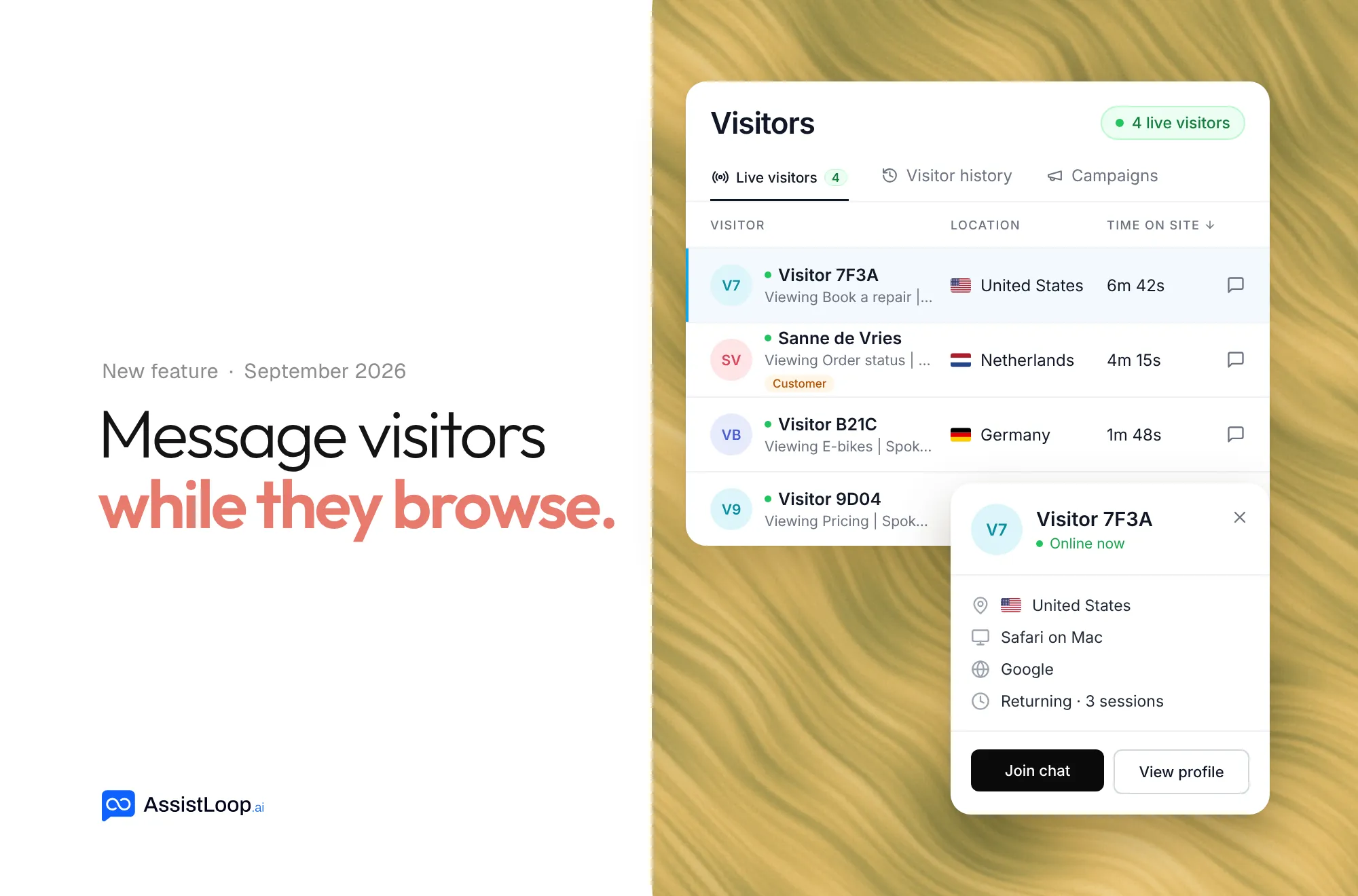
See who’s on your site and which pages they’re on, and reach out while they’re still there, with a short message next to the chat button, not a popup.

See who’s on your site and which pages they’re on, and reach out while they’re still there, with a short message next to the chat button instead of a popup that takes over the page.

  • Show a message after someone stays on a page, goes quiet or looks about to leave, or send one yourself.
  • Tapping it opens the same chat you already use, and your team picks up the reply.
  • Get a visit history and optional alerts when someone new arrives or opens a message.

Turn it on for your agent in Settings, then find it under Visitor engagement in your dashboard. Included on every paid plan. Read the guide →

Display Restrictions

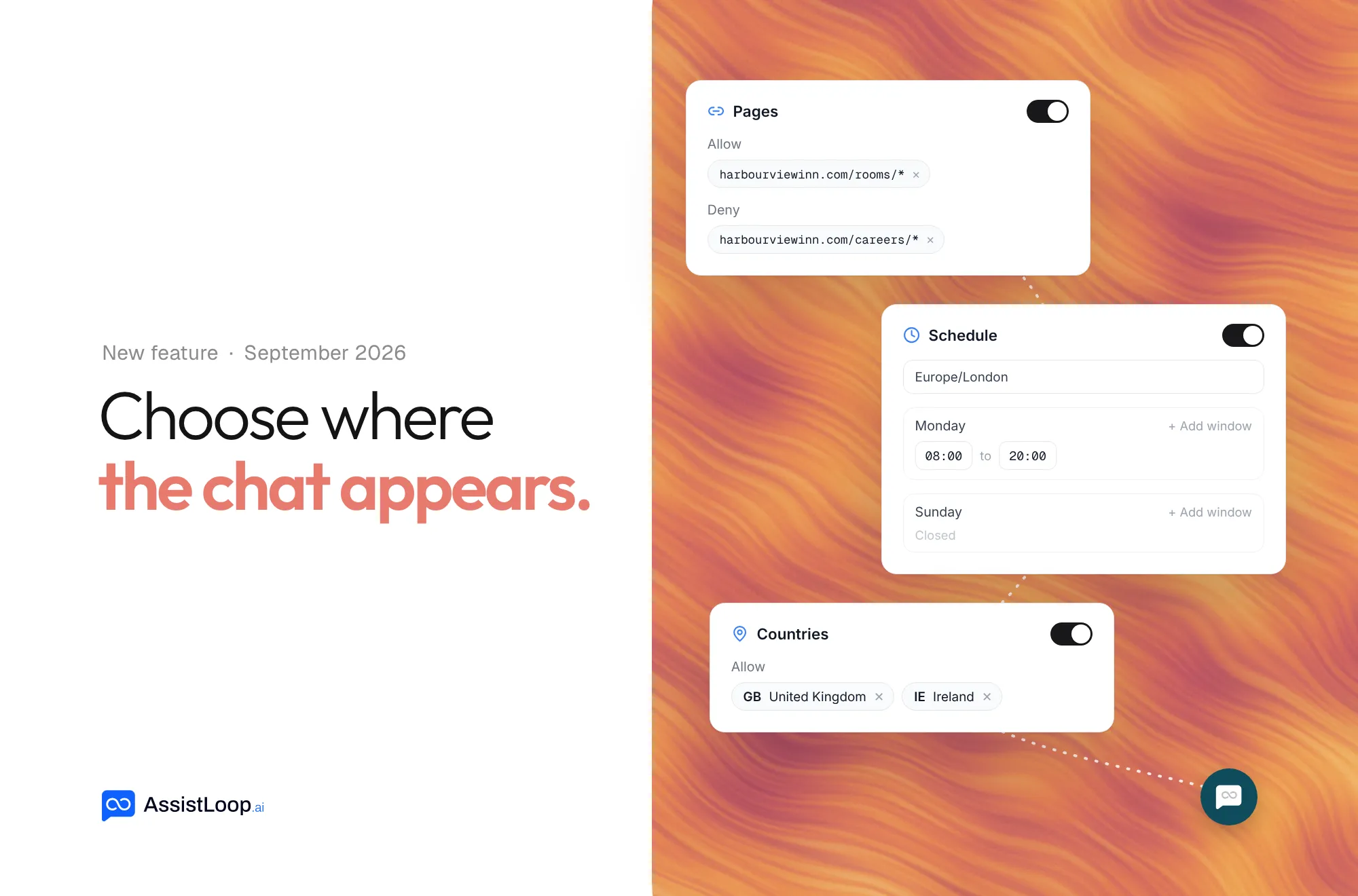
Choose which pages, hours and countries the chat widget appears on, with a separate rule and toggle for each.

Display Restrictions let you decide where the chat widget appears: on which pages, at what times and in which countries.

  • Pages: hide the widget on chosen URLs, or show it only on chosen URLs, with up to 50 rules per list.
  • Schedule: show it only during set hours for each day of the week, in your time zone, with up to 5 time windows a day.
  • Countries: allow or block visitors by country. Blocked visitors don't see the widget and can't reach the chat.
  • Each rule has its own toggle, and changes apply as soon as you save.

Read the guide →

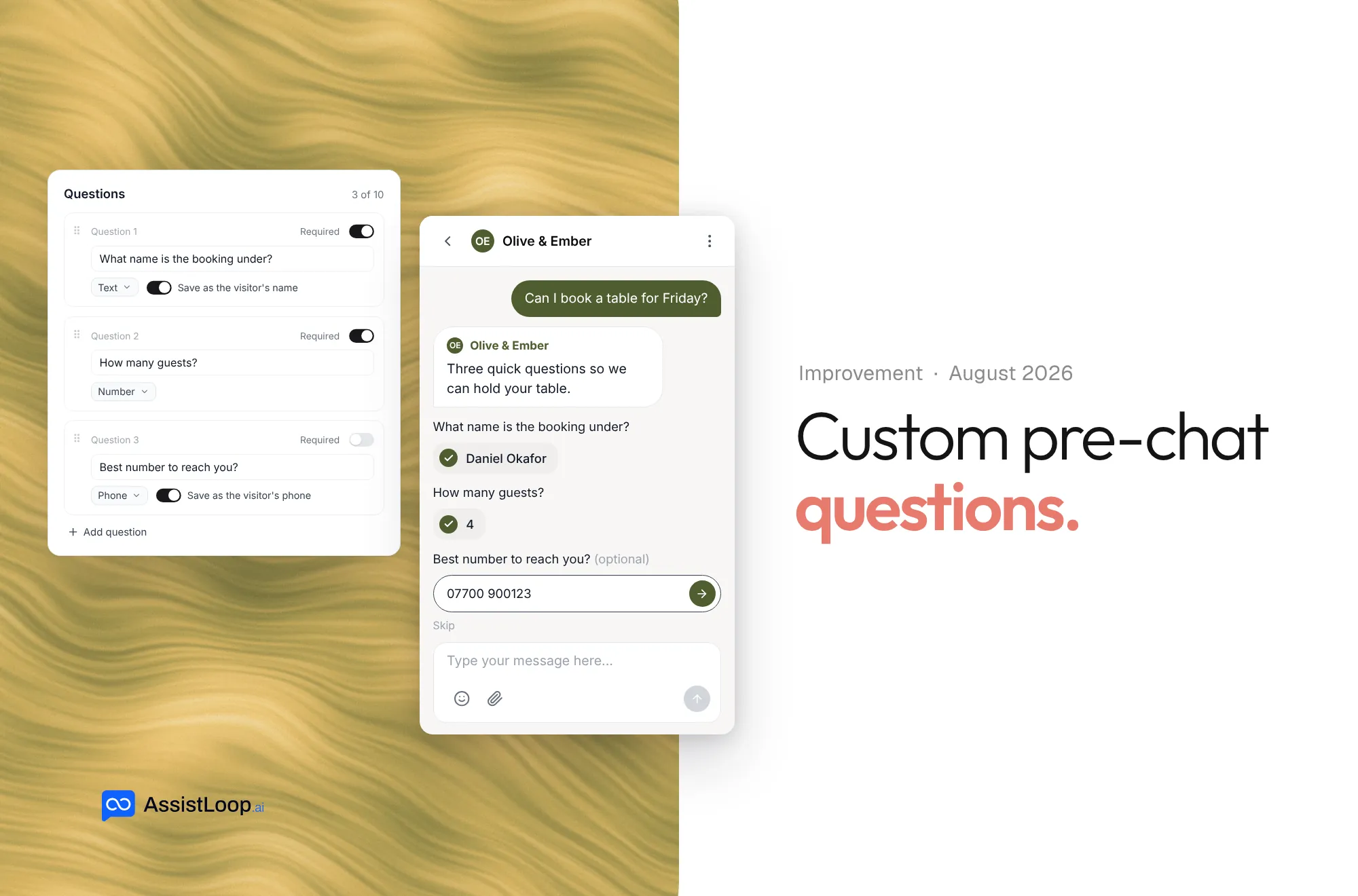
Pre-Chat Form: Custom Questions

Write your own pre-chat questions instead of the fixed name and email fields, and the widget asks them one at a time.

The pre-chat form now takes your own questions, so you can ask what your team needs to know before the chat starts, not only a name and email.

  • Add 1 to 10 questions, asked one at a time.
  • Give each one a type (text, email, phone or number), make it required or optional, and reorder them.
  • Save an answer to the visitor's profile as their name, email or phone.
  • Removing a question also deletes the answers it collected.

Read the pre-chat form guide →

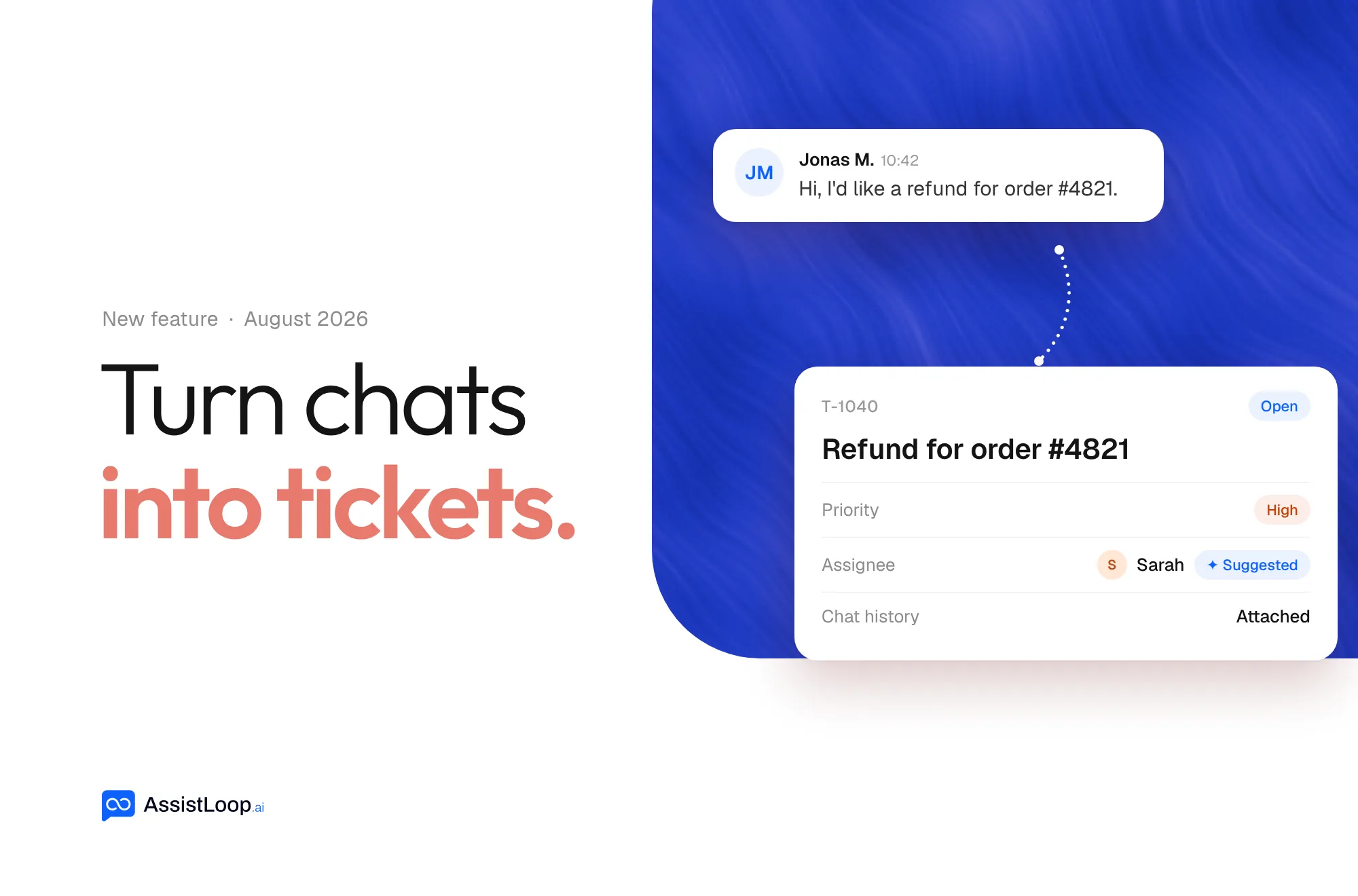
Tickets

When a chat needs more than a quick answer, like a refund, a bug or someone on your team, turn it into a ticket so it doesn’t get lost.

When a chat needs more than a quick answer, like a refund, a bug or someone on your team, turn it into a ticket so it doesn’t get lost.

  • Open a ticket from any conversation. The chat history comes with it.
  • Let your agent open one when a customer needs follow-up.
  • Assign it, set the priority, leave an internal note and email the customer.
  • Get a suggested assignee, status and reply. Keep what you like.

Turn it on for each agent in settings. Available on paid plans. Learn about tickets →

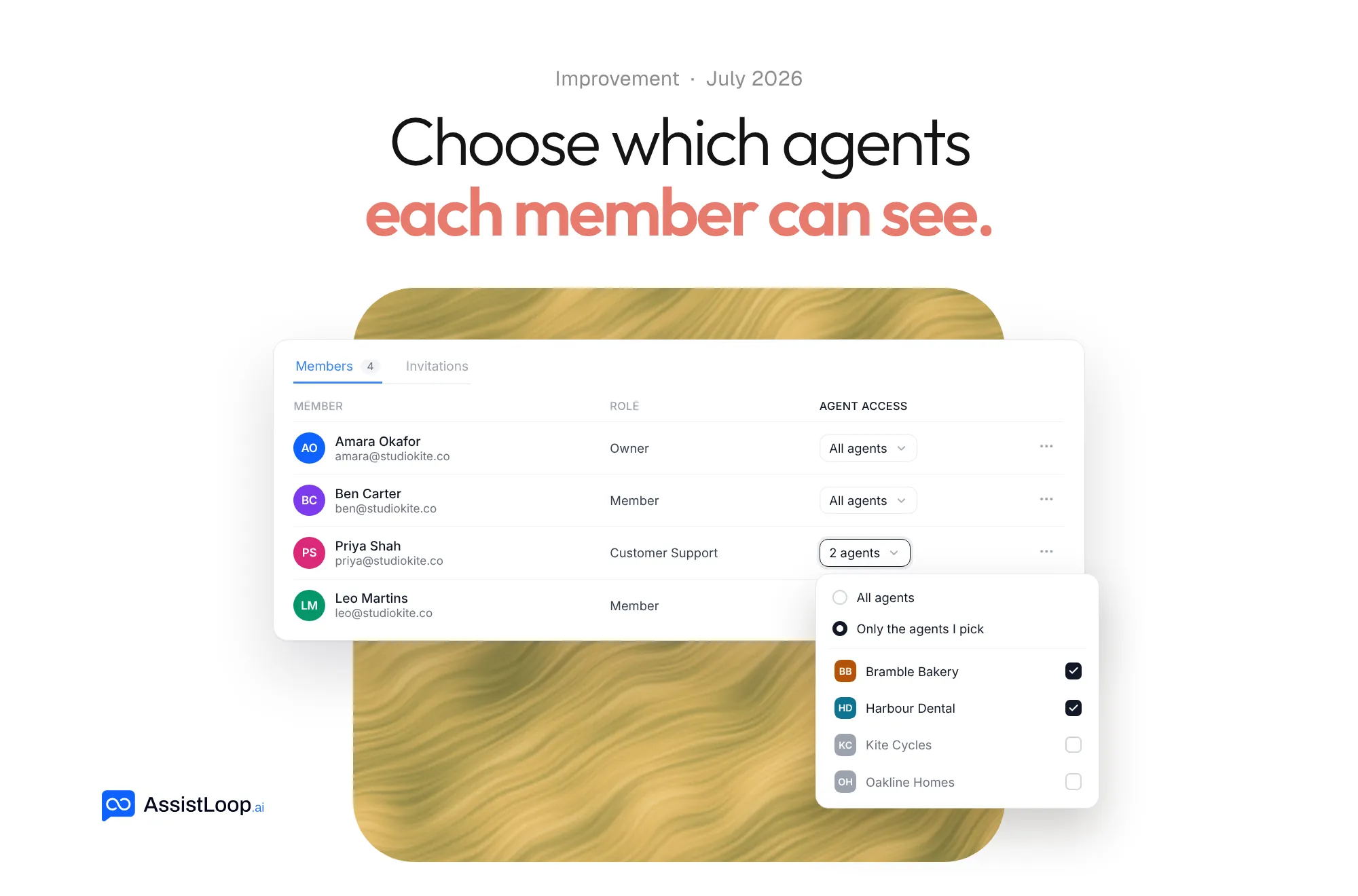
Team Members: agent access

Give each team member access to all agents, or only the ones you pick.

Not everyone on your team needs every agent. You can now choose which agents each member can access.

  • Give a member access to all agents, or only the ones you pick.
  • Set it in the Agent Access column on the Members page.
  • A member with picked agents sees only those agents.

See live chat →

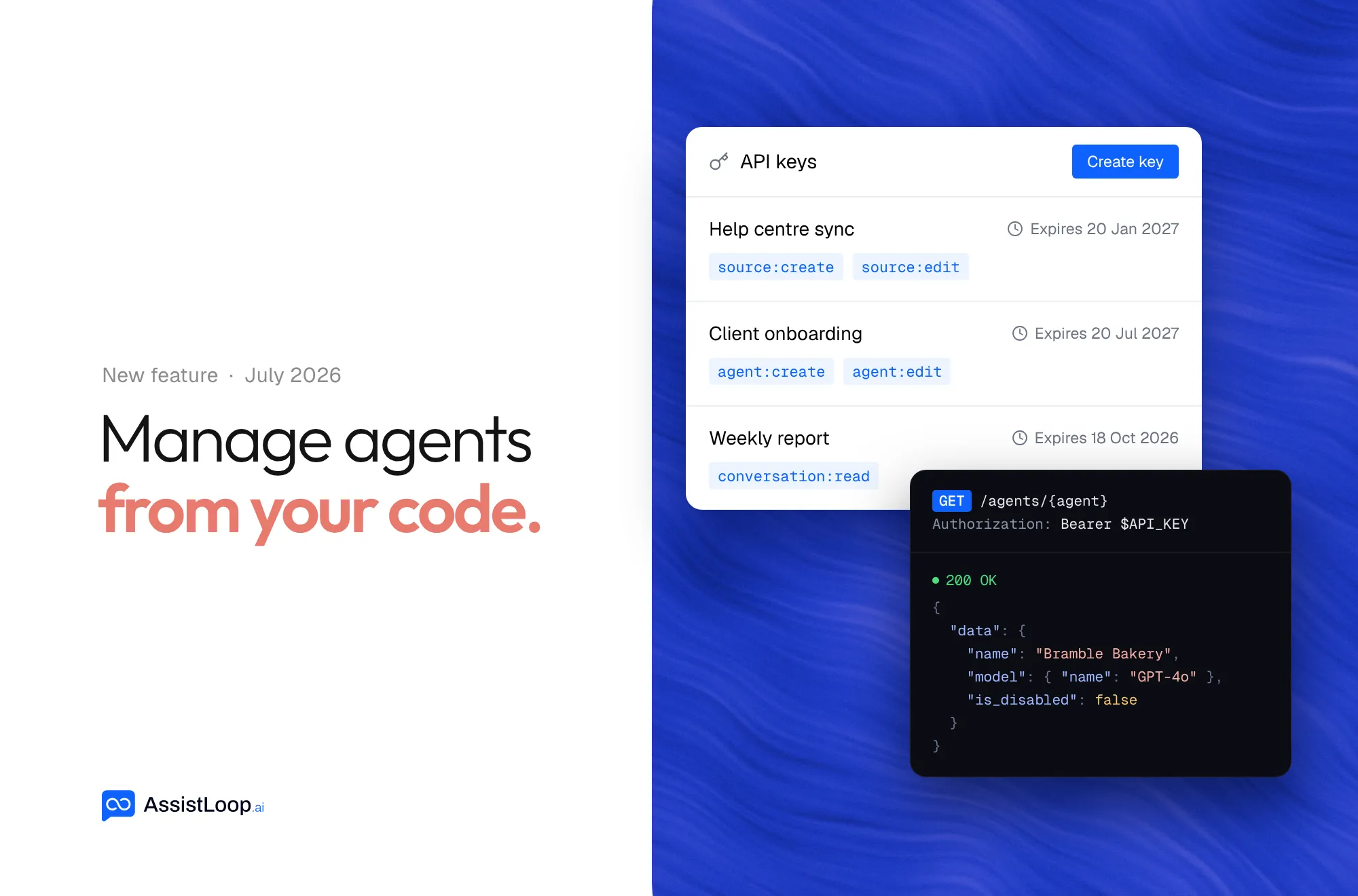
Public API

Manage your agents, training content and conversations from your own code. Each API key gets only the permissions you choose.

AssistLoop now has a public API. Create and update agents, add training content and work with conversations from your own code.

  • Manage agents, including their settings and AI model.
  • Upload files, start website crawls and retrain sources when your content changes.
  • List and start conversations, reply as a person, close chats and manage webhooks.
  • Give each key only the scopes it needs, set an expiry date, and revoke it at any time.

The organisation owner creates keys in Settings → API Keys. Available on paid plans. Read the API docs →

From the roadmap: Add API.

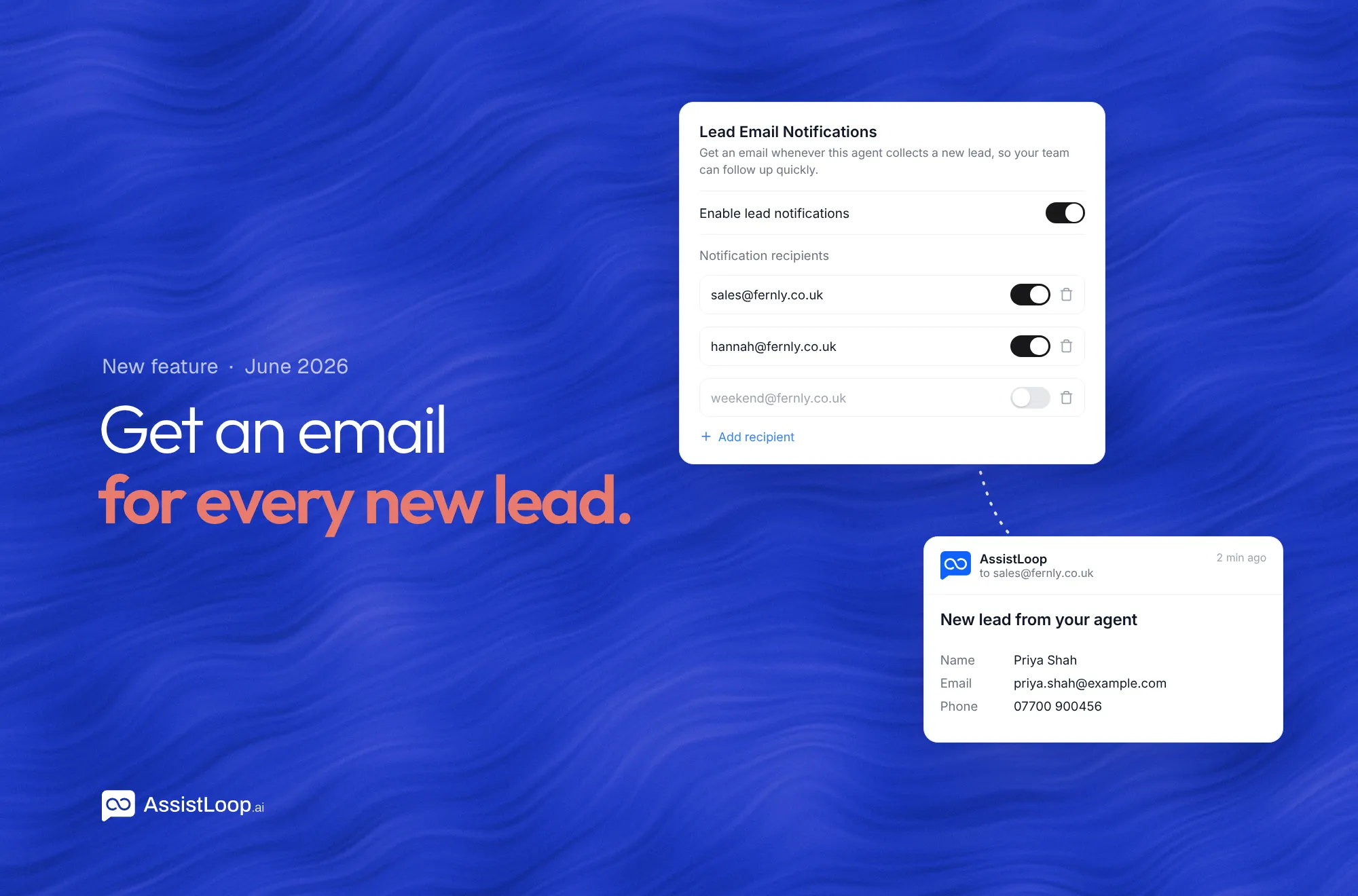
Lead Email Notifications

Get an email whenever your agent collects a new lead, sent to the people you choose.

Your team can now get an email whenever an agent collects a new lead, so someone can follow up while the lead is still warm.

  • Turn it on per agent in Settings.
  • Choose who receives it: add one or more addresses, and switch each one on or off.
  • When the AI collects a lead through a lead form, the recipients get an email with the lead's details.

See lead capture →

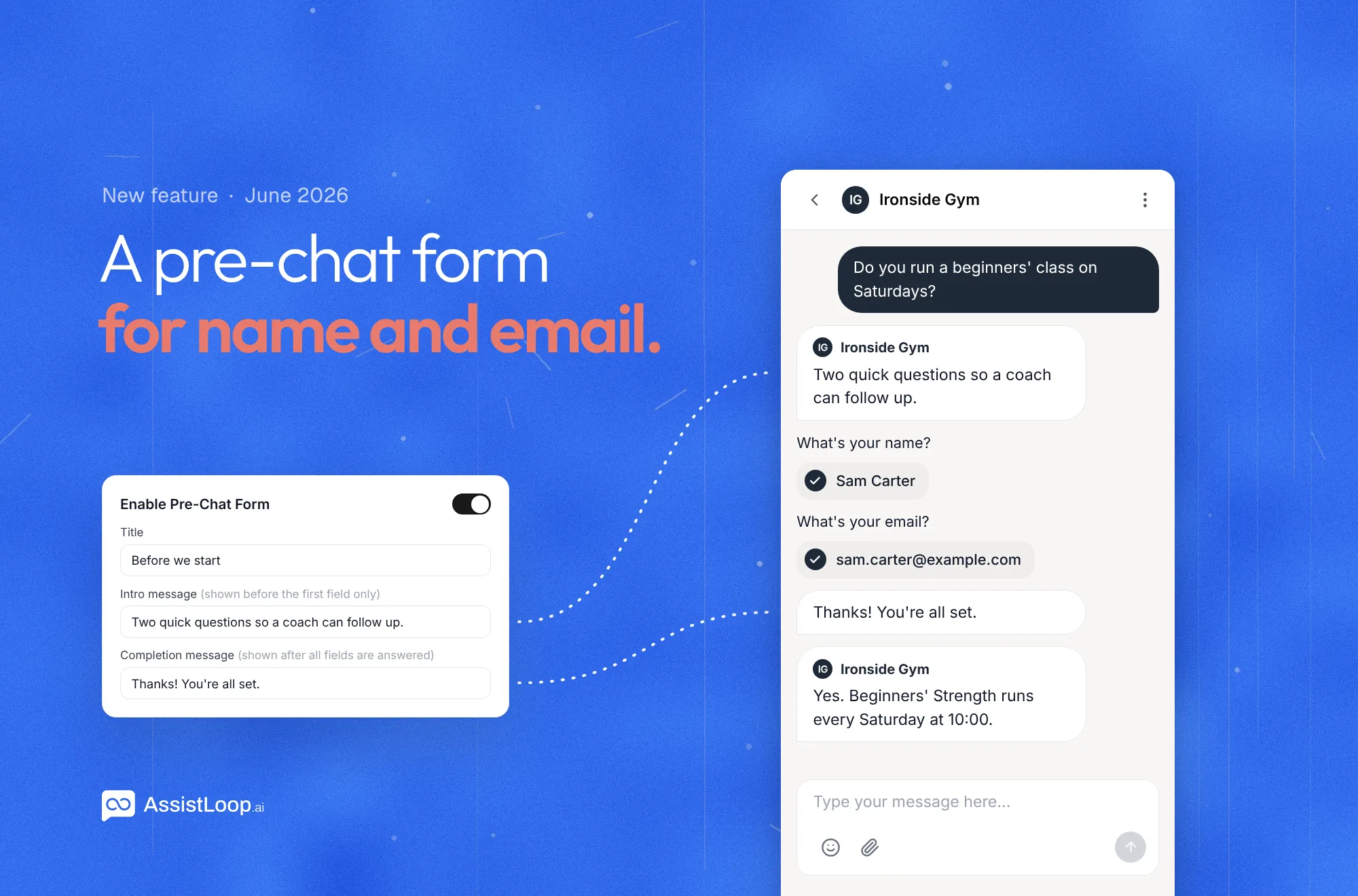
Pre-Chat Form

Ask visitors for their name and email before the chat starts, with your own title, intro message and completion message.

The widget can now ask visitors a few questions before the conversation begins, so your team knows who it's talking to.

  • When it's on, the widget asks for the visitor's name and email before the chat starts.
  • Write your own title, intro message and completion message.
  • Visitors answer first, then chat as usual.
  • The answers are saved with the conversation.

Read the pre-chat form guide →

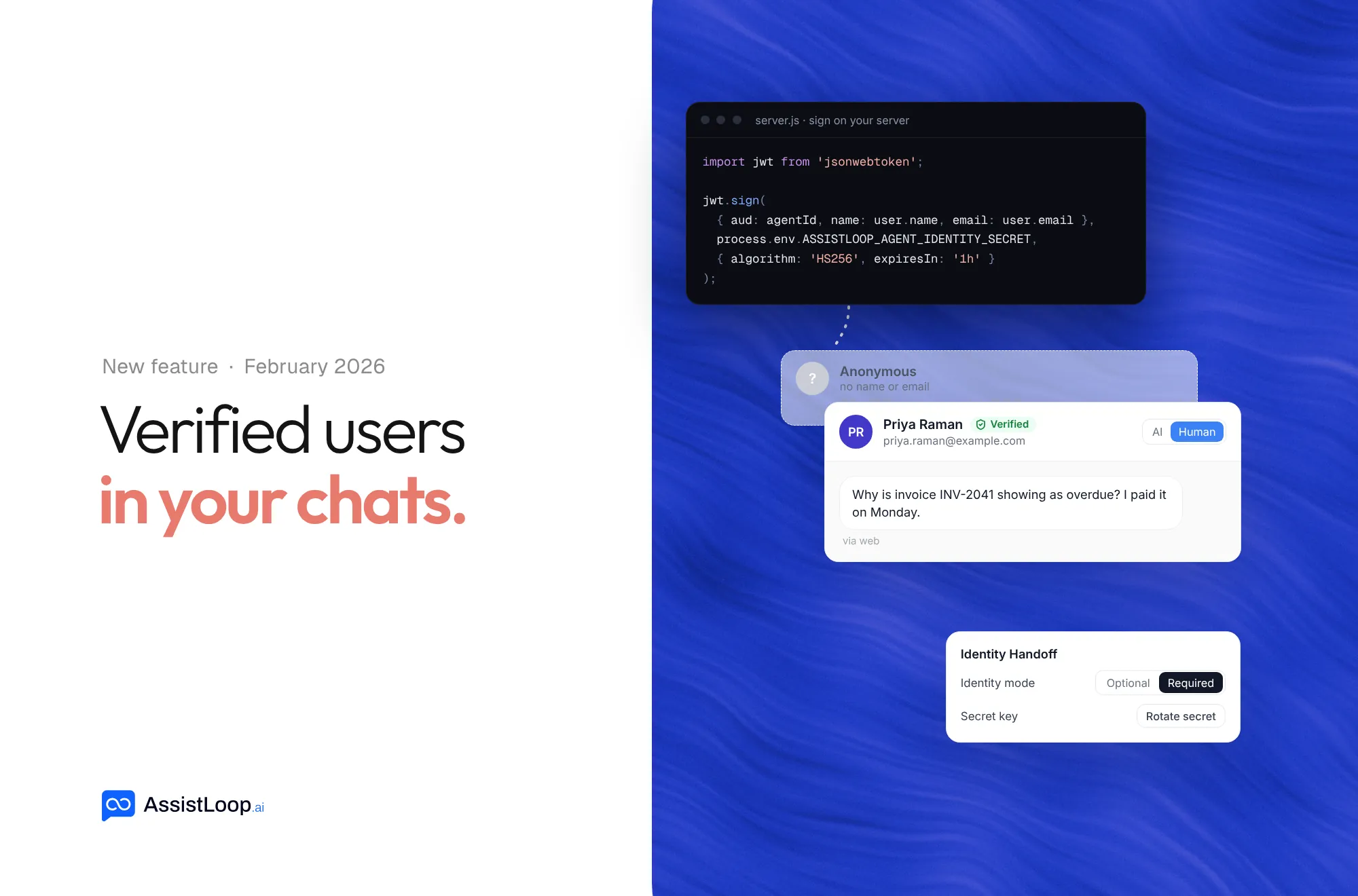
Identity Handoff

Pass your signed-in users' name and email into the chat securely, so your team sees a verified user instead of an anonymous visitor.

Identity Handoff brings your signed-in users into the chat securely, so your team sees who they are instead of an anonymous visitor.

  • Each agent gets a secret key, shown by its fingerprint and rotatable at any time.
  • Your site signs a short-lived token with the user's name and email, and AssistLoop verifies it.
  • Optional mode still allows anonymous chats. Required mode accepts only verified users.

Available on every plan, including Free. Read the setup guide →

AssistLoop on the Vercel Marketplace

Install AssistLoop from the Vercel Marketplace. Vercel sets up your agent, adds its Agent ID to your project's environment variables and puts AssistLoop on your Vercel invoice. A Next.js template gets you live in minutes.

AssistLoop is now on the Vercel Marketplace, in the AI Agents & Services category. Add an AI support agent to any Vercel project without leaving Vercel.

  • Install in a few clicks from the Marketplace. Vercel sets up your agent for you.
  • Your Agent ID is added to the project’s environment variables, preview deployments included.
  • Billing goes on your Vercel invoice, and a free plan is available.
  • A Next.js starter template gets you live in minutes.

View AssistLoop on the Vercel Marketplace →

Custom API Action

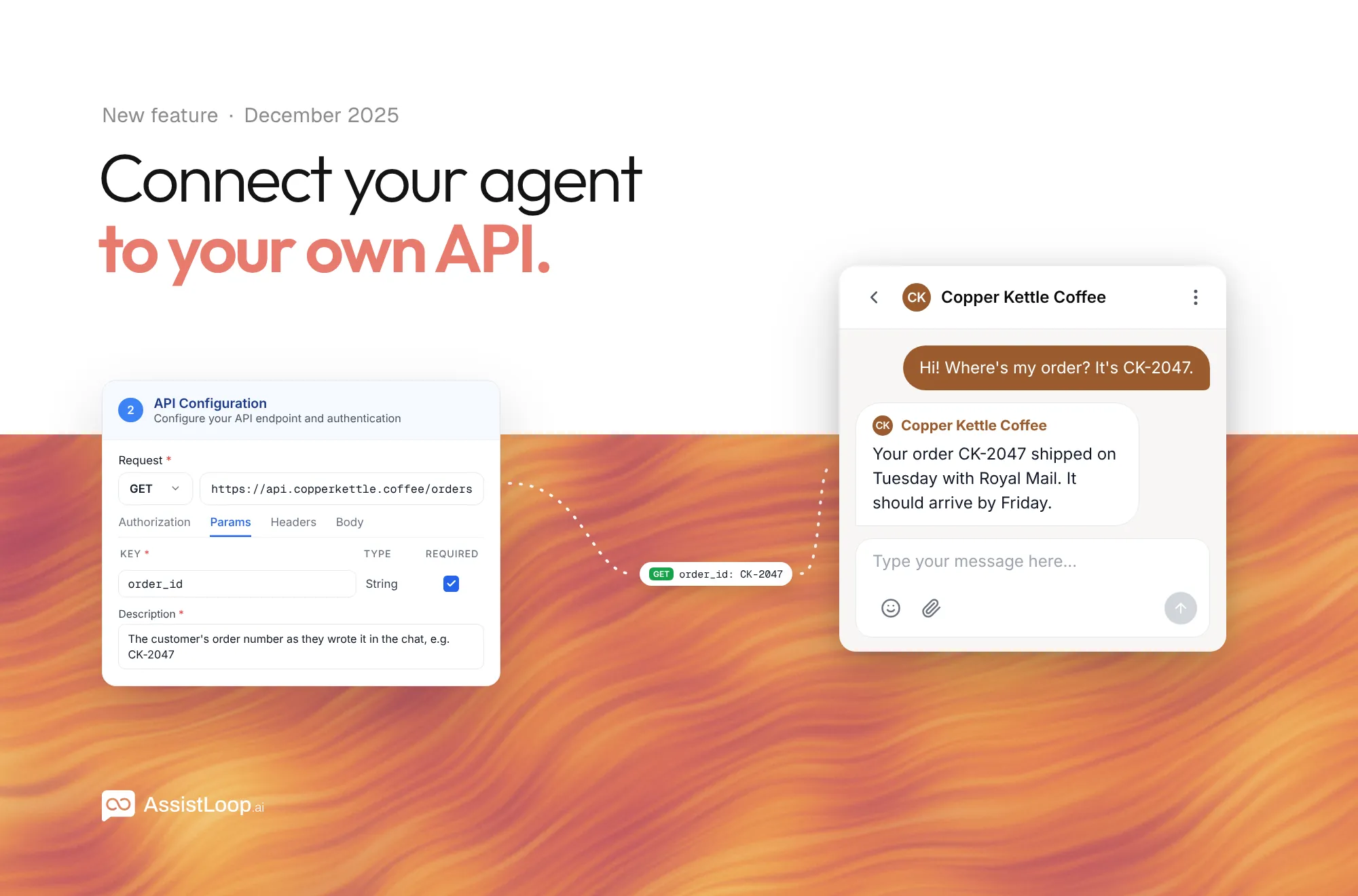
Connect your AI agent to your own APIs, so it can look things up mid-chat and use the response in its reply.

Agents can now call your own APIs during a chat, so they can look up live information and use it in their reply.

  • Set the endpoint, method (GET, POST, PUT, PATCH or DELETE), headers, authentication (bearer token, API key or basic auth) and request body.
  • Describe when the AI should use the action and which details it needs.
  • During a chat, the AI collects those details from the visitor, calls your API and answers with the response.
  • Form and multipart request bodies were added in June 2026.

Agent Actions are available from the Starter plan. See an order-status example →

Make.com Integration

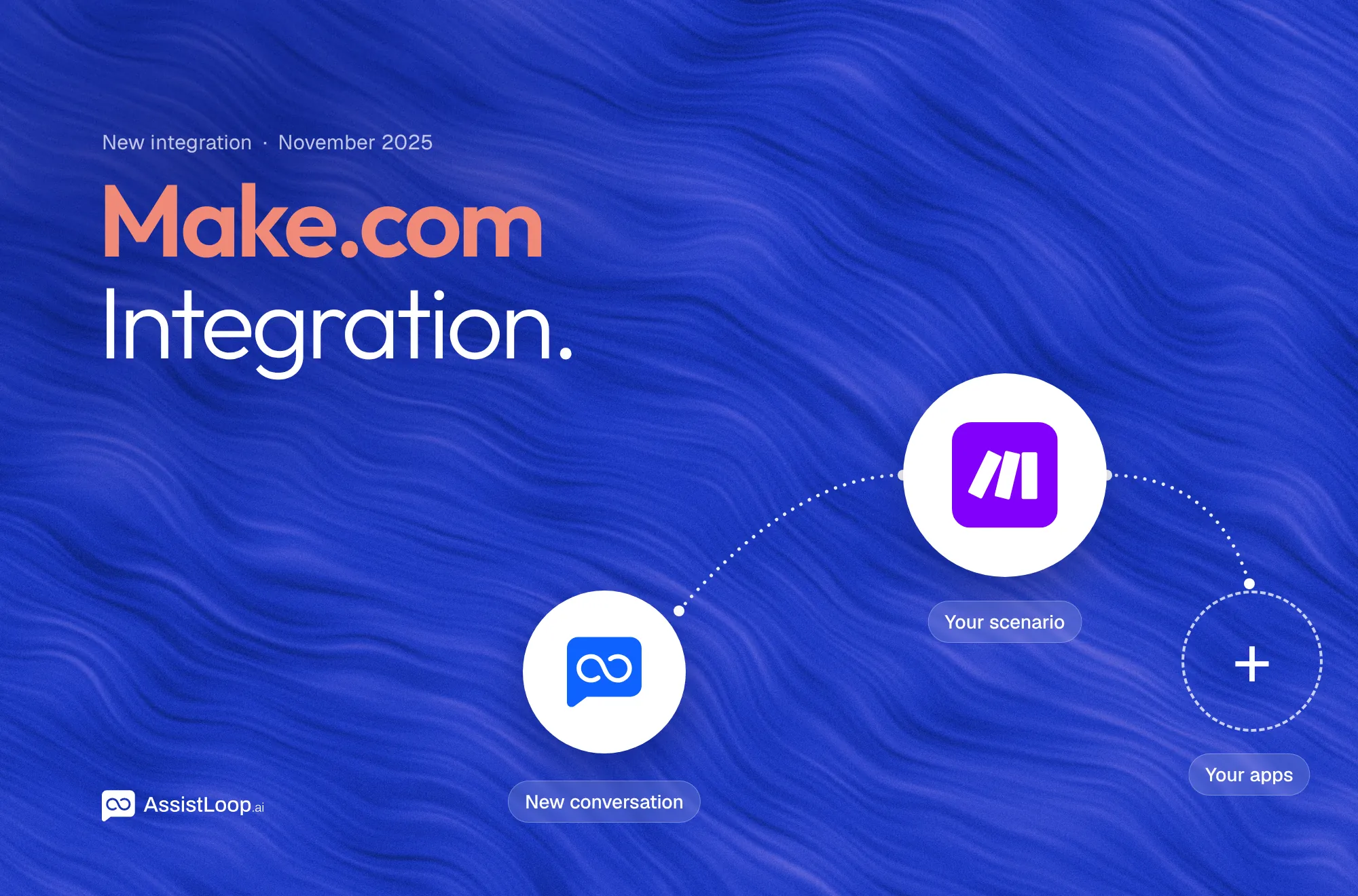
Connect AssistLoop to Make. Start scenarios when a conversation begins or a chat needs a person, and use your chat data in the apps you already work with.

AssistLoop now works with Make. Connect your account and use AssistLoop in your Make scenarios to automate the work around your support chats.

  • Start a scenario when a new conversation begins.
  • Get alerted when a chat needs a person.
  • Pull conversations and messages into the rest of your workflow.
  • Choose which agent each scenario watches.

Available on paid plans. See AssistLoop on Make →

Zapier Integration

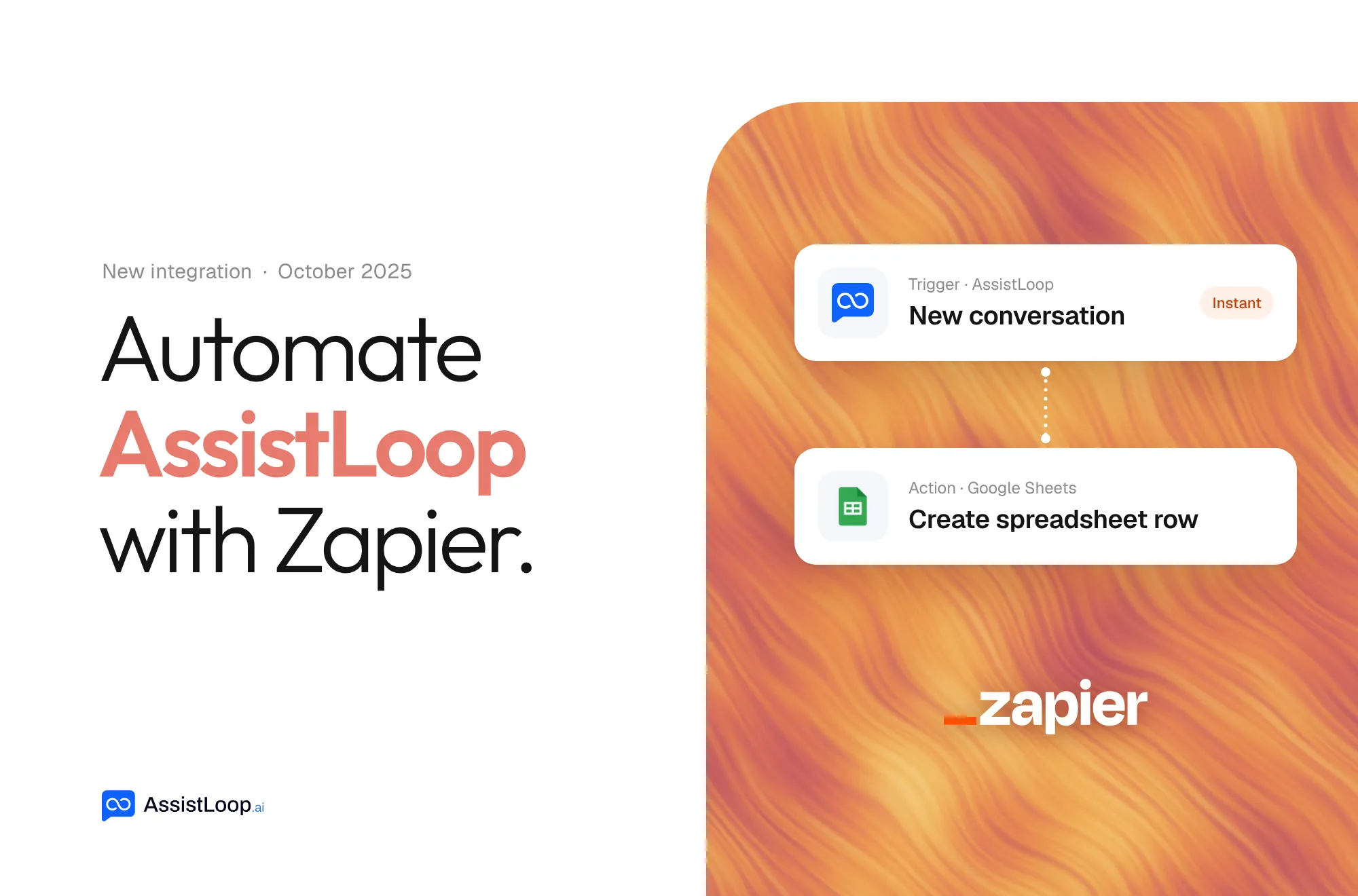
Connect AssistLoop to Zapier. Start Zaps the moment a conversation begins or a chat needs a person, and send your chat data to thousands of apps.

AssistLoop is now on Zapier. Connect your account and build Zaps that react to your support chats as they happen.

  • Start a Zap instantly when a new conversation begins.
  • Trigger a Zap when a chat needs a person, for example to alert your team.
  • Find messages and list conversations to use in later steps.
  • Send new conversations to Google Sheets with a ready-made template.

Available on paid plans. See AssistLoop on Zapier →

AssistLoop Mobile Apps for iOS and Android

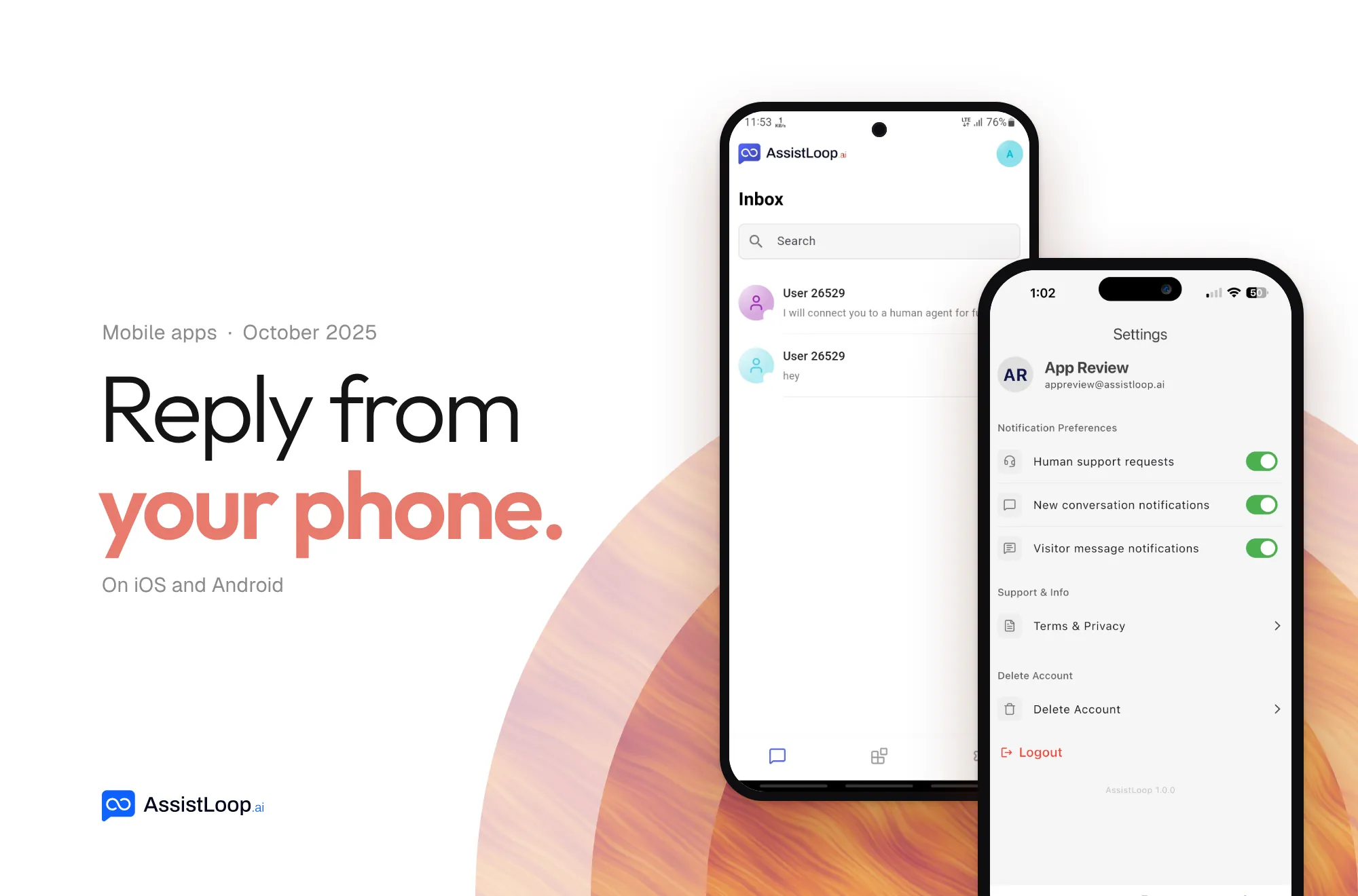
Reply to customers from your phone. The AssistLoop apps for iOS and Android bring your inbox, live chats and notifications with you.

AssistLoop is now on iOS and Android. Follow your AI agent’s conversations and reply to customers from your phone.

  • Chat with customers in real time, and watch the AI’s conversations as they happen.
  • Get push notifications for new messages, and when a customer needs a person.
  • Switch between agents and workspaces in a tap.
  • Choose which notifications you get in Settings.

Download on the App Store or Google Play.

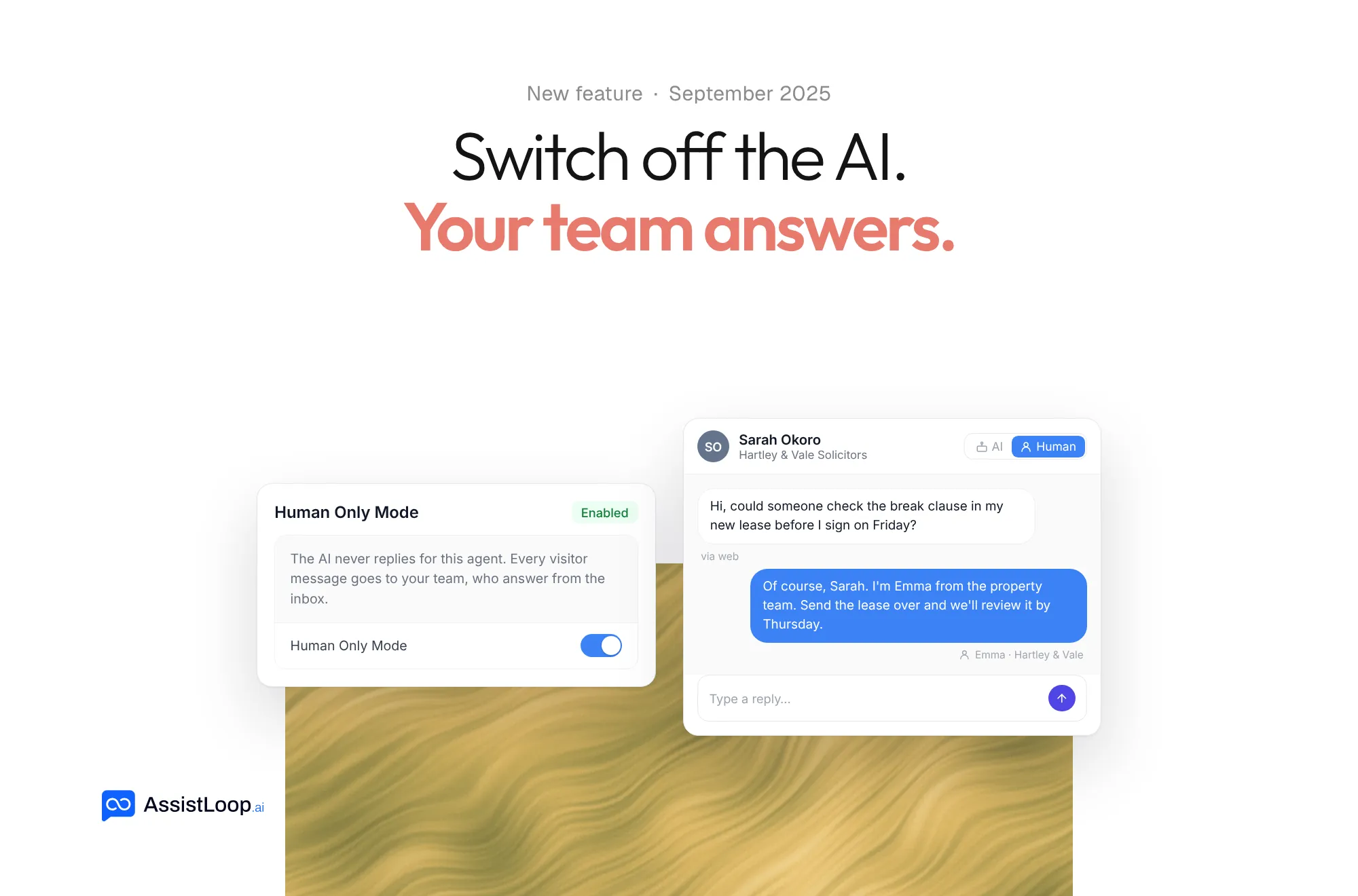
Human Only Mode

Switch the AI off for an agent and have your team answer every chat from the inbox.

Human Only Mode lets you switch the AI off for an agent, so your team handles every conversation itself.

  • When it's on, the AI never replies for that agent.
  • Every visitor message goes to your human agents.
  • Your team answers from the inbox.
  • Turn it off to let the AI reply again.

See human handoff →

Team Members

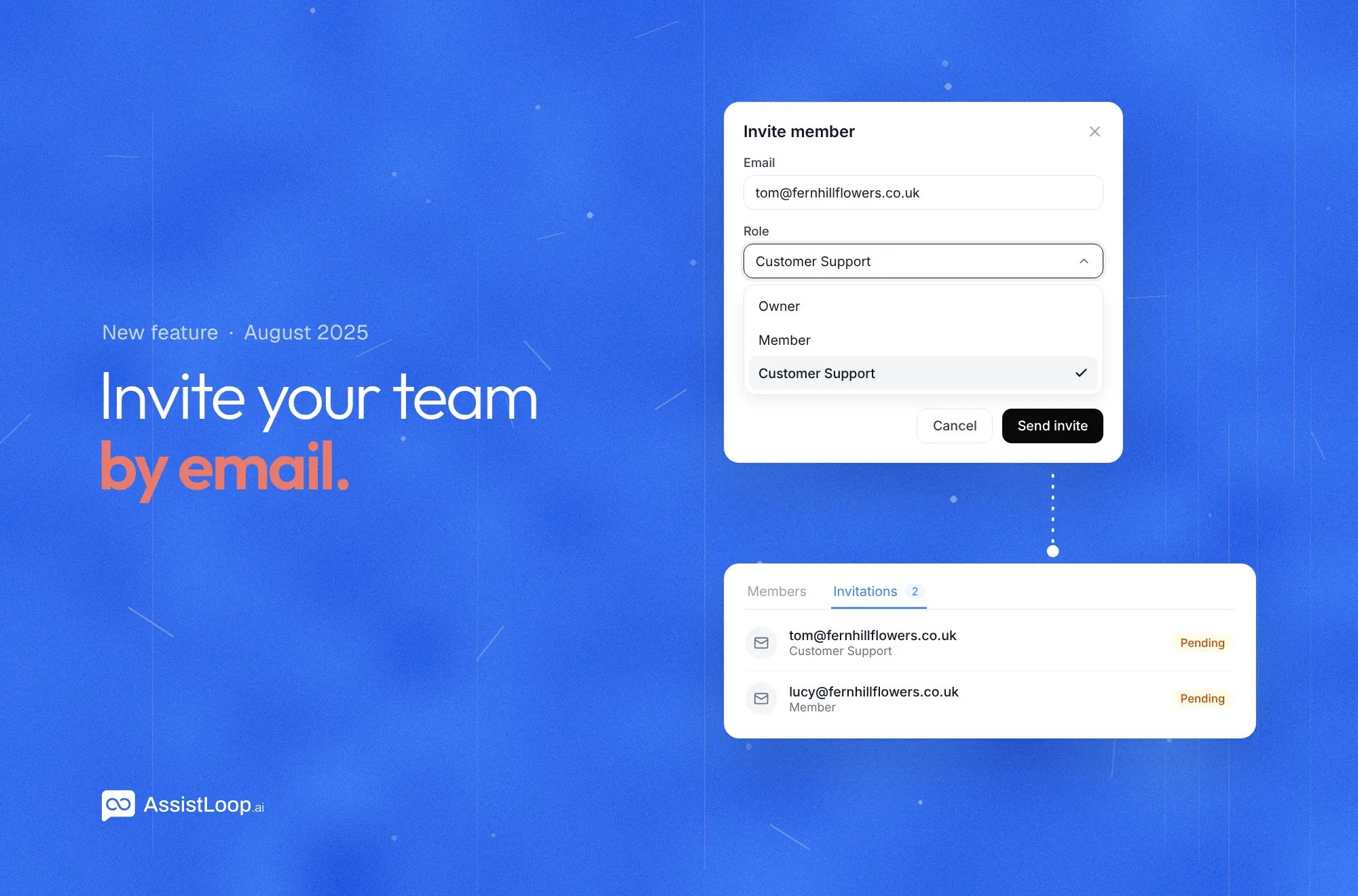
Invite your team by email and give each person a role.

You can now bring your team into AssistLoop. Invite people by email, and they join with the role you choose.

  • Track pending invites on the Invitations tab.
  • Choose one of three roles: Owner, Member or Customer Support.
  • Your plan sets how many members you can have.
  • Need more? Extra seats are available as an add-on.

Compare plans →
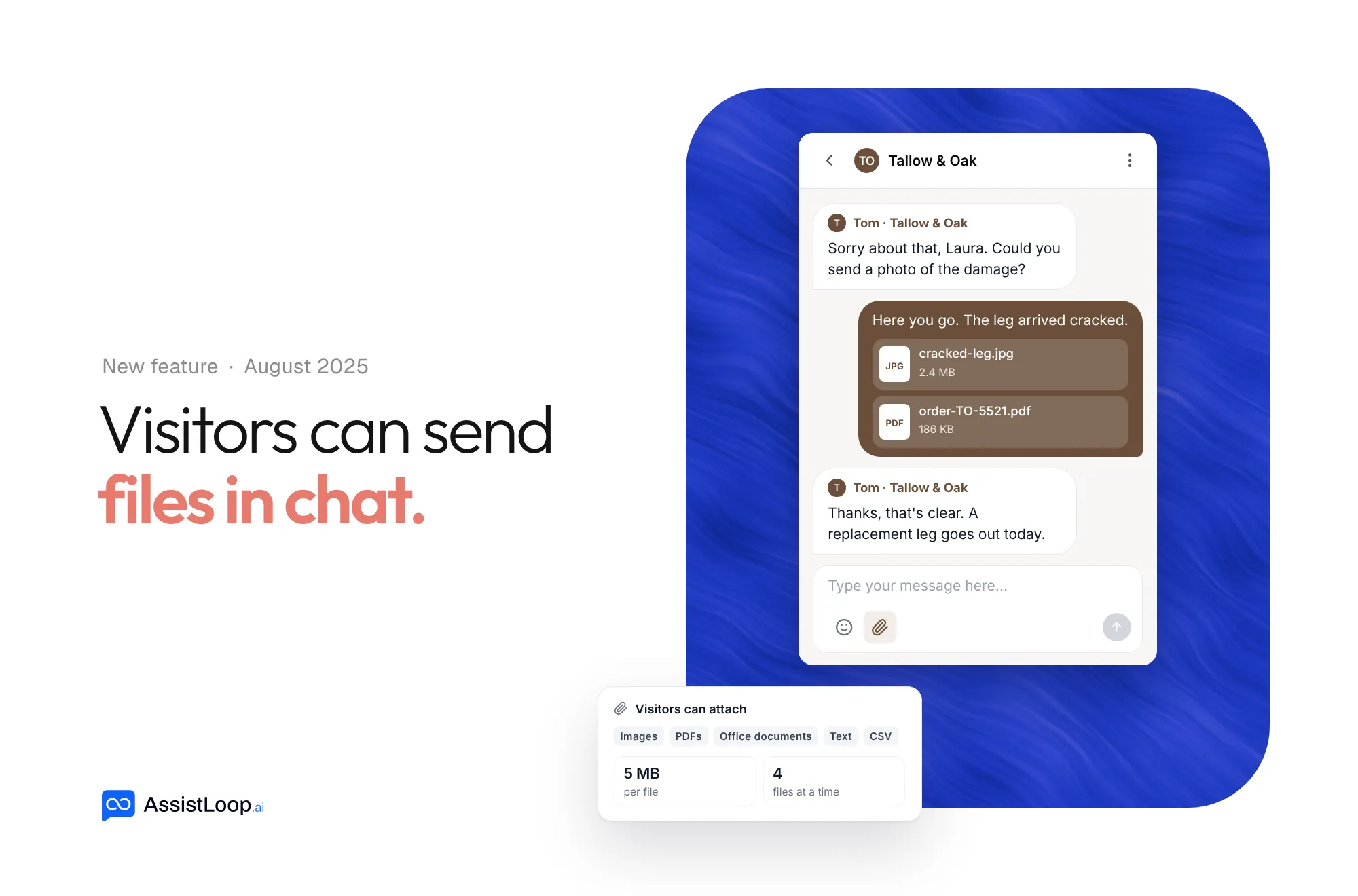
File Attachments

Visitors can share images, PDFs, Office documents, text and CSV files in the chat while they're talking to your team.

Visitors can now attach files in the chat, so they can show your team a problem instead of describing it in a long message.

  • Share images, PDFs, Office documents, text and CSV files.
  • Up to 5 MB per file, and up to 4 files at a time.
  • Available when the visitor is chatting with a human agent.

See human handoff →

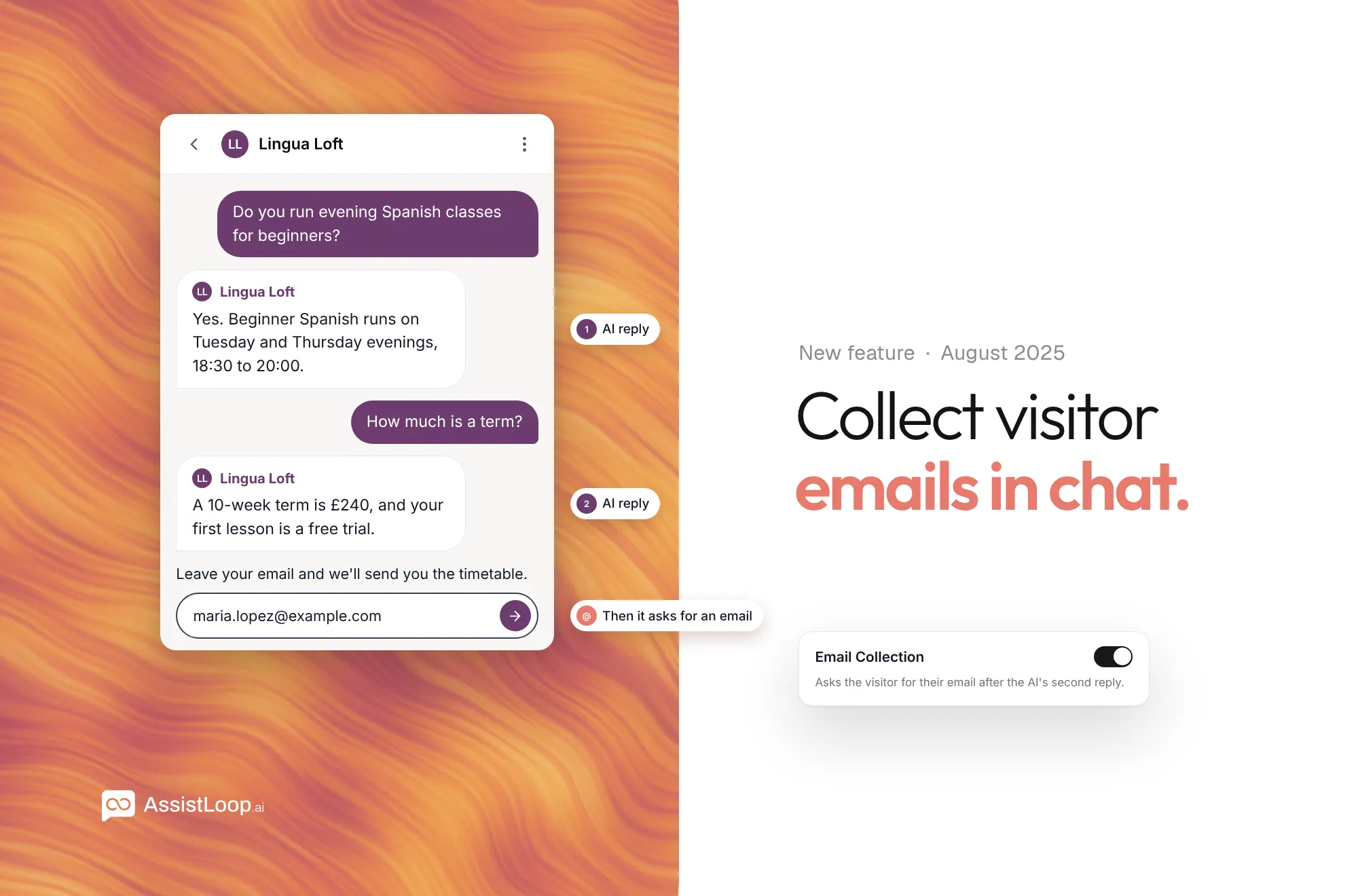
Email Collection

Collect visitors' email addresses in the chat, so you can follow up after the conversation ends.

The widget can now ask visitors for their email address during the chat, so you can follow up after it ends.

  • When it's on, the widget asks for the visitor's email after the AI's second reply.
  • Visitors get two answers first, then the question.
  • The address is saved so you can follow up after the visitor has left the chat.

See lead capture →

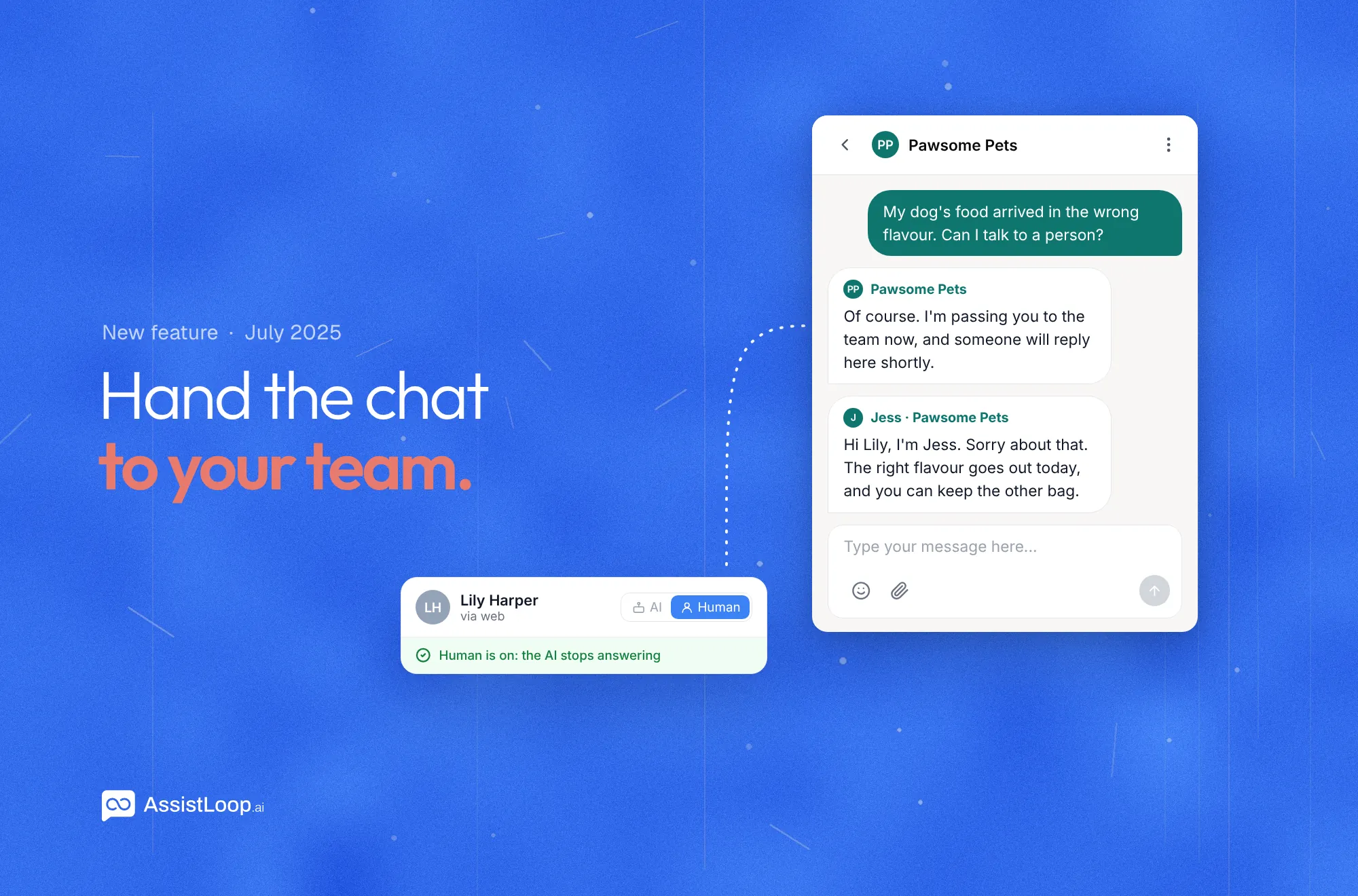
Human Handoff

Your AI agent can now hand a conversation to your team when a visitor asks to talk to a person.

When a visitor asks to talk to a person, the AI now passes the conversation to your team instead of trying to answer everything itself.

  • The AI detects when a visitor asks for a person.
  • It hands the conversation to your team, with the chat so far.
  • Your team replies from the inbox, and the visitor sees the reply in the same chat.

Human handoff is included from the Starter plan. Read the handoff guide →

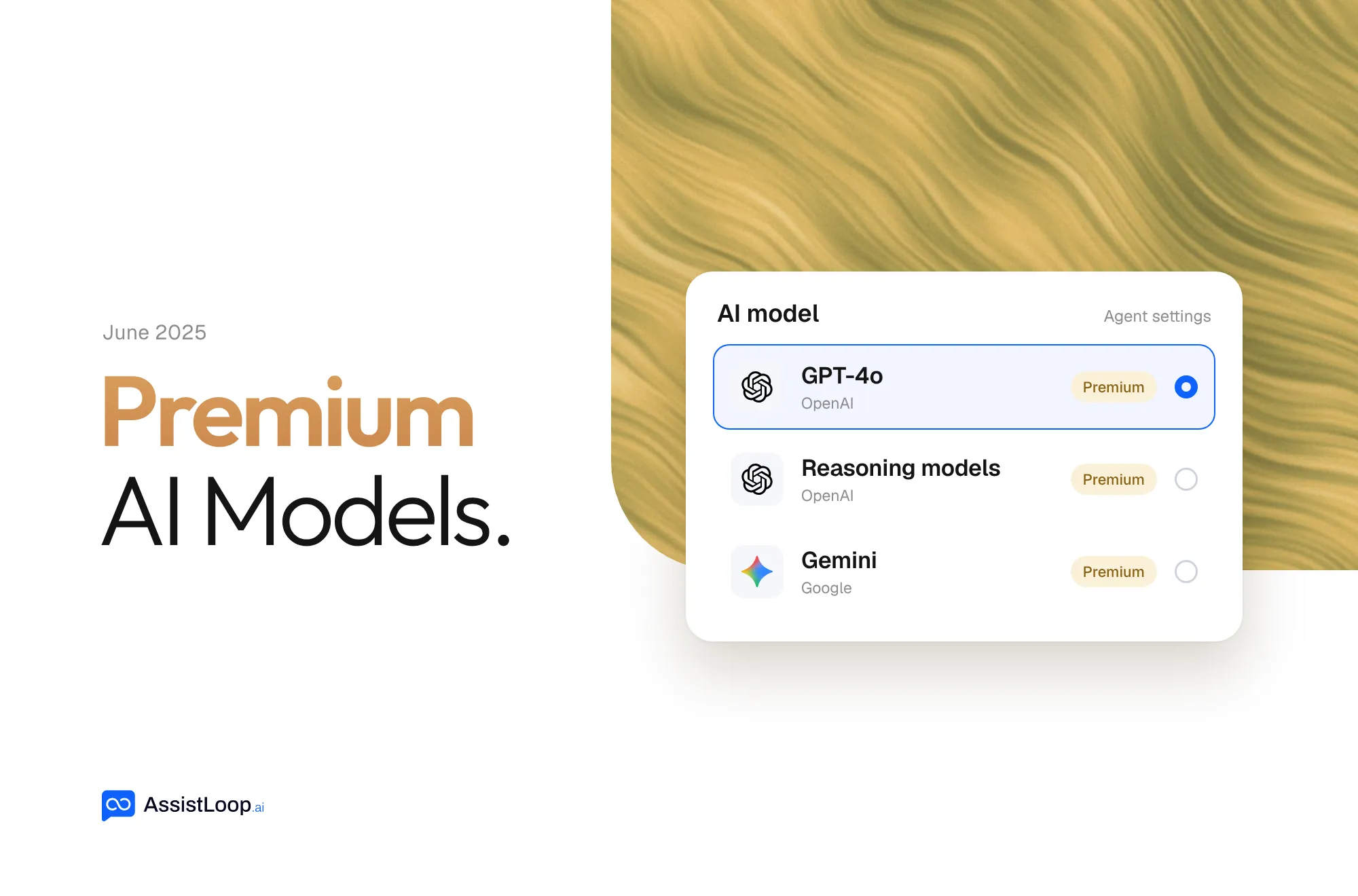
Premium AI Models

Power your agent with premium AI models, including GPT-4o, OpenAI’s reasoning models and Google’s Gemini series.

You can now power your agent with premium AI models, including GPT-4o, OpenAI’s reasoning models and Google’s Gemini series.

  • Pick the model that suits each agent.
  • Use a stronger model for complex or detailed questions.
  • Switch models from your agent’s settings.
  • Premium models use more credits per reply, so keep a standard model for simple questions.

Available on paid plans. See the AI models →

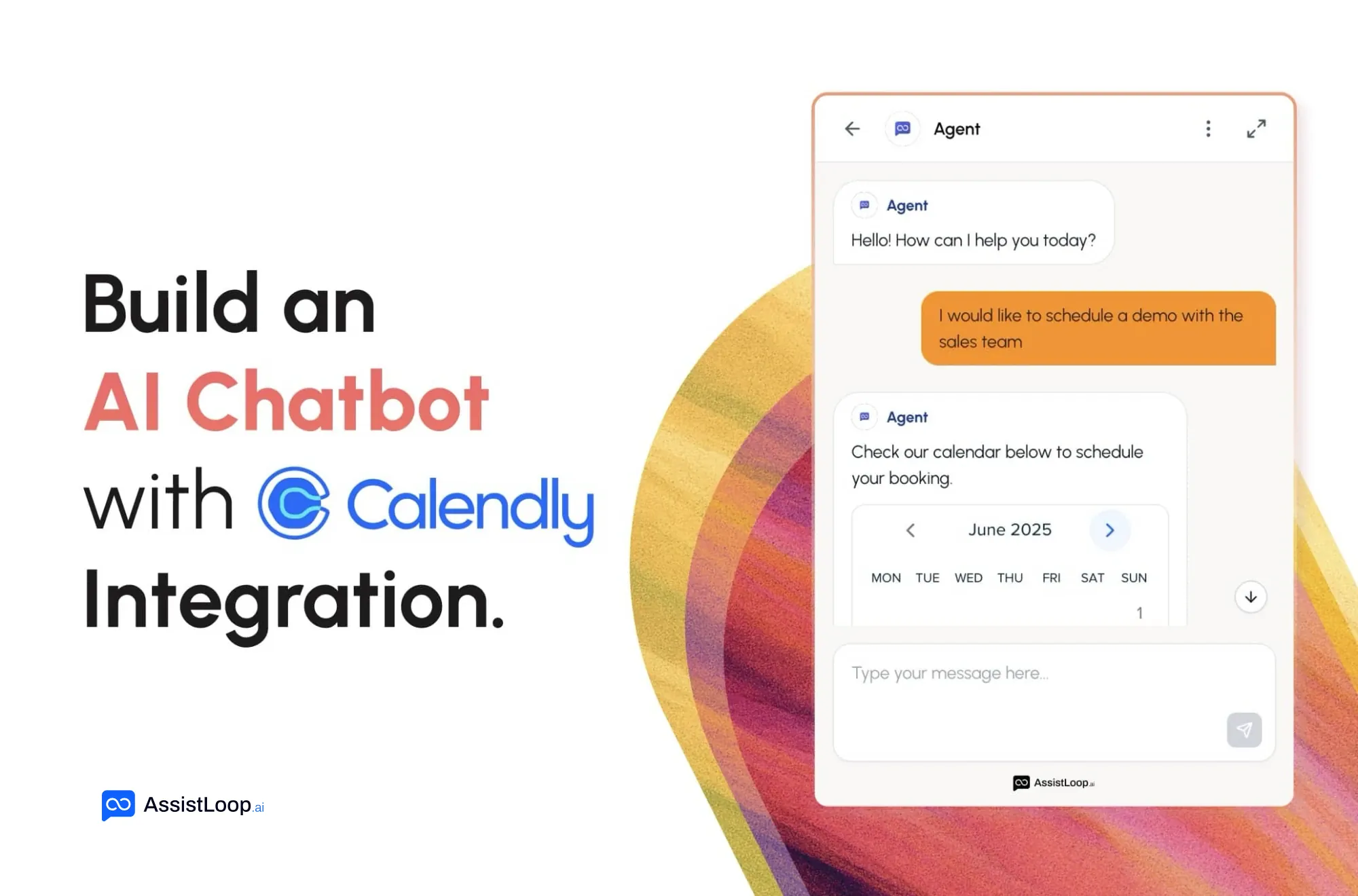
Calendly Integration

Let customers book meetings without leaving the chat. Connect Calendly, and your agent shows the scheduler inside the conversation.

Your AI agent can now book meetings. Connect Calendly, and when a visitor asks for a demo or a call, the scheduler opens right inside the chat.

  • Set up several booking actions, for demos, support calls or consultations.
  • Customers pick a time without leaving the conversation.
  • Bookings use your real Calendly event types.
  • Bookings land in your Calendly account as usual, so your team sees them where they already work.

Learn about the Calendly integration →

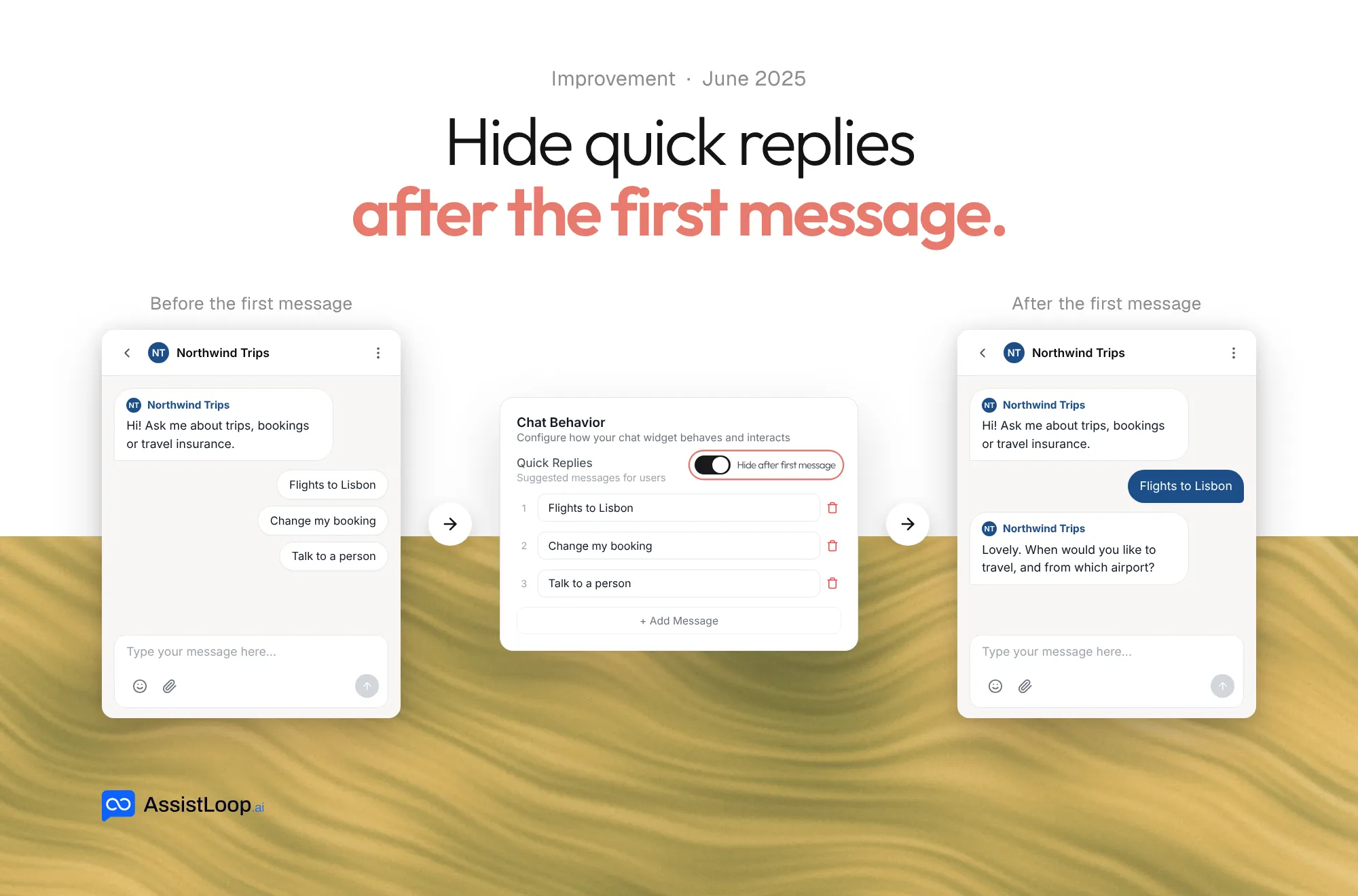
Quick Replies: hide after first message

You can now hide quick replies once the visitor sends their first message.

Quick replies help visitors start a chat in one tap. Once the chat has started, you may not want them on screen any more, so you can now hide them.

  • Turn on Hide after first message under Quick Replies, in the widget's Behavior tab.
  • The suggested messages disappear as soon as the visitor sends their first message.
  • The conversation that follows has the chat window to itself.
  • Leave the option off and quick replies stay visible, as before.

See widget customisation →

See what's coming next.

Vote for the features you want sooner, or request a new one.

See the roadmap