How to Add a Full-Page AI Support Chat to Your Website
A tested guide to putting your AI support agent on a page of its own with AssistLoop's iFrame tag: the WordPress Custom HTML block, the user roles that can save an iframe, a height that fits under your header, and how to keep the corner bubble off that page.
 AssistLoop Team11 min read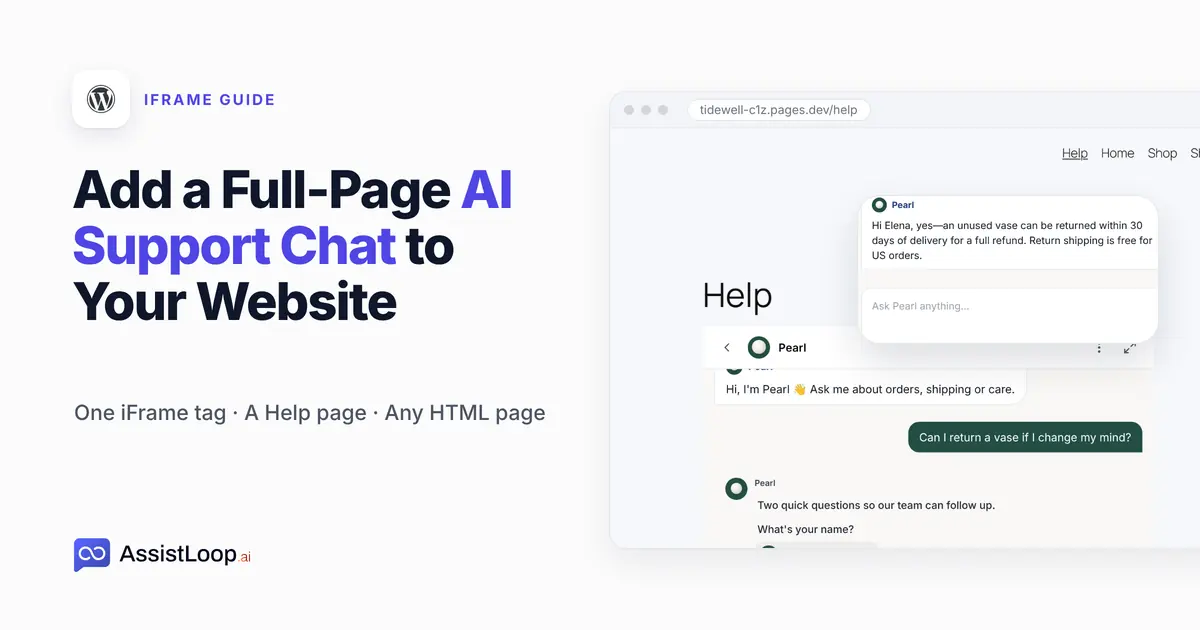
On this page
A chat bubble in the corner is easy to miss, and a Help page full of links still leaves the visitor hunting. This guide puts your AI support agent on a page of its own with one iframe tag, so the page itself is the conversation. We build it in WordPress, where the tag goes into a Custom HTML block, and it covers the three things we hit in testing: an iframe that vanishes on save, a chat taller than the screen, and two chats on one page. Plan on ten minutes.
Last updated: October 2026. We recorded the install on a WordPress 7.1 site in mid-October 2026. On 24 October 2026 we copied the tag again from the dashboard and placed it on a fresh WordPress 7.1.3 site. We saved it under three user roles and measured the page on a desktop and a phone screen.
Quick answer
|
A shopper wants to send back a vase they no longer like. They click Help in the menu, and instead of a list of links the page is a chat with the shop's agent, which tells them the return rules in two sentences.
That shop is Tidewell Ceramics, our fictional pottery brand, here running as a WordPress site on the default Twenty Twenty-Five theme. Its agent, Pearl, had already learned Tidewell's website in AssistLoop. Every screen below comes from that site.
The video runs a minute and twenty seconds, from copying the tag to the answer on the Help page.
What you need
An AssistLoop agent trained on your site. No account yet? Sign up, choose Create Agent, give it a name and enter your website address. AssistLoop reads the pages it finds, and that's what the agent answers from.
A page you can paste HTML into. In WordPress that's any page, through the Custom HTML block, as long as you sign in as an Administrator or an Editor (the next section explains why).
A name for the page. We used Help. Contact, Support or Ask us work just as well.
A full page or a chat bubble?
An iframe shows one web page inside another. AssistLoop's iFrame tag loads the whole chat window into your page at full width, where the regular install adds a floating button to every page. Pick by what the visitor should see.
| You want | Use | Goes on |
|---|---|---|
| Chat on all pages | Bubble | Every page |
| A help page | iFrame tag | One page |
| Both | Both | Bubble off Help |
The two installs work side by side. If your site already has the bubble, the last section shows how to keep it off the Help page.
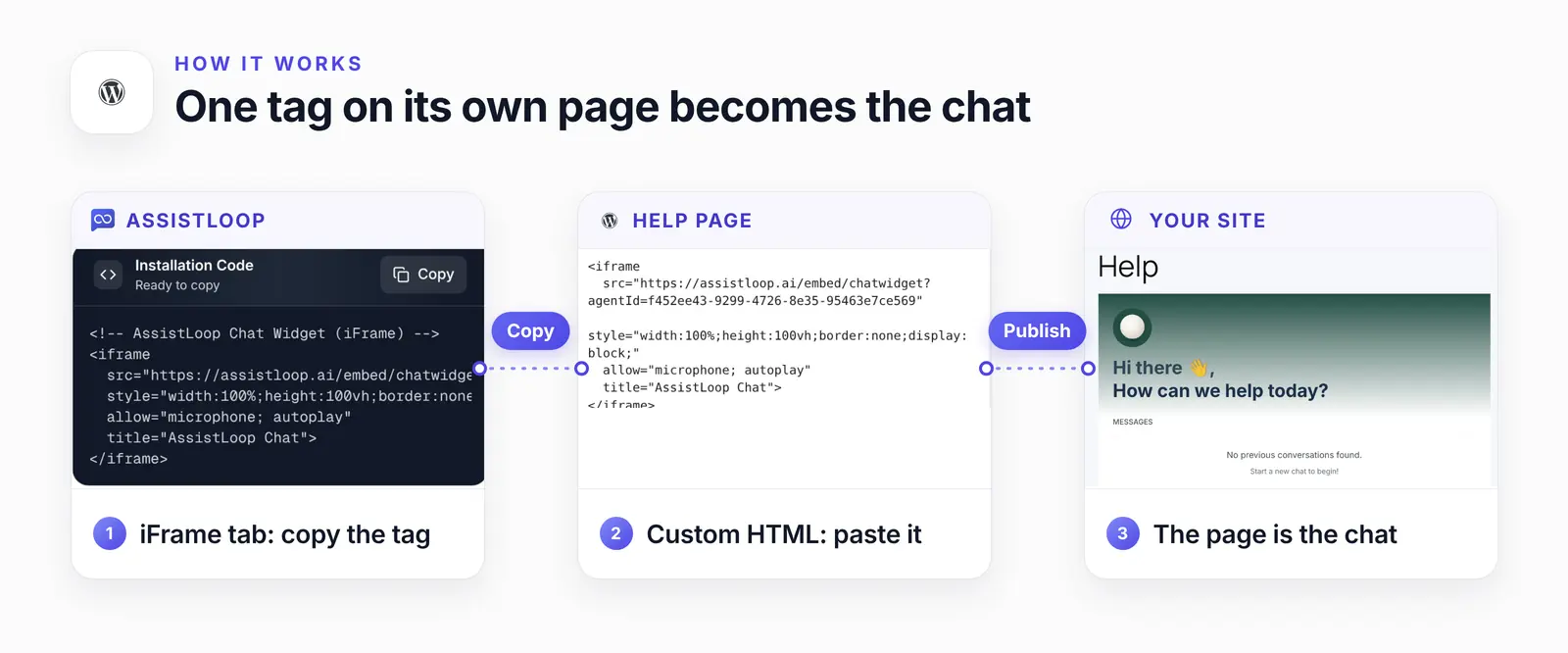
The tag from the dashboard, the block it goes into, and the page it turns into a chat.
Why the iframe can vanish when you save
WordPress removes iframes from content saved by users who lack one capability, unfiltered_html. The WordPress documentation says: "Allows user to post HTML markup or even JavaScript code in pages, posts, comments and widgets." On a normal single site, only Administrators and Editors have it, and on Multisite only Super Admins do (Roles and Capabilities, WordPress.org, updated September 2026).
We saved the same Custom HTML block as an Administrator, an Editor and an Author. Authors can't create pages, so their copy went into a post. The Administrator's and the Editor's pages kept the iframe. The Author's post kept only the comment line above the tag: the iframe itself was gone, and WordPress reported the save as a success.
If the chat disappears after you save, check which role you're signed in with.
Step 1: Copy the iFrame tag from Widget Installation
Open your agent in AssistLoop, choose Widget Installation in the sidebar and pick iFrame, the last of the platform tabs. Its three steps say it plainly: copy the snippet, paste the single tag into your page with no JavaScript or extra CSS, then save and check the page. Click Copy on the Installation Code card.
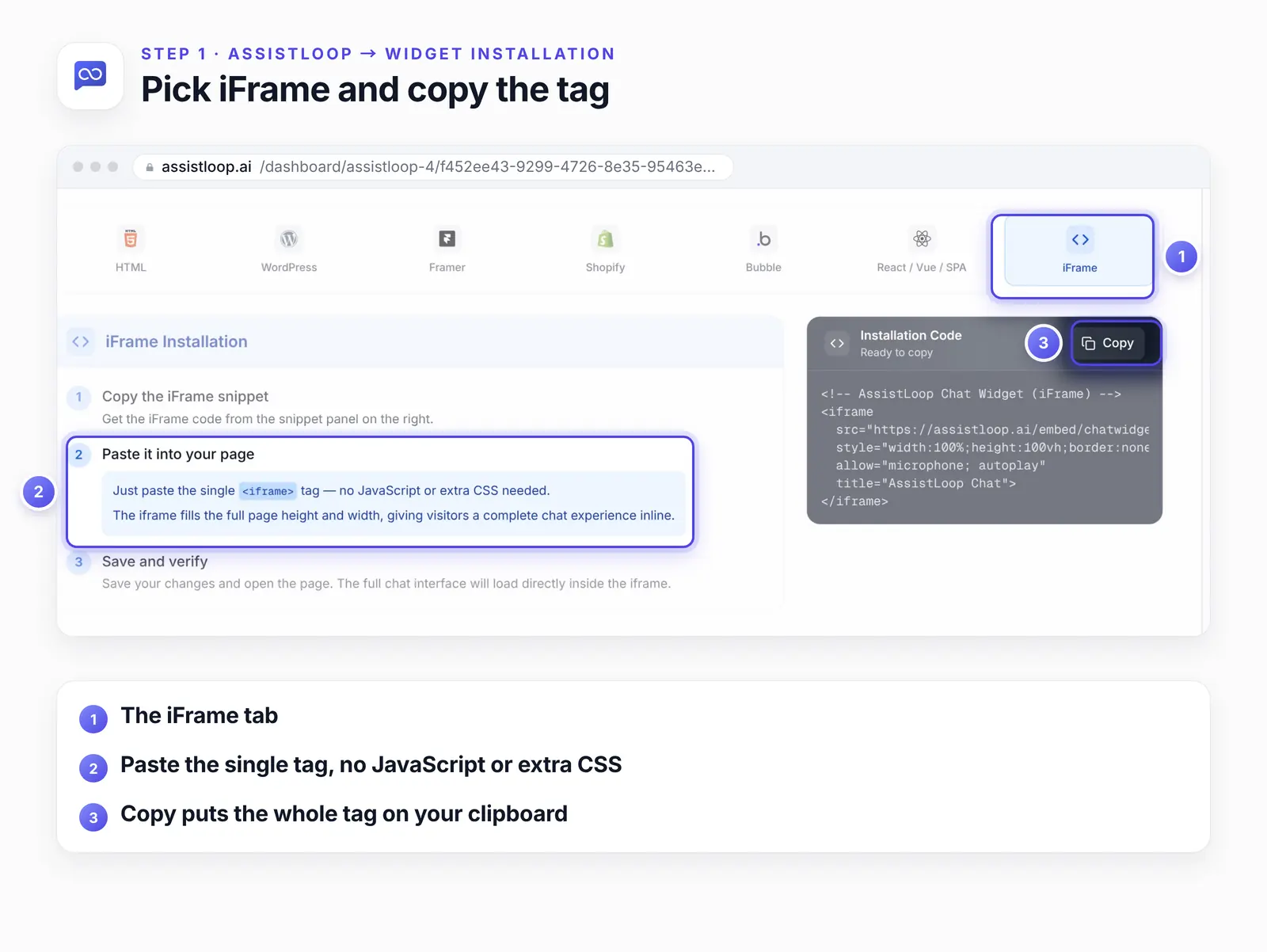
This is what Copy put on our clipboard, with YOUR_AGENT_ID where your own ID goes:
<!-- AssistLoop Chat Widget (iFrame) --> |
Keep the title attribute. Screen readers announce an iframe by its title, and many sites still miss it: in the 2024 Web Almanac, Lighthouse's frame-title check passed on 51% of sites, up from 36% in 2022. Change the text to suit your page, such as "Tidewell support chat", if you like.
Step 2: Add a Help page with a Custom HTML block
In WordPress, go to Pages → Add Page and type the title. Press Enter, type /html and pick Custom HTML. On WordPress 7.1 the block shows an Edit HTML button, which opens a box with HTML, CSS and JavaScript tabs. Paste the tag on the HTML tab and click Update.
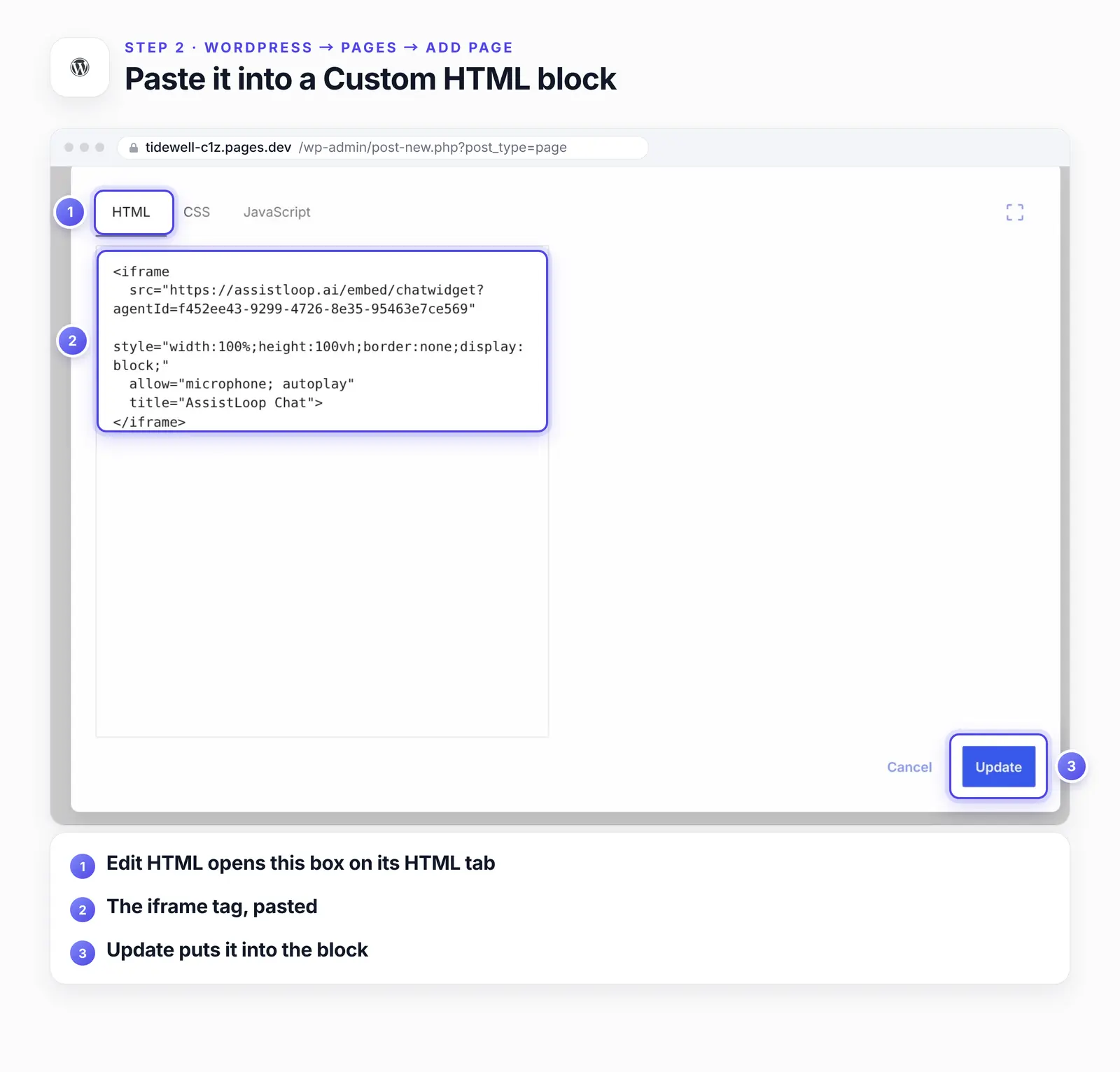
Our October paste. Today's Copy also adds a comment line above the tag. Leave the CSS and JavaScript tabs empty; the tag needs neither.
Step 3: Publish the page and open it
Back in the editor, the block now previews the chat. Click Publish, then Publish again in the panel that asks you to confirm. WordPress says the page is live and offers View Page.
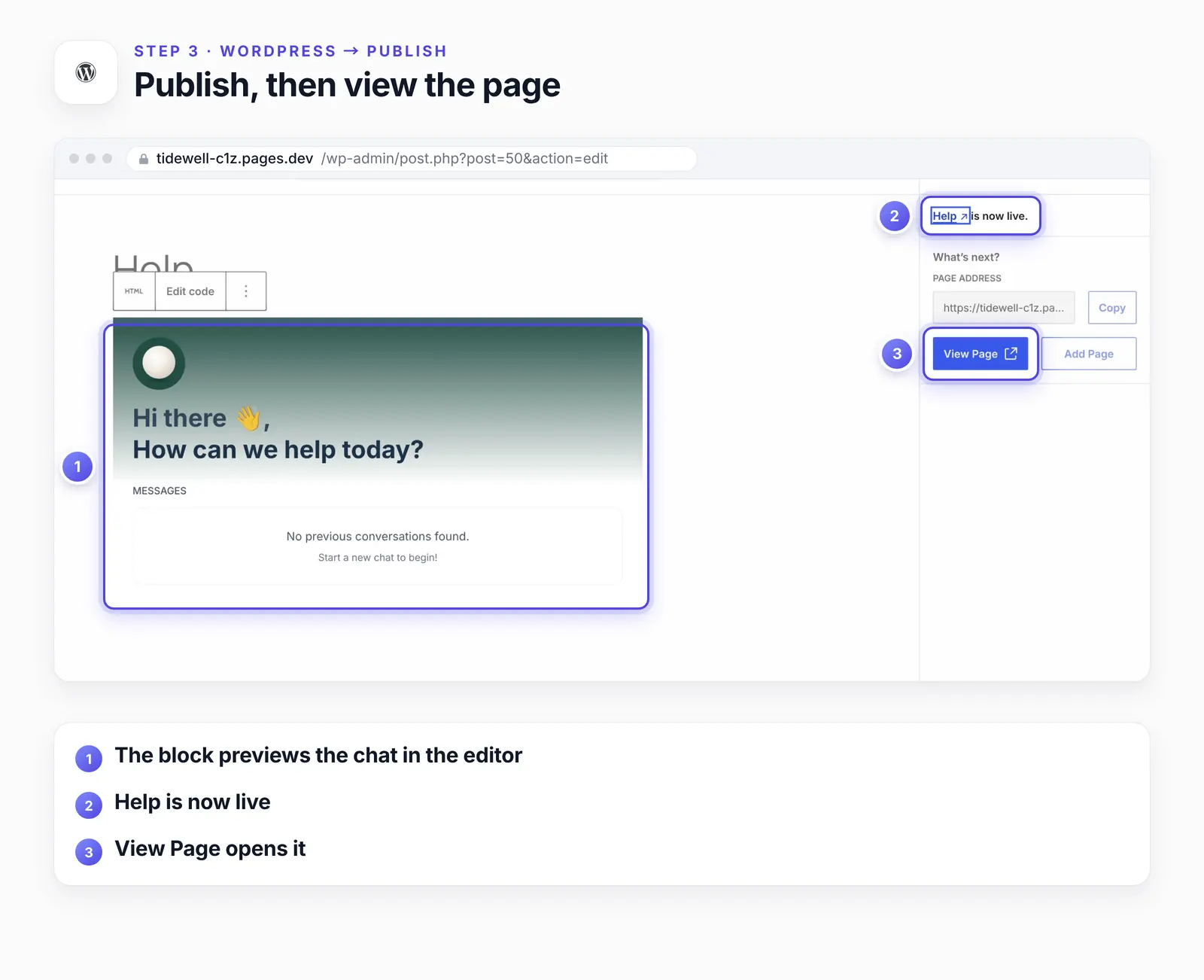
The block's toolbar sits over the page title while the block is selected.
The Twenty Twenty-Five theme added the new page to the site's menu by itself, because its menu lists every published page. If your menu was built by hand, add the page in the Site Editor's Navigation block (block themes) or under Appearance → Menus (classic themes).
Step 4: Ask a question on the page
On the published page, start a chat and ask something your site answers. As a shopper, Elena Costa, we asked "Can I return a vase if I change my mind?" Pearl's pre-chat form asked for a name and an email first, with an optional order number we skipped. Then it answered:
Hi Elena, yes—an unused vase can be returned within 30 days of delivery for a full refund. Return shipping is free for US orders.
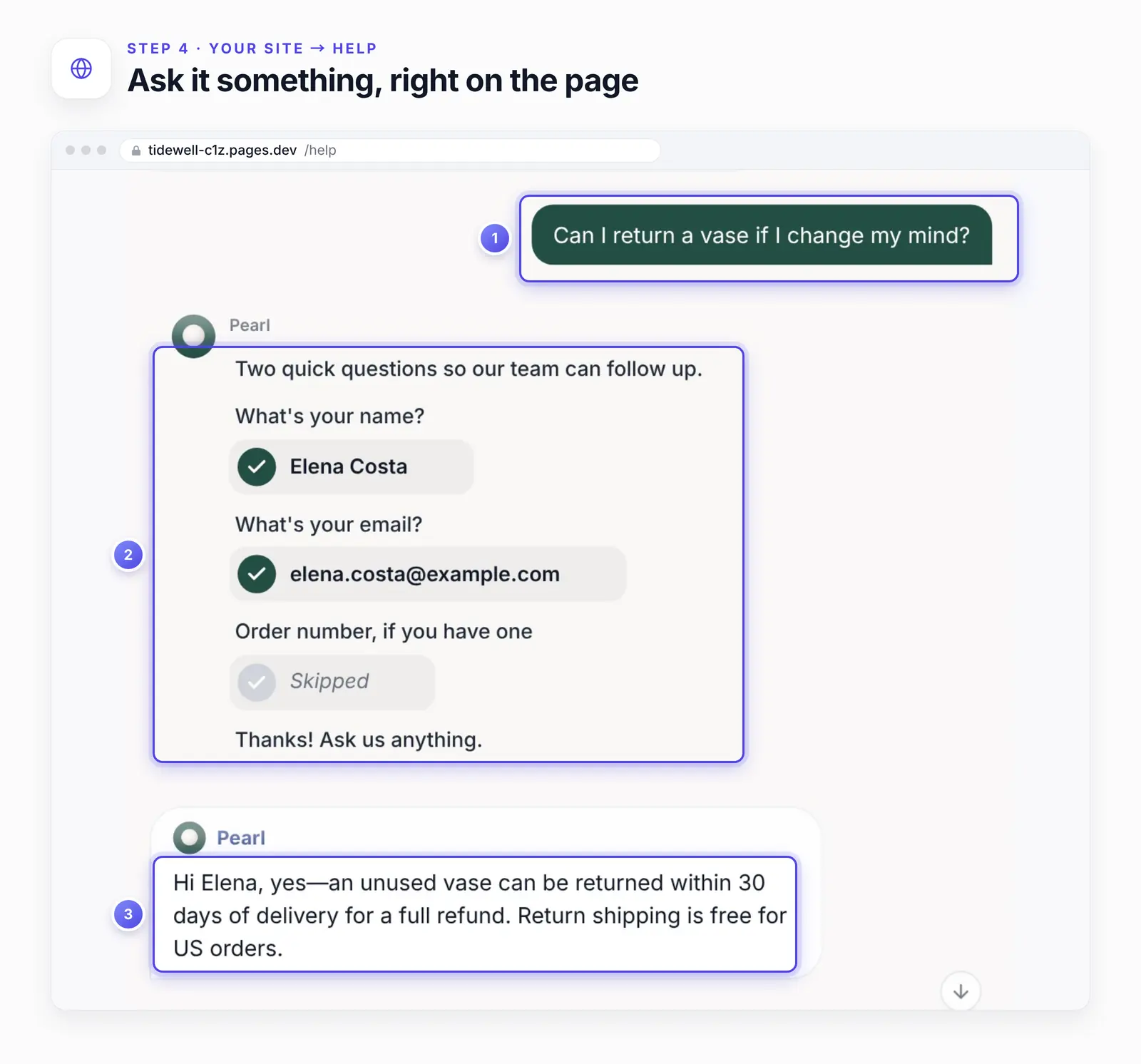
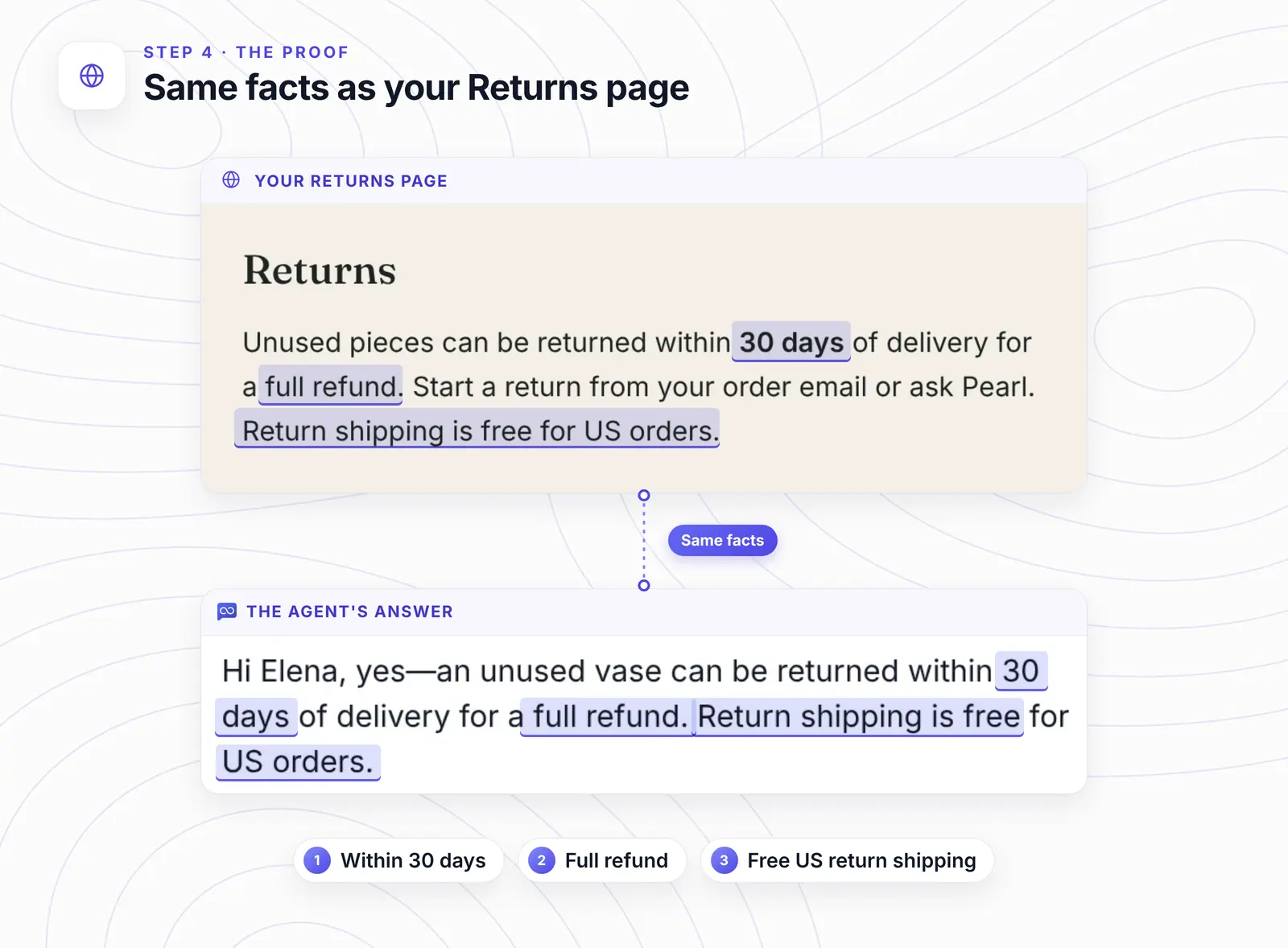
Every fact in that reply is on Tidewell's Returns page, which the agent had read during training.
Want a Help page that answers like this? |
Make the chat fit under your header
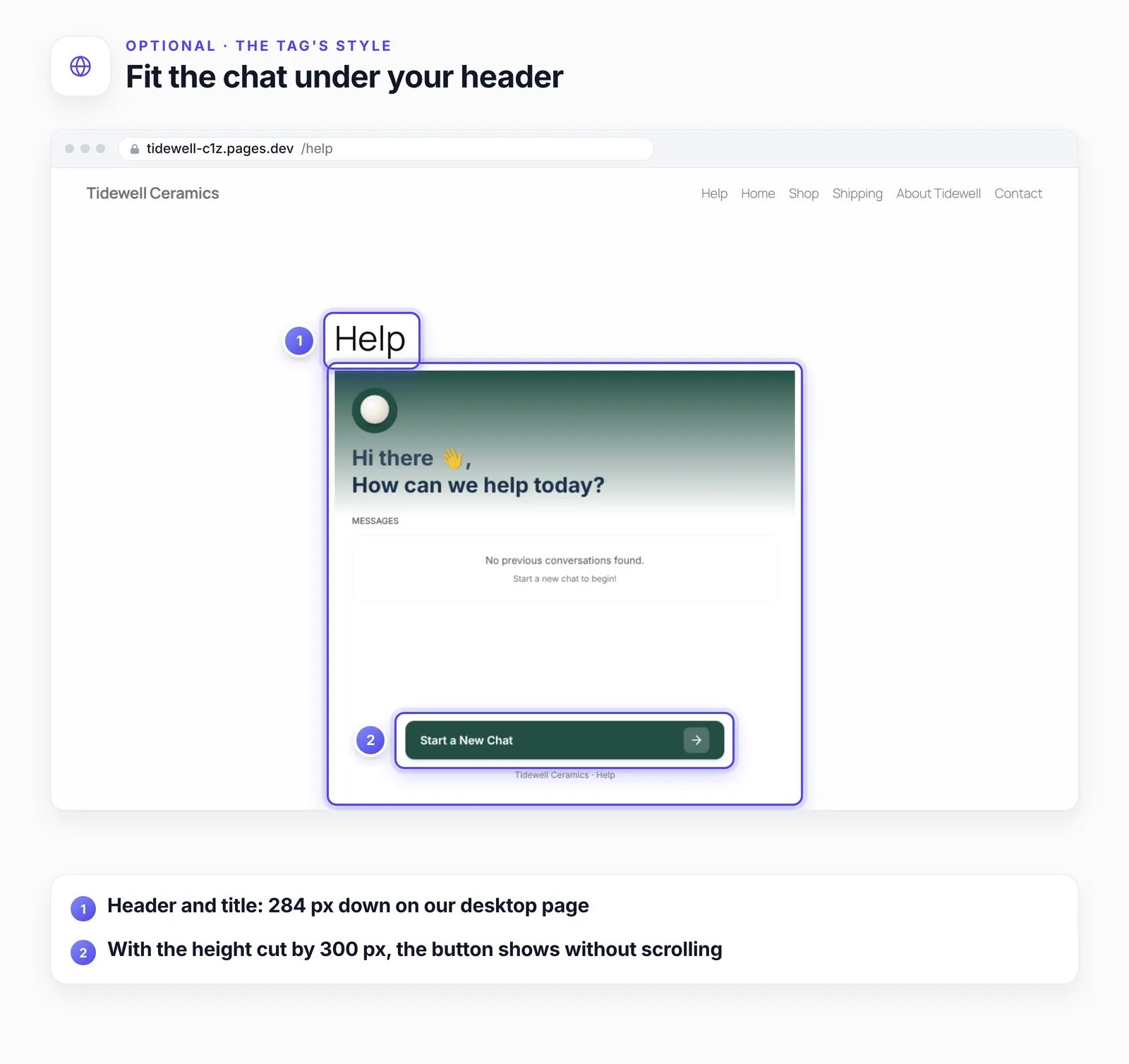
The tag sets the chat's height to 100vh, the full height of the browser window. On a page that holds only the tag, that fills the screen exactly: our plain HTML test page, with its body margin set to 0, had no scroll bar at all.
On a WordPress page, the header and page title sit above it. On our 1440 × 900 desktop screen the chat started 284 px down, so its bottom, with the Start a New Chat button, was below the fold. On a 390 px phone screen it started 185 px down, with the same result.
Subtract the space above the chat in the style line:
style="width:100%;height:calc(100vh - 300px);border:none;display:block;" |
With that change, the whole chat, button included, showed without scrolling on both screens. We also tried 75vh: it fit on the phone but cut the button on the desktop. Measure your own theme and adjust the 300.
Keep the chat bubble off the Help page
If you installed the bubble with AssistLoop's WordPress plugin, the Help page gets both: the full-page chat and the bubble in the corner, with its greeting. We saw exactly that with the official WordPress plugin (version 1.0.2) switched on.
The plugin adds the bubble through WordPress's footer hook, and this snippet removes it on the page whose slug is help, nowhere else. Add it to your child theme's functions.php or a code snippets plugin:
// Keep the chat bubble off the Help page, which has the full-page chat |
We tested it as a must-use plugin file. With it in place, our Help page loaded no bubble script and one chat, and the Shop page still had the bubble. Change help to your page's slug if you named it differently.
If the chat doesn't show
The block is empty after saving. Your user role can't save iframes. Sign in as an Administrator or Editor, or ask one to paste the tag.
The page shows the code instead of the chat. The tag probably went into a Code block, which displays code as text. Delete it and use a Custom HTML block.
A blank frame. Check that the address ends with your full agent ID; Copy includes it. Then try a private window with extensions off, in case a blocker hides the frame.
The preview inside Edit HTML shows an error. That box runs the code in a sandbox where the chat can't load. The block preview and the published page are what count.
Two chats on the page. The plugin's bubble loads on every page, Help included. Use the snippet in the section above.
How we tested this
The site: Tidewell's pages on a self-hosted WordPress 7.1 site with the Twenty Twenty-Five theme, served at the Tidewell demo address. The screens in the steps are frames from the October recording.
The agent: Pearl, which learned Tidewell's live pages before filming and asks every new visitor for a name and email first. We quote its Step 4 reply exactly.
The recheck, 24 October 2026: a fresh WordPress 7.1.3 install and the tag copied from the dashboard that day. We saved it with WP-CLI as an Administrator, an Editor and an Author, and measured the page in Chromium at 1440 × 900 and 390 × 844. We also loaded the tag on a bare HTML page and tested the bubble snippet with the official plugin.
Not tested: WordPress.com, page builders such as Elementor, and the embed blocks of Wix, Squarespace or Webflow. We also didn't try the agent's page rules on a page that holds the iFrame.
The figures: frames from the recording and screenshots from the recheck, cropped, with pins and outlines drawn around the interface, never on it. One frame was edited: in Step 2, the Edit HTML box's own preview pane is blank because we blanked its sandbox error (see If the chat doesn't show).
Frequently asked questions
Does the full-page chat work outside WordPress?
Yes, on any page that accepts raw HTML. We loaded the same tag on a plain HTML page and it filled the window. On other site builders, use their custom code or embed element; we haven't tested those here.
Can I keep the chat bubble on my other pages?
Yes. The iFrame tag only touches the page it sits on, and the bubble install stays as it was. Remove the bubble from the Help page alone if you don't want two chats there.
Is it the same agent as the chat bubble?
Yes. The tag loads the same agent, with the same training and the same pre-chat form.
Can I make the chat smaller than the whole screen?
Yes. Change the height in the style line, for example to calc(100vh - 300px), which fit both our desktop and phone screens. The width follows the page's content column.
Does the full-page chat work on phones?
Yes. On a 390 px phone screen it filled the theme's 330 px content column. With the default 100vh height the Start a New Chat button sat below the fold; the calc() height above fixes that.
Back on Tidewell's site, the vase question gets its answer on the Help page itself, and the menu link makes that page easy to find. Give your own Help page an agent that already knows your site, and if you'd rather have the chat in the corner of every page, here's the WordPress plugin install.
 | Written by AssistLoop Team We build AssistLoop, an AI support agent that answers customers from your own website and documents, and hands the chat to your team when a person should step in. ★★★★★ "It's also flexible and you can customize it to suit your brand." Verified User, small business, on G2 |
Build Custom AI Chatbot for Your Business FREE
Create intelligent AI agents that handle customer support, boost conversions, and work 24/7 for your business.
Build Your Agent