How to Add AI Customer Support to WordPress (Free Plugin, No Code)
To add an AI support agent to WordPress, install the free AssistLoop plugin and paste one Agent ID. The agent then answers visitors on every page from what it learned on your site. Plan on four steps and about five minutes.
 AssistLoop Team14 min read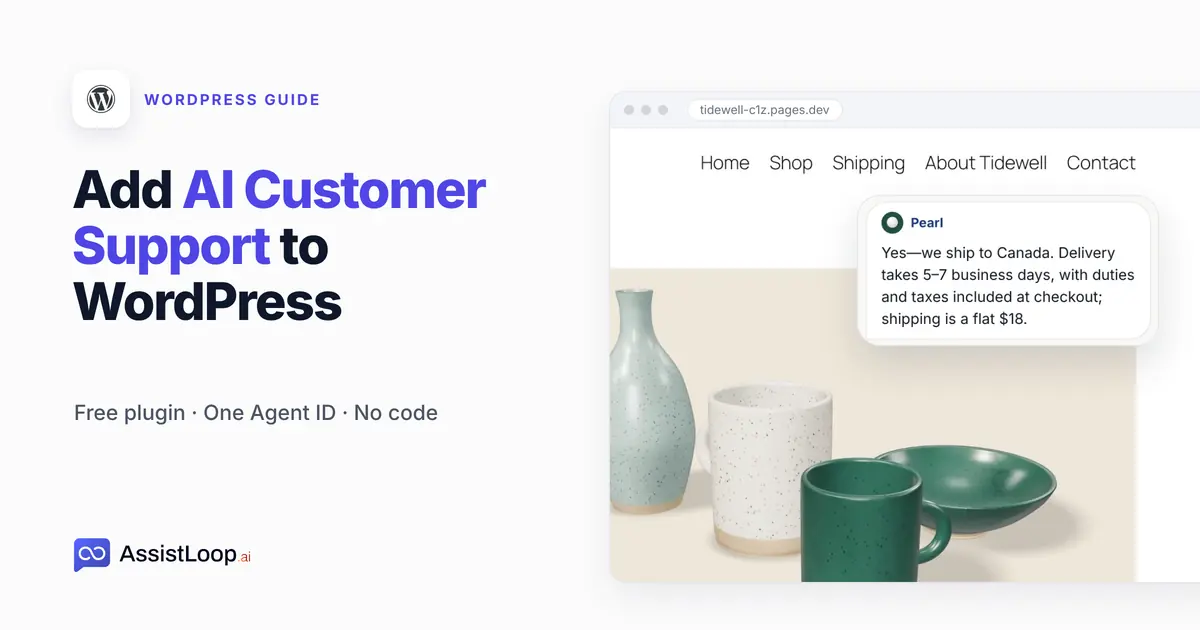
On this page
WordPress runs 39.6% of all websites (W3Techs, 21 October 2026). Some AI plugins for it ask for your own OpenAI API key, and code guides send you into footer.php. You need neither.
Last updated: October 2026. We ran the install on WordPress 7.1 with version 1.0.2 of the plugin, then held the agent's first answer up against the shop's own Shipping page. We filmed the WordPress steps before the walkthrough went up on 8 October 2026, and the AssistLoop dashboard screens date from 17 October 2026.
Quick answer
|
It's 11 pm, and a shopper on your WordPress store types the question three others asked this week: "Do you ship to Canada?" Your Shipping page already says yes, with the delivery time and the price. She never opens it.
For this guide we set the agent up on Tidewell Ceramics, a pottery shop we invented for demos, running on WordPress 7.1. Its agent, Pearl, had already learned the shop's pages in AssistLoop before we opened WordPress.
The two-minute walkthrough follows the same build, from copying the ID in AssistLoop to Pearl answering on the shop.
What you need
An AssistLoop agent that has learned your site. If you don't have one yet, sign up and give it your website's address, and AssistLoop trains it on your pages. AssistLoop also runs the AI model, so WordPress never holds an API key.
The plugin itself, which is free on WordPress.org. Your AssistLoop plan sets how much the agent can answer; the plans and limits page lists them.
An Administrator login. The plugin registers its settings page for administrators only, so an Editor or Shop Manager account won't see it.
Self-hosted WordPress, or a WordPress.com plan that allows plugins. On WordPress.com the plan decides, as its support page on installing plugins (updated 20 October 2026) spells out:
Installing plugins is available on all WordPress.com paid plans: Personal, Premium, Business, and Commerce plans. For free sites, upgrade your plan to install plugins.
We tested on self-hosted WordPress only, so load your WordPress.com site after installing and confirm the agent is there. Running WooCommerce changes nothing here: the plugin installs the same way on a store, and the agent answers from the product and policy pages it was trained on.
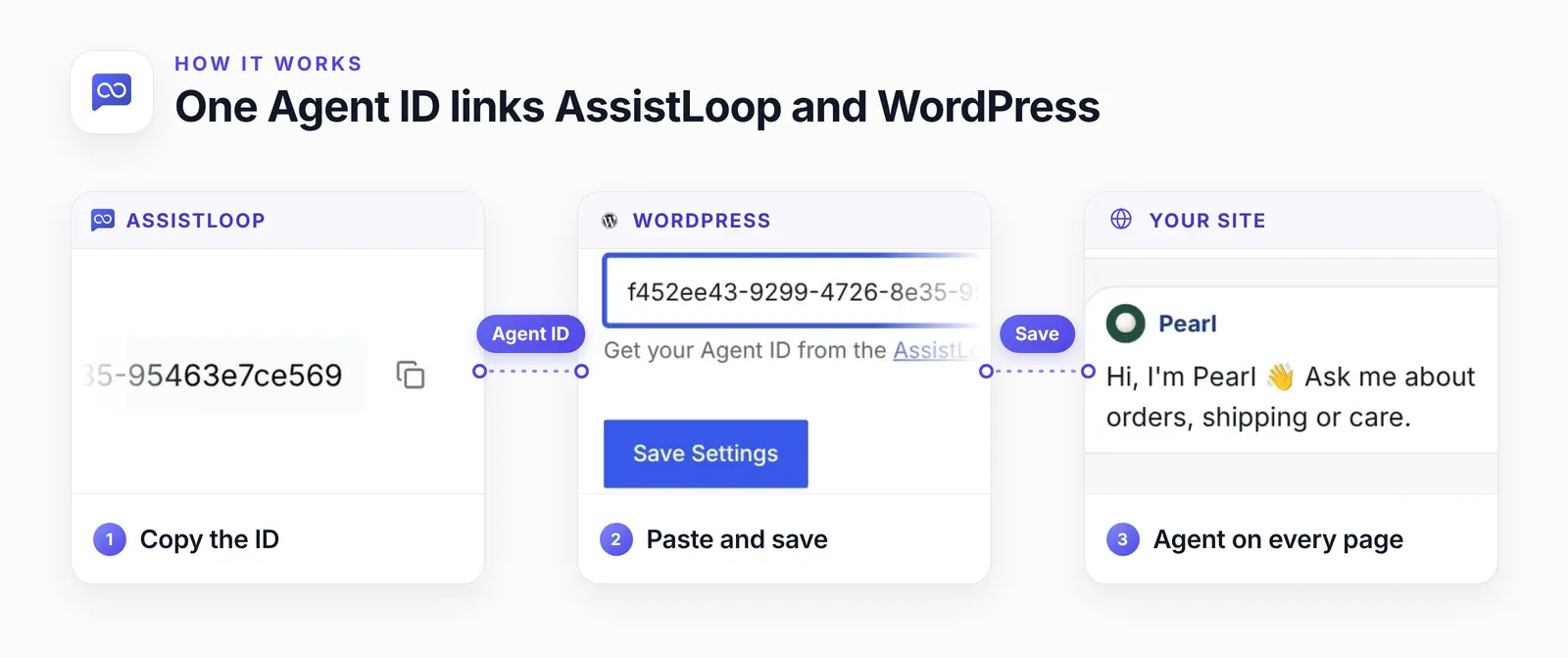
The Agent ID is the only thing that crosses over. WordPress stores it, and the plugin adds the agent to each page.
Three ways to add an AI support agent to WordPress
The three routes differ in what you paste and who runs the AI.
| Route | Paste | Note |
|---|---|---|
| Plugin | Agent ID | Survives theme swaps |
| HTML code | Script | Footer plugin or child theme |
| Own-key AI plugin | API key | You pay the provider |
The AssistLoop plugin is the route this guide takes. It's one of AssistLoop's official plugins. You paste the Agent ID, and AssistLoop runs the AI from its side.
The HTML code suits a site that already runs a header and footer plugin, or a developer who keeps changes in a child theme. Rather paste the code?, after Step 4, covers where it goes.
An own-key AI plugin asks you to create an API key with an AI provider and pay that provider yourself. You also set up its training inside WordPress.
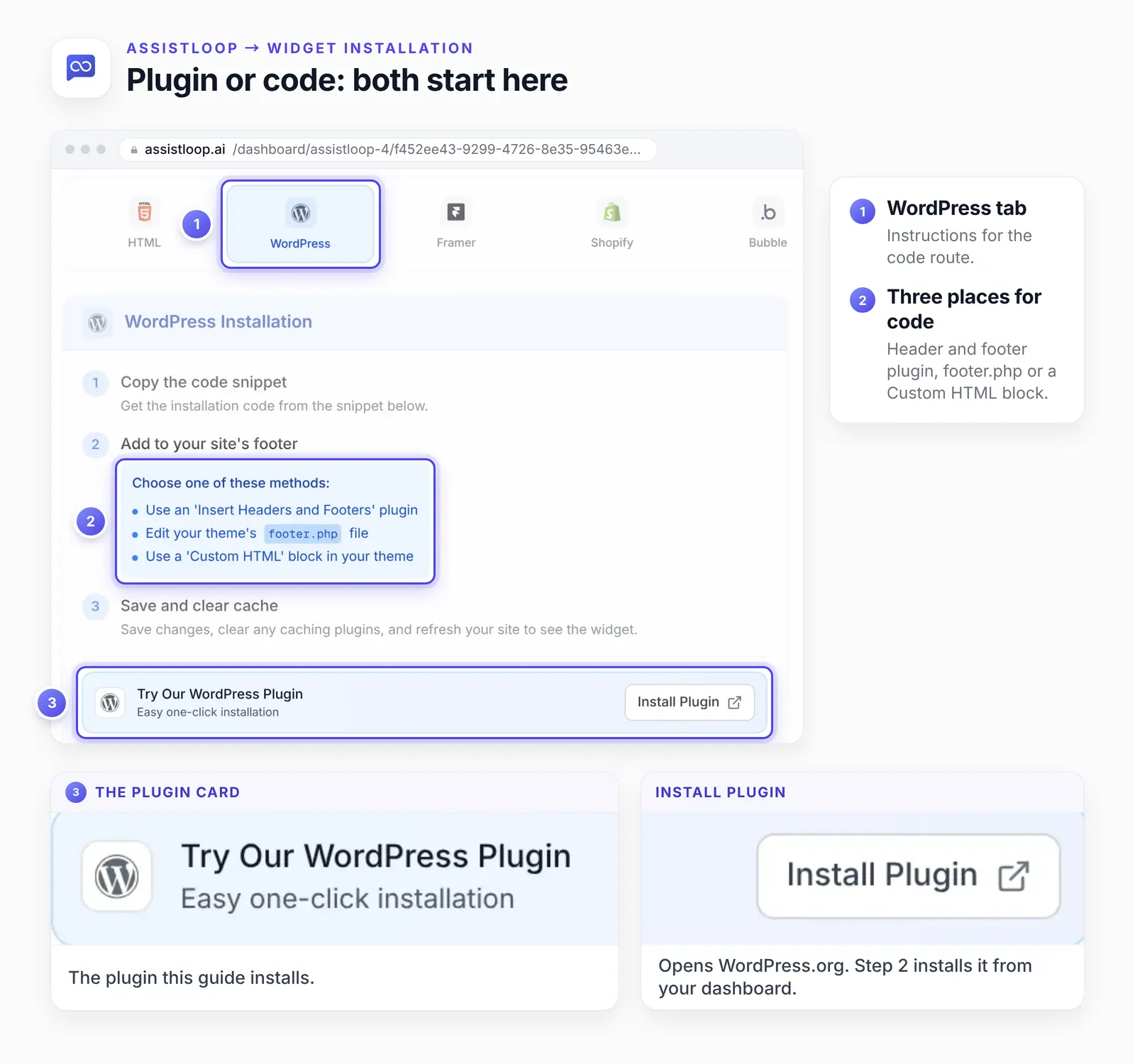
AssistLoop's Widget Installation page shows both the code route and the plugin. This guide installs that plugin from your WordPress dashboard in Step 2.
Choose one route. With the code and the plugin both installed, the widget script loads twice on every page.
Step 1: Copy your Agent ID in AssistLoop
Open your agent in AssistLoop and click Settings at the bottom of its side menu, below Integrations. The Agent ID is the first field in the General section, with a copy button at its right end. Before you click it, check that the agent switcher at the top of the dashboard shows the right agent, since the ID belongs to whichever agent it shows.
Don't take it from the workspace Settings in the main sidebar. That page shows a Workspace ID of the same length, and WordPress can't use it. The agent's Playground also shows the Agent ID, with its own copy icon, at the top of its left panel.
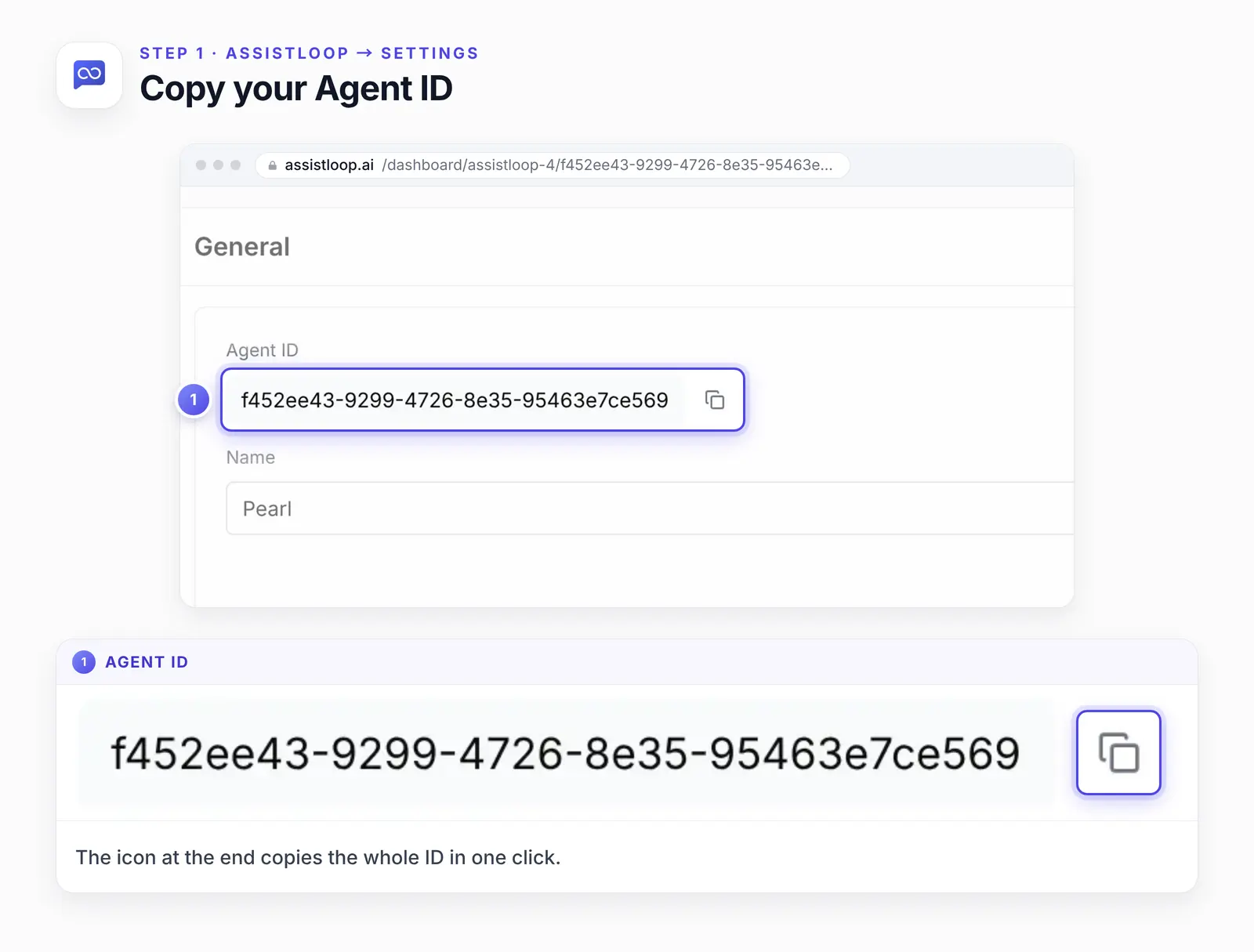
Thirty-six characters, four of them dashes. The copy button takes the whole string, which a hand selection can miss.
Step 2: Install and activate the plugin
Back in WordPress, open Plugins → Add Plugin and type AssistLoop into the search box. The listing to pick is "AssistLoop – AI Chatbot" by AssistLoop. Click Install Now, wait for the button to change to Activate, and click it. That's the standard flow in WordPress's own Manage Plugins guide, which still calls the menu Add New; WordPress 7.1 labels it Add Plugin.
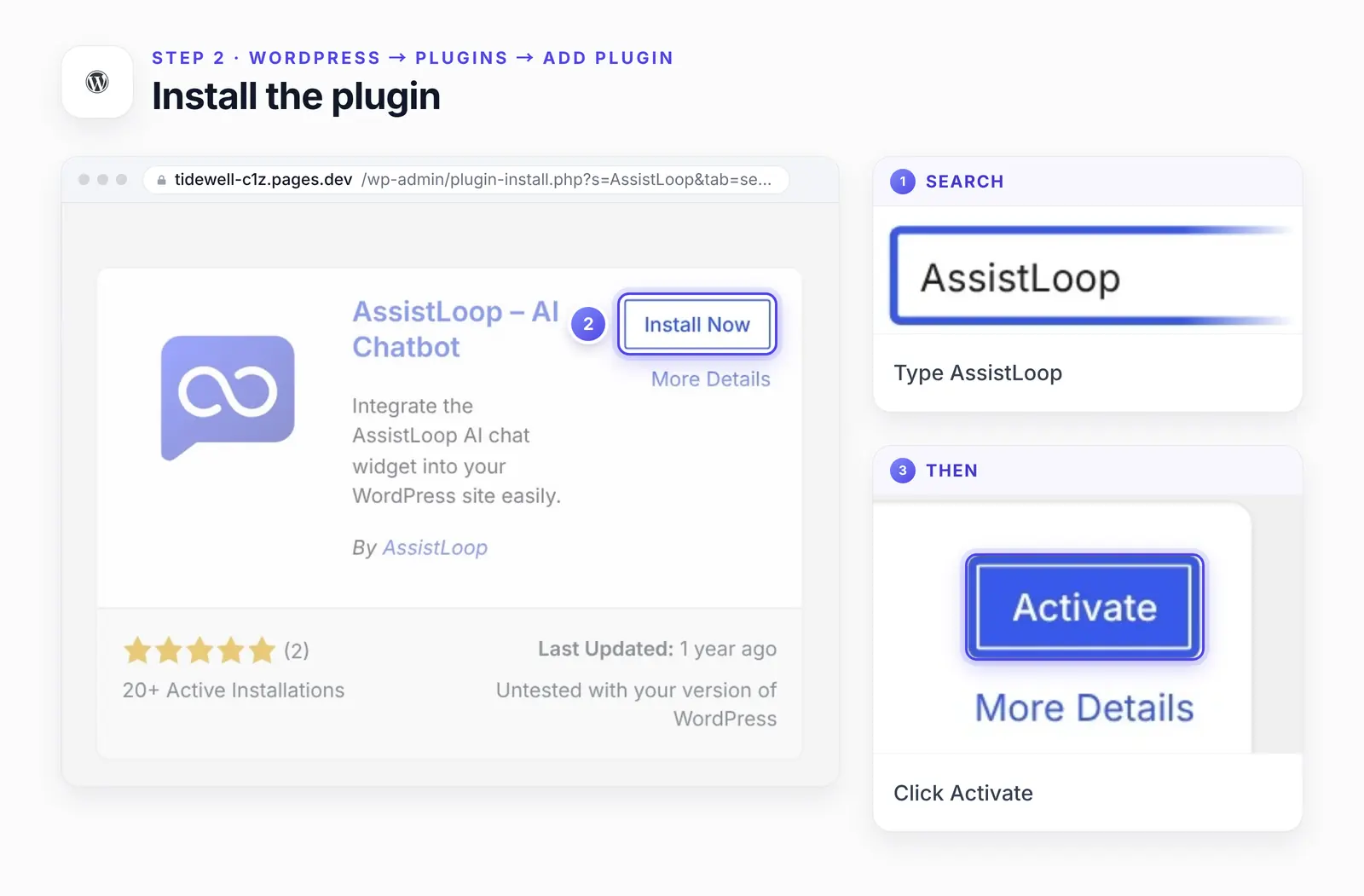
The card in WordPress says "Untested with your version of WordPress". The plugin's WordPress.org page goes further. Its banner says the plugin hasn't been tested with the latest three major releases, and it lists 6.8.11 as tested.
The card also says the plugin was last updated a year ago. That matters less here than for most plugins. All the plugin does is add AssistLoop's hosted widget script to each page through wp_footer. The agent itself runs, and gets its updates, on AssistLoop's side.
We installed 1.0.2 on WordPress 7.1 for this guide, and it ran without errors. That's the version most sites use: "Version 7 is used by 66.6% of all the websites who use WordPress" (W3Techs, 21 October 2026). Take a backup before adding any plugin anyway.
If your site's rules block plugins flagged as untested, follow Rather paste the code? below instead. It loads the same agent.
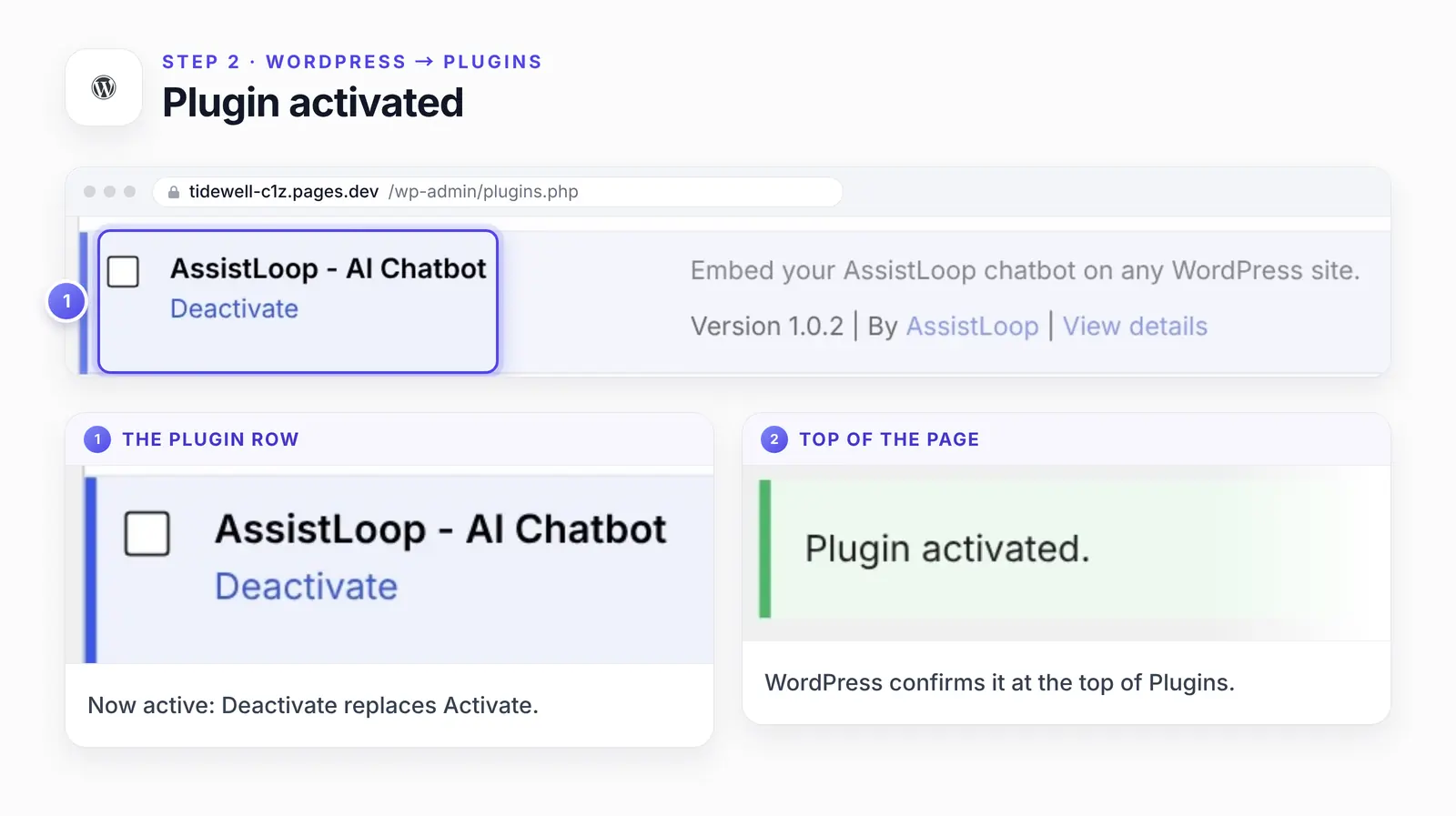
If you ever want the agent gone, click Deactivate on that row. The plugin only adds the script while it's active, so the agent leaves every page once you clear any page cache.
Step 3: Paste your Agent ID and save
Open Settings → AssistLoop Settings, paste the ID into the Agent ID field and click Save Settings. That menu item appears once the plugin is active.
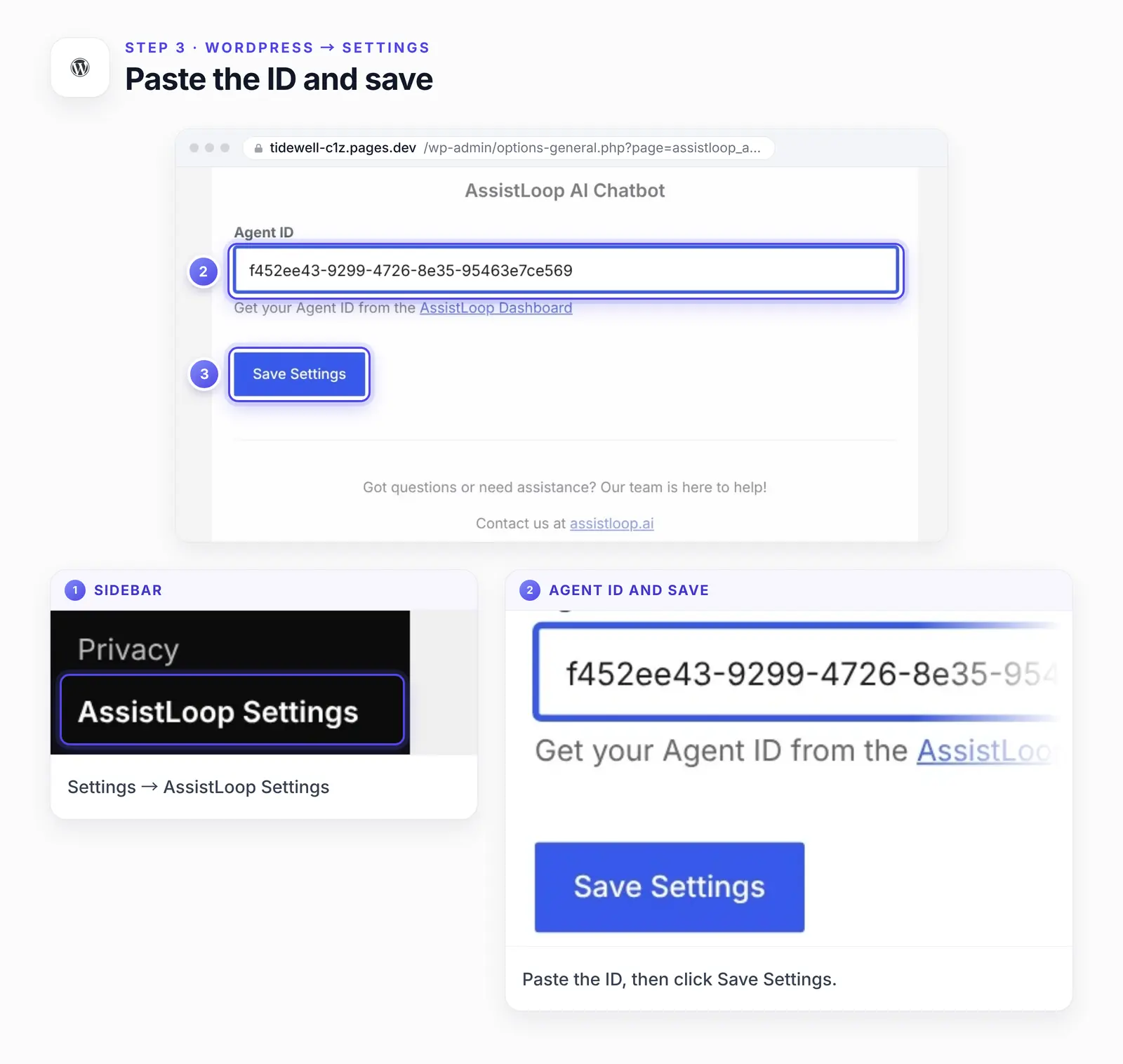
A Settings saved. notice confirms it. That finishes the WordPress side. The plugin now adds the agent to every page, including ones you publish later.
Step 4: Check your live site
Open your site in another tab, or reload it if it's already open. Your agent's launcher appears in the bottom-right corner (bottom-left if you moved it).
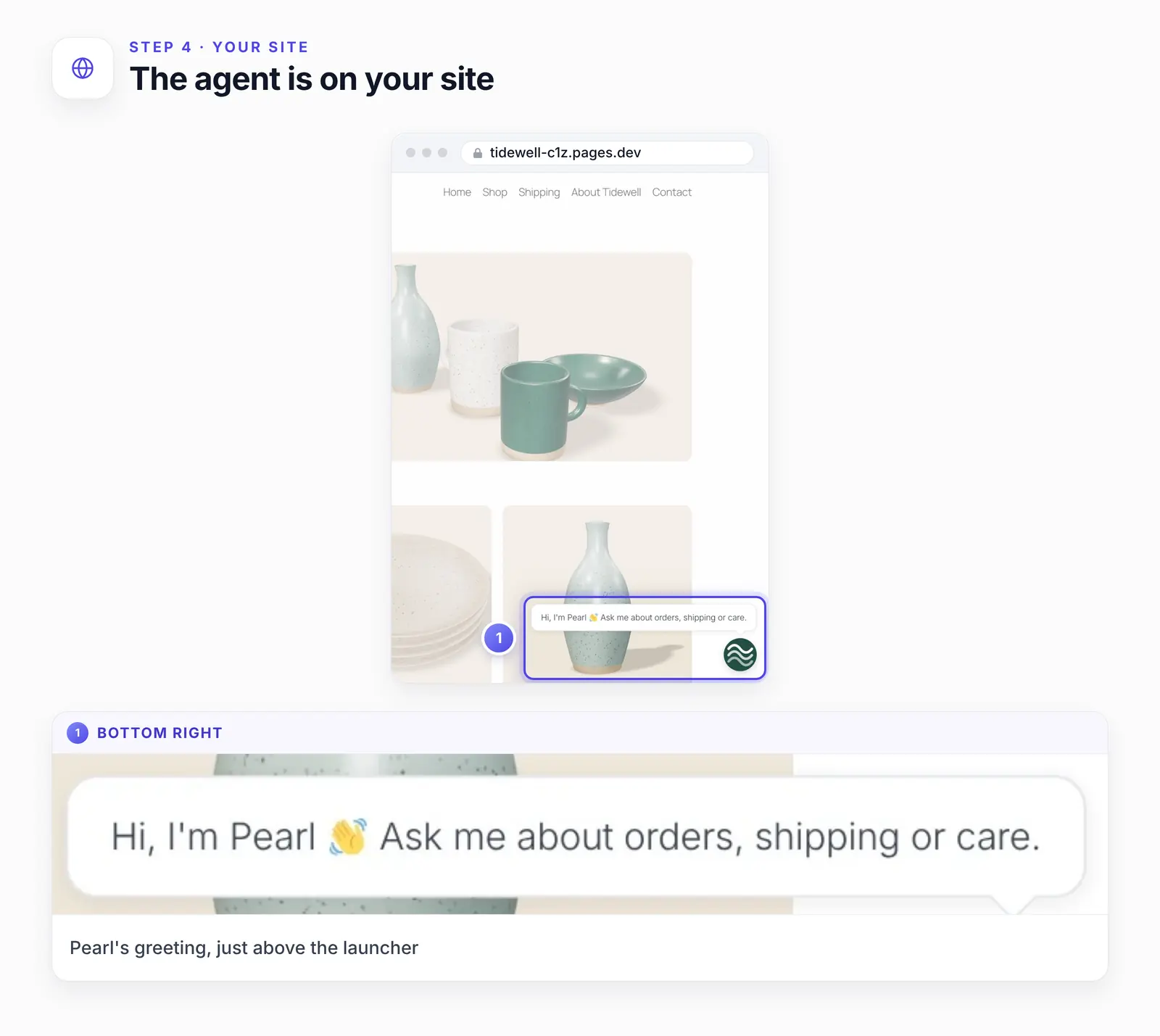
Pearl's greeting bubble comes from her Welcome Popup setting (Widget Appearance → Behavior). With it off, only the round launcher shows.
Now ask something your pages already answer. Our test was the shopper's question from the top of this guide, "Do you ship to Canada?", and this came back word for word:
Yes—we ship to Canada. Delivery takes 5–7 business days, with duties and taxes included at checkout; shipping is a flat $18.
The Canada paragraph on the shop's Shipping page carries the same three facts: orders "arrive in 5–7 business days", "duties and taxes are included at checkout", and the price is "a flat $18". Pearl shortened the paragraph and kept every number. It didn't invent a policy.
Before you call the install done, run three quick checks:
Another page: open a product or Contact page and confirm the launcher is there too.
A phone-width window: narrow the browser or use your phone. The launcher shouldn't cover your theme's cart, cookie banner or back-to-top button. The open chat should fit the screen and close again.
A private window, logged out. Caching plugins can serve logged-out visitors a different stored copy of a page. This is the view your customers get.
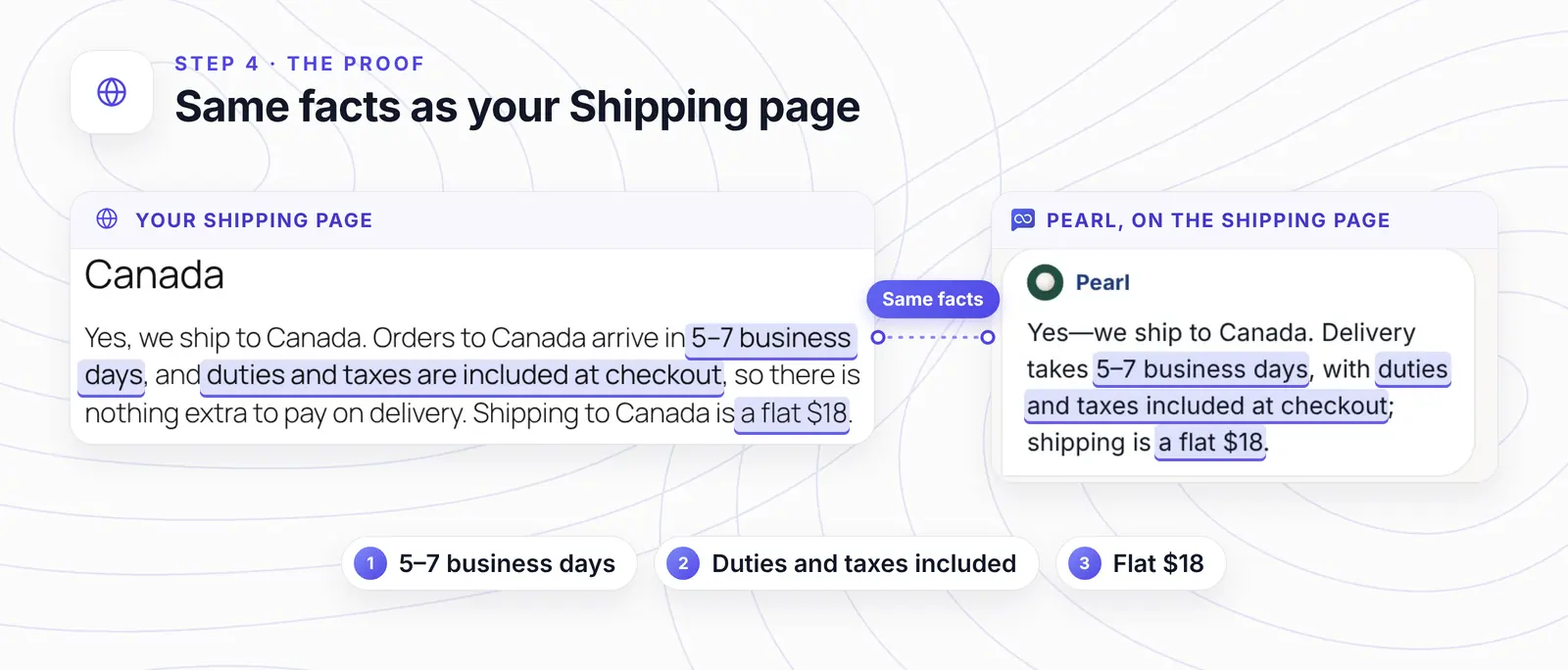
The answer on the right was captured after we clicked through to the Shipping page. The conversation stayed open because the plugin puts the agent on every page.
Want answers like this on your site? |
Rather paste the code?
Use the code instead of the plugin, not as well. AssistLoop's WordPress tab lists three places for it: an "Insert Headers and Footers" plugin, your theme's footer.php file, or a Custom HTML block. A Custom HTML block inside one page covers only that page.
For every page, paste it into a header and footer plugin's footer box. A child theme's footer.php works too, just above the closing body tag. Edit footer.php only in a child theme, because a theme update overwrites changes to the parent.
Twenty Twenty-Five, which our test site runs, has no footer.php file. It builds the footer from a Footer template part instead, since block themes use .html templates where classic themes use .php ones (WordPress Theme Handbook). On a block theme, add a Custom HTML block to the Footer template part in Appearance → Editor. That part appears on every page.
Take the code from Widget Installation → WordPress in AssistLoop. The Copy button on the Installation Code card copies it with your agent's ID already filled in. The block below is for reference, with YOUR_AGENT_ID where that ID sits.
<!-- AssistLoop Chat Widget --> |
Save, then clear any page cache. Our HTML install guide walks through why the code belongs at the end of the page.
If the agent doesn't show up
The page is cached. You see the agent while logged in, but a private window doesn't, because logged-in admins usually skip the page cache. Clear your caching plugin's cache (and your host's, if it keeps one), then reload. AssistLoop's own WordPress instructions end with "Save and clear cache" for this reason.
The ID is incomplete. Compare its first and last characters with the field in your agent's Settings. All 36 characters must be there, and a hand selection can drop one. Copy it again with the button.
You pasted the Workspace ID. It has the same length, so check it against the workspace Settings page. If they match, copy the Agent ID from your agent's own Settings instead.
The ID belongs to a different agent. The chat opens with another agent's name or greeting. Switch the dashboard to the agent that learned this site, then copy its ID again.
The site isn't public. The plugin's FAQ asks you to make sure your site is publicly accessible, so test with maintenance mode and password protection off.
There's no AssistLoop Settings item. Only Administrators see that page. Sign in with an Administrator account.
One template shows no agent. The plugin prints its script through WordPress's wp_footer hook, so a theme or landing-page template that leaves out wp_footer() won't show the agent. Move that page to a standard template, or ask the theme's author.
A display restriction hides it. In AssistLoop, check Widget Appearance → Advanced → Display Restrictions (Pages, Schedule, Countries).
The widget loads twice. Both routes are installed, the code and the plugin. Remove one of them.
How we tested this
The site: WordPress 7.1 on our own test machine, served at the demo shop's address inside the test browser, which is why the screenshots show tidewell-c1z.pages.dev/wp-admin. The shop has Home, Shop, Shipping, About Tidewell and Contact pages.
The plugin: version 1.0.2 from the WordPress.org directory, added through Plugins → Add Plugin.
The agent and the answer: Pearl, trained on the shop's pages. Step 4 quotes her reply exactly, and the proof figure shows that conversation still open on the Shipping page.
The screenshots: the WordPress screens, the Shipping page included, are frames from our walkthrough recording, and the AssistLoop screens come from the dashboard on 17 October 2026. Each figure crops one screen and adds numbered rings, zoomed insets and a light wash around the controls; the product screens themselves weren't retouched.
What to do next
Start by giving the agent a tone and limits with six short instructions. When the inbox shows a reply that missed, add a Q&A pair for that question. If shoppers ask about custom or bulk orders, the agent can collect their contact details right in the chat.
Running WooCommerce? The same plugin covers product pages, the cart and checkout; the WooCommerce guide checks each one. Shops can connect order status so tracking questions get answered in the chat, and widget customization lets the launcher match your theme. For refund requests or an upset customer, hand the chat to a person on your team.
Frequently asked questions
Do I need to edit my theme or write code?
No. The plugin handles the page side, and the only thing you change is one field under Settings → AssistLoop Settings. If you'd rather not add a plugin, the code route above works too.
Do I need ChatGPT or an OpenAI API key?
No. AssistLoop connects your agent to the AI model, so there's no provider account to open. You choose the model in the agent's Playground: open the Model menu, pick a GPT, Claude or Gemini model, then click Save Changes.
Will the agent slow down my WordPress site?
The script loads at the end of the page, after your content, through wp_footer, which WordPress's reference describes as printing "scripts or data before the closing body tag on the front end". If AssistLoop's servers are ever unavailable, the plugin's WordPress.org listing says your site keeps working and only the chat stops. We didn't measure page speed, so compare yours before and after if it matters to you.
Does it work on WordPress.com?
Only on a paid plan. WordPress.com lets Personal, Premium, Business and Commerce sites install plugins, and free sites can't. Our test ran on self-hosted WordPress, so after installing, open your site and look for the launcher.
Can I limit the agent to certain WordPress pages?
Yes, from AssistLoop rather than WordPress, under Widget Appearance → Advanced → Display Restrictions → Pages. Turn on page rules, add a Deny rule with a path pattern such as yoursite.com/blog*, click Add, then Save restrictions.
What data does the plugin send to AssistLoop?
The plugin's WordPress.org listing says the widget script loads on every front-end page view with your Agent ID. The listing adds that when a visitor chats, their messages, the conversation context, browser information and IP address go to AssistLoop. Mention this in your privacy policy; AssistLoop's privacy policy has the details.
The shopper from 11 pm now gets the Shipping page's answer on whatever page she happens to be reading. One habit keeps it that way on WordPress: when you edit a policy or product page, retrain that page in AssistLoop so its replies match. In Data Sources, open the ⋯ menu on that page's row, then click Retrain. Build your agent on AssistLoop, point it at your shop's address, and come back to Step 1 here.
 | Written by AssistLoop Team We build AssistLoop, an AI support agent that answers customers from your own website and documents, and hands the chat to your team when a person should step in. ★★★★★ "I appreciate that AssistLoop is one of the few affordable authenticated chat agents." Ryan N., Managing Owner, Working Nomads, on G2 |
Build Custom AI Chatbot for Your Business FREE
Create intelligent AI agents that handle customer support, boost conversions, and work 24/7 for your business.
Build Your Agent