How to Add AI Customer Support to Any HTML Website
A step-by-step install for hand-coded sites: where the code goes, how to publish it on common static hosts, and what to check when the chat button doesn't show.
 AssistLoop Team14 min read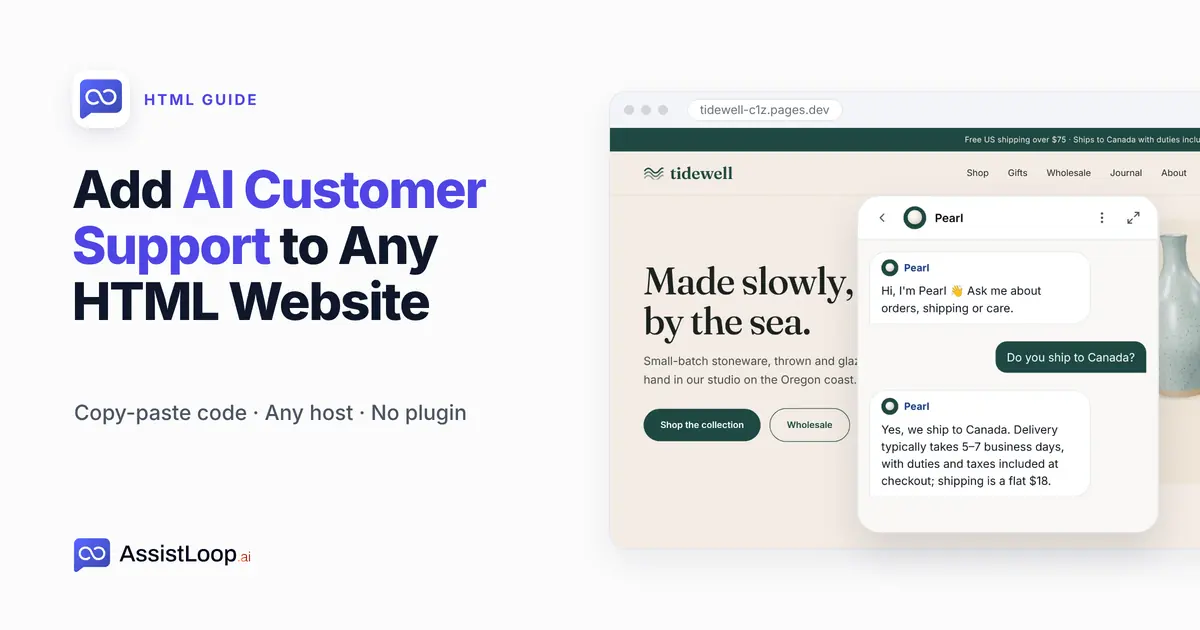
On this page
A site built from plain HTML files puts the chat where everything else lives: in the page source. Sites without a CMS are common: W3Techs reports that "32.1% of the websites use none of the content management systems that we monitor" (October 2026), a figure that also covers custom-built apps. This guide puts AssistLoop's copy-paste code on an HTML website in four steps, so an AI support agent that learned your own pages answers visitors on every page. Budget ten minutes; if you can open an HTML file, you can do this.
Last updated: October 2026. We built this guide by pasting the code into two pages of a small demo shop, loading the saved pages at the shop's address and asking a shipping question; the step figures come from the recording of that build, made in early October 2026. On 21 October 2026 we opened the HTML tab again: its code card still matches the one in Step 1, character for character apart from the agent ID.
Quick answer
|
Picture a shop built from hand-written pages. The same three emails land every week: do you ship to Canada, how long does it take, are duties included. The Shipping page answers all three in full. Most visitors never open it.
Our guinea pig is Tidewell Ceramics, a made-up stoneware shop. For this test we worked on a copy of seven of its pages as plain HTML files (home, shop, shipping, returns, FAQ, contact and about), with a stylesheet and product photos alongside, no framework and no build step, and pasted the code into two of them, home and about. Its agent, Pearl, had already read the shop's published site in AssistLoop before we opened the code.
The walkthrough runs just over two minutes and follows the same build, ending with the chat on a second page.
What you need
An agent in AssistLoop that has read your site. No account yet? Sign up, click Create Agent, give it a name, type your address under Website/Links, click Fetch Links, then Create Agent. Training on your website starts with that last click.
Something to edit HTML with: a code editor, a plain text editor or your host's file manager.
A way to publish the change: FTP or SFTP, a Git push, or your host's own editor.
The HTML tab or a platform guide?
The AssistLoop code works on any site where you control the page source. If your site is hand-written files, an exported site or a static site generator, this is your guide.
A site builder has its own route, and it's quicker. WordPress uses the official plugin, and Shopify takes the code in theme.liquid. Wix has Custom Code and Squarespace has Code Injection. Webflow wants it in the site's footer code, and Framer has an AssistLoop plugin.
Two cases need a different tab under Widget Installation. A React, Vue or other single-page app should use the React / Vue / SPA tab, which loads the widget once from a component (the React guide shows the hook). If you want the chat as a whole page rather than a bubble, use the iFrame tab (the full-page chat guide puts it on a Help page).
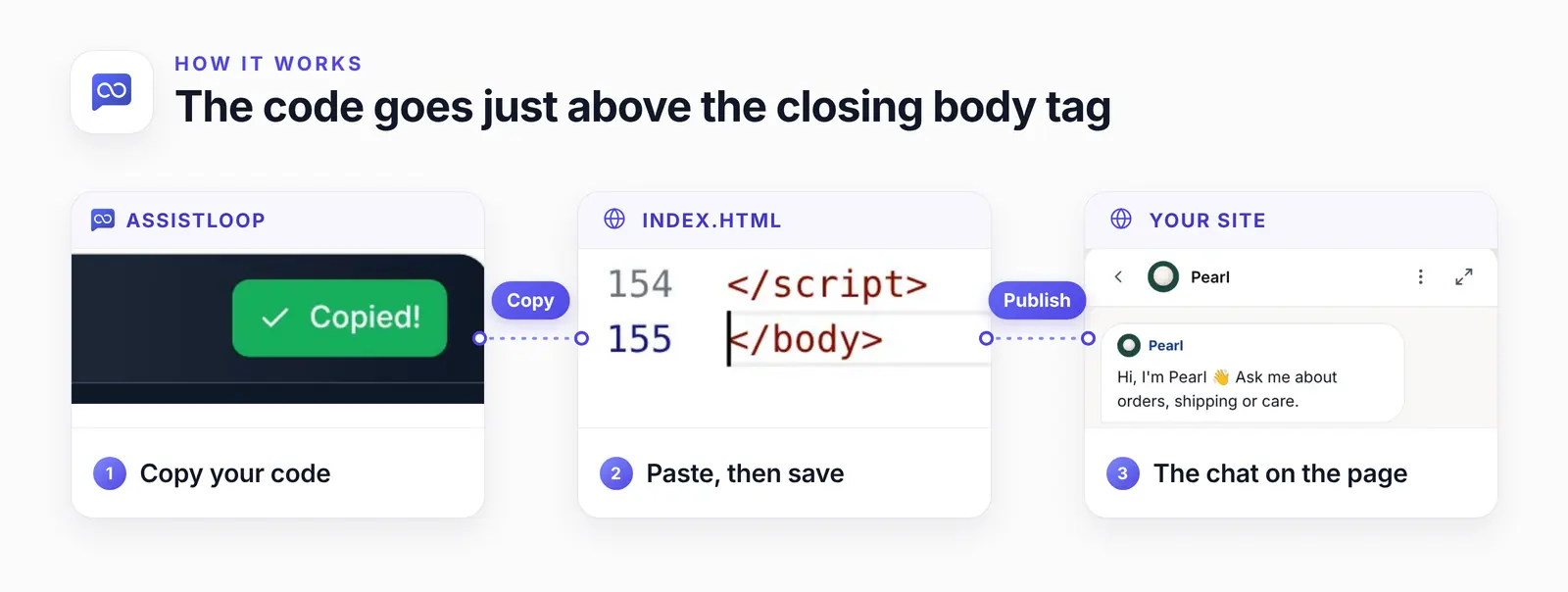
Line 154 closes the AssistLoop script; line 155 is the page's own closing body tag.
Why just before the closing body tag
The closing body tag comes after all of the page's content, so code placed just above it can't hold up anything a visitor sees. A plain script tag that sits higher up is fetched and run on the spot, and MDN's reference for the script element explains that the browser only carries on reading the page once it's done. In Google's web.dev guide, Milica Mihajlija writes: "Because synchronous scripts delay DOM construction and rendering, you should always load third-party scripts asynchronously unless the script has to run before the page can be rendered." (Efficiently load third-party JavaScript, web.dev, last updated August 2019)
| Tag placed | Effect | Use it? |
|---|---|---|
| In the head | Runs before content | No |
| Mid-page | Mixed into content | No |
| Before </body> | Runs after content | Yes |
The AssistLoop code goes one step further. Its few inline lines create a new script element with createElement, point it at assistloop-widget.js and attach it to the head with appendChild. So the widget file isn't a blocking tag in your markup, even though it ends up in the head. The dashboard's install steps name the same spot: "just before the closing </body> tag".
Step 1: Copy the embed code from the HTML tab
Your code is in AssistLoop under Widget Installation, on the HTML tab: open your agent, choose Widget Installation in the sidebar (just below Widget Appearance) and pick HTML. The dark Installation Code card on the right holds the code. Click Copy, and the button turns green and reads Copied!
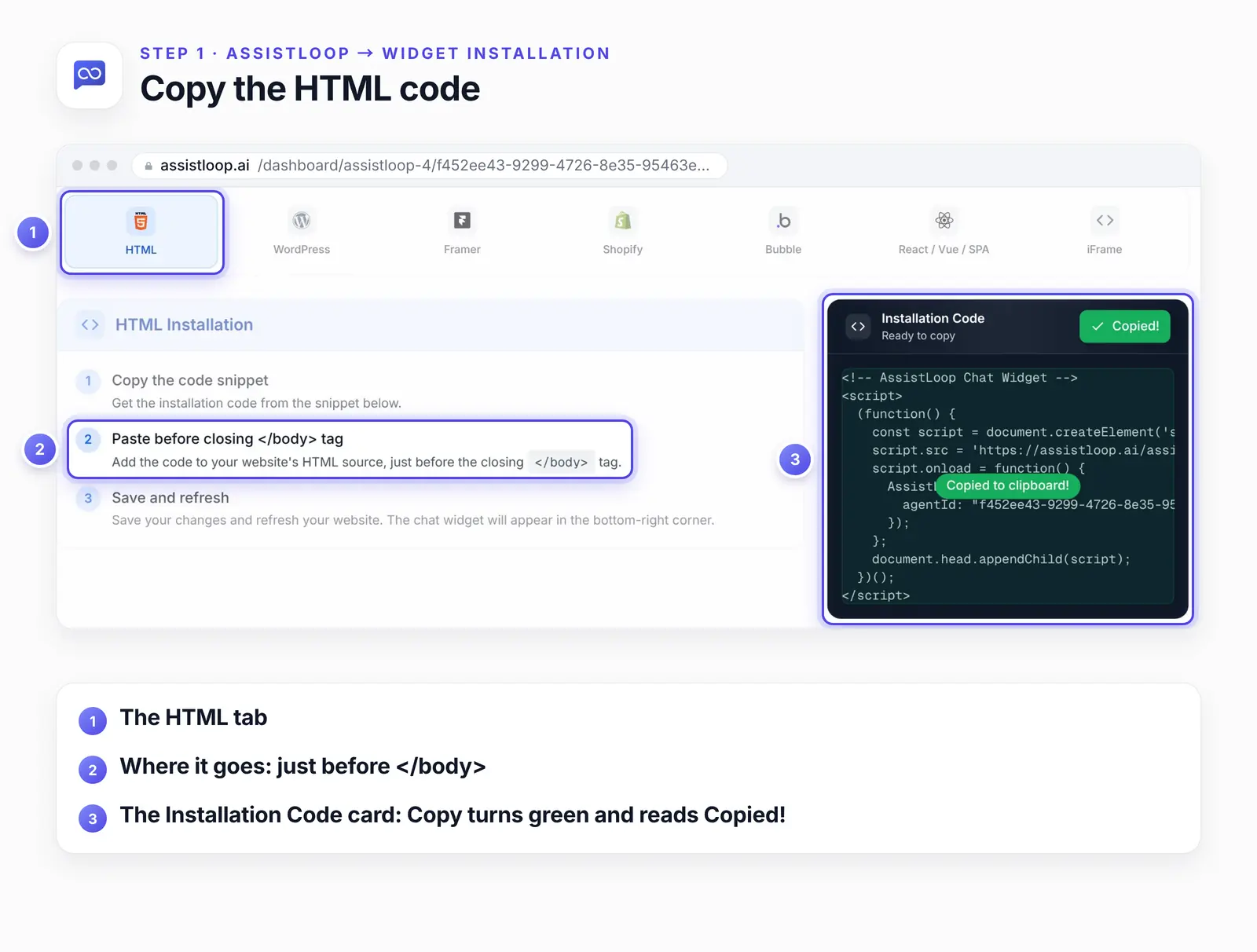
A small green toast, Copied to clipboard!, confirms the copy.
Here is the code as the HTML tab's card shows it, with the ID swapped for a placeholder. The Copy button copies it from <script> on; the comment line at the top isn't included, and that changes nothing. The block is for reference only: copy your own from the dashboard, because only that copy carries your agent ID.
<!-- AssistLoop Chat Widget --> |
Should you need the bare ID later, Settings → General shows it as Agent ID with a copy icon beside it.
Step 2: Paste it just before the closing body tag
Paste the code on its own line directly above </body> in the page's HTML file; we started with index.html, the home page.
Scroll to the bottom, where </body> is usually the second-to-last line, right above </html>. Click at the start of the </body> line and press Enter to make an empty line above it. Click into that empty line, paste and save. The end of the file should look like this:
</footer> |
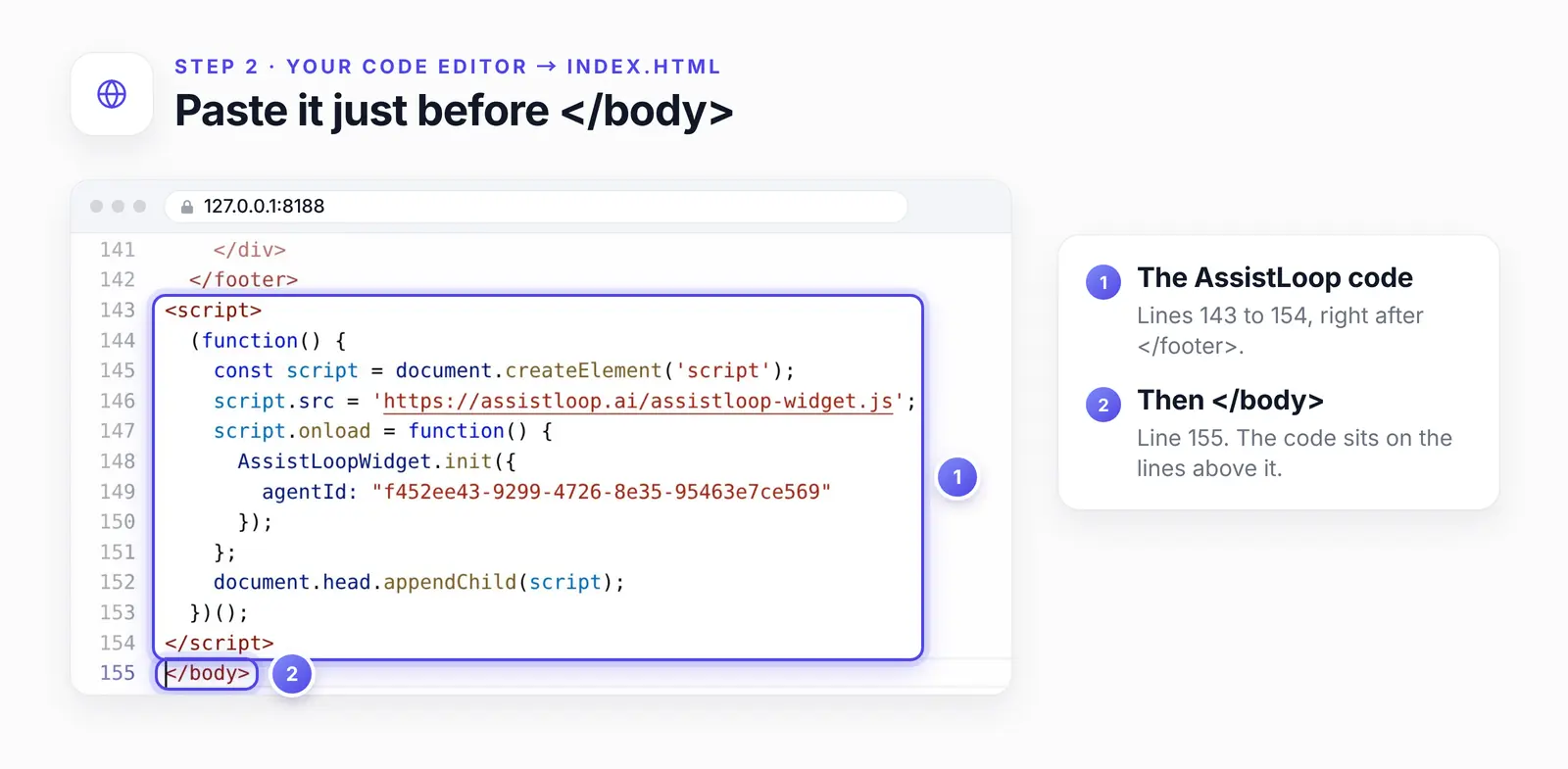
Lines 143 to 154, from <script> to </script>, straight after the footer: 12 lines, since Copy leaves out the card's comment line.
Pages built from templates, includes or a static site generator usually keep the closing body tag in one shared layout or footer file. Paste the code there once, and every page built from that file gets the chat.
Step 3: Publish, then ask a question
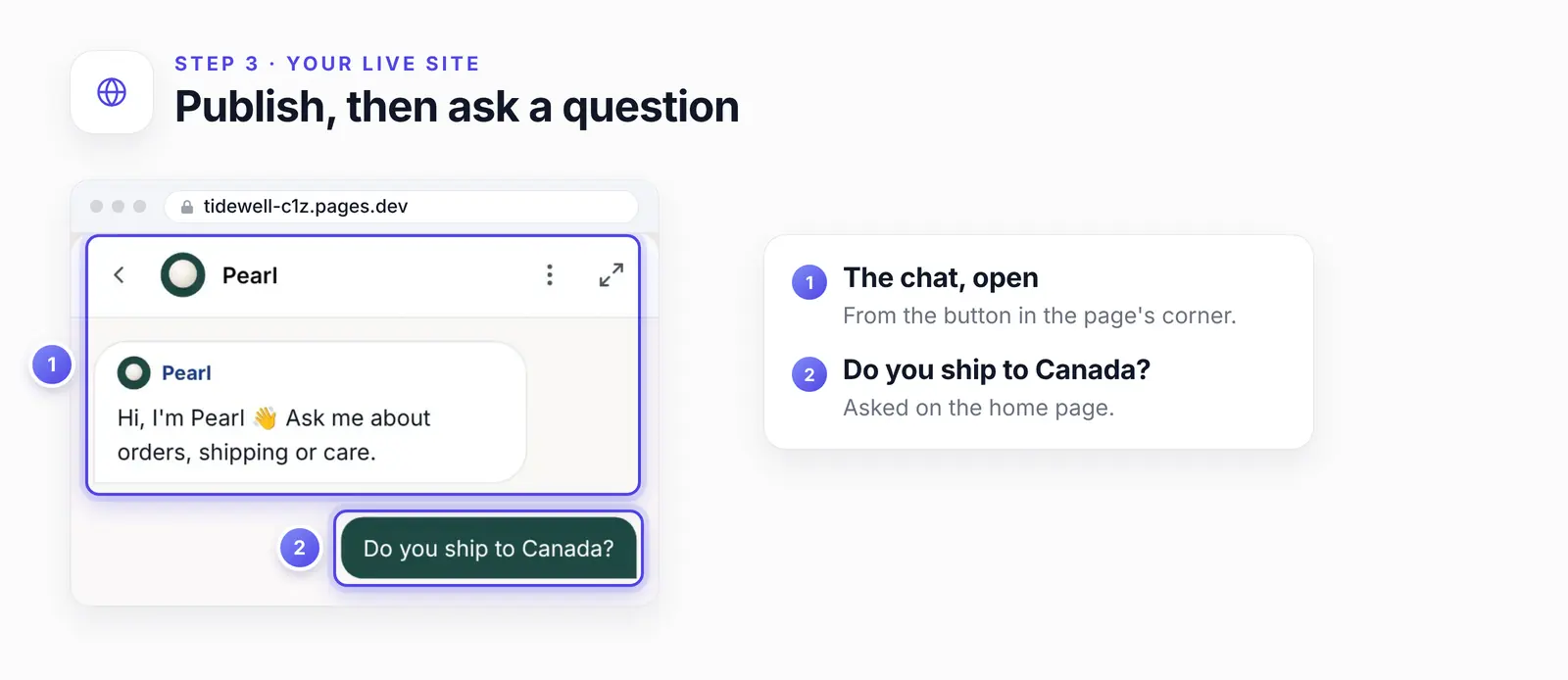
Publish the saved file the way your site usually goes live, then open the page in a browser. The chat button sits in the bottom-right corner, unless you moved it in Widget Appearance.
Click it and ask something your site answers. On the home page we asked "Do you ship to Canada?" and the agent replied:
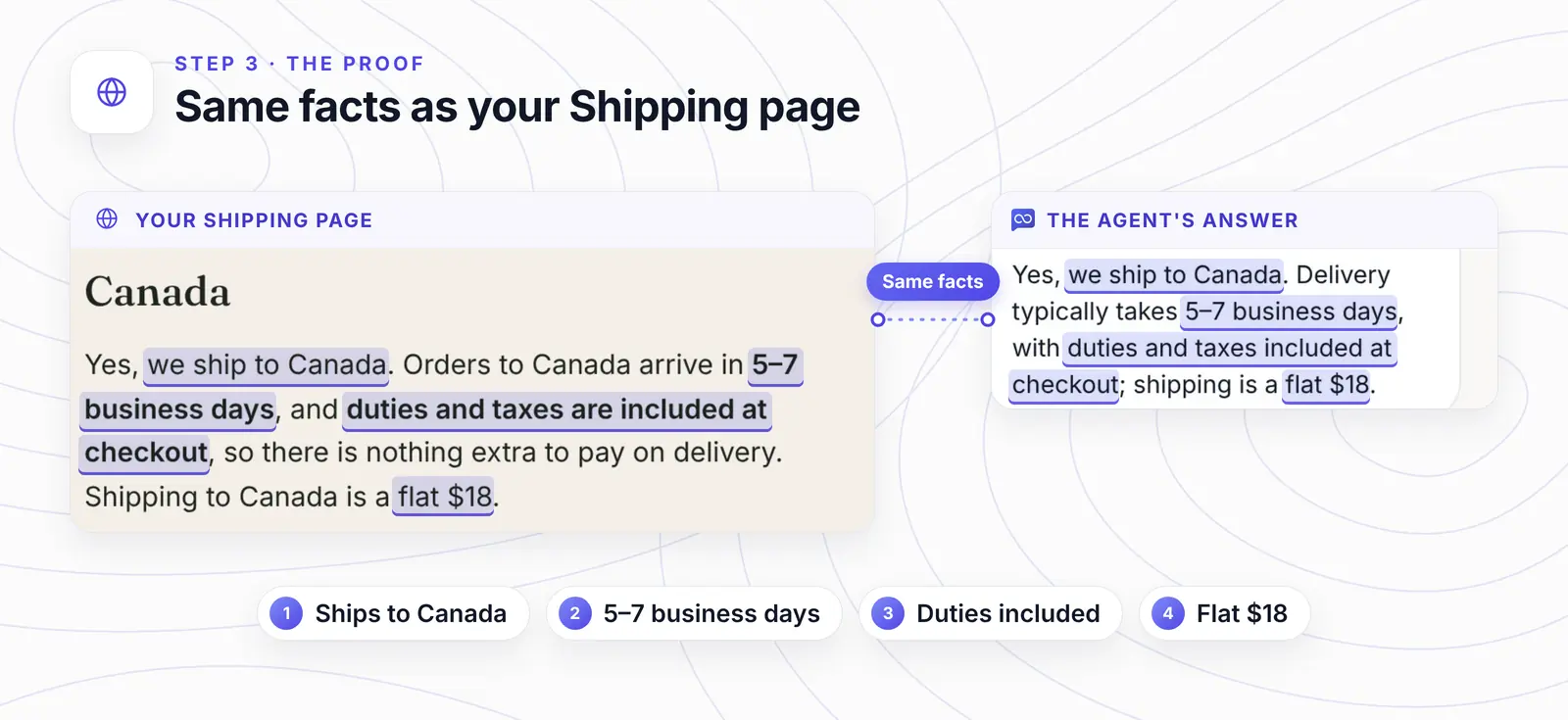
Yes, we ship to Canada. Delivery typically takes 5–7 business days, with duties and taxes included at checkout; shipping is a flat $18.
The home page mentions Canada, 5–7 business days and duties, but not the price. The flat $18 sits in the Shipping page's Canada paragraph, and the agent's answer carries it.
Open the page on a phone as well, so you see the chat button the way mobile visitors will.
Want your own pages answering on a hand-coded site? |
Step 4: Add it to every page of your HTML website
On a plain HTML site each file is its own page, so each file needs the code. Let the editor find them for you: search the whole project for </body>. Ours reported "7 results in 7 files". Open each one, paste the code above its closing body tag, then save and publish.
No project search? Open each .html file in your site's folder in turn.
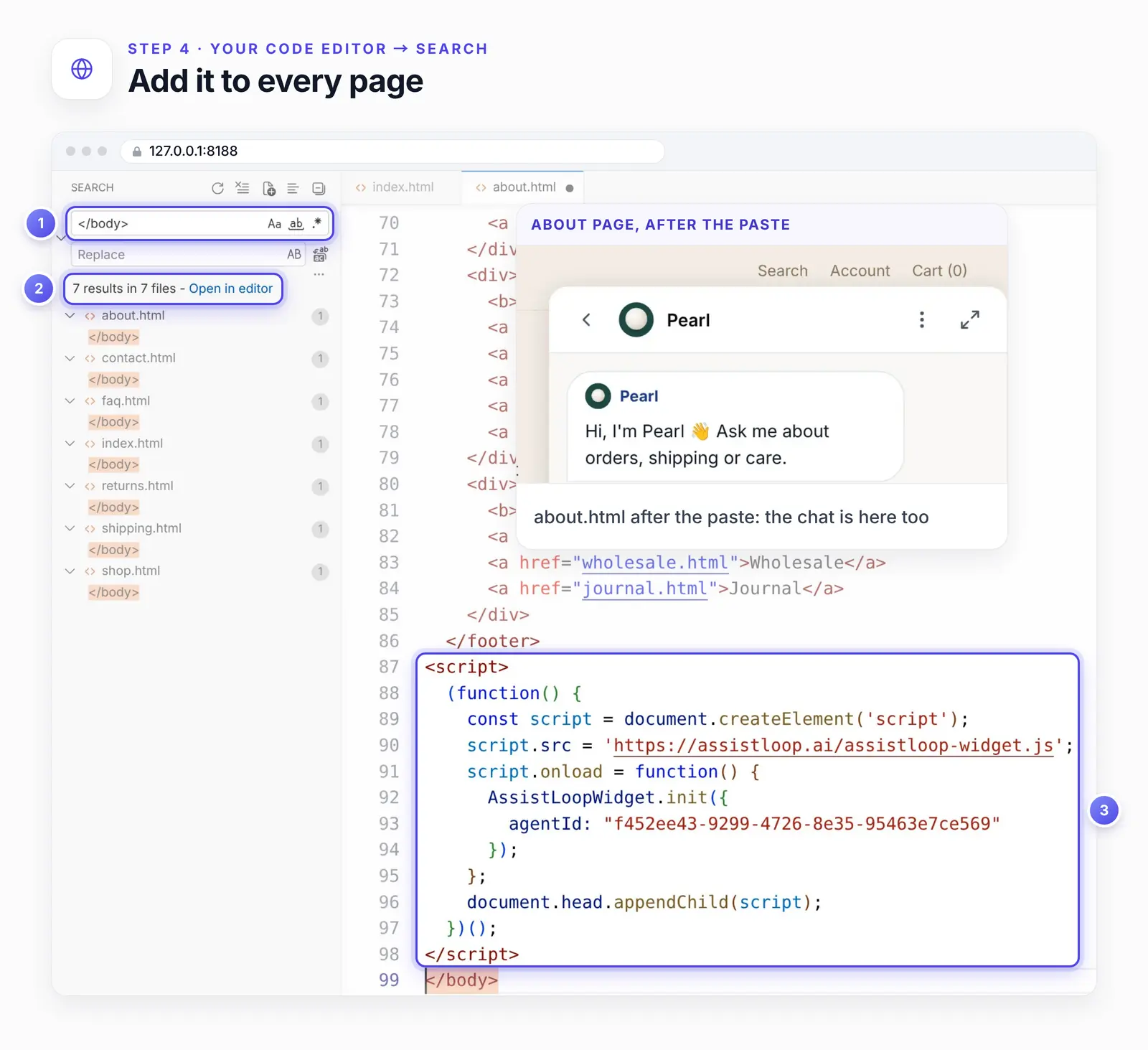
With about.html saved and reloaded, the chat opened on the About page as well.
Publishing on a static website host
A static website changes only when the edited files reach the host, so the chat isn't live until you publish. How that works depends on where the files live:
| Host | Publish by | Watch for |
|---|---|---|
| GitHub Pages | Commit, push | Up to 10 min |
| Netlify | Git push or drop | Drop the whole folder |
| cPanel | Edit, then save | 1 MB edit limit |
| FTP or SFTP | Upload changes | Every edited page |
GitHub's docs say a pushed change can take up to 10 minutes to publish, so give it time before deciding something went wrong. Netlify redeploys on each Git push to a connected repository, or you can drag the updated project folder into its Deploy zone. In cPanel, open the file with Edit (or HTML Editor (Beta)); Edit can't open files over 1 MB, so download those and change them locally.
On a static site generator, rebuild after the edit, then deploy as usual.
If the chat doesn't appear
Most of the time the edited file simply isn't online yet, or your browser is still holding an older copy of the page, so publish first and reload in a private window before you dig into the code.
The change isn't live yet. A file saved on your computer changes nothing online. Upload or push it, wait for the host, then reload.
The browser shows an old copy. Hard-reload, or open the page in a private window.
An ad blocker or privacy extension is on. Try a private window with extensions switched off.
Testing from a file on your computer? A page opened straight from disk (its address starts with file://) isn't how visitors see it. Test on the published page, or serve the folder from a local web server, before you go looking for a fault in the code.
The code landed inside another tag. It belongs between your last content, often </footer>, and </body>, never inside a comment or another script.
Part of the code is missing, or its quotes changed. Copy it again with the Copy button. Passing code through a word processor or an email can turn straight quotes curly, and the script stops working.
The code still says YOUR_AGENT_ID. You copied the example from this page. Copy the code again from Widget Installation, where it carries your own ID.
The page has no closing body tag. Some hand-written pages leave it out. Paste the code at the very end of the file.
The chat shows on one page only. Each HTML file needs its own copy, unless your pages share a footer file.
The chat shows up twice. The code is on the page twice, often once in a shared footer and once in the page itself. View the page source and search for your agent ID.
Still nothing? Open the browser's developer tools (F12), go to Console, reload and look for an error that names assistloop-widget.js, such as blocked, 404 or refused. That tells a blocked file apart from a broken paste.
How we tested this
The site: seven of Tidewell's pages as plain HTML files, a copy of the shop whose product and collection links point to its shop page, edited in VS Code for the web (code-server) on our own machine. The editor ran at 127.0.0.1:8188, which is the address in the Step 2 and Step 4 figures. The test browser loaded the saved files at the shop's usual address, tidewell-c1z.pages.dev.
The agent: at the recording, Pearl knew the shop's published site and a store-policies text snippet that repeats the shipping policy, the flat $18 to Canada included. It also held the workshop-guide PDF, the kiln-sale note and the gift-wrapping Q&A pair from our earlier training guide. The Step 3 answer is quoted word for word.
Pearl since then: later guides added more sources. On 21 October 2026 its Data Sources showed the website source with 17 pages (the Shipping page and five product pages among them), three text snippets, three PDFs and three Q&A pairs.
The code: copied with the Copy button and pasted into index.html and about.html. On 21 October 2026 we read the clipboard after a Copy: it starts at <script>, without the card's comment line.
The screenshots: frames from the recording made in early October 2026, plus a 500-pixel-wide capture of the Shipping page from 18 October 2026, so its text reads large. Each figure is a crop of those captures, with pins and outlines drawn around the interface, never on it.
After the install
Color, position and greeting are set in widget customization; saving appearance and page rules needs a paid plan (see plans). When a conversation shows the agent missing a fact, add a Q&A pair to correct that answer, then ask the question again.
Frequently asked questions
Where exactly does the code go?
On the line just above </body>, which is usually the last tag before </html>. Do that on each page that should show the chat, or once in a shared footer file.
Will the chat slow my page down?
Not by holding up your content: the code runs after it and loads AssistLoop's file in the background. We didn't time page loads for this guide.
Can I add it to only some pages?
Yes. Paste the code only on the pages that should show the chat. If it lives in a shared footer, open Widget Appearance → Advanced → Display Restrictions → Pages, switch on Page rules and type each page that should not show the chat into the Deny field, such as yoursite.com/blog/* for every blog page. Click Add, then Save restrictions; like the button's look, page rules are saved on paid plans only.
Does it work on GitHub Pages, Netlify or shared hosting?
Yes. The code is ordinary HTML and JavaScript, so any host that serves your files serves it too. Only the publishing step differs, as the hosts table above shows.
How do I update the agent after I change my pages?
Retrain each page you changed: in Data Sources, open the Websites tab, click ⋯ on that page's row and choose Retrain. Pages in a folder, such as your product pages, sit under one group row; open it to reach them. For a new page, click Add pages at the top of the Websites tab.
Do I need a developer?
No. Copying, pasting and uploading a file is the whole job. If you already edit your own HTML, you have every skill this takes.
Back at that hand-coded shop, the Canada, delivery and duties questions now get answered on whichever page the visitor happens to be reading. Your pages will keep changing, so retrain each edited page as part of every site update. Give your hand-built site its own support agent, and once it's answering, set its tone and scope with six short house rules.
 | Written by AssistLoop Team We build AssistLoop, an AI support agent that answers customers from your own website and documents, and hands the chat to your team when a person should step in. ★★★★★ "The personalization aspect really helps in providing a better customer experience." Verified User, small business, on G2 |
Build Custom AI Chatbot for Your Business FREE
Create intelligent AI agents that handle customer support, boost conversions, and work 24/7 for your business.
Build Your Agent