How to Add AI Customer Support to Squarespace (No Plugin Needed)
Guests keep emailing a Squarespace site about things its pages already cover: late check-in, breakfast, dogs. This guide shows how to add an AI support agent to Squarespace that answers those questions from your own pages, on every page of the site. You train the agent on your web address, then paste one snippet into the Footer box in Code Injection. There's no plugin or developer involved, and it takes about ten minutes.
 AssistLoop Team14 min read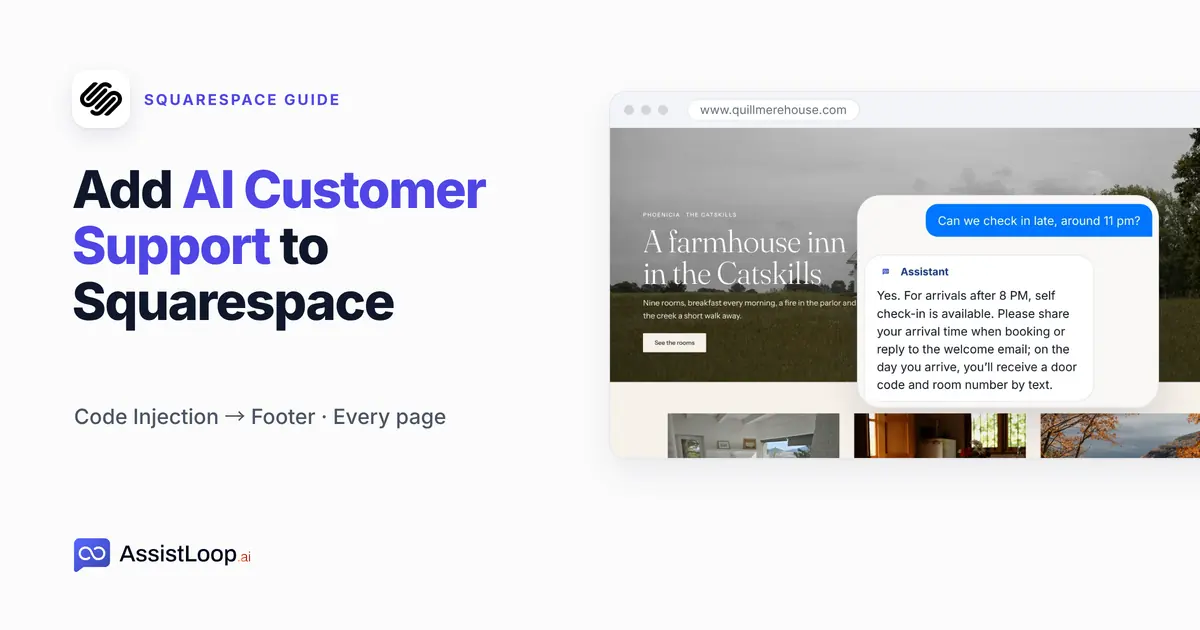
On this page
Last updated: October 2026. On 11 October 2026 we built and trained the agent, then saved its snippet in the Footer box of our rebuilt Code Injection panel. The Stay page shown in the proof was captured on 18 October, and the Squarespace help articles were read again on 22 October.
Quick answer
|
A couple are driving up from the city on a Friday. They'll reach the inn around 11 pm, and your front desk closes at 8.
They open your Stay page on their phone at a rest stop. The answer is there, under Arriving late, below the room photos and rates. They don't scroll that far. So they email, and you miss it, because you're out in the parlor getting the evening fire going.
That's how people read. In a 2018 eyetracking study on desktop screens, Nielsen Norman Group found that "users spent about 57% of their page-viewing time above the fold." Whatever sits lower gets far less attention.
Our example is Quillmere House, a made-up nine-room inn in the Catskills. Its site at www.quillmerehouse.com ran inside our test browser, so the address won't open for you. The agent, Quillmere Support, was built in AssistLoop and learned from the inn's pages; the AssistLoop screens below come from that build. The Squarespace panels in Steps 3 and 4 are a copy of the editor that we rebuilt from Squarespace's help pages, as How we tested explains.
The two-minute walkthrough follows the same five steps, from Create Agent to the late check-in answer on the live site.
What you need to add an AI support agent to Squarespace
An AssistLoop account. AssistLoop hosts the AI model, so there are no API keys to set up. Plans and their limits are on the pricing page. The agent learns from your site in Step 1, and you can add files, text and Q&A pairs later.
A Squarespace plan with Code Injection. Squarespace offers it on Core, Plus and Advanced, and on some legacy billing plans (Squarespace Help Center).
On a cheaper plan without Code Injection, upgrade first. A Code Block won't get you around that. Squarespace allows JavaScript in Code Blocks on those same plans only (Squarespace Help Center).
The whole install moves one snippet from AssistLoop into one Squarespace box:
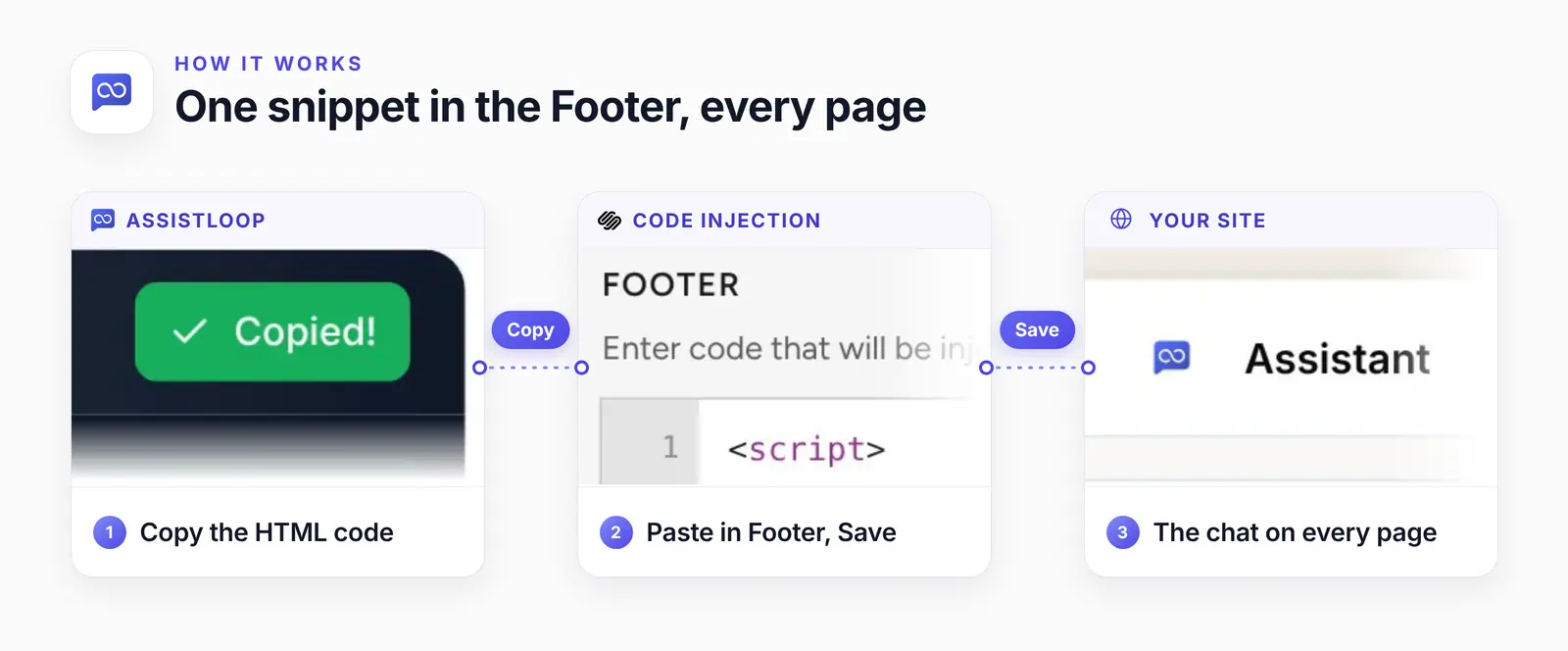
Pages you add next month get the chat too, because the Footer box belongs to the whole site.
Why the Footer, and not a Code Block
The Footer box in Code Injection is the place for a chat that should appear on every page. A Code Block looks easier, since you drop it straight onto a page. But Squarespace describes code blocks as something you add to specific pages, so the chat would load only where the block sits.
Squarespace's help says: "Use code injection to add HTML and scripts that enhance specific parts of your site. These might include live chat services…" (Squarespace Help Center)
| Compare | Footer | Code Block |
|---|---|---|
| Shows on | Every page | One page |
| Loads | After content | Where it sits |
| New pages | Covered | Need a block |
| Plans | Core or higher | The same plans |
Pick Footer over Header. Footer code "is injected before the closing </body> tag on every page in your site", according to Squarespace's code injection guide. Your page draws first, and the chat button arrives a moment later.
Step 1: Train the agent on your Squarespace pages
Click Create Agent in AssistLoop and give it a name; ours is Quillmere Support. Under Data Sources to Train Your Agent, pick the Website/Links tab. Type your site's full address in the box, starting with https://, then press Fetch Links.
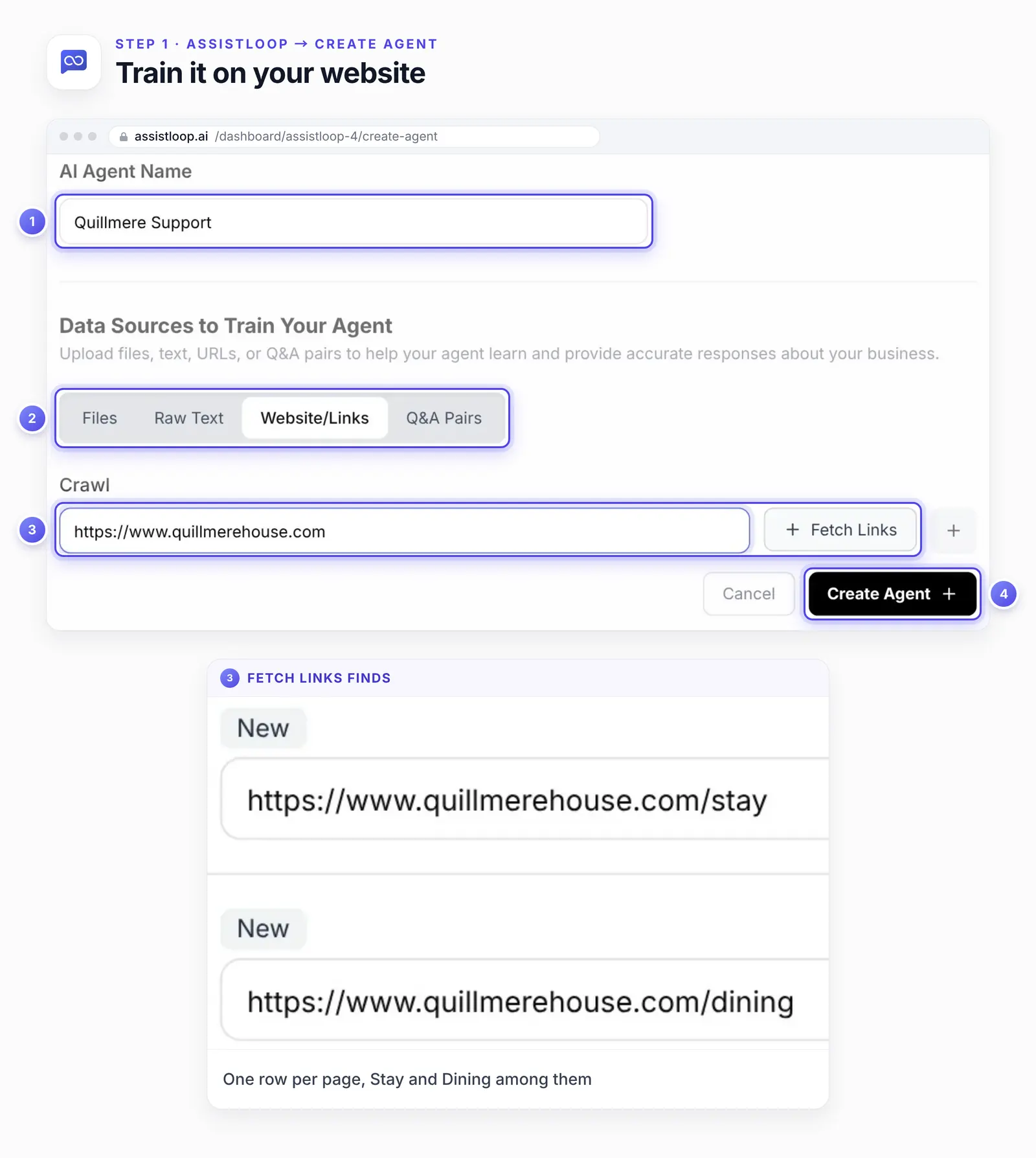
Each page Fetch Links finds gets its own row; the Stay and Dining rows are the two shown up close.
For our inn the list held ten pages: the home page, Stay, Dining, Weddings, Nearby and Journal, plus Gift Cards, FAQ, About and Contact. To skip a page, click the bin icon at the end of its row. Press Create Agent once more, and AssistLoop trains on every page still listed. Once the agent opens on its Playground page, pick a current model in the Model list, then click Save Changes.
Step 2: Copy the HTML snippet
Open Widget Installation in the agent's sidebar and select HTML, the tab that holds the embed code. There's no Squarespace tab, and you don't need one: Code Injection takes the HTML snippet unchanged.
Before copying, check the agent switcher, the second name in the breadcrumb at the top left, since the snippet is tied to whichever agent is selected there. Then click Copy. The button turns green and reads Copied!
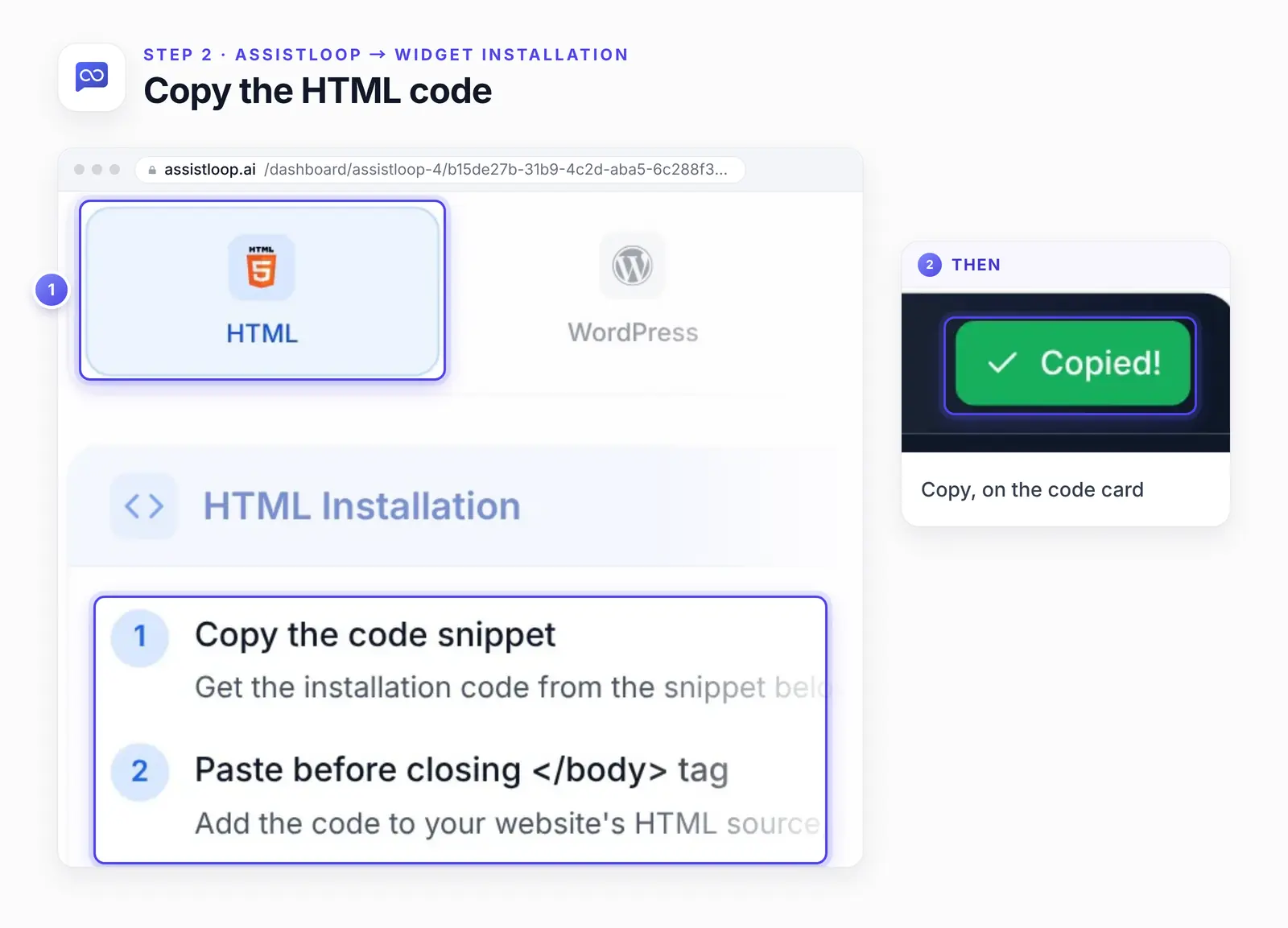
The HTML tab's own steps say to paste before the closing body tag. Squarespace's Footer box puts it there for you.
This is the code card on the HTML tab. Yours has your agent's ID where this one shows a placeholder.
<!-- AssistLoop Chat Widget --> |
Copy leaves out the comment line, so your paste starts at the opening script tag, as in the Step 4 screenshot. Change nothing else. For a site you code by hand, our guide to adding the agent to an HTML website uses this same snippet.
Step 3: Open Squarespace Code Injection
In the Squarespace editor, click Website in the main menu to open the Pages panel. At the bottom of the panel, click Custom Code, then Code Injection. That's where version 7.1 keeps it, according to Squarespace's guide to the Pages panel.
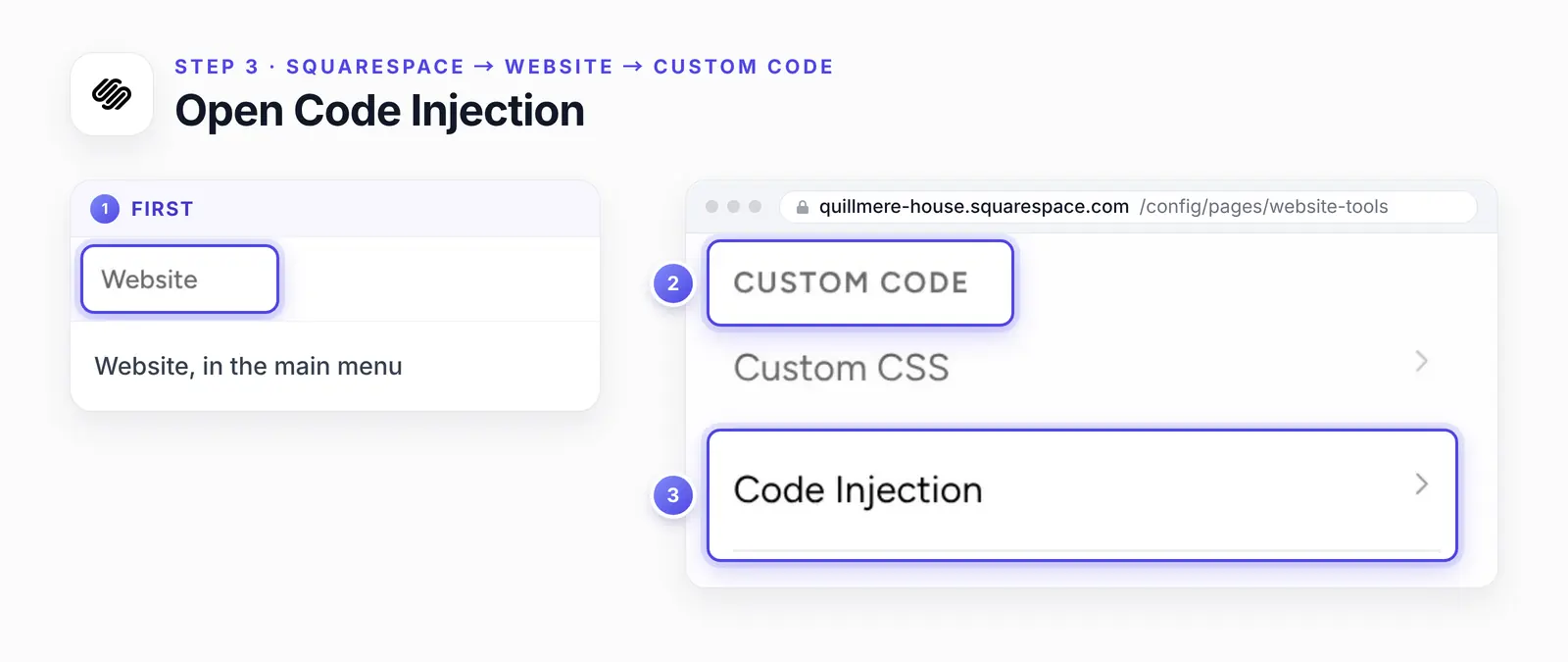
This screen is our recreation of the editor. On 7.0, the same Custom Code items sit under Website Tools.
Not sure which version you have? Scroll to the bottom of the Pages panel. Squarespace's version guide puts it this way: "On version 7.1, a Version 7.1 label appears. On version 7.0, your template's name appears instead." Older guides from other sites point to Settings → Advanced → Code Injection.
The panel holds Header, Footer and Lock Page boxes, plus two for the order confirmation and order status pages, per Squarespace's code injection guide. Our recreation shows the first three, next to a preview of the site.
Step 4: Paste into Footer and save
Click inside the Footer box and paste. Save and Cancel appear at the top left of the panel; click Save.
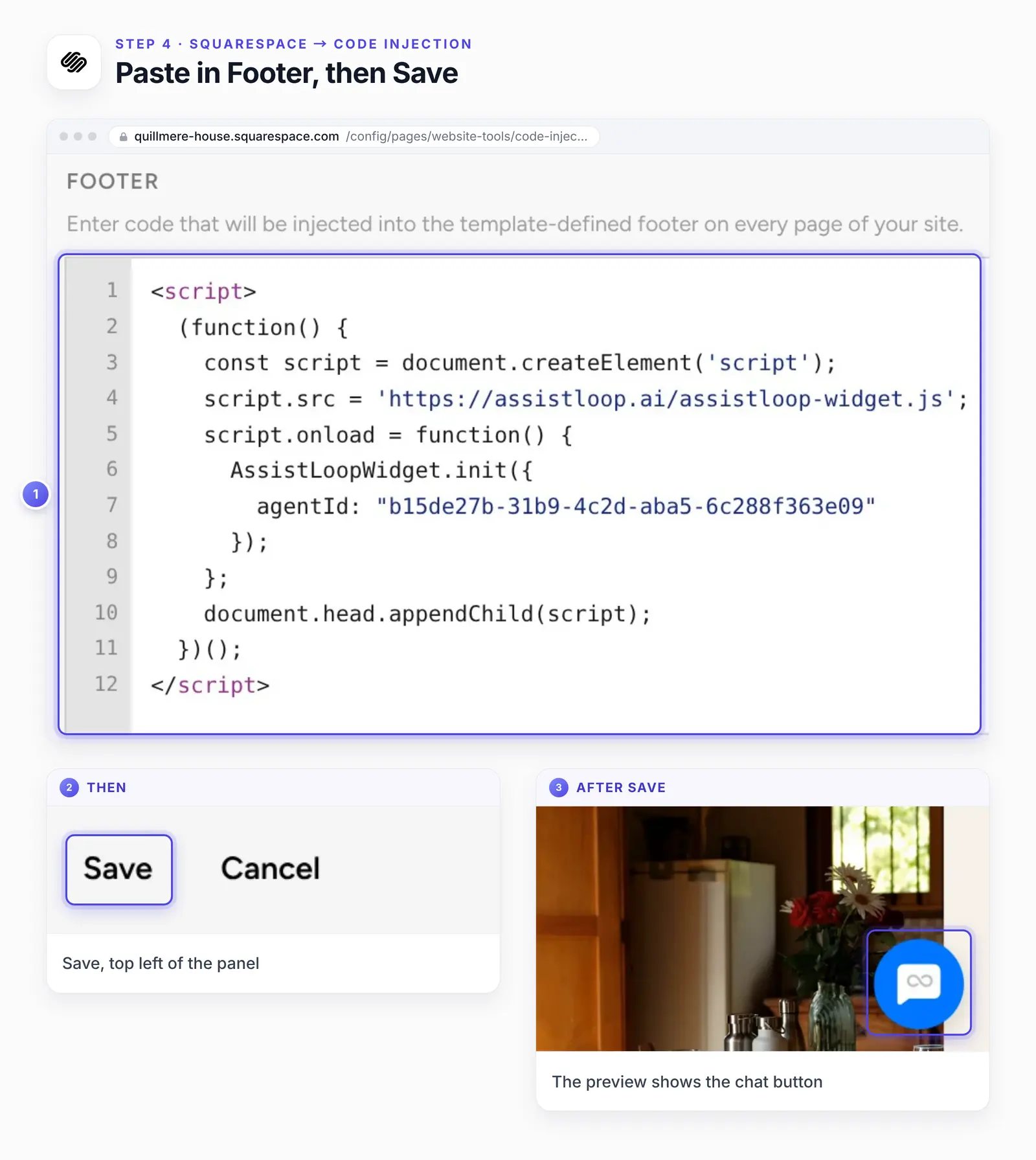
Right after Save, the preview beside the panel showed the chat button.
You don't publish anything else. Saved code reaches visitors straight away.
Treat the editor preview as a first look only. If Squarespace shows Scripts have been disabled on your site preview, injected code is off in the preview, but visitors still get it. Squarespace's advice is to open your site's address in a private or incognito window instead.
Step 5: Ask about late check-in in a private window
Open your site in a private window, so you see what a guest sees. Click the chat button at the bottom right of any page, and the agent greets you.
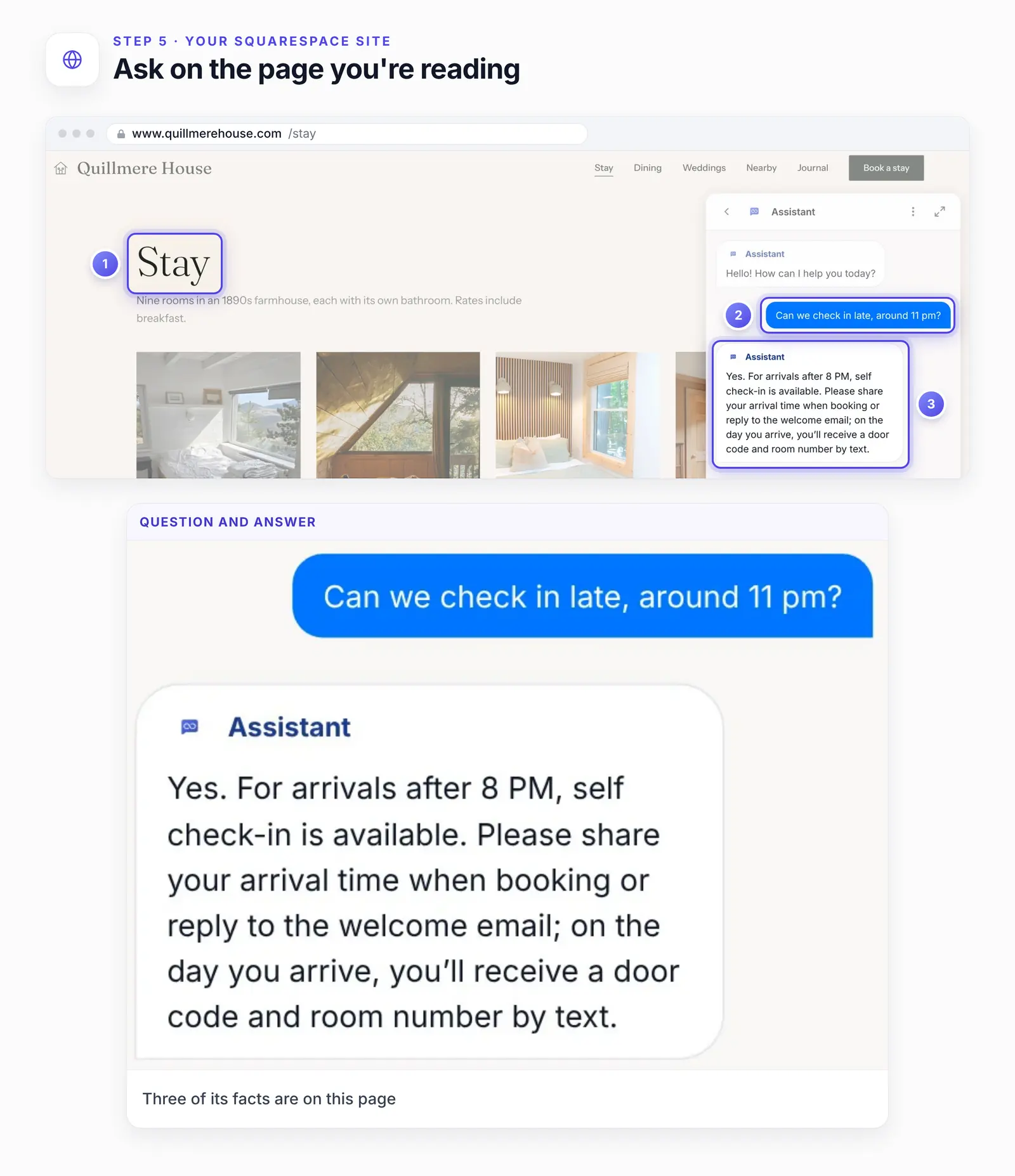
The answer is printed in full below and matched to the page in the next figure.
On the Stay page we asked "Can we check in late, around 11 pm?" The agent replied:
Yes. For arrivals after 8 PM, self check-in is available. Please share your arrival time when booking or reply to the welcome email; on the day you arrive, you’ll receive a door code and room number by text.
Three facts in that reply sit on the Stay page under Arriving late. Self check-in starts after 8 pm, the door code and room number come by text on arrival day, and the inn asks for your arrival time. The agent said yes and gave the guest their one job. It didn't promise anyone at the desk at 11.
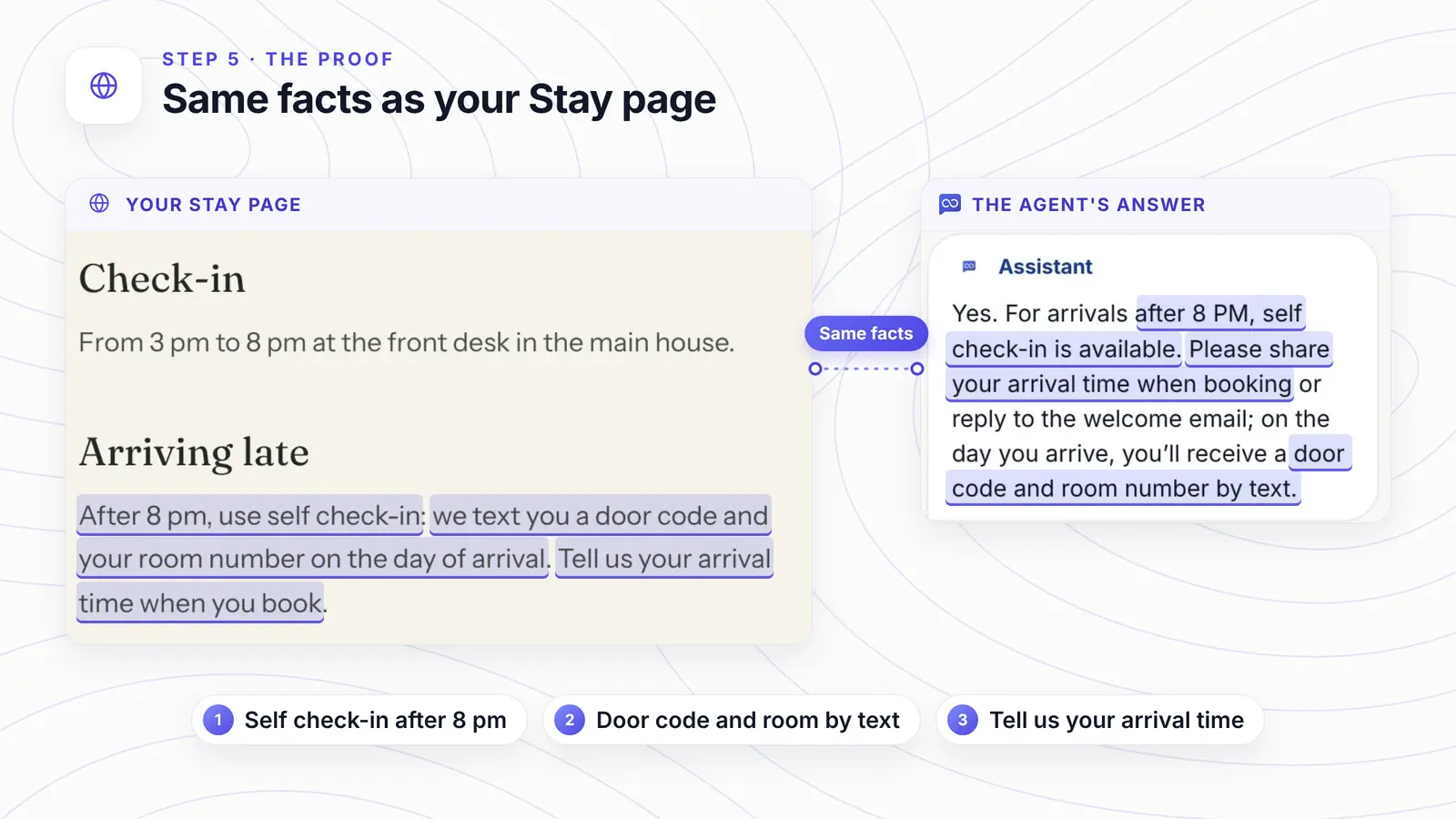
Each highlighted pair links a line on the Stay page to the same fact in the reply.
From Stay we went to Dining in the menu. The late check-in question and its answer were still in the open thread, since Footer code runs on Dining as well.
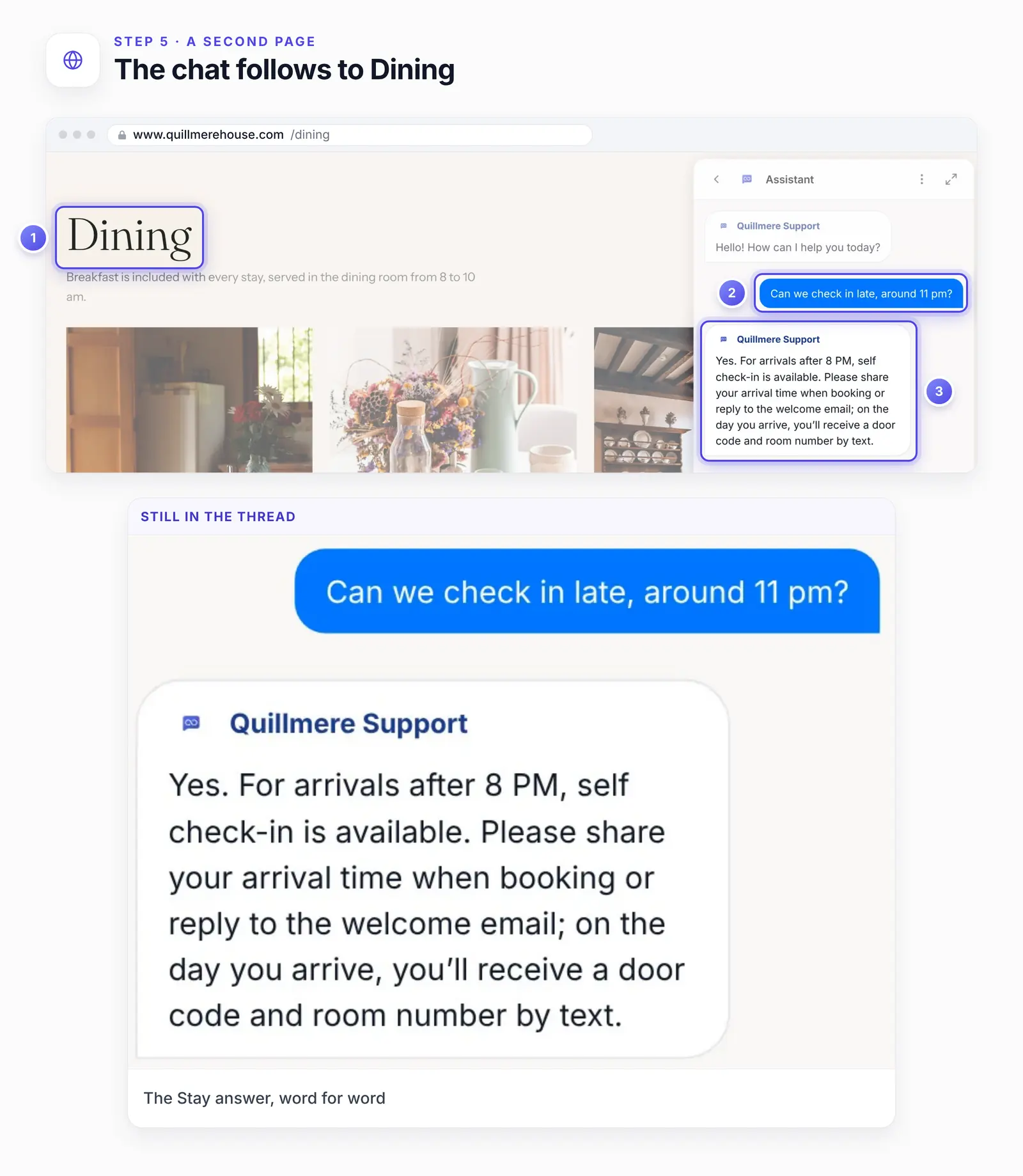
A guest can reread the late check-in answer from any page the Footer code reaches.
Then run four guest checks:
Open the site in a private window with your browser extensions off.
Narrow the window to phone width, and check the chat button isn't hidden under your cart icon or a mobile information bar.
Visit a blog post or a product page, not only the home page.
Ask something your site doesn't cover, and check the agent says it doesn't know. If it guesses, fix the wrong answer with a Q&A pair.
Want answers like this, taken from your own pages? |
If the chat button is missing on Squarespace
Save wasn't clicked. If Save and Cancel still sit at the top of the panel, the snippet isn't stored yet.
The code went into Lock Page. Code in that box shows only above the password field of a locked page. Move it to Footer.
The preview has scripts switched off. Open your site's address in a private window to see what visitors get.
An ad blocker or privacy extension hides it. It may block the chat in your own browser only. Try a private window with extensions off.
Two chat buttons appear. The snippet sits in both Header and Footer, or went in twice. Keep a single copy, in Footer.
Your plan has no Code Injection. Move to Core, Plus or Advanced, or keep a legacy plan that includes it.
The snippet came from another agent. In AssistLoop, select the agent you trained on this site, copy again and replace the Footer code.
Squarespace won't troubleshoot custom code (code injection guide), so if the button is still missing after these checks, open the chat on assistloop.ai and tell us your site's address.
How we tested this
The agent and the answer: we built Quillmere Support in our own AssistLoop workspace on 11 October 2026 and trained it on the inn's pages. Step 5 quotes the late check-in reply character for character, curly apostrophe included. The Stay text the agent trained on also offered replying to the welcome email, a line the captured Stay page doesn't carry.
The Squarespace side: the demo inn isn't a Squarespace customer site. Steps 3 and 4 show a recreation of the editor, built from Squarespace's help articles and screenshots. The help lines printed under its boxes are ours, not Squarespace's.
The recreation's menu: its Pages panel ends in a Version 7.1 label, yet it keeps Code Injection under Website Tools, the way 7.0 sites still reach it. Today's 7.1 editor lists it under Custom Code, as Step 3 shows.
The inn's site: it ran in our test browser at that address and isn't public. Fetch Links on it returned the demo site's page list, and those pages' text went into training. Save stored the snippet, and each page printed it just before the closing body tag, which is what loaded the agent.
The content: Quillmere House, its rooms and its policies are invented.
The code card: the HTML tab's snippet with only the agent ID replaced. On 21 October 2026 we opened Widget Installation → HTML again, saving nothing. The card matched. Copy put the code on the clipboard from the opening script tag to the closing one, without the card's comment line.
The screenshots: frames from the 11 October recording, including the Stay answer and the Dining page, plus the Stay page captured on 18 October. Pins, rings and close-ups are drawn around the screens, and the screens themselves are untouched.
The help articles: the Squarespace Help pages linked in this guide were read again on 22 October 2026.
What to do next
Teach the agent the things guests ask about most. Three good first sources for a small business, each added as training data:
house rules or policies that live in a PDF rather than on your site, such as the note you send after booking;
your rates, and what each one includes;
the questions guests email most, typed in as Q&A pairs.
To set its tone and house rules, write short instructions for the agent. Some requests need a person, like booking the whole inn for a family reunion, so pass those chats to your team. To make the chat button look like part of your site, use widget customization.
Frequently asked questions
Which Squarespace plan do I need?
Core, Plus or Advanced, or a legacy billing plan that includes Code Injection, per Squarespace's help. Some older guides name the Business plan instead.
Can I show the chat on only one page?
Yes, with AssistLoop's page rules on a paid plan: keep the Footer snippet and open Widget Appearance → Advanced → Display Restrictions → Pages. Turn on page rules, type that page's address in the Allow box (for example yoursite.com/contact*), click Add, then click Save restrictions. A Code Block on that one page works too, but needs the same Squarespace plans.
Can I set it up during my Squarespace trial?
Yes. Squarespace says trial sites get "most custom code options" (Squarespace Help Center). A trial site is private unless you share a password with visitors, so most guests only meet the agent after you upgrade. Pick Core, Plus or Advanced when you do, since Code Injection must be on the plan you choose.
Will the chat show on my checkout pages?
No. Squarespace doesn't run custom code on checkout pages (Squarespace Help Center), so the chat skips them. Every other page loads it.
Does it work on Squarespace 7.0?
Yes. The snippet and the Footer box are the same; on 7.0 you reach Code Injection through Website Tools in the Pages panel (Squarespace Help Center). Squarespace also warns that Ajax loading can clash with embedded code, so if the chat misbehaves there, try switching Ajax loading off (Squarespace Help Center).
How do I remove it?
Open Code Injection, delete the snippet from the Footer box and click Save. The chat button leaves every page.
Next Friday the couple taps the chat at the rest stop instead of scrolling. They learn that self check-in starts at 8 and answer the welcome email with "around 11". You keep the parlor fire going, and the door code still arrives by text on the day they come.
Give your own inn, studio or shop those late-night answers: build an agent from your Squarespace address. If you also look after a Webflow site, the same snippet goes into Webflow's Footer code.
 | Written by AssistLoop Team We build AssistLoop, an AI support agent that answers customers from your own website and documents, and hands the chat to your team when a person should step in. ★★★★★ "It reduces their need to answer calls or minor inquiries, as the answers come from our website database." Jason K., Managing Director, on G2 |
Build Custom AI Chatbot for Your Business FREE
Create intelligent AI agents that handle customer support, boost conversions, and work 24/7 for your business.
Build Your Agent