How to Hand Off AI Chats to a Human Agent
Your AI support agent can tell a shopper whether a mug is dishwasher safe, but it shouldn't approve a refund or change the address on an order. AI-to-human handoff passes those chats to your team inside the same chat window, so the customer never has to start over. This guide switches it on in AssistLoop, follows one chat from the AI's answer to your team's reply and back to the AI, and gives you five triggers to write into your agent's instructions. The switch takes a minute; choosing the triggers takes a little longer.
 AssistLoop Team13 min read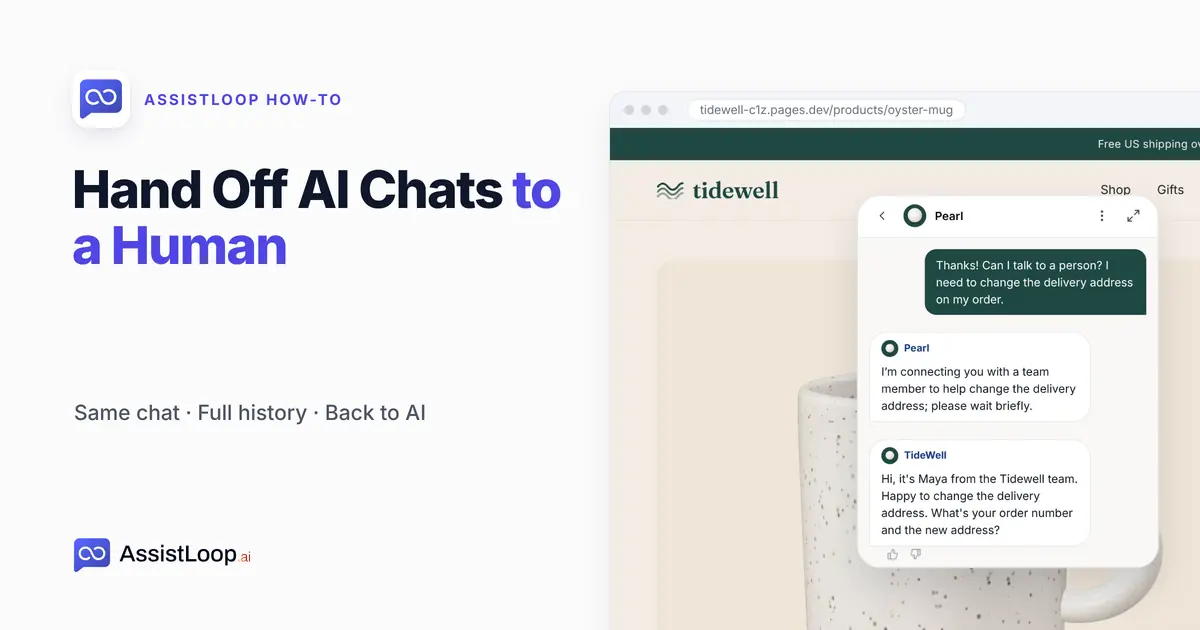
On this page
Last updated: October 2026. We filmed the whole flow on 16 October 2026: Human Handoff switched on, a shopper asking for a person on a product page, our reply from Conversations, and the chat handed back to AI. The step screens below are stills from that session.
Quick answer
Then decide which other moments should reach a person: the triggers are further down. |
A shopper on the Oyster Mug page asks whether the mug can go in the dishwasher. Pearl, the shop's AI agent, replies:
Yes—the Oyster Mug is dishwasher safe. Hand-washing can help keep its glaze glossy for longer.
The next message is different: "Thanks! Can I talk to a person? I need to change the delivery address on my order."
No page on the site answers that, and you don't want an AI guessing at someone's order. It belongs with a person, along with everything said so far.
Tidewell Ceramics is a stoneware shop we invented for these guides. Its demo site runs at tidewell-c1z.pages.dev, and Pearl is its AssistLoop agent.
The walkthrough video runs under two minutes and plays this same conversation from both sides, ending with the switch back to AI.
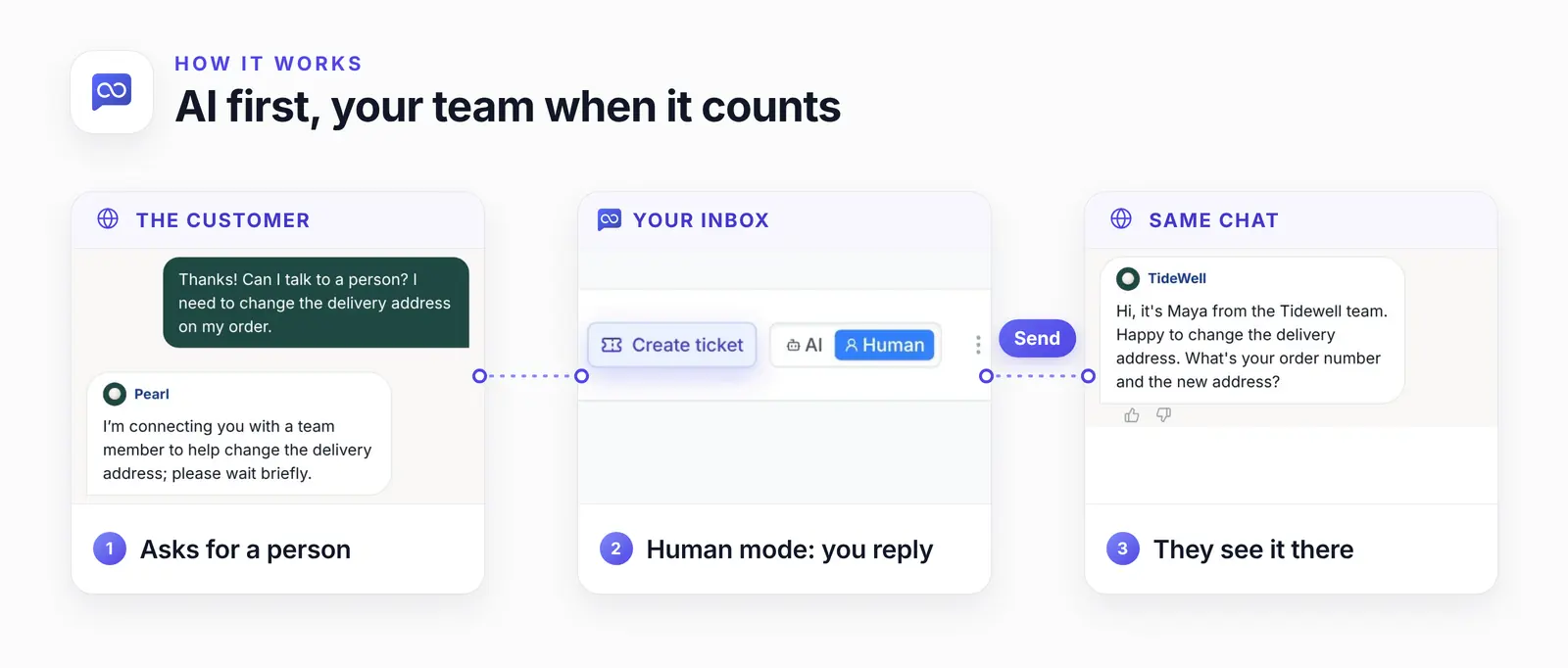
The chat never moves: the customer asks, your team answers in Human mode, and the reply arrives where the question was asked.
What a good handoff looks like
A good handoff tells the customer a person is coming, and that person picks up in the same chat with everything said so far. Reaching a person is what customers worry about most when a business puts AI on its support. In a Gartner survey of 5,728 customers run in December 2023, 64% said they would prefer companies didn't use AI for customer service. Their top concern was that AI would make it harder to reach a person (Gartner, 9 July 2024).
So give them a visible way out. An AI channel "must communicate to the customer that they will connect them to an agent in the event that the AI cannot provide a solution," says Keith McIntosh, Senior Principal, Research, at Gartner. The person then carries on from where the AI stopped.
That's how AssistLoop's handoff works: one thread, with the AI and your team taking turns. Its feature page names two ways into Human mode: "Either the visitor asks for a person, or your team takes the conversation over from the inbox."
This guide films the first.
| Moment | Who answers | Mode |
|---|---|---|
| Product question | The AI | AI |
| Asks for a person | Your team | Human |
| Request sorted | The AI again | AI |
Step 1: Switch on Human Handoff
Open your agent in AssistLoop and go to the Playground. In the settings panel on the left, below the Instructions box, find the Human Handoff card and flip its switch. The same switch also sits in your agent's Settings. Nothing needs saving: a green notice, "Human handoff enabled successfully", appears and the card's badge changes to Enabled.
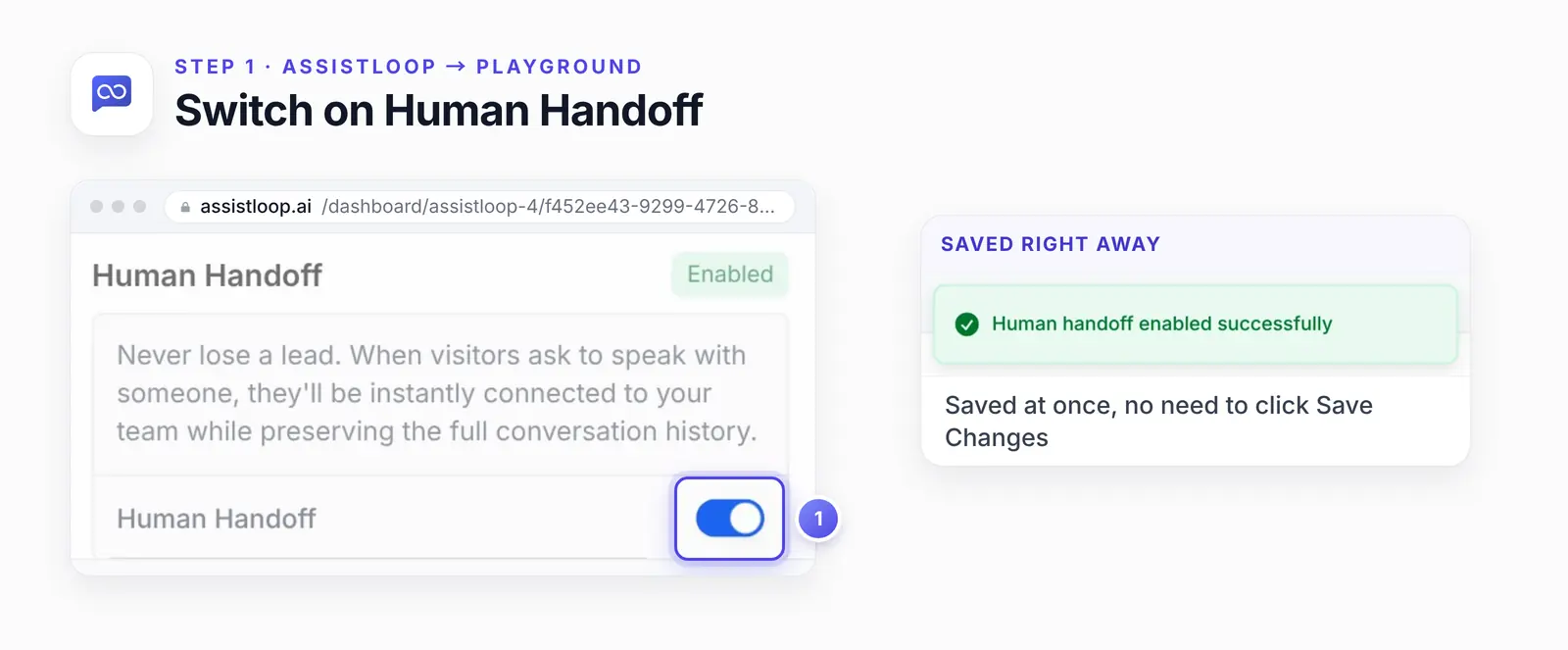
From the card's description: "When visitors ask to speak with someone, they'll be instantly connected to your team while preserving the full conversation history."
Step 2: A customer asks for a person
On the product page, our shopper got the dishwasher answer and then asked for a person. Pearl replied:
I’m connecting you with a team member to help change the delivery address; please wait briefly.
A handoff message has three jobs. It tells the customer a person is coming, it says what happens next, and it never asks them to explain the problem again. Pearl's reply repeats the reason back, so the shopper knows the request landed, and "please wait briefly" covers what happens next.
It gives no wait time, though. Make your first reply quick, or say how long you'll be.
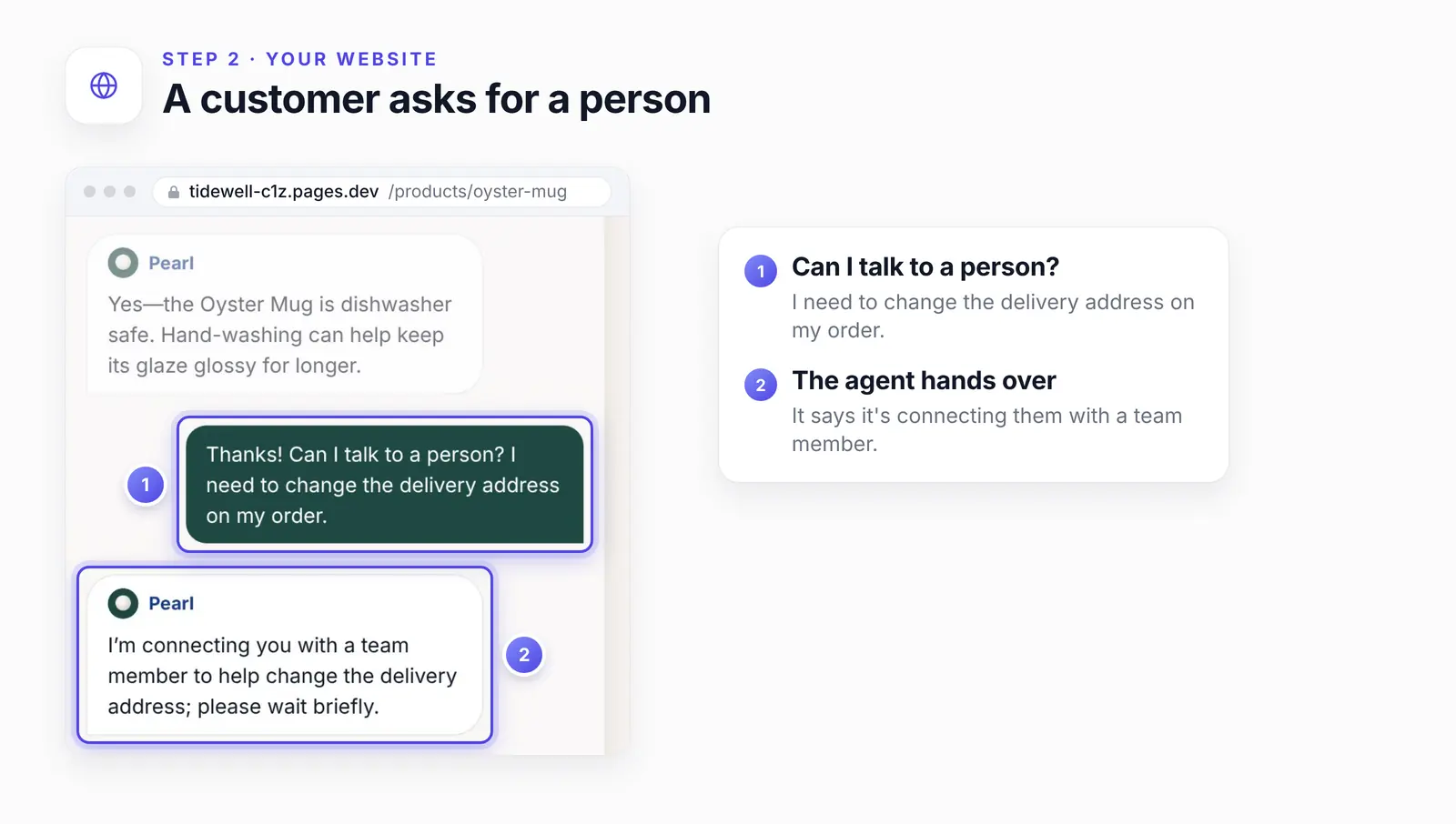
The agent repeats the reason in its reply, so the customer can see the request was understood.
Step 3: Open the chat in Conversations
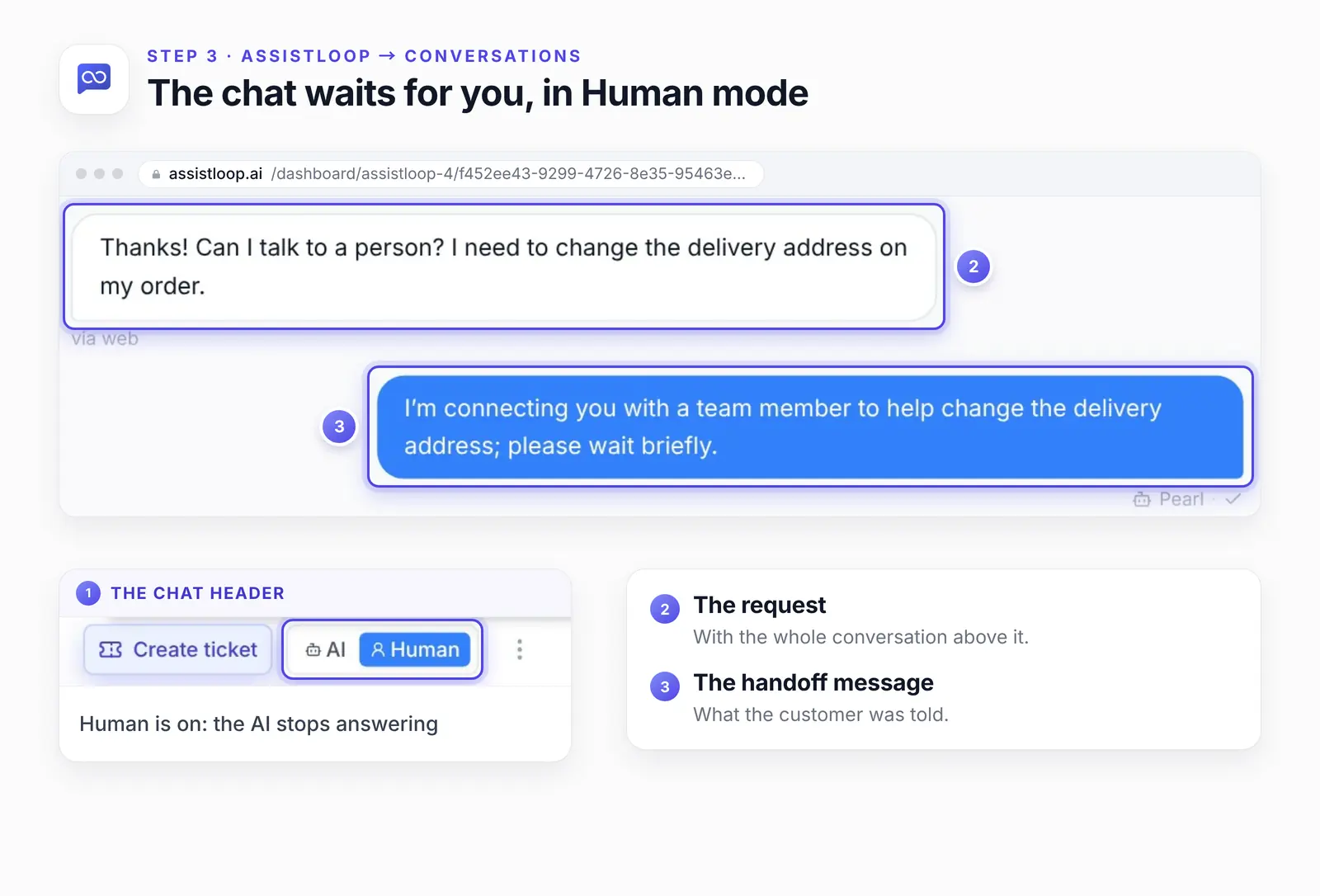
On your side, open Conversations. The chat sits at the top of the list, and its header now shows Human instead of AI. AssistLoop describes Human mode as your team taking the conversation over. In our recording for the automatic-messages guide, the AI sent nothing more in a chat once it was in Human mode.
Scroll up and the whole thread is there, dishwasher question included.
We didn't see an alert for a new handoff, so keep Conversations open while you're on shift. A chat waiting for you shows Human in its header, and its last line in the list is the agent's handoff message or a customer message after it.
Our test chat shows the shopper only as "User 1254343", because we hadn't asked for a name. Two settings fix that. A pre-chat form asks for a name and email after the visitor's first message. For signed-in customers, AssistLoop's Identity Handoff attaches their names and emails to their chats, so they don't show up as anonymous visitors.
Step 4: Type your reply and send it
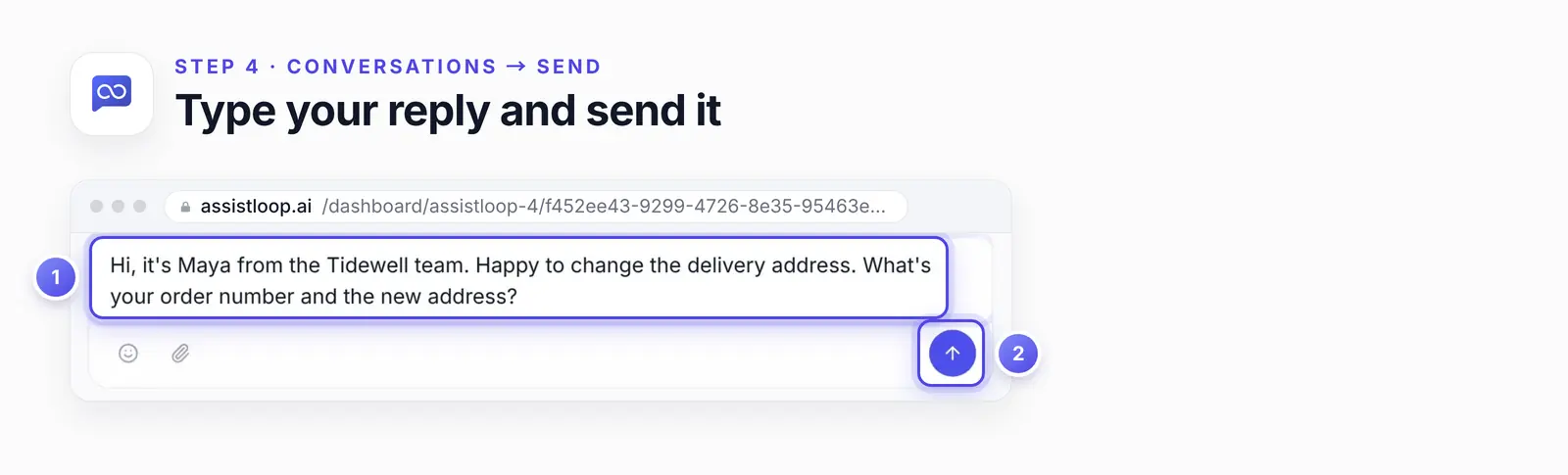
Write in the message box at the bottom and press send. Ours read: "Hi, it's Maya from the Tidewell team. Happy to change the delivery address. What's your order number and the new address?"
Once a chat is in Human mode, the customer can attach files too: up to four, 5MB each, according to AssistLoop's human handoff feature page. That's handy when you need a photo of a chipped glaze or a wrong item.
Step 5: The customer sees it in the same chat
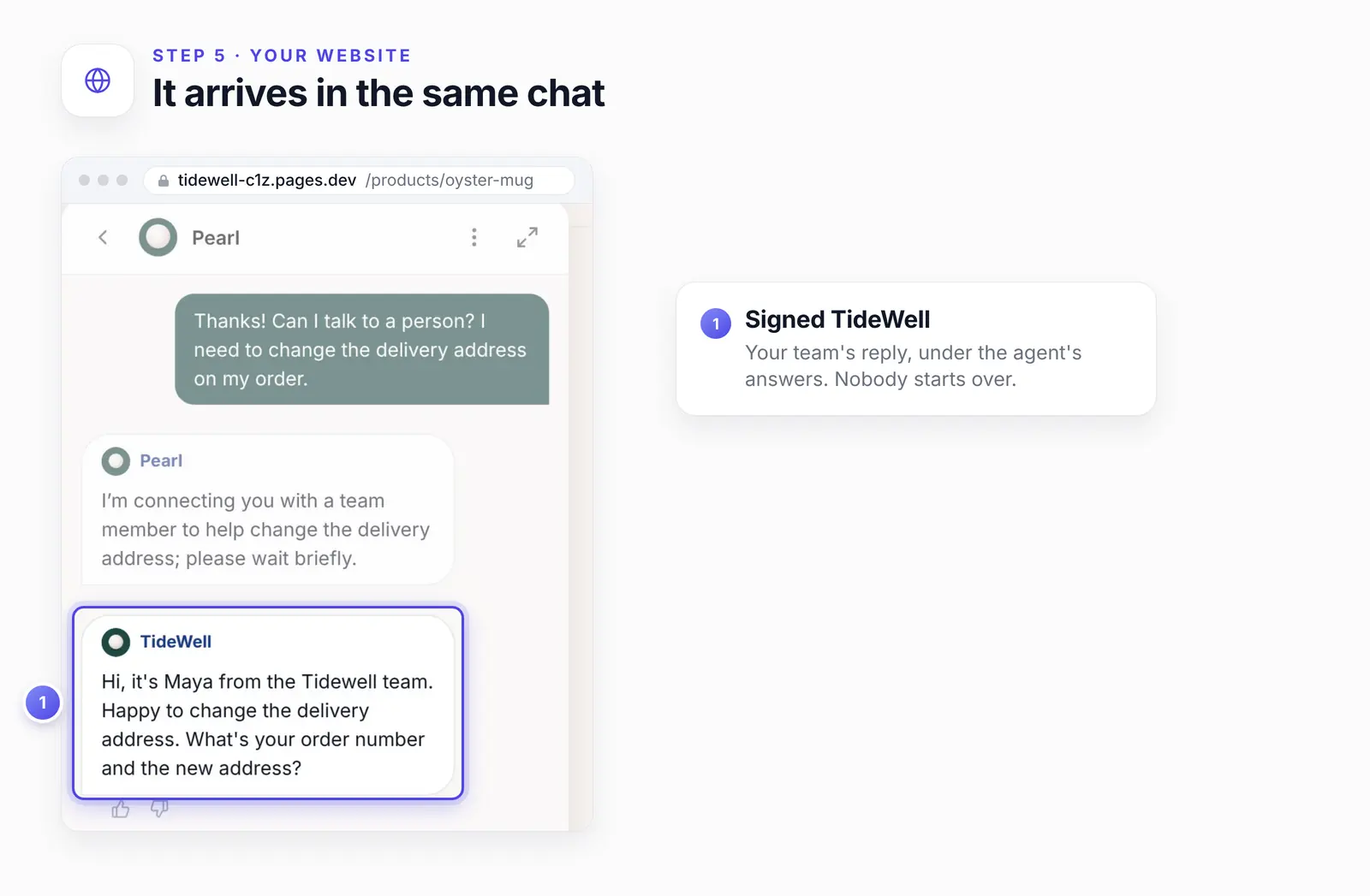
Back on the product page, the reply was in the same conversation, under Pearl's handoff message. It sits there signed TideWell. Team replies carry the sending account's display name, which you set in Account Settings → Basic → Name.
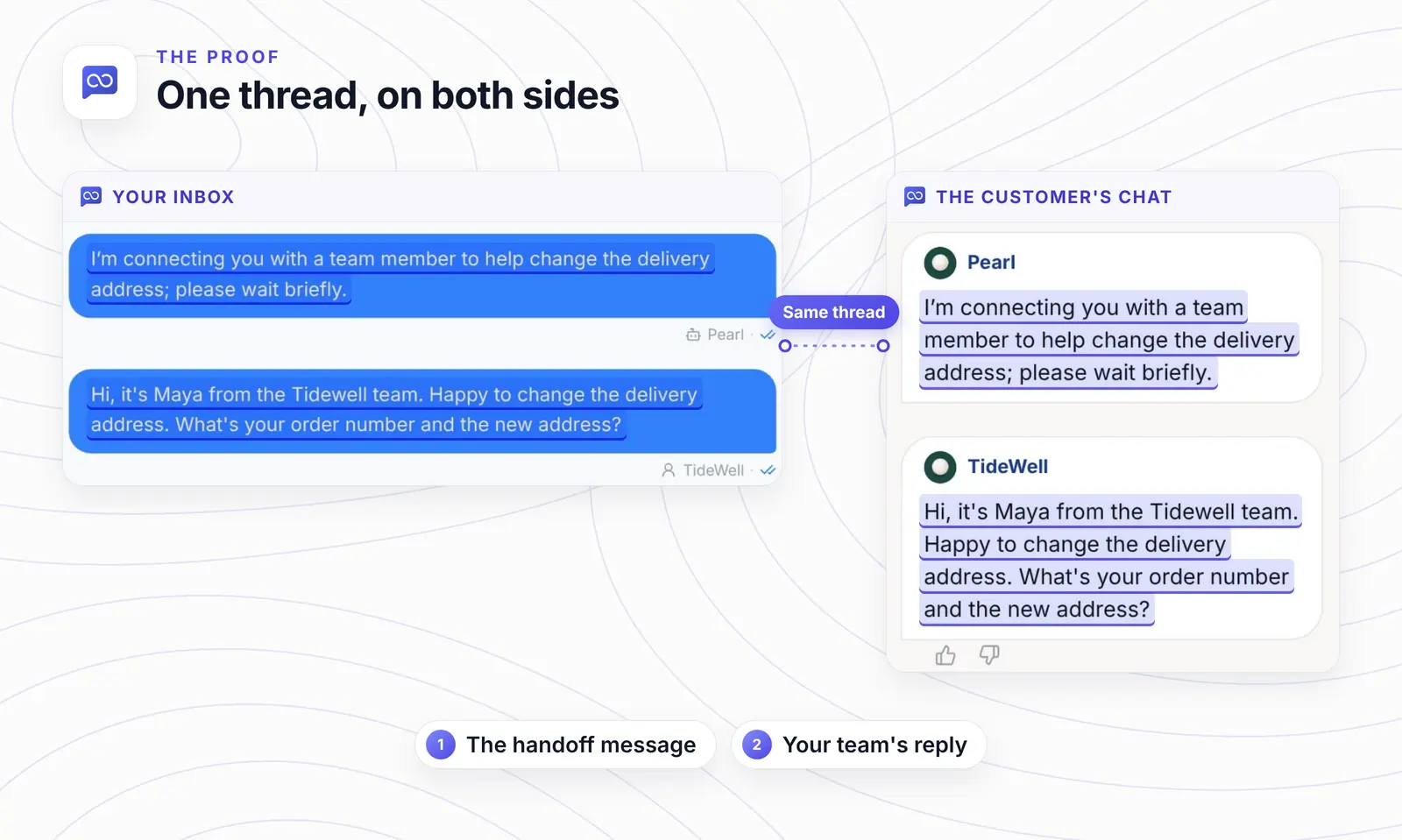
Your inbox and the customer's chat are one thread, message for message.
Want an AI agent that knows when to call your team? |
Step 6: Hand the chat back to the AI
Hand the chat back when the request is sorted and nothing left in the chat needs a person. Click AI in the switch at the top of the chat. AssistLoop confirms with "This conversation is now handled by AI Assistant."
The switch now shows AI, and the AI handles that chat again. Send a test message as the customer to see it answer (check 5).
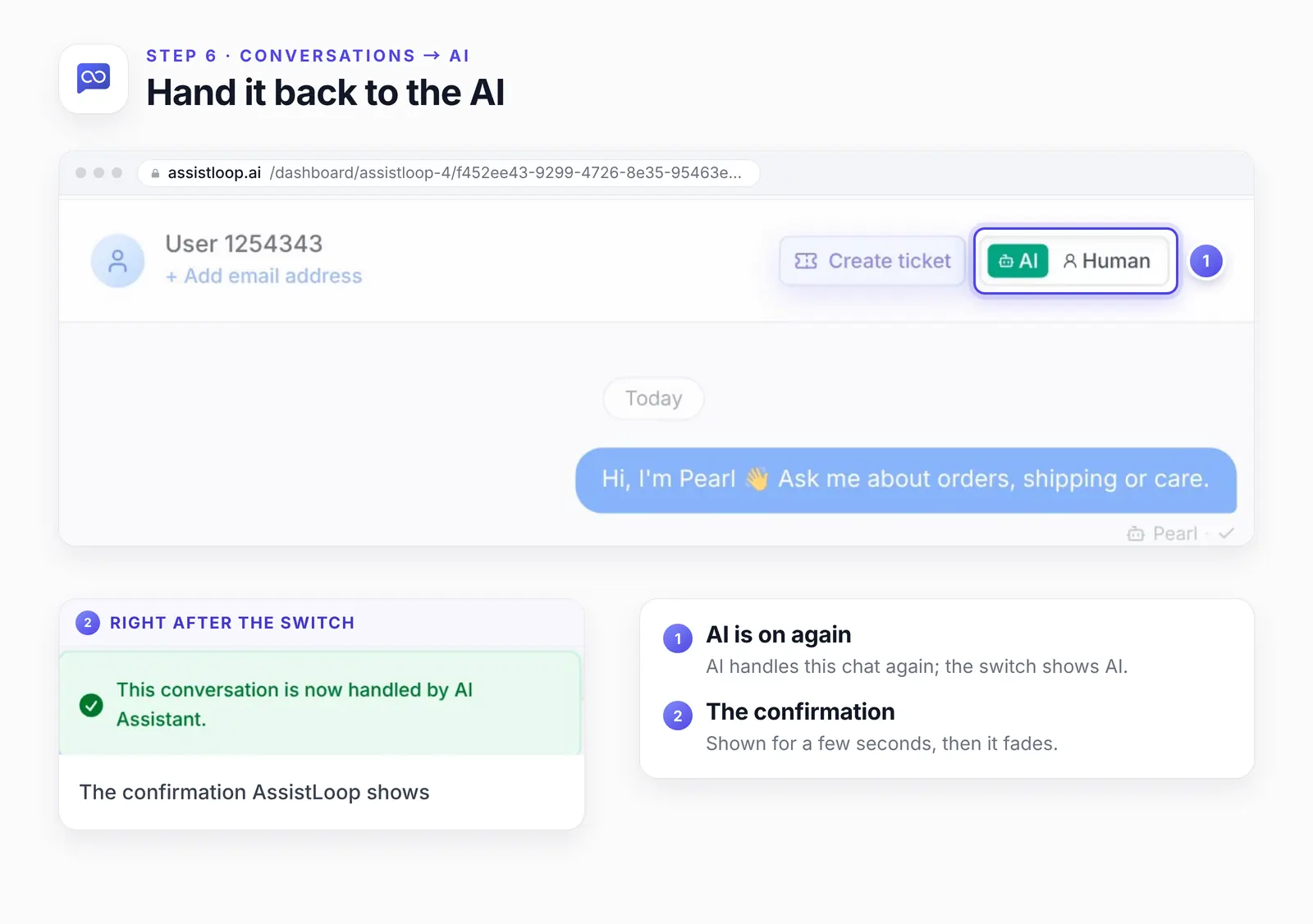
The view shows the top of the same thread, with Maya's reply further down. The confirmation fades after a few seconds; the switch keeps showing AI.
Human handoff triggers: when the AI should pass the chat
AssistLoop hands a chat to a person by itself only when the customer asks for one. To have it offer a person on refunds, upset customers, repeated misses or big orders, add a line for each to your agent's instructions (untested starting points, below).
The customer asks for a person, in any words, at any point. This is the trigger in the steps above.
A decision only your team can make: a refund, an exception to a policy, a change to an order like our address, or a billing dispute if you run hosting on WHMCS.
An upset customer: apologize once, then offer a person. We sent Pearl an angry message while testing instructions for an earlier guide. Its instructions said to connect the team only when asked, so it apologized, asked for the order number and never offered a person. If you want upset customers offered a person, it needs its own line.
A second answer that doesn't help. After two misses, offer a person rather than a third rewording. The US Consumer Financial Protection Bureau, writing about banks in 2023, calls these circles with no exit to a human "doom loops" (CFPB report).
A high-value lead, such as a large or custom order. Take the buyer's details with a Collect Lead action, or bring in the team while they're still on the page.
Lines like these work as a starting point. Swap the examples for your own:
Handoff rules: |
Paste them at the end of the Instructions box in the Playground (or under your own Handoff heading if you have one), then click Save Changes.
We filmed only the first trigger for this guide. Treat the other four lines as a starting point, and try each one in your Playground before customers meet it.
After hours: when nobody can reply
Outside your hours, have the agent offer a support ticket instead of a person. A handed-off chat waits in Human mode until someone on your team switches it back to AI, even after you've replied. So steer out-of-hours requests in your instructions, before any handoff happens. This line is a starting point we haven't tested; swap in your own hours:
- If the customer asks for a person outside our support hours (Monday to Friday, 9 am to 5 pm Pacific), tell them when the team is back and offer to file a support ticket instead. |
The agent needs its ticket action set up first; our guide shows how to let your agent file support tickets. A ticket keeps the work going after the customer has left the page.
If you'd rather nobody reaches the chat outside your hours at all, the widget's Schedule (Widget Appearance → Advanced → Display Restrictions → Schedule) hides it outside the windows you set; here's how to show the chat only during business hours. Keep in mind that it hides the AI's answers too.
Test your handoff
Run these checks in test chats on your own site before a customer finds the gaps:
Ask for a person in two separate test chats, with a different phrasing in each.
Open Conversations and check the chat shows Human mode.
Reply from the inbox and check the message reaches the widget.
Send one more message as the customer and check the AI stays silent.
Switch the chat back to AI and ask a product question.
For this guide we ran checks 2 and 3 on camera, check 1 with one phrasing, and the switch back to AI in check 5. Check 4 and the product question in check 5 are yours to run.
If handoff doesn't happen
The card reads Disabled. Switch Human Handoff on in the Playground again.
The customer never asked. Without a request or a trigger line, the agent keeps answering.
Your instructions hold it back. If they tell the agent not to hand off, it may keep answering instead, the way Pearl did in trigger 3. Replace that line with the trigger lines above.
A chat sat in Human mode with no reply. Answer it, or switch it back to AI so the customer's next question isn't left waiting.
How we tested this
The setting: Human Handoff, switched on in the Playground of Pearl, our demo agent.
The chat: one shopper on the demo shop's Oyster Mug page. Pearl's answers and the shopper's messages are quoted word for word from the recording.
The reply: typed by us in Conversations as Maya from the shop's team, then checked on the product page, in the same conversation reopened in the shopper's browser. We switched the chat back to AI right after that first reply, to show the control.
The triggers: only the explicit request for a person was filmed. The other instruction lines, and the after-hours line, are advice we haven't run on camera.
Human mode: in our recording for the automatic-messages guide, a chat in Human mode got no AI reply to the customer's next message. We didn't repeat that check here.
The figures: stills from our 16 October 2026 recording, trimmed to the part each step needs, with the key detail enlarged and numbered. Nothing in the interface was changed.
Frequently asked questions
Does the customer have to repeat themselves?
No. Your reply lands in the chat they already have open, and the whole conversation is in your inbox above it.
Will the AI keep answering after my team takes over?
Not in that chat. Human mode stops the AI there until you switch it back, while it keeps answering everyone else.
Can my team take over a chat the customer didn't hand off?
Yes. Open the chat in Conversations and switch its mode to Human, and the AI leaves that chat to you.
What happens if nobody on the team is online?
The chat waits in Human mode, and the AI stays out of it, until someone replies or switches it back to AI. The customer sees the handoff message and nothing more in the meantime. To avoid that, have the agent offer a ticket outside your hours (see After hours above), and hand unanswered chats back to AI. On each shift, rows in Human mode that end on the handoff message or a customer's message are the ones still waiting.
Can I answer every chat myself?
Yes. Human Only Mode, in your agent's Settings, turns the AI off for all chats, so AssistLoop works as a plain live chat.
Is human handoff on the free plan?
No. The free plan covers the AI agent, and handoff starts on the Basic plan. AssistLoop pricing lists what each plan includes.
Maya picked up the address change, and once it's sorted the chat can go back to Pearl, ready for whatever the shopper asks next. Let your agent carry the routine questions and keep your team for the moments that need a person: set up an AssistLoop agent on your own site. If you'd like it to speak up before shoppers ask, here's how to send automatic chat messages to website visitors.
 | Written by AssistLoop Team We build AssistLoop, an AI support agent that answers customers from your own website and documents, and hands the chat to your team when a person should step in. ★★★★★ "I like AssistLoop's ease of use compared to other systems." Jason K., Managing Director, on G2 |
Build Custom AI Chatbot for Your Business FREE
Create intelligent AI agents that handle customer support, boost conversions, and work 24/7 for your business.
Build Your Agent