How to Send Automatic Chat Messages to Website Visitors
Plenty of visitors with a question never type it. Proactive chat speaks first. A reactive chat button waits to be clicked, while a proactive message from your team appears after a few seconds on a page it fits. In about ten minutes, this guide sets up one such campaign in AssistLoop, shows it arriving on a shop's Shipping page, and shows who answers the reply.
 AssistLoop Team14 min read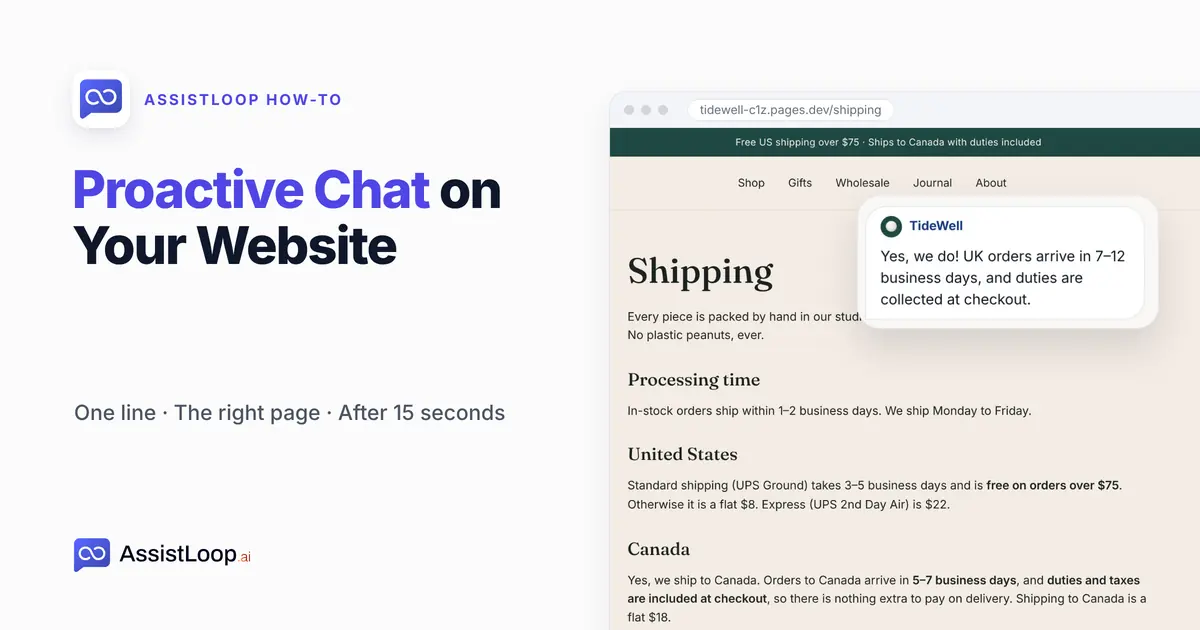
On this page
Last updated: October 2026. We built the campaign below for a demo shop's Shipping page, waited on that page as a shopper and replied from Live visitors. The figures are frames from that recording, made on 18 October 2026.
Quick answer In AssistLoop:
|
Picture a shopper reading your Shipping page. They've scrolled past United States and Canada to International, and they can't tell whether the UK is on the list, or who pays the duties. They'll probably close the tab rather than ask.
Fifteen seconds after they arrived, a message slides up from the corner: "Shipping somewhere far? Ask me about delivery times." They click it and ask.
That page belongs to Tidewell Ceramics, a pottery shop that exists only as our demo at tidewell-c1z.pages.dev, with an AssistLoop agent called Pearl. The two-minute video follows the same campaign. It runs from the first switch to the team's answer.
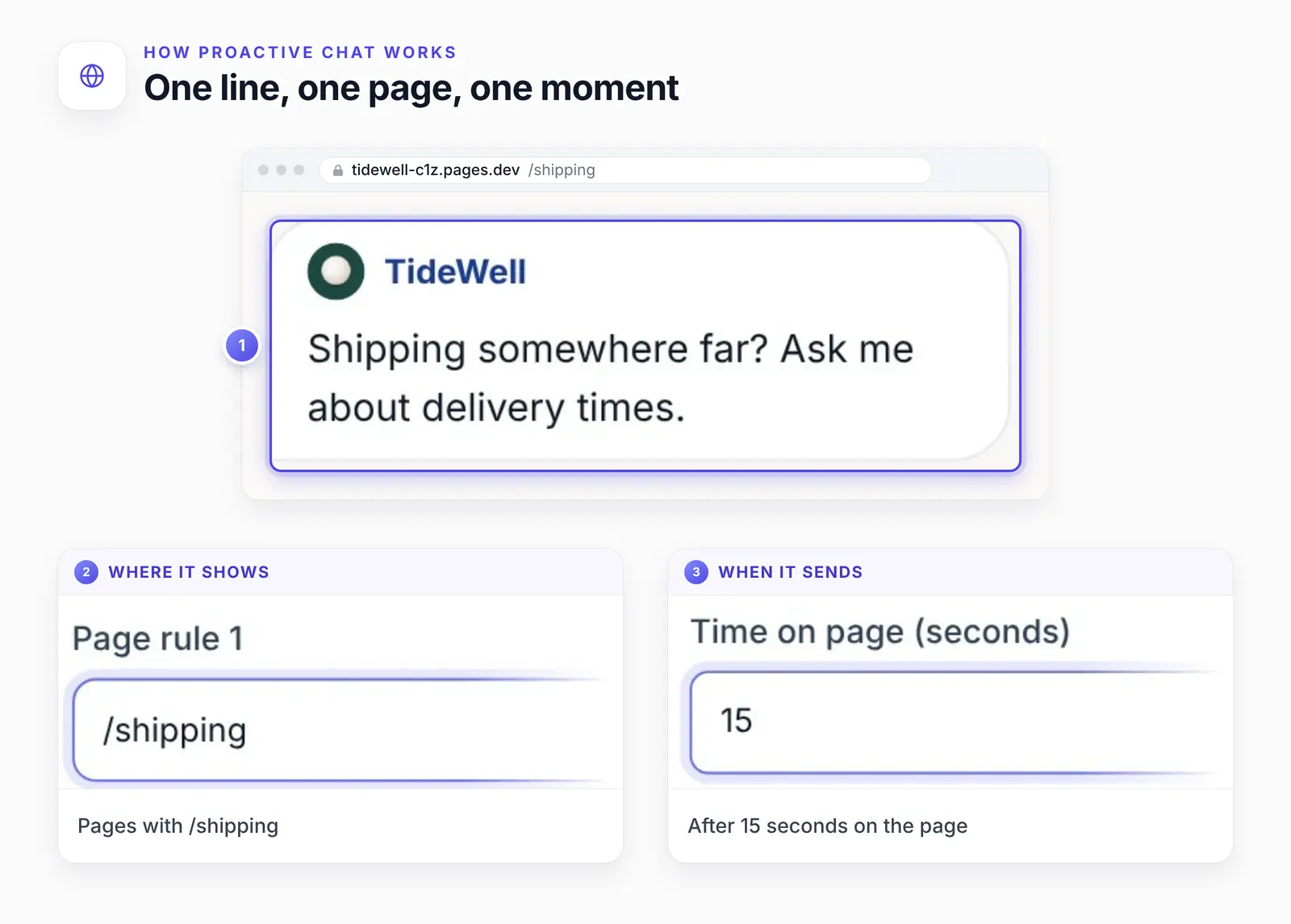
A campaign is three choices: what it says, where it shows, and when.
When to send it, and who answers
A proactive message helps when it fits the page, waits until the visitor has settled in and shows up once. It annoys when it fires everywhere, on load, every visit. AssistLoop's campaign builder has a setting for each limit. One more thing: a campaign chat goes to your team, not the AI, so plan who replies.
| Setting | Our choice | Why |
|---|---|---|
| Where | /shipping only | Fits the line |
| When | After 15 s | Lets them read |
| How often | Once | Never nags |
| Who replies | Your team | Sent as a team |
Wait before you speak. Nielsen Norman Group's write-up of a Microsoft Research study of 205,873 pages opens with "Users often leave Web pages in 10–20 seconds" (NN/g, 11 September 2011). That's page visits in general, not chat. Still, it explains the 15 seconds: whoever is reading by then has decided the page is worth their time.
Never send on page load. Reviewing popup patterns, NN/g's Anna Kaley writes (NN/g, 30 June 2019):
Regardless of the variation used, never show a popup before users can glean value from your website or application. This trend is highly intrusive because the users’ task is interrupted before they even land on the page.
Keep it small. An AssistLoop campaign is a bubble beside the chat button. Google's guidance on intrusive dialogs prefers that to a full-page overlay. It recommends banners "that take up only a small fraction of the screen" (Google Search Central, updated 10 December 2025).
A campaign chat is a team chat. The message goes out under the name you pick, so the conversation lands with your team and the AI stays out of it. In our build, a person answered the shopper's reply from Live visitors.
So send campaigns where and when someone can answer within minutes. After hours, switch on Require a team member to be online. Visitors who open the chat themselves still get the AI agent. For chats the AI starts and a person finishes, here's how to hand an AI chat to your team.
Write the message about the page. Our line names the worry a Shipping-page reader probably has. On the homepage it would be noise.
Proactive chat messages to copy, by page
Start proactive messages on the pages where shoppers' doubts collect: shipping, cart, checkout and returns. Among US shoppers who abandoned a cart for a reason other than just browsing, 40% blamed extra costs such as shipping, 20% slow delivery and 13% the returns policy (Baymard Institute, updated 22 September 2025). A message won't fix that alone, but it puts a person next to the question.
Only the shipping line was filmed. The others are suggestions, each with the page, a starting delay, the line, and the question it heads off. The delays are starting points: short on checkout and contact pages, where the visitor is busy, and longer on articles and product pages, where reading takes a while.
Shipping, 15 seconds (ours): "Shipping somewhere far? Ask me about delivery times." Heads off: who pays duties, and how long delivery takes.
Pricing or plans, 30 seconds: "Comparing options? Tell me what you need and I'll point you to one." Heads off: which option fits.
Cart, 20 seconds: "Need it by a certain date? Ask me before you check out." Heads off: whether it arrives in time.
Checkout, 10 seconds: "Stuck on payment or delivery? I can help right here." Heads off: why the payment or delivery step won't go through.
Returns policy, 20 seconds: "Not sure your item can come back? Tell me what you ordered." Heads off: whether this item is one the policy covers.
Product page, 30 seconds: "Questions about size, care or materials? Ask me." Heads off: the detail the description leaves out.
Help article or FAQ, 45 seconds: "Didn't find what you came for? Ask me." Heads off: the question the article never answers.
Contact page, 10 seconds: "Quick question? Ask it here and skip the email." Heads off: whether a form is the only way to reach you.
Step 1: Turn on visitor engagement
In AssistLoop, open your agent's Settings and find Visitor engagement. Its description says you can "see who is on your site and send campaign messages from this agent's widget". Switch on Enable visitor engagement.
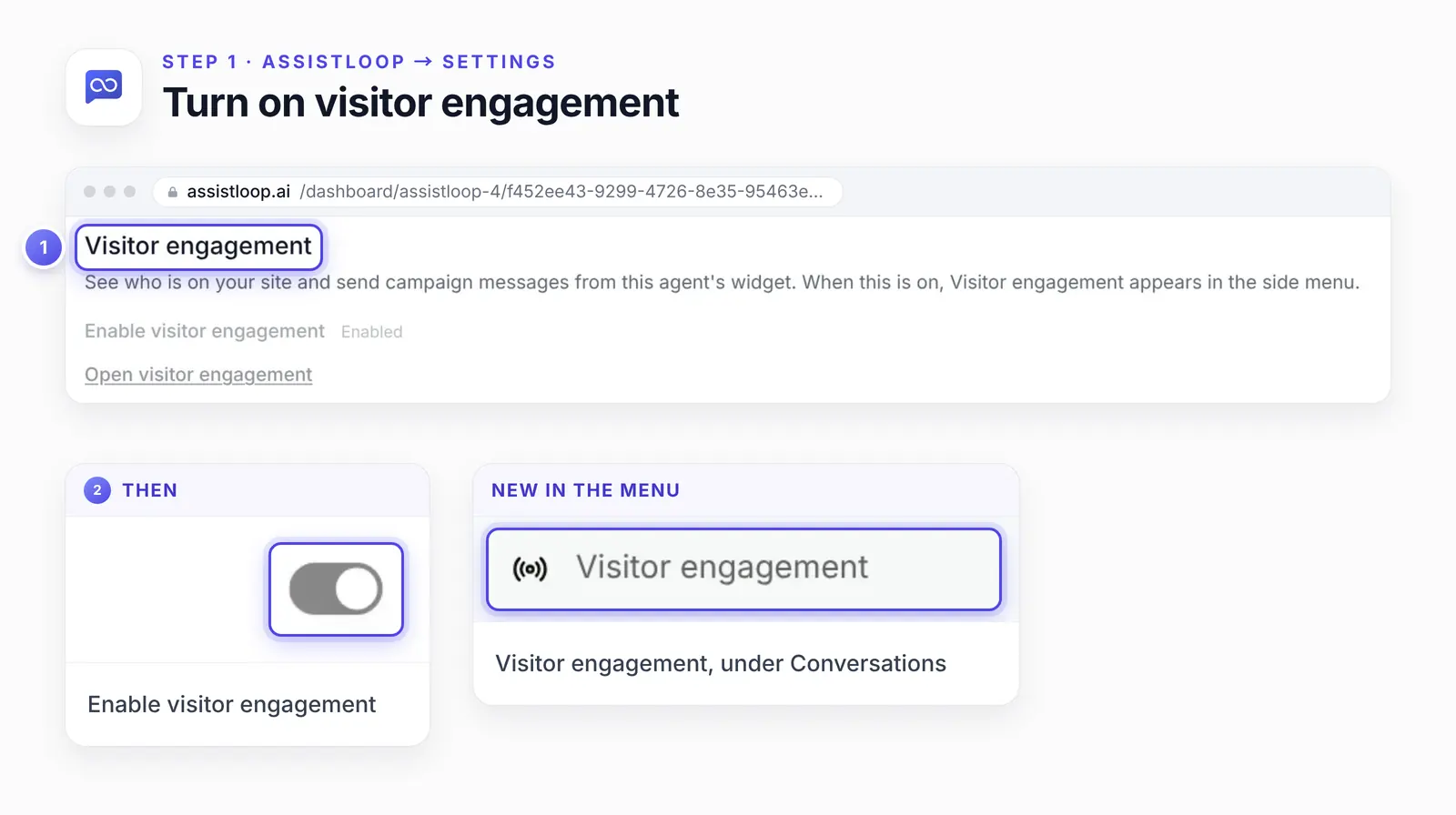
Once it's on, Visitor engagement appears in the sidebar, with live visitors, visitor history and campaigns.
Step 2: Name the campaign and write the message
Open Visitor engagement, go to Campaigns and click New campaign. On the Message step, name it "Shipping help"; only your team sees the name. Then write the visitor message, ours being the line from the scene above.
In Send as, pick the teammate the message comes from; the list shows each teammate's display name, and ours read Me — TideWell, the shop's team name.
Two switches sit below it. Play a notification sound, which plays if the chat is closed, was on in our build. Open the chat automatically opens the full chat instead of a preview bubble; we left it off, so visitors saw the small bubble first. Click Next.
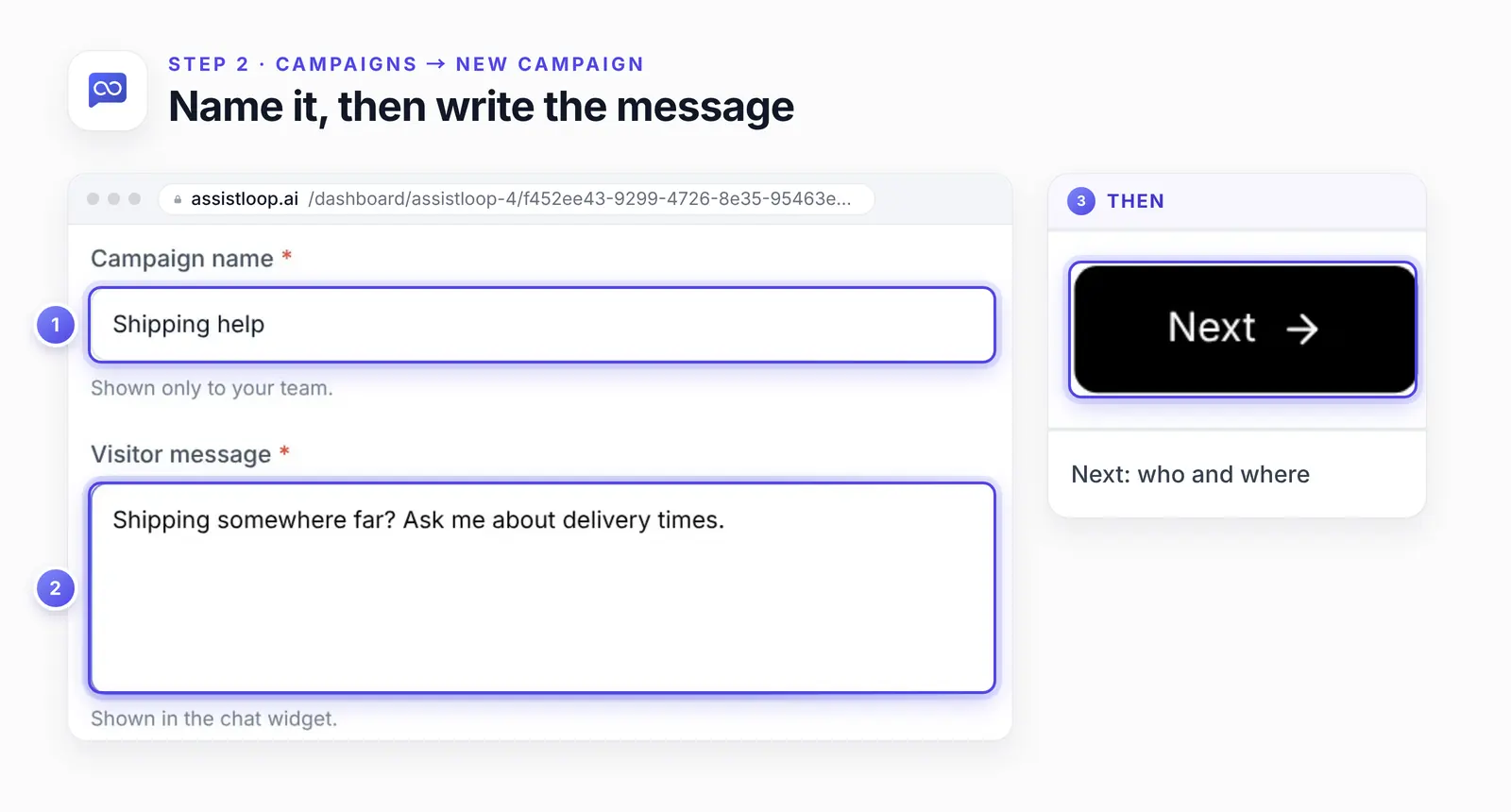
One line is enough. It shows as a small bubble beside the chat button unless Open the chat automatically is on.
Step 3: Show it on selected pages
The New campaign form's second step, Who and where, sets the pages. Under Show on, pick Selected pages, click Add page rule, keep Contains as the match type and type /shipping as Page rule 1. The hint says: "Match a path or full URL, such as /pricing."
Below the rules, Visit frequency picks who gets it: Any visit, First visit or Returning visitors. We kept Any visit. Additional targeting, folded under it, adds optional country, language, URL and attribute filters; we didn't use it.
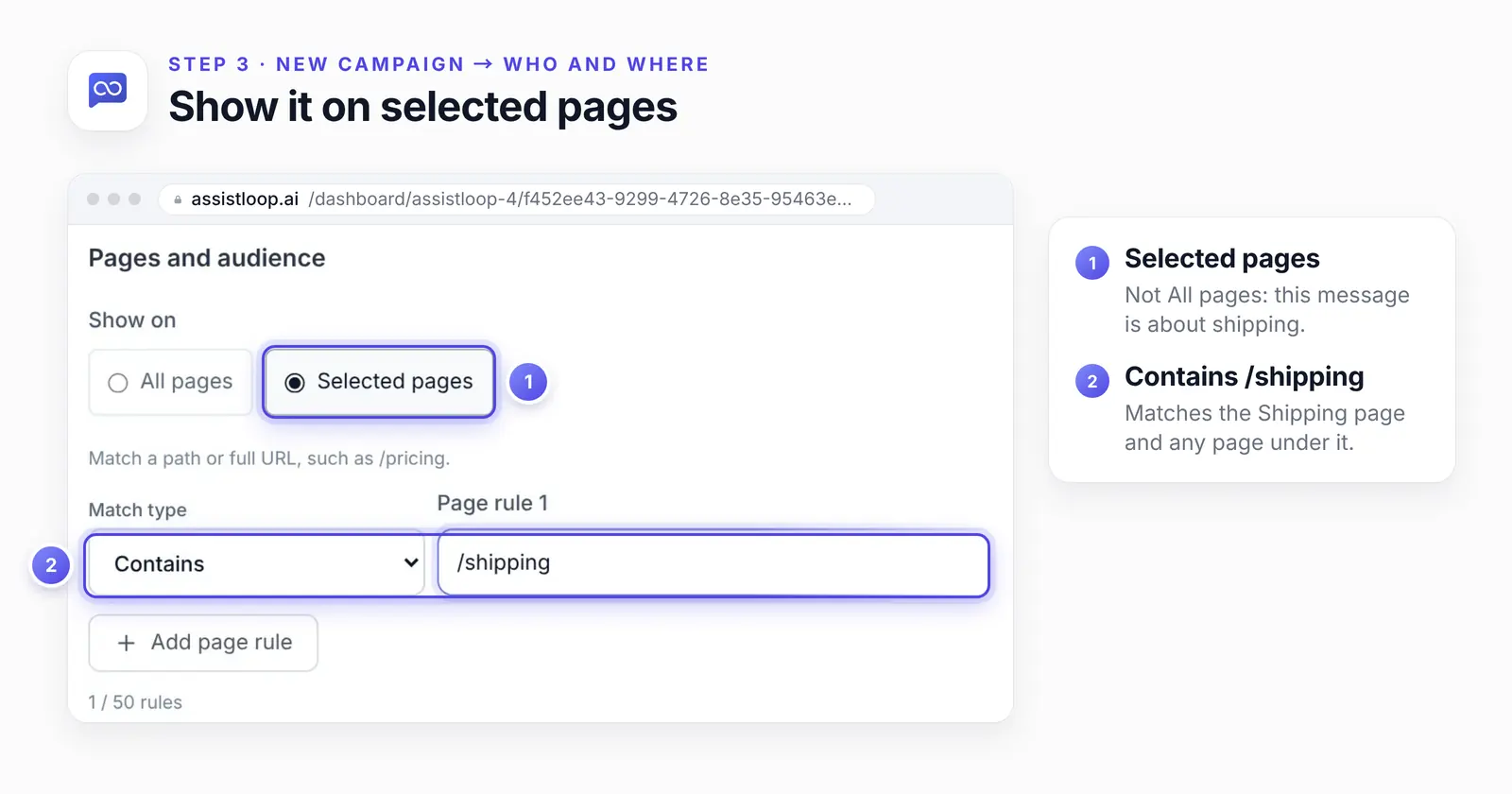
Contains /shipping matches any address with /shipping in it: /shipping/, pages under it, and also a URL like /blog/shipping-tips. The counter allows up to 50 rules.
Step 4: Send it after 15 seconds, once per visitor
Step three of that form, When and limits, sets the chat triggers. Any one of them can fire. The hint reads: "Any enabled trigger can send the message when the other campaign rules match." Type 15 in Time on page (seconds); it counts from when the page loads. Under Frequency and availability, check that Send once per visitor is on, then click Create campaign.
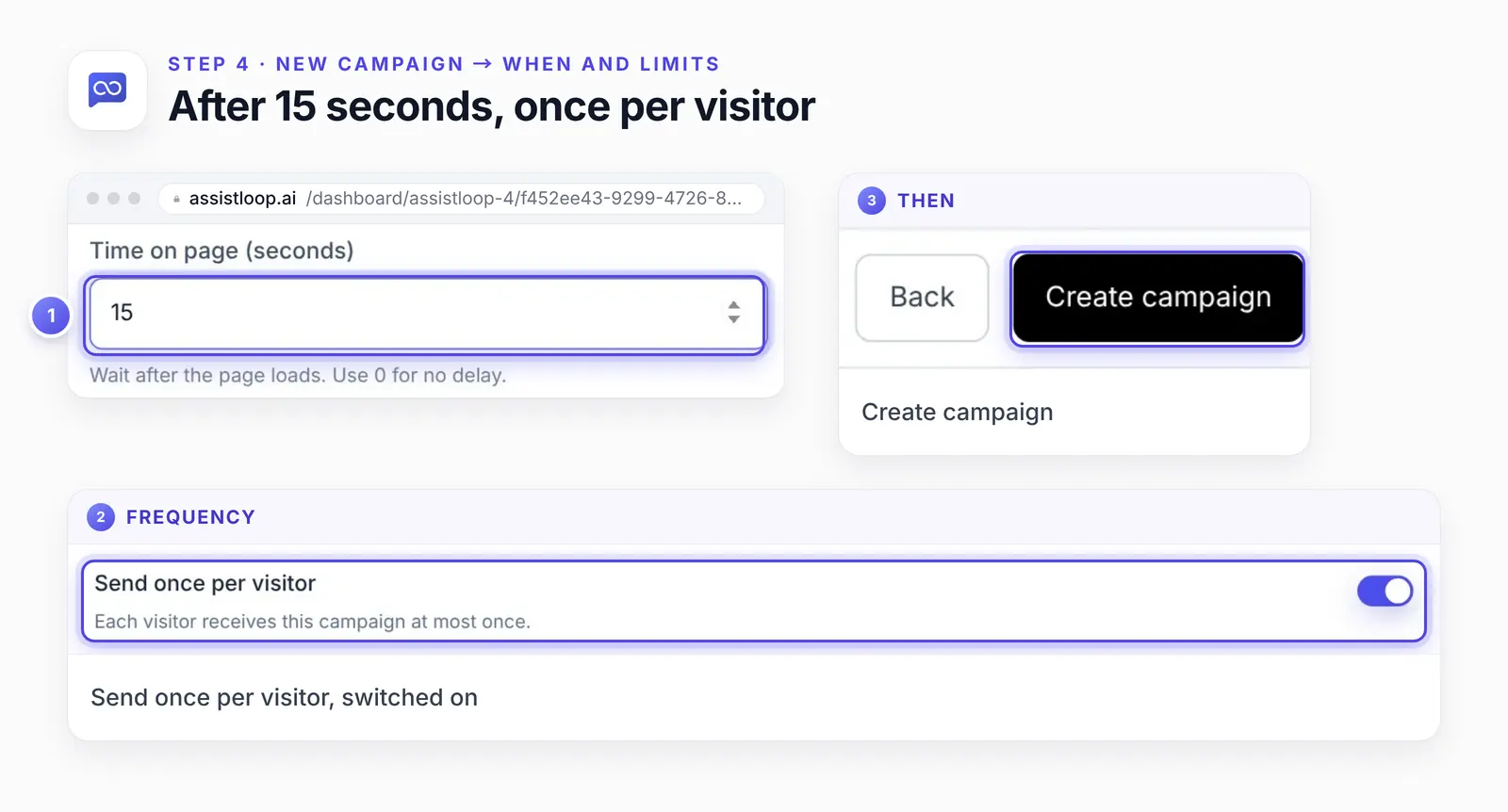
Six more options sit on this step, and none was in use in our build:
Inactivity (seconds): a second trigger, "Idle time before sending. Leave blank to skip." Ours stayed blank.
When a visitor is about to leave (exit intent): desktop only, it "sends when the cursor moves to leave". Exit intent watches a mouse pointer leaving the page; the browser event behind that fires when "a pointing device (usually a mouse)" moves the cursor off an element (MDN on the mouseout event), so touch screens never trigger it.
Wait before sending again (days): the gap before a returning visitor gets the campaign again. It shows 7, greyed out, with the note "Unavailable while send-once is on."
Only if no campaign has been sent this visit: stops two campaigns stacking up.
Require a team member to be online: it "sends only if a teammate was active in the last 5 minutes".
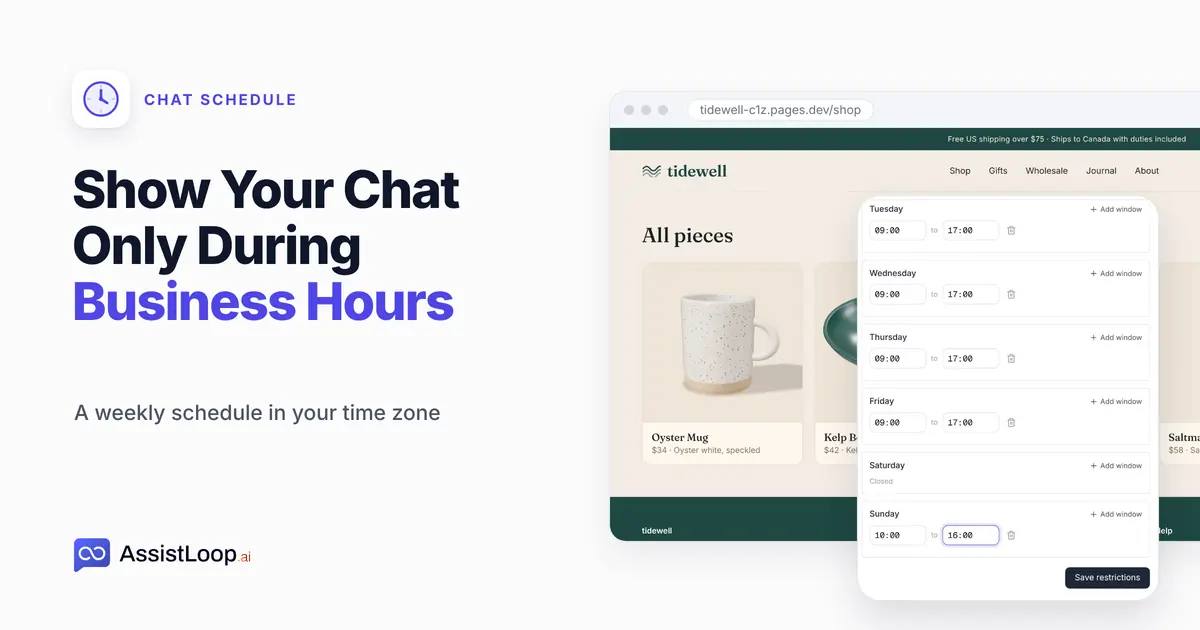
Use a weekly schedule, under Sending schedule: limits sending to the hours you set.
Every setting from our build, to copy:
Campaign enabled: on |
Step 5: Watch it arrive on your site
Open the page as a visitor would and wait. Fifteen seconds in, a bubble appeared beside the chat button: "New message from TideWell", then our message.
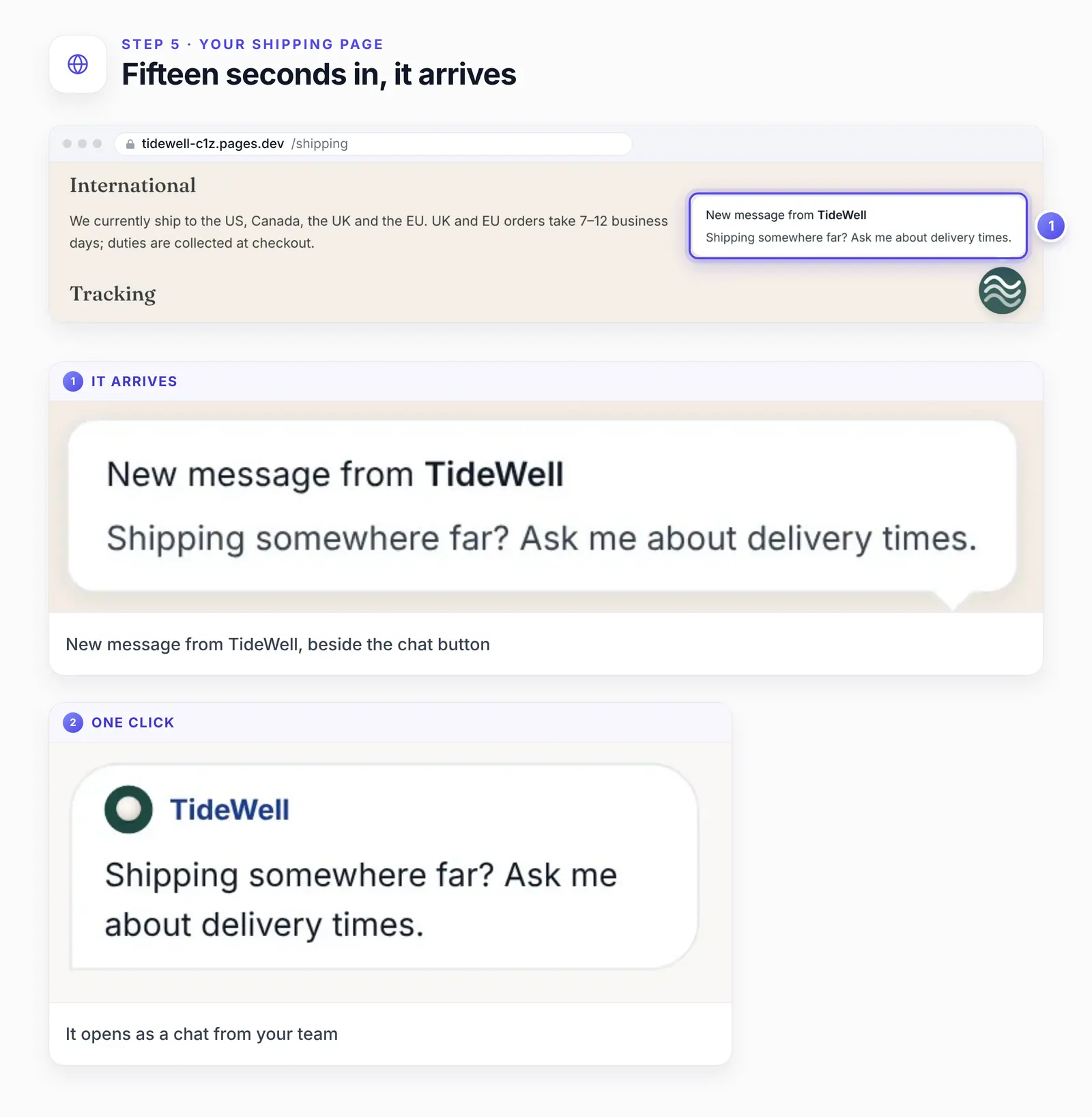
One click opens it as a chat. Our shopper asked "Do you ship to the UK?" Pearl's pre-chat form then took a name and email before the question went through.
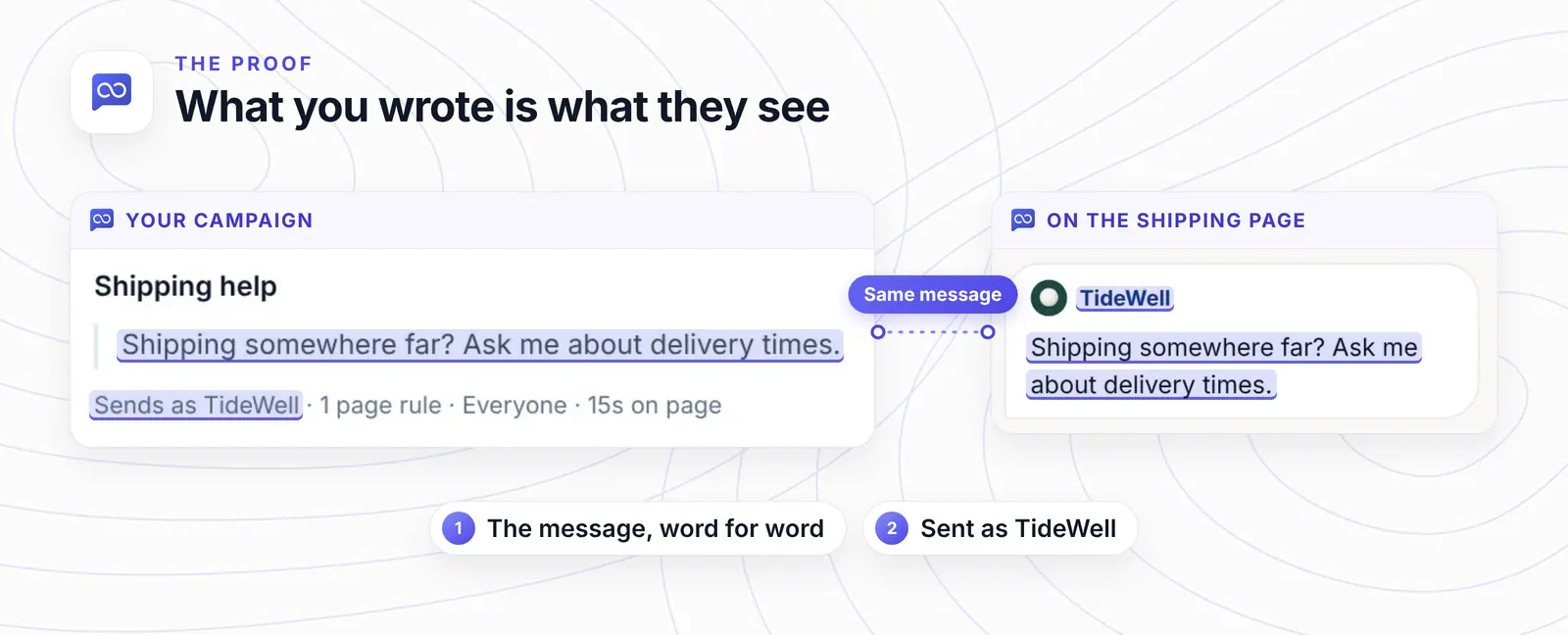
The visitor sees exactly what you wrote, from the sender you chose.
Want your Shipping page to start the conversation? |
Step 6: Join the chat and reply
Back in AssistLoop, open Visitor engagement. Live visitors listed our shopper, Oliver Bennett, on /shipping/ with location and time on site. Click the row, then Join chat. Type the answer in the Send a message box and click Send message. The dialog warns: "After sending, the conversation opens in a new tab." From then on, the shopper's replies arrive in Conversations.
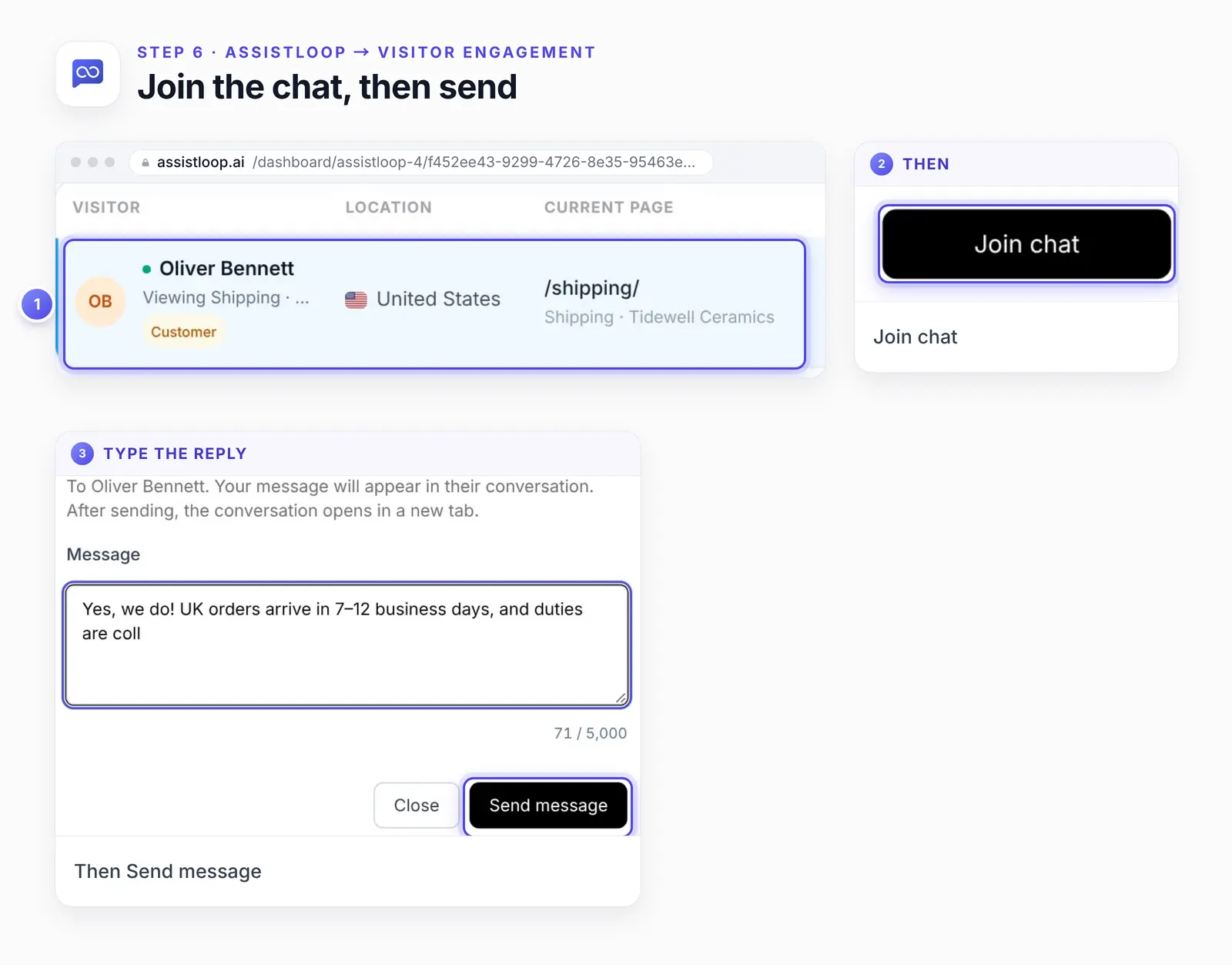
The dialog names the visitor the reply goes to. The frame catches the reply mid-typing; Step 7 shows it in full.
Step 7: The answer lands in the same chat
On the Shipping page, the reply arrived in the chat the campaign started, under the pre-chat form:
Yes, we do! UK orders arrive in 7–12 business days, and duties are collected at checkout.
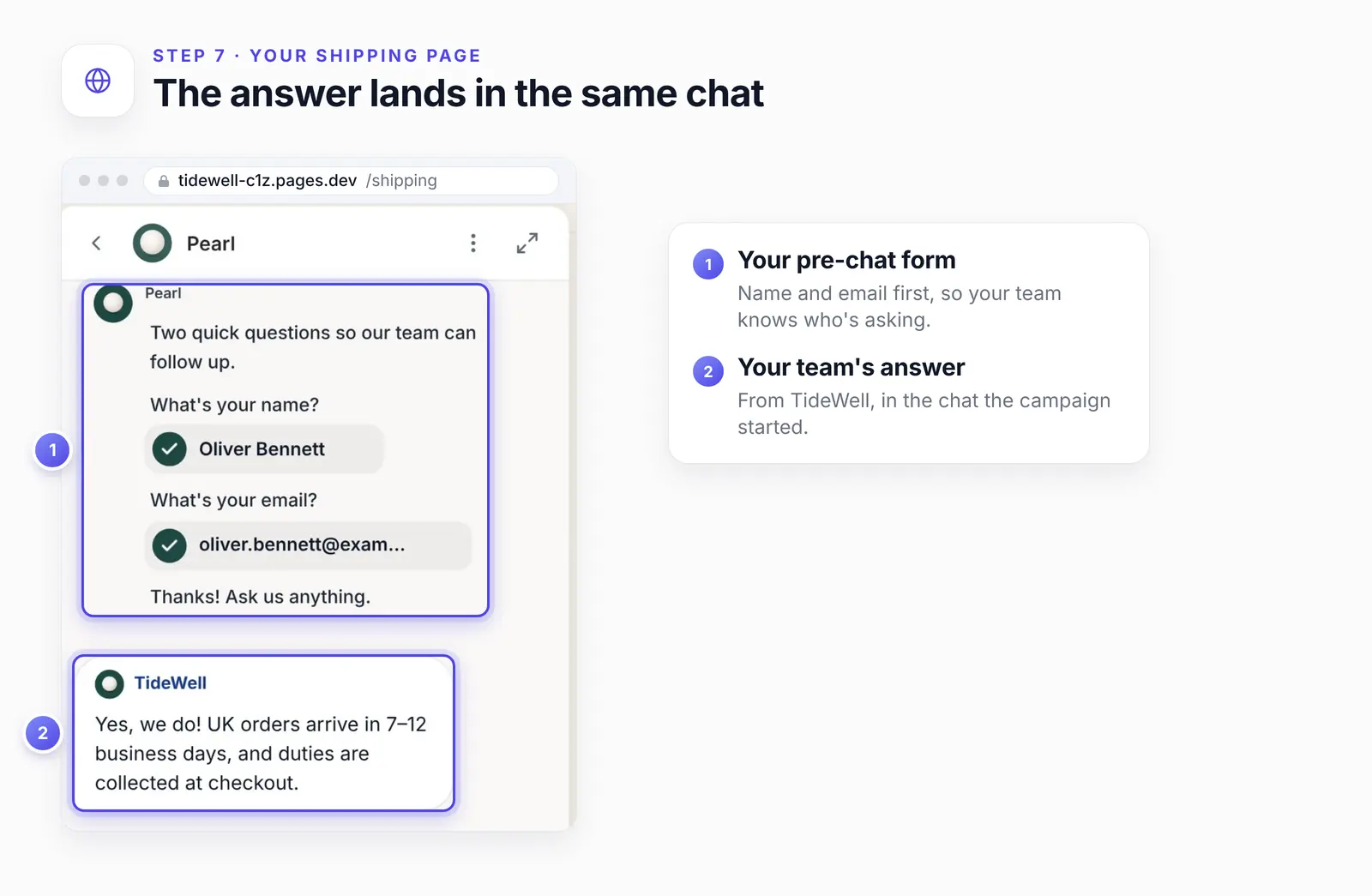
The shopper got the answer without leaving the Shipping page.
Settled, or nobody free to keep going? Open the chat in Conversations and click AI in the AI and Human switch above the thread. The agent then takes the visitor's next message. Here's how to switch a chat back to AI, step by step.
If the message doesn't appear, or nobody answers
Visitor engagement is off. Check Enable visitor engagement in Settings.
The page rule doesn't match. Contains /shipping won't match /delivery; compare the address with your rule.
You've already seen it. Send once per visitor skips a second visit from the same browser. Test in a private window.
You left too soon. The wait counts from when the page loads.
Nobody was online. With Require a team member to be online switched on, a visit with no teammate active gets no message. A weekly schedule outside its hours does the same.
It shows on pages you didn't expect. Contains matches the text anywhere in the address; make the rule more specific, or use Starts with.
The campaign is switched off. Each campaign has its own Enabled switch in Campaigns.
The visitor replied and the AI stayed silent. A campaign chat belongs to your team. Answer it in Conversations, or from Live visitors with Join chat while they're still on the page. Or switch it to AI.
Start with one page, then prune
Give one campaign a week on your most-asked-about page. Then read the conversations it started and check the Visitor history tab. If it isn't starting chats, turn its Enabled switch off and try the next page on the list.
Once shoppers are chatting, the agent has to know the answers: correct a wrong one with a Q&A pair. If your team wants a name and email first, collect leads before or during the chat.
How we tested this
The campaign: built on camera in our AssistLoop account with the settings in the code card. It still runs on the demo shop.
The visit: a fresh browser on the demo Shipping page; the message came after 15 seconds. The name and email are test values.
The reply: typed by us with Join chat and quoted word for word. It matches the page's International section.
The figures: frames from the 18 October 2026 recording, cropped, with numbered rings and enlarged details on top. Nothing inside the screens was retouched.
The code card: checked against the saved campaign in a read-only look at the dashboard on 22 October 2026, nothing changed or saved.
The example messages: suggestions; only the shipping one was filmed.
The outside sources: opened and quoted on 19 October 2026.
Frequently asked questions
Does the AI answer replies to a campaign message?
No, not in what we filmed. The message goes out under a teammate or team name, so the reply waits for a person in Conversations. Switching that chat to AI hands it back.
When is the best time to send a proactive message?
Once the visitor has had time to read a page the message is about. Our only filmed delay was 15 seconds on a Shipping page. Treat 10 to 45 seconds as a starting point: shorter on checkout, longer on long articles. Page load is always too early.
Can I show it on one page only?
Yes. Choose Selected pages and add one rule, such as Contains /pricing. Add more rules only when the pages share one worry, like a Shipping page and a Delivery FAQ. If two pages need different words, give each its own campaign.
How many messages will one visitor get?
One per campaign with Send once per visitor on. Turn that off and Wait before sending again sets the days before a repeat. To stop two campaigns reaching the same visit, also switch on Only if no campaign has been sent this visit.
Can it wait until someone is about to leave?
Yes, with the When a visitor is about to leave switch. Pair it with Time on page rather than using it alone, because phone visitors only ever see the timed trigger.
Will the campaign still go out when the team is offline?
Yes, by default, and the reply then waits until someone on your team picks it up. Switch on Require a team member to be online and it sends only when a teammate was active in the last five minutes. Visitors can still open the chat and ask the AI agent.
Our test shopper asked about UK delivery after the Shipping page spoke first, and a person answered in that same chat. Open your inbox and find the page your customers ask about most. Give it one line from the list, a short wait and a once-per-visitor limit. Set that first campaign up in AssistLoop, and see what each plan includes before you plan more.
 | Written by AssistLoop Team We build AssistLoop, an AI support agent that answers customers from your own website and documents, and hands the chat to your team when a person should step in. ★★★★★ "I also love that it can show product pricing and details for both online and in-person training, lightening the workload and pressure on our managers and sales team." Jason K., Managing Director, on G2 |
Build Custom AI Chatbot for Your Business FREE
Create intelligent AI agents that handle customer support, boost conversions, and work 24/7 for your business.
Build Your Agent