How to Collect Leads From Your Website Chat
Someone asks your chat about booking a group, a wholesale order or a custom piece, gets a helpful answer and closes the tab. Plenty of those visitors never leave an email, so the sale stalls before anyone can follow up. This guide sets up lead capture in AssistLoop two ways: your AI support agent asks for contact details inside the chat when it spots buying intent, or a short pre-chat form asks every visitor before the agent answers. Each takes one settings screen to set up, and a switch in the agent's Settings emails your team about every new lead.
 AssistLoop Team18 min read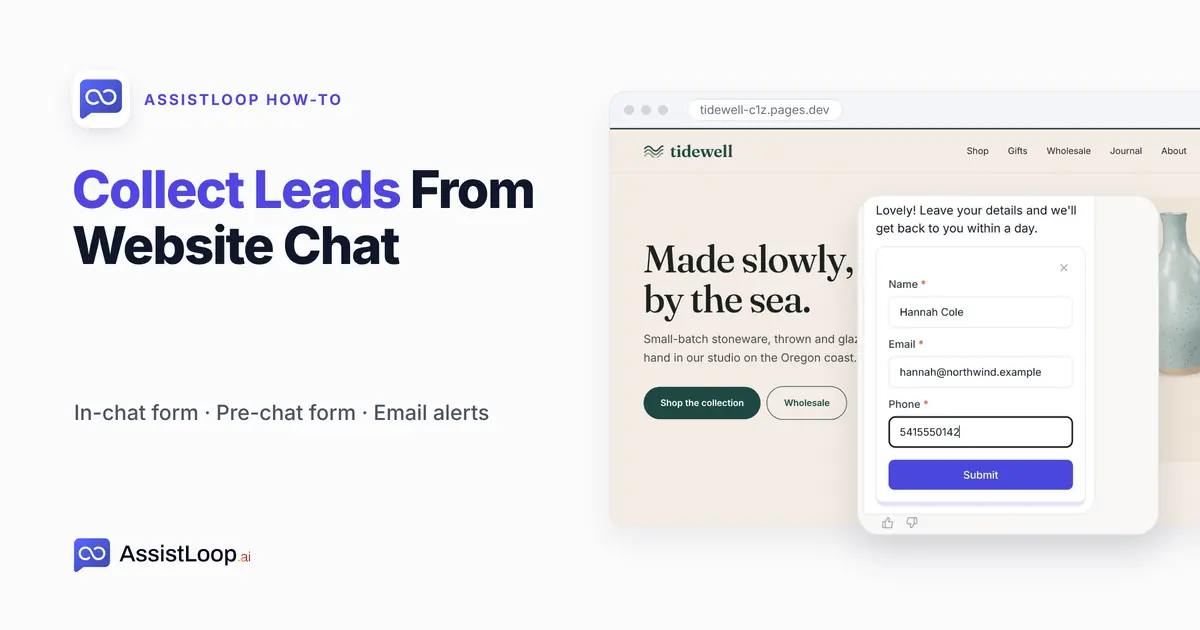
On this page
Last updated: October 2026. We built and filmed both versions on two demo agents: the Collect Lead action on a fresh agent on 7 October 2026, and the pre-chat form on our main demo agent on 17 October 2026. The pictures below are stills from those two recordings.
Quick answer
|
Hannah, a team lead planning an outing, opens your chat: "Hi! Could we book a private workshop for our team of 12 next month?"
That's a sale in the making. A date, a head count and a quote need a person. So the chat has one job right now: make sure that person can write back.
We filmed everything on Tidewell Ceramics, a pottery shop we made up for our videos. Its site lives at tidewell-c1z.pages.dev, and the AssistLoop agents in its chat learned from those pages plus a few notes we added, such as one about private workshops.
Before you start: neither form reaches anyone until you have an AssistLoop agent trained on your site and its chat on your pages. If that isn't set up yet, put the chat on your website first. Collect Lead also needs a paid plan, because it's an Agent Action and the Free plan has none. Plan details are in the FAQ below.
The video follows the in-chat version in just over two minutes, from the action to the lead email switch.
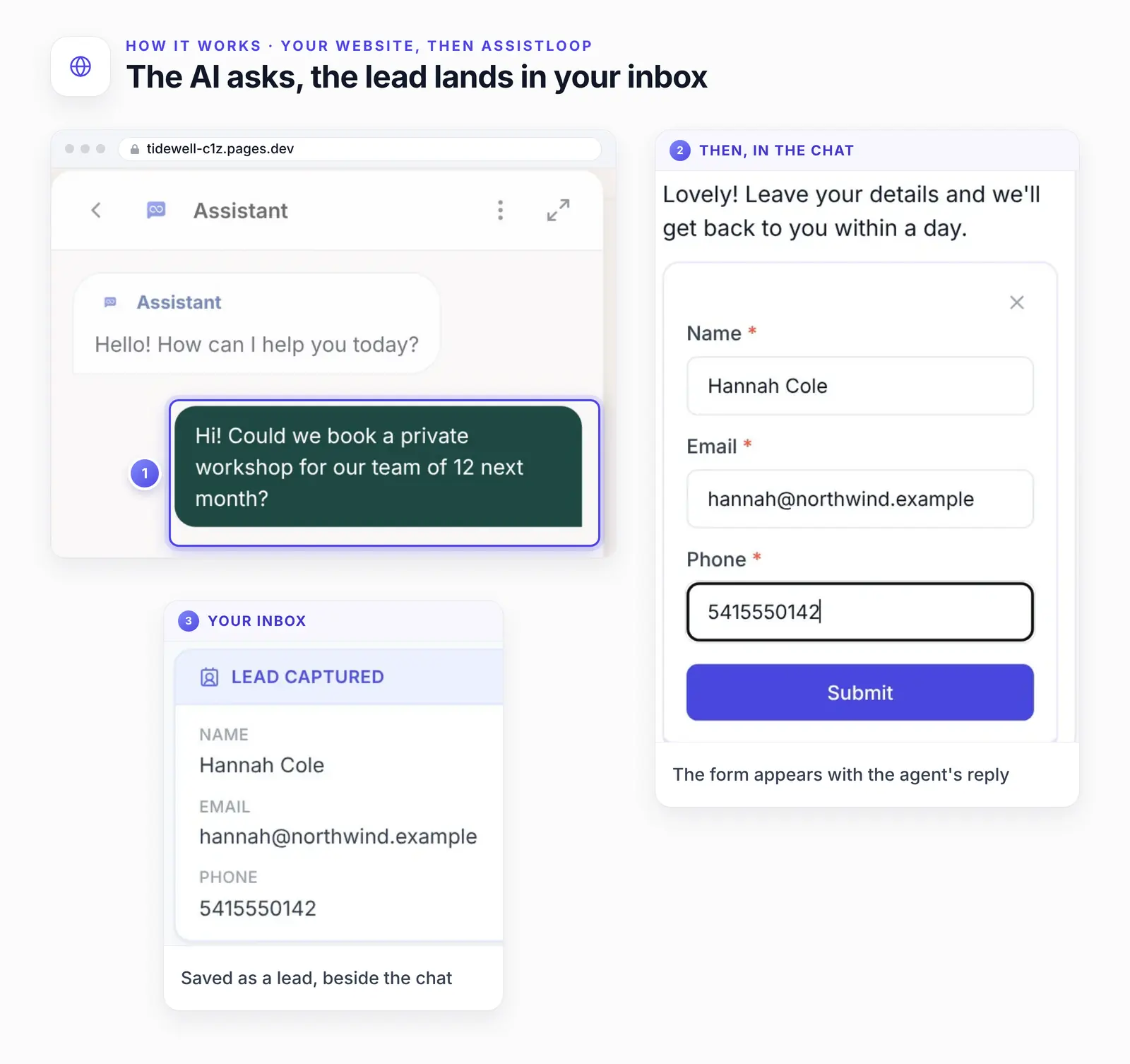
The agent picks the moment, the visitor fills in three fields, and the lead is stored with its conversation.
Lead capture: before the first reply or at a buying moment?
Ask for contact details once the visitor has a reason to give them. That's our view after building both options, and it's why this guide starts with the in-chat version.
A visitor who has just had a useful answer has a reason to leave an address. One who hasn't been helped yet has none, and a form in the way can end the chat before it starts.
AssistLoop has a tool for each approach. Collect Lead (Steps 1–5 below) waits for a buying moment, then shows an in-chat lead form, what the product's feature page calls "a proper form, not an attempt to parse contact details out of free text" (AssistLoop lead capture). The Pre-Chat Form, covered in its own section after Step 5, asks every visitor your own questions before the agent's first reply.
| Compare | Collect Lead | Pre-chat form |
|---|---|---|
| When it asks | At a buying moment | After they ask |
| Who sees it | Likely buyers | Every visitor |
| Best for | Sales leads | Named inbox |
| What it asks | Name, email, phone | Fields you set |
| Saved to | Leads, email alert | Inbox, form table |
There's also a third switch, which we haven't filmed or tested. Email Collection sits under Widget Appearance → Advanced, labelled "Collect visitor emails automatically". The lead-capture page describes it as a prompt to every visitor for an email "after the agent’s second reply", and calls it "a blunter instrument: it catches more addresses, and the intent behind them is weaker" (AssistLoop lead capture). Reach for it when an address on as many chats as possible matters more than a name or your own questions.
Pick Collect Lead when only some chats are sales (bookings, quotes, wholesale, custom work), so everyone else gets answers with no form in the way. Pick the pre-chat form when any chat might need an email reply later, like a missing parcel. Using only the pre-chat form? Skip Steps 1–5 and go to the pre-chat form section below.
Step 1: Add the Collect Lead action
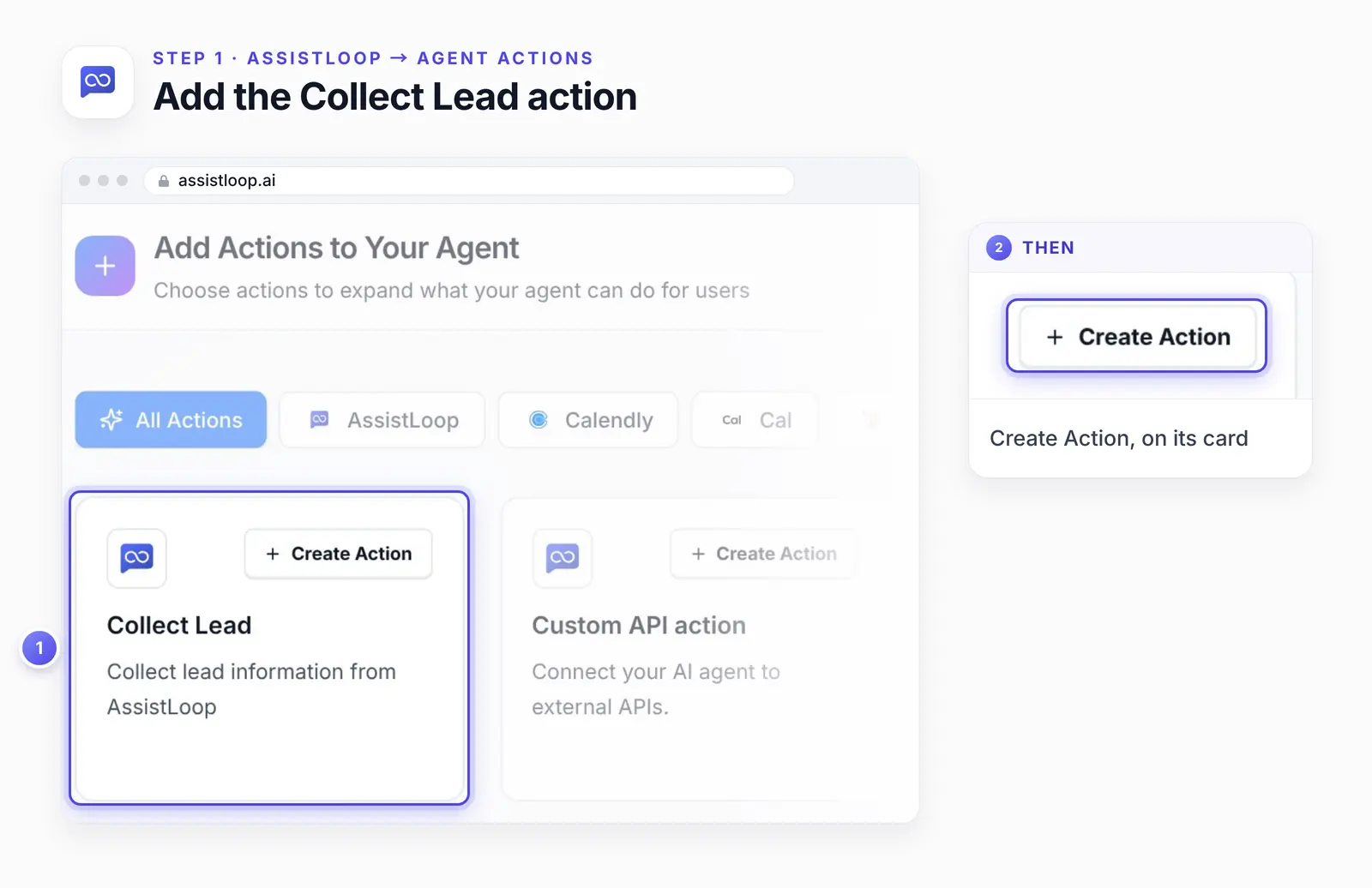
Go to Agent Actions in your agent's sidebar and press Add Action. The Add Actions to Your Agent dialog shows ready-made actions as cards. Collect Lead is the one described as "Collect lead information from AssistLoop". Click Create Action on that card.
If the card isn't in the gallery, your agent already has Collect Lead: find it in the Agent Actions list (the card shows the Action Name you gave it, with AssistLoop under it) and open it with Edit Action.
Step 2: Tell the AI when to ask
Describe the moments worth a follow-up in plain words in the When to use this action box, which appears on the Setup Action: Collect Lead form. Leave Action Name as Collect Lead; the box below it matters most. This is the rule we filmed:
A visitor wants to book a private workshop, order wholesale, ask about a custom piece, or asks someone from the studio to contact them. |
Your business has its own moments. The three rules below are starting points we wrote for other kinds of business and didn't film. Change the details to fit yours.
For an appointments business:
A visitor wants to book an appointment, asks whether a specific date or time is free, or asks for a call back. |
For B2B software:
A visitor asks for a demo, asks for a quote for more than five seats, or wants to talk to sales. |
For an events venue:
A visitor asks about hiring the space, mentions an event date or a guest count, or wants a quote for an event. |
Next comes the Default Response Text, the line the agent says alongside the form. This one is ours, as filmed:
Lovely! Leave your details and we'll get back to you within a day. |
This variant also says why you're asking and where your privacy policy lives:
Happy to help with that. Leave your name and email and we'll send a quote within one working day. How we use your details: yoursite.com/privacy |
Saying why you ask also lines up with privacy rules. The UK regulator's guidance says privacy information is due "…at the time when personal data are obtained…", and a visitor filling in a form is one of its examples (ICO guidance, read October 2026). The page notes it is under review. This isn't legal advice, so check the rules where you trade.
Under Form Fields, each of name, email and phone has a type, a Required box and a Hidden box. On camera, email stayed Text and phone stayed Number, as the picture shows. In Edit Action on 21 October 2026, the three type menus were greyed out and there was no way to add a field.
Make email required, since it's how your team replies. Keep the name too: "Hi Hannah" opens a reply better than "Hi there". A phone number is worth asking for only if somebody will call; otherwise untick Required and tick Hidden on that field.
So the form stops at those three, and lead qualification happens in the conversation: whatever the visitor said about dates or group size stays in the chat, one click from the lead. To make sure the agent asks, add a line to your agent's instructions. This one is an untested starting point:
Before you offer the lead form for a workshop or wholesale order, ask for the date and the group size or quantity. |
When the fields are set, click Create Action. Afterwards, check that your rule and response text were kept; if anything looks wrong, fix it in Edit Action.
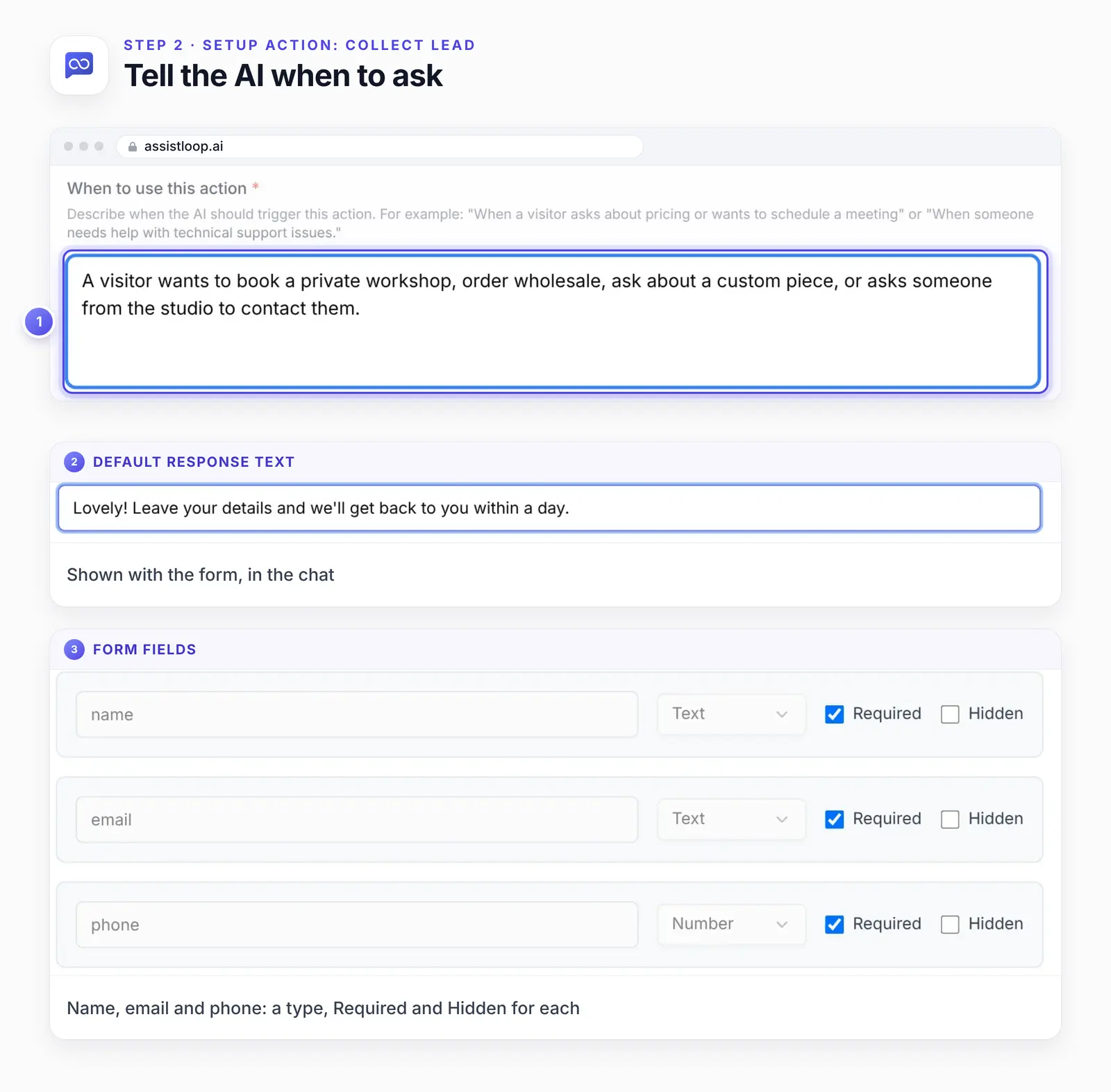
The rule decides who sees the form. A chat that doesn't match it just gets answers.
Step 3: See the form in the chat
When a chat matches your When to use this action rule, the agent sends your response text with your form (the fields you didn't mark Hidden) inside the chat. When you test it, also check that a general question still gets a plain answer with no form.
On the demo site, our visitor asked about the private workshop. The agent replied with the response text and the form: Name, Email and Phone, each marked required, and a Submit button. Once she submitted it, the form changed to "Thank you! Form Submitted Successfully!" Then the agent thanked Hannah by her first name and read her email address and phone number back to her, so she could see both had arrived intact.
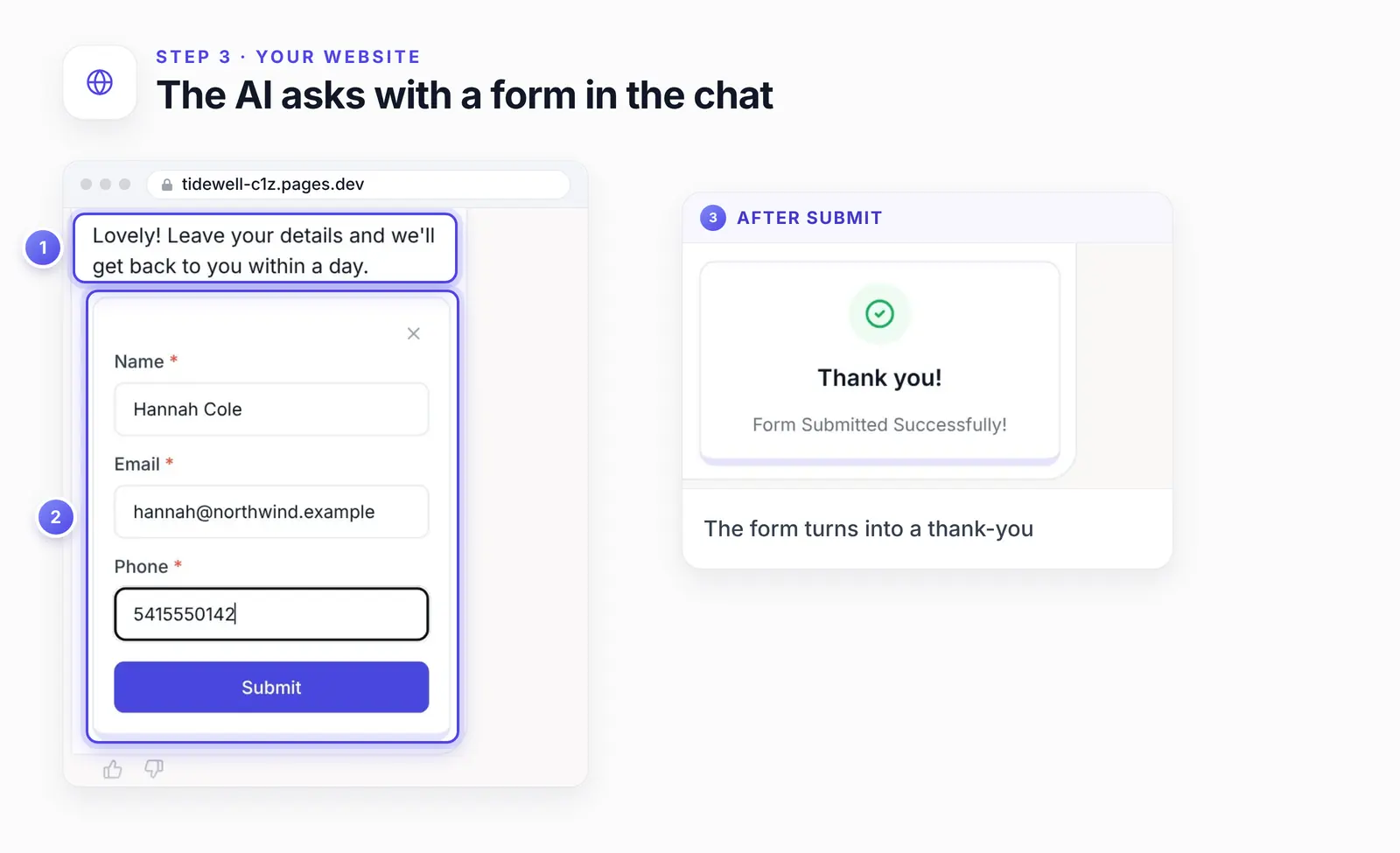
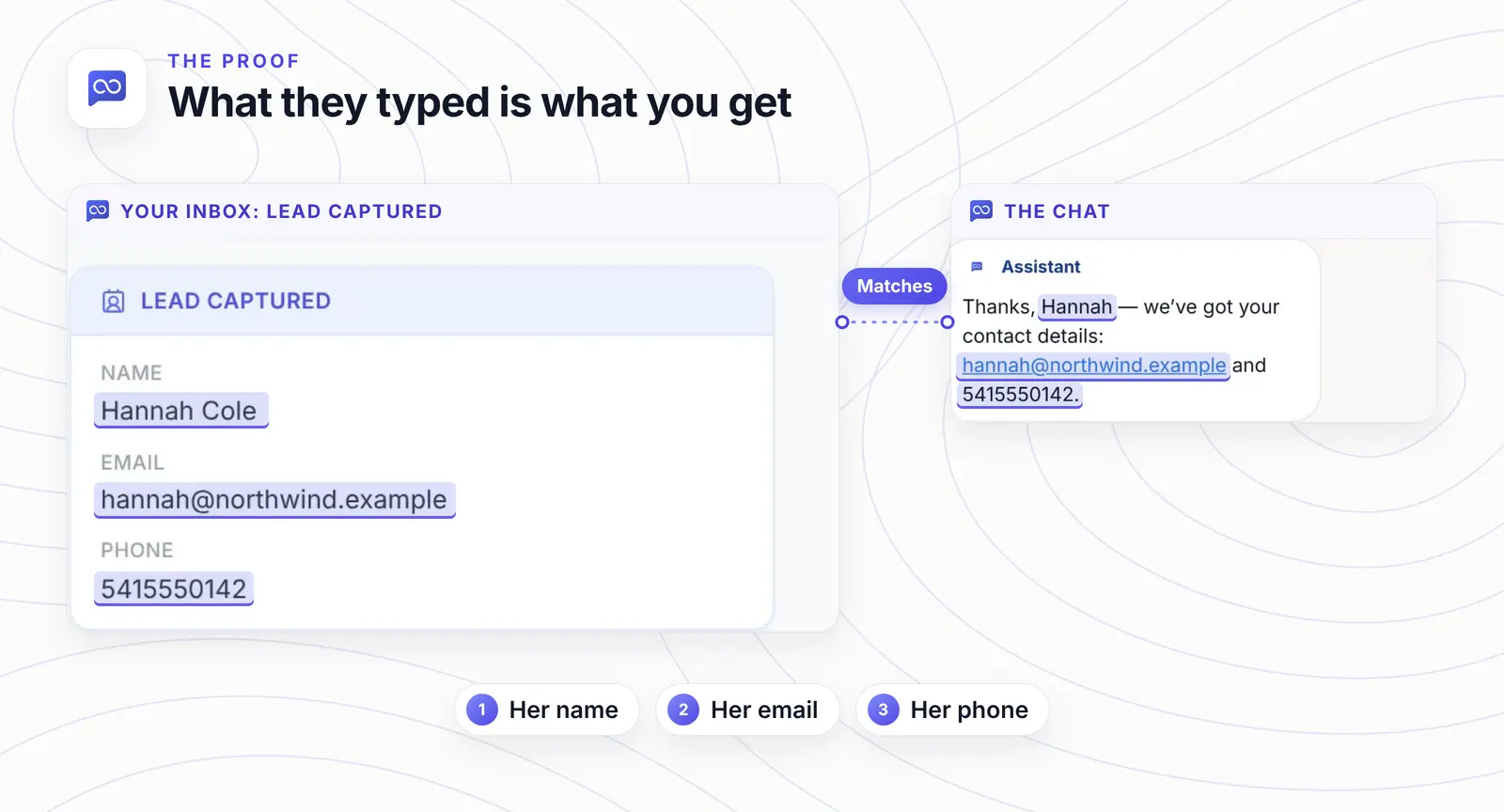
The inbox keeps exactly what the visitor typed, next to the conversation it came from.
Want leads like Hannah's landing in your own inbox? |
Step 4: Find your leads
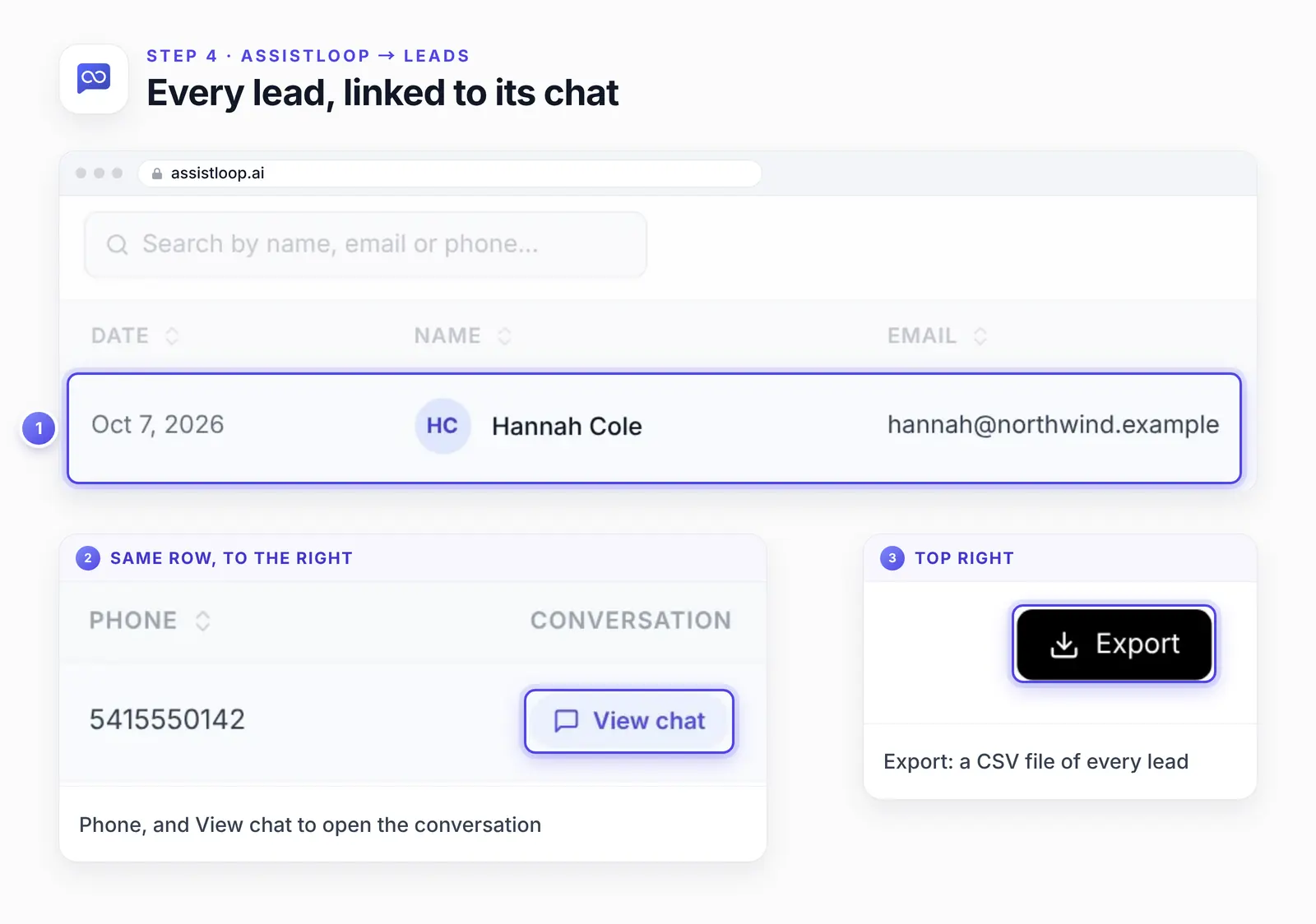
Every lead lands in Leads in the agent's sidebar, on a page titled Collected Leads ("Contact information captured from AI conversations"), with the date, name, email, phone and a View chat link. The same details also sit on a Lead captured card inside that visitor's chat under Conversations, which is where View chat takes you.
To move leads into a CRM, click Export. It downloads a CSV file with Date, Name, Email and Phone columns. HubSpot, for one, takes imports as "a .csv, .xlsx, or .xls file" with a header row matched to its properties (HubSpot Knowledge Base, updated 11 September 2026).
Once leads arrive, compare the weekly count in Leads with the number of chats on your sales pages. That ratio is your own baseline, and it beats any borrowed benchmark.
Step 5: Get an email for every lead
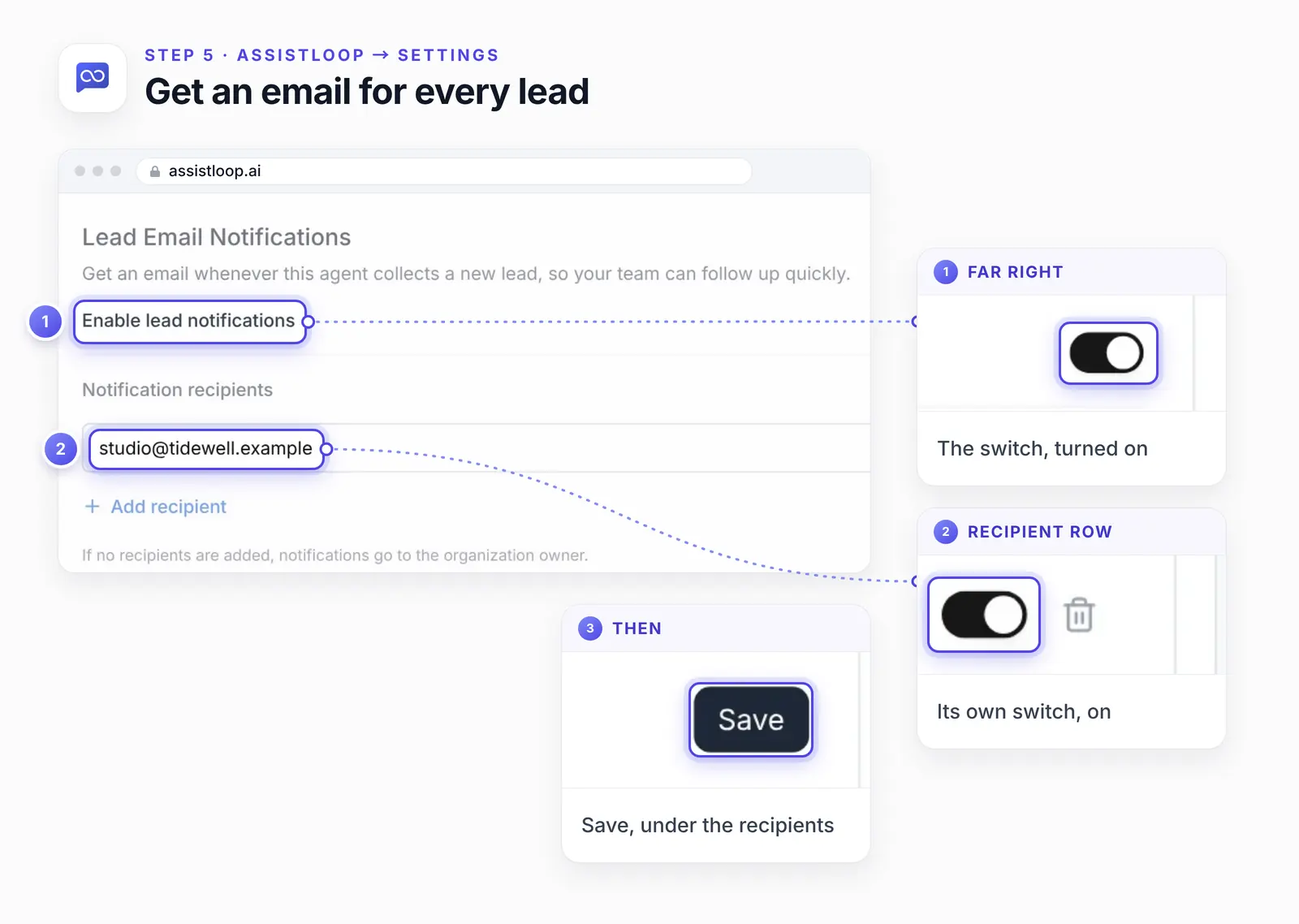
Open the agent's Settings and find Lead Email Notifications: "Get an email whenever this agent collects a new lead, so your team can follow up quickly." Switch on Enable lead notifications. Click Add recipient under Notification recipients, type the address and leave its switch on, then click Save below the recipient list. If you add nobody, the emails go to the organization owner.
Then reply fast. In a 2011 Harvard Business Review article, Oldroyd, McElheran and Elkington describe a study of 1.25 million sales leads at 42 US companies. Their article says: "Firms that tried to contact potential customers within an hour of receiving a query were nearly seven times as likely to qualify the lead (which we defined as having a meaningful conversation with a key decision maker) as those that tried to contact the customer even an hour later…" (Oldroyd, McElheran and Elkington, Harvard Business Review).
That study is from 2011, so the exact multiple will have moved; the point that speed wins hasn't. The alert above gets you inside that first hour.
To start more of these sales conversations in the first place, you can send an automatic chat message to visitors who've been reading a page for a while.
Ask every visitor first with a pre-chat form
A pre-chat form asks every visitor for a name and email after their first message, before the agent answers. Without one, your inbox names visitors by number: User 1259491, User 1259480 and so on. That's fine until one of them turns out to be a customer whose parcel never arrived. Then you have no address to write to.
The form fixes that for every chat, sales or not. Its questions appear inside the chat, one at a time, and the agent replies once they're done.
In the agent's Settings, scroll to Pre-Chat Form and switch on Enable Pre-Chat Form.
Fill in the title, the intro (shown before the first question) and the completion message (shown after the last). The form refuses to save while any of the three is blank.
Question 1, "What's your name?": make sure Save as the visitor's name is on.
Set question 2 to "What's your email?", type Email, with Save as the visitor's email on.
Add extras with Add question, if you want them. A new one starts with Required off, so visitors get a Skip link.
Click Save at the bottom of the form.
The copy we used on camera:
Title (the default, kept): Before we begin |
Our intro counts two questions because the third is optional. If you add more required ones, change the number.
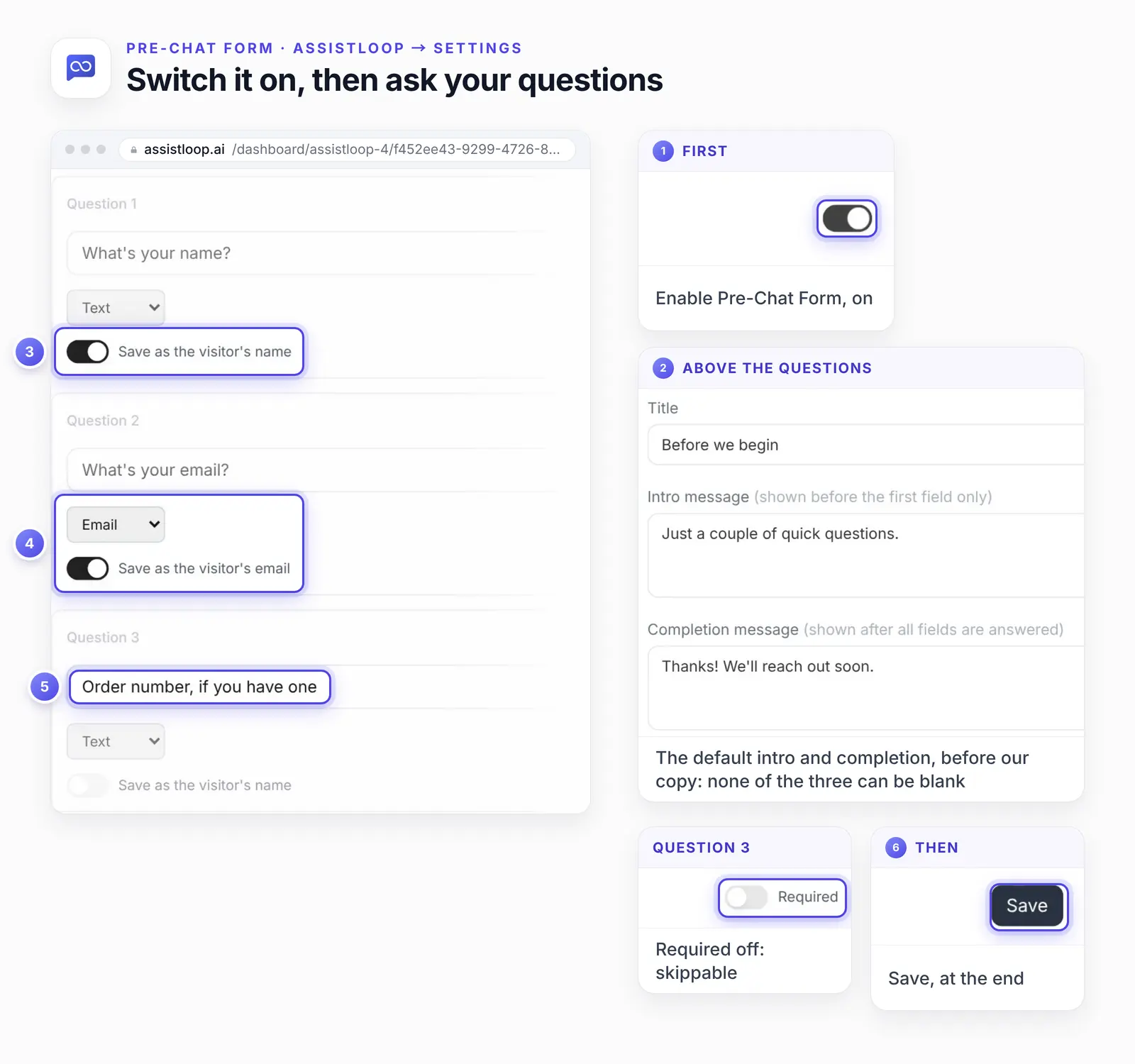
Be careful when you trim the form later. The settings carry a warning, "Removing a question deletes its previously collected answers". Retire a question only once you no longer need what it gathered.
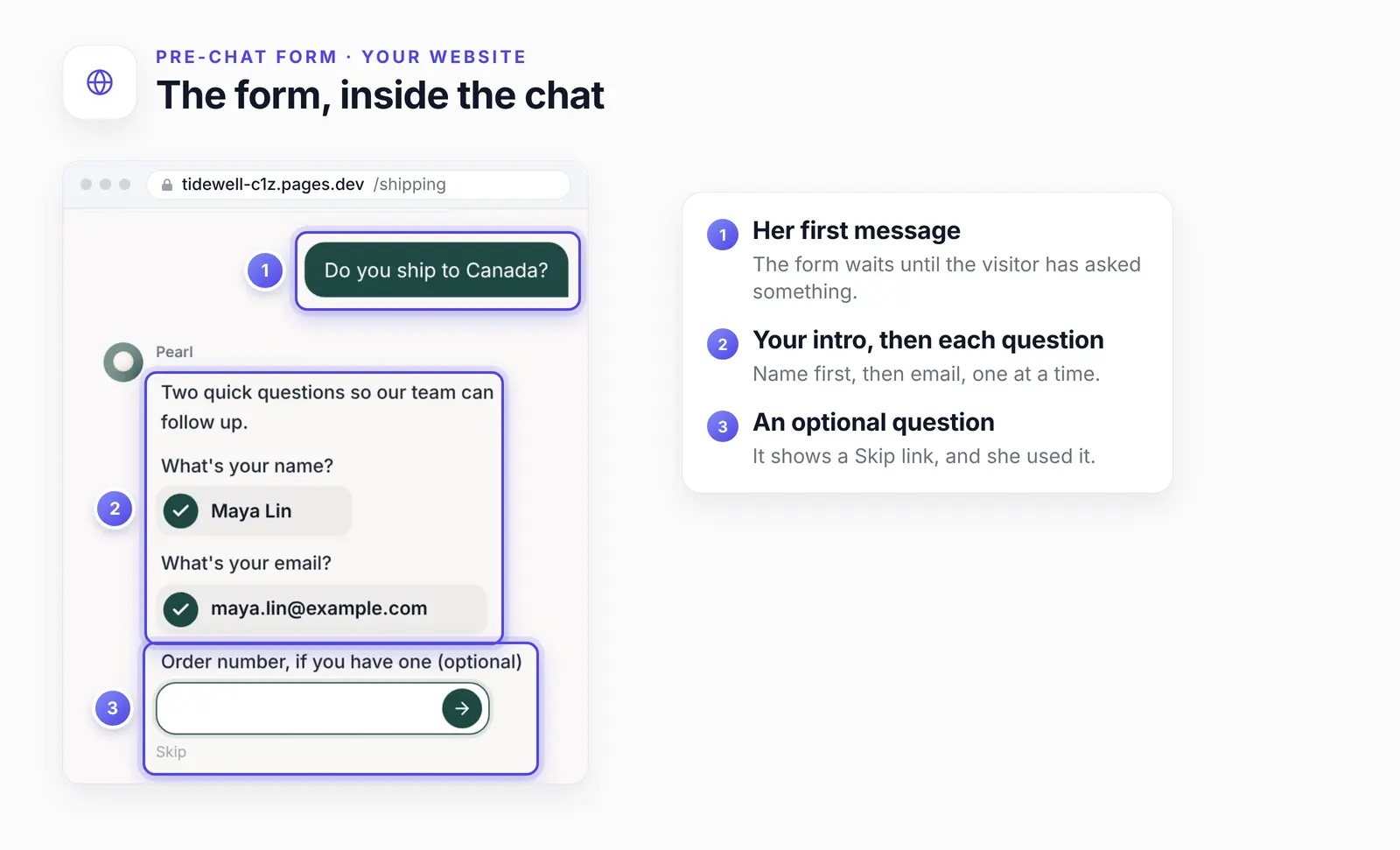
On the Shipping page, our test shopper Maya typed "Do you ship to Canada?" The form appeared under her message: the intro, the name and email questions one at a time, then the optional order number. She skipped that one. After "Thanks! Ask us anything." the agent replied, using her name:
Hi Maya, yes—we ship to Canada. Delivery typically takes 5–7 business days, with duties and taxes included at checkout; shipping is a flat $18.
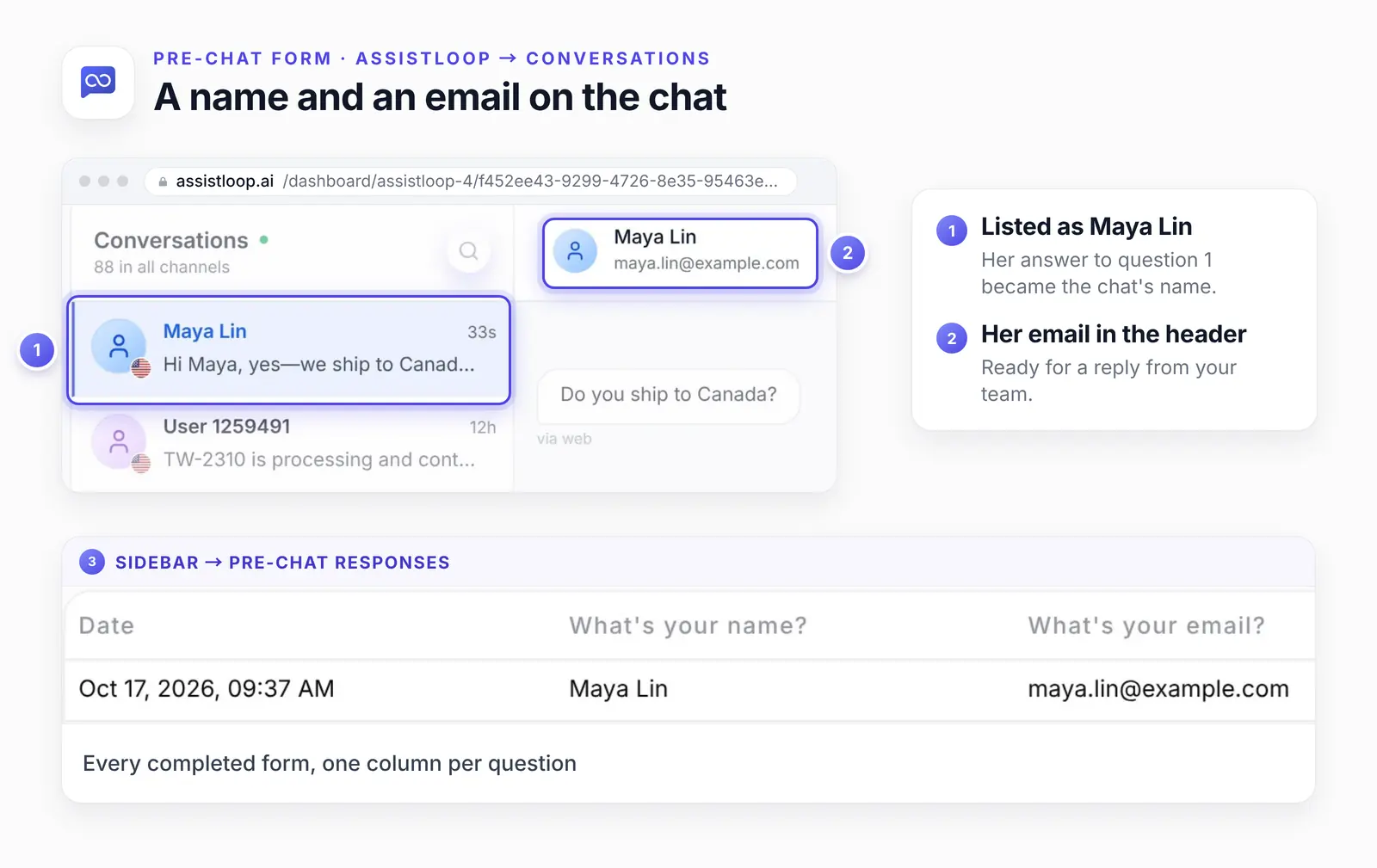
In Conversations, the chat is now listed as Maya Lin, with her email under the name in the header.
Pre-Chat Responses, which appears in the sidebar once you save the form with it switched on, gathers every completed form into one table, one column per question. A skipped answer is left blank. Older responses keep their row and date, but answers to questions you've since removed show as dashes.
These answers don't become leads: when we looked on 19 October 2026, Maya wasn't in our demo agent's Leads list, and Pre-Chat Responses had no Export button. The Step 5 email alert is for new leads, so don't count on it to tell you about form answers. The pre-chat setup has its own two-minute video if you'd like to watch it.
Troubleshooting lead capture
Most missing forms come from a rule that doesn't use your buyers' words.
The form never appears: add the words your buyers use to When to use this action.
The form still never appears: check the switch on the action's card in Agent Actions (the card shows the Action Name, not necessarily "Collect Lead").
It asks almost everyone: narrow the rule to the moments that lead to a sale.
No form when the chat opens: that's expected. Neither option shows one straight away; both wait for the visitor to write first.
A field is missing from the lead form: a field marked Hidden isn't shown to visitors.
Create Action shows an error: click it again, then open Edit Action and check that your rule and response text were kept. If they reverted to the defaults, paste yours again and click Update Action.
There's no Delete button for Collect Lead: once added it can't be deleted, but its switch in Agent Actions turns it off.
No lead email arrived: check the notification switch, the recipient's own switch and your spam folder.
The pre-chat form won't save: the title, intro and completion message all need text.
Your test chat skips the pre-chat form: the widget remembers you as a visitor who already answered, even in a new chat. Test in a private window or another browser.
How we tested this
Collect Lead: created on camera on 7 October 2026 on a fresh demo agent, trained on the shop's pages plus a short note about classes and private workshops, with the rule and response text shown above. That agent has since been deleted.
The chat: on the demo shop's homepage, with test values (Hannah Cole, a .example address, a made-up phone number). The agent's reply is quoted word for word.
The lead: opened in Leads and in the inbox straight after. Step 5 shows the notification setting, not a received email.
Export: on 19 October 2026 we downloaded the Leads export to check its columns. The same day we looked, without changing anything, at our main demo agent's Leads list and Pre-Chat Responses to see where pre-chat answers end up.
Fields and types: on 21 October 2026 we opened Edit Action on our main demo agent's lead action (a Collect Lead named "Wholesale inquiry"), without saving. All three type menus were greyed out, and the Form Fields block had no control for adding a field.
Email Collection: the same day we opened Widget Appearance → Advanced on our main demo agent, without changing anything, to confirm the setting's name and place. We haven't switched it on or tested it.
The pre-chat form: set up on camera on 17 October 2026 on our main demo agent, where it's still on. Maya's chat, the inbox and Pre-Chat Responses come from the same session.
The pictures: stills from the two recordings, trimmed to the part each step needs. Some details are shown larger and numbered rings mark the controls; nothing inside the screens was changed.
Frequently asked questions
When should the agent ask for an email?
At a buying moment, not on the first message. Collect Lead shows its form only when a chat matches your rule, so a visitor asking how to care for a mug shouldn't see it.
Pre-chat form or Collect Lead: which should I use?
Both, if you like: one agent can run the two, as our main demo agent does. Collect Lead catches the buyers, and the pre-chat form puts a name and email on everyone else's chat, such as a support question you'll answer by email. We haven't tested whether a buyer gets asked twice for the same details, so try it in a private window first.
Should the email field be required?
Yes. Email is the address your team writes back to, so keep it required. Ask for a phone number only if someone will ring the visitor back. Each field carries its own Required and Hidden boxes in the action's settings.
Can the lead form ask about budget or company size?
Not as a field. When we checked, the form held name, email and phone, with no way to add another. So the agent has to ask in the chat. A line in its instructions, like the starting point in Step 2, tells it what to ask before it offers the form.
How do I get chat leads into my CRM?
Export them. The Export button in Leads downloads a CSV of date, name, email and phone, a format CRMs such as HubSpot import. AssistLoop's lead-capture page also says leads can be pushed into your own system automatically through an agent action. We haven't set that up for leads; our guide to letting your agent check order status shows how a Custom API action is built.
Which AssistLoop plans include lead collection?
The Basic, Pro and Business plans list lead capture forms; the Free plan doesn't. Paid plans differ in how many Agent Actions you can add, and Collect Lead uses one of them. The comparison table on the AssistLoop pricing page also lists "Collect email from widget" on the paid plans only: that's the Email Collection switch described in the comparison section above. We set up the pre-chat form on a paid plan and haven't checked it on Free; its switch is in your agent's Settings.
That team of 12 asking about a private workshop now turns into a row in Leads, with a name, email and phone, the moment someone presses Submit. The one job left for you is replying while they're still keen. Give your agent a lead form and a rule for when to use it. Some visitors will want a person straight away; here's how to hand off AI chats to a human.
 | Written by AssistLoop Team We build AssistLoop, an AI support agent that answers customers from your own website and documents, and hands the chat to your team when a person should step in. ★★★★★ "It's been excellent value for money, and I'm not exaggerating." Zara, Customer Service Manager, on G2 |
Build Custom AI Chatbot for Your Business FREE
Create intelligent AI agents that handle customer support, boost conversions, and work 24/7 for your business.
Build Your Agent