How to Add AI Customer Support to Webflow (No Plugin Needed)
People who land on a Webflow site tend to ask what its pages already say: the minimum order, the shipping time, whether a custom version is possible. Plenty of them email you instead of scrolling, and then they wait. This guide adds an AI support agent that answers from your own pages, on every page of the site, through one snippet in Footer code under Site settings. It takes about ten minutes, with no app and no developer.
 AssistLoop Team16 min read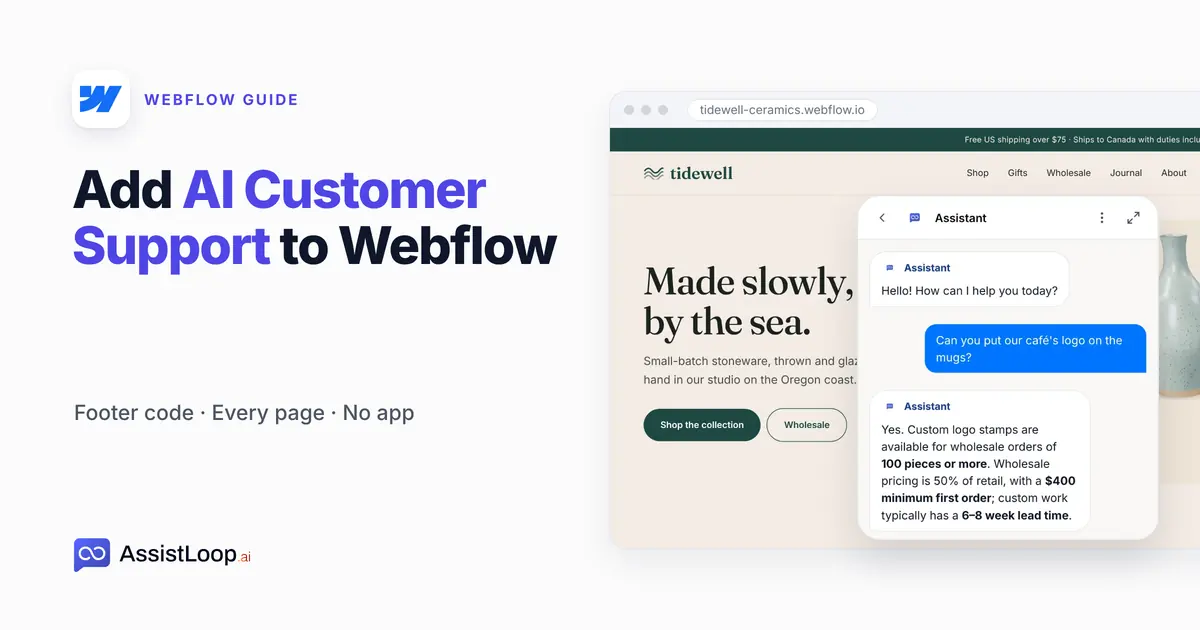
On this page
Last updated: October 2026. We created and trained the agent on 9 October 2026, captured the Wholesale page on 18 October and re-read each Webflow help article quoted here on 19 October.
Quick answer
|
A café owner wants 200 mugs with their logo on them. It's Sunday evening, and they're putting together next month's order.
They find your Wholesale page. The answer is there, in the third bullet under How it works: logo stamps from 100 pieces. They don't read that far down. They email you, and you're at a craft fair until Tuesday.
Customers expect faster than Tuesday. Jeff Toister surveyed more than 3,200 people in 2020 and writes that "nearly a third of customers expect businesses to respond to emails in one hour or less" (Toister Solutions, April 2020).
Our example is Tidewell Ceramics, an invented stoneware studio on the Oregon coast. The Webflow screens are a rebuild of Webflow's own that we made for filming, and the agent, Tidewell Support, learned from the studio's pages. Every screen below comes from that build.
The two-minute walkthrough follows the same build, from a new agent to the answer on the Wholesale page.
What you need
An AssistLoop account. Sign up with a name, company, email and password, or with Google. AssistLoop hosts the AI model, so you don't need a key from an AI provider. Plans are on the AssistLoop pricing page, and Step 1 shows how the agent learns from your website.
A Webflow plan that runs custom code. Webflow allows it on a site with an active Site plan, or in a Core, Growth, Agency or Freelancer Workspace. Site managers and Designers can add it (Webflow Help Center). A site with no Site plan in a free Starter Workspace can't use it.
Someone who can publish. On most plans that's the site manager plus any teammate with Can publish switched on (Webflow Help Center). Saved code does nothing for visitors until a publish.
A site that has been published at least once. Fetch Links reads your pages the way visitors see them, and the free webflow.io address counts.
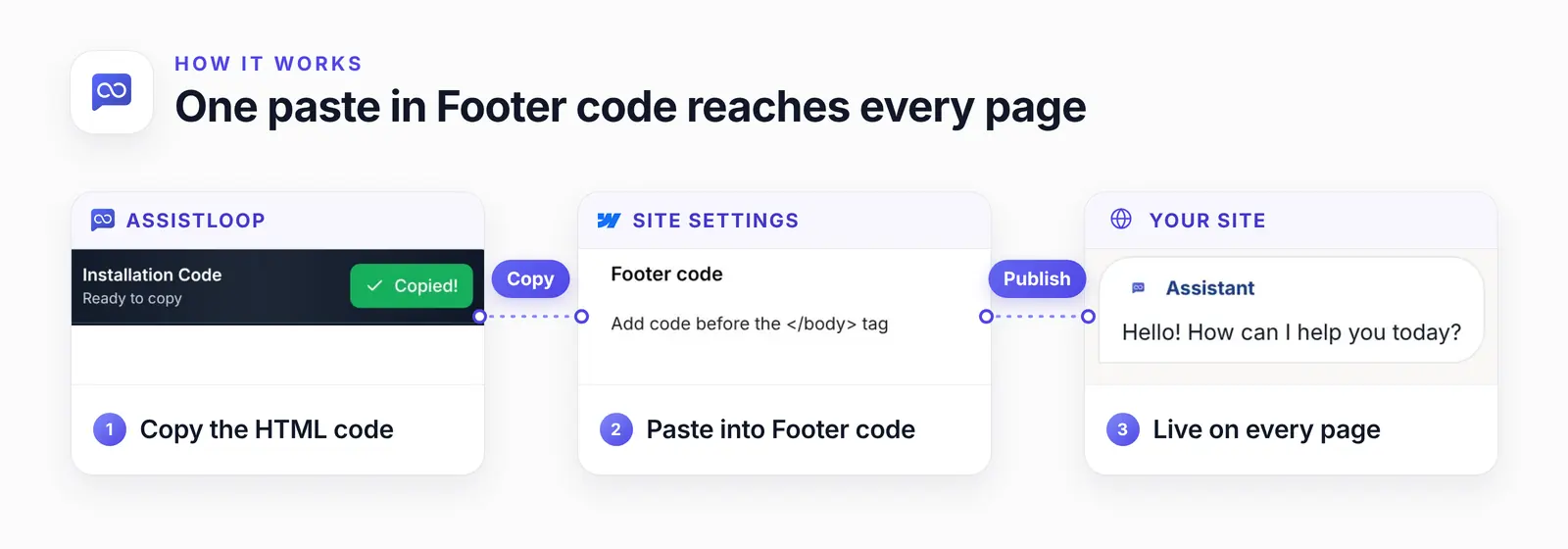
Footer code belongs to the whole site. One paste covers every page.
Where the code goes in Webflow: Footer code, a page box or a Code Embed
For a support chat on every page, use Footer code in Site settings. A page's own code box and a Code Embed reach less of the site. Here's how the three compare:
| Where the code goes | What it covers | Use it when |
|---|---|---|
| Site settings → Footer code | Every page | Chat site-wide |
| Page settings box | That page only | One page needs it |
| Code Embed | Pages it sits on | Chat on chosen pages |
Webflow's help says code entered there "appears before the closing </body> tag in your site's HTML markup and applies to your entire site" (Webflow Help Center, updated 2 September 2026). That reach covers pages you add next month as well as today's.
A page's own Before </body> tag box, in Page settings, does the same job for a single page. The same Webflow article is clear that custom code in a page's settings applies to that page only, so it's the route when you want the chat in one place.
A Code Embed (once called the HTML Embed) is an element you drop onto the canvas for third-party pieces. Webflow's article on it names "social media feeds, live chat apps, forms and surveys, and much more" among the things it can hold (Webflow Help Center, Custom code embed, updated 2 September 2026).
Our snippet doesn't take the embed's place on the canvas, though. It loads AssistLoop's script, which draws the usual floating chat button in the lower right. So an embed only decides which pages get the chat, and one placed in a component reaches every page that uses it. We didn't test that route.
For a chat that sits inside the page itself, Widget Installation also has an iFrame tab. Its code is a full-width, full-screen-height frame. We've filmed it on a WordPress help page but haven't tried it in a Webflow Code Embed.
Head code, the box above Footer code, also reaches every page, but it loads before the page body. Webflow advises scripts at the end of the body so the content loads before any JavaScript is processed. AssistLoop's own install steps say the same: Paste before closing </body> tag. Your page appears first, then the chat button.
Step 1: Create the agent from your site's address
On the Agents page in AssistLoop, click Create Agent, name the agent, open Website/Links and enter your Webflow address, then press Fetch Links. The Website/Links tab sits under Data Sources to Train Your Agent. Ours was tidewell-ceramics.webflow.io.
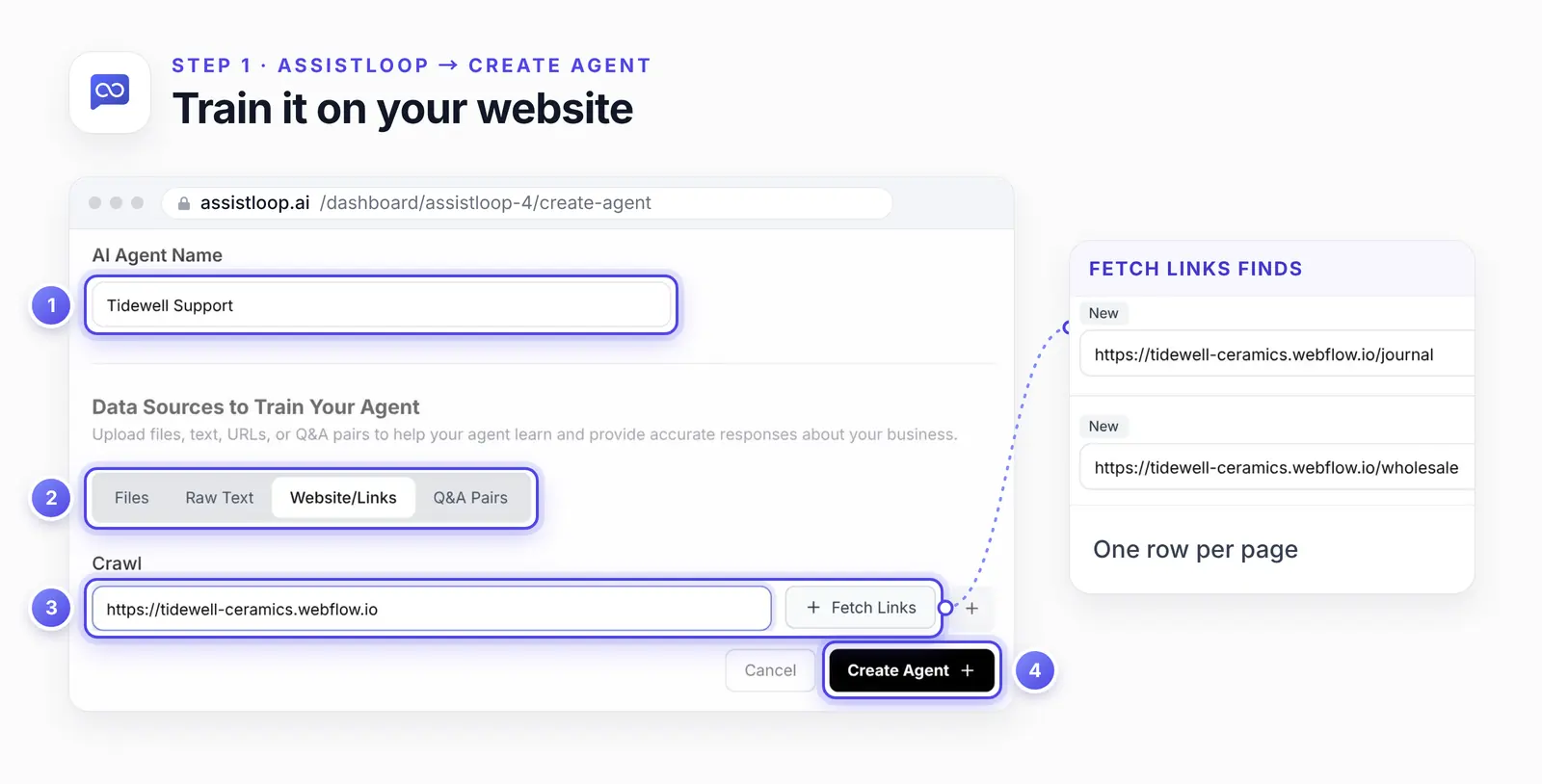
One row per found page. Use the trash icon on a row to drop a page the agent shouldn't learn, then click Create Agent.
Fetch Links listed the studio's pages one per row, the journal, wholesale and gifts pages among them. A second Create Agent click trains on that list, and the new agent's card appears on the Agents page. Click the card to reach its Playground.
A pill there reads Training in Progress, then Agent Ready to Use once learning is done, and each page's row in Data Sources reads Trained. Now open the Model menu, choose the newest model in the list and press Save Changes.
Step 2: Copy the code from the HTML tab
Go to Widget Installation in the agent's menu and pick HTML. There's no Webflow tab, and none is needed, because Footer code accepts plain HTML. Press Copy on the Installation Code card, and it turns green with Copied!
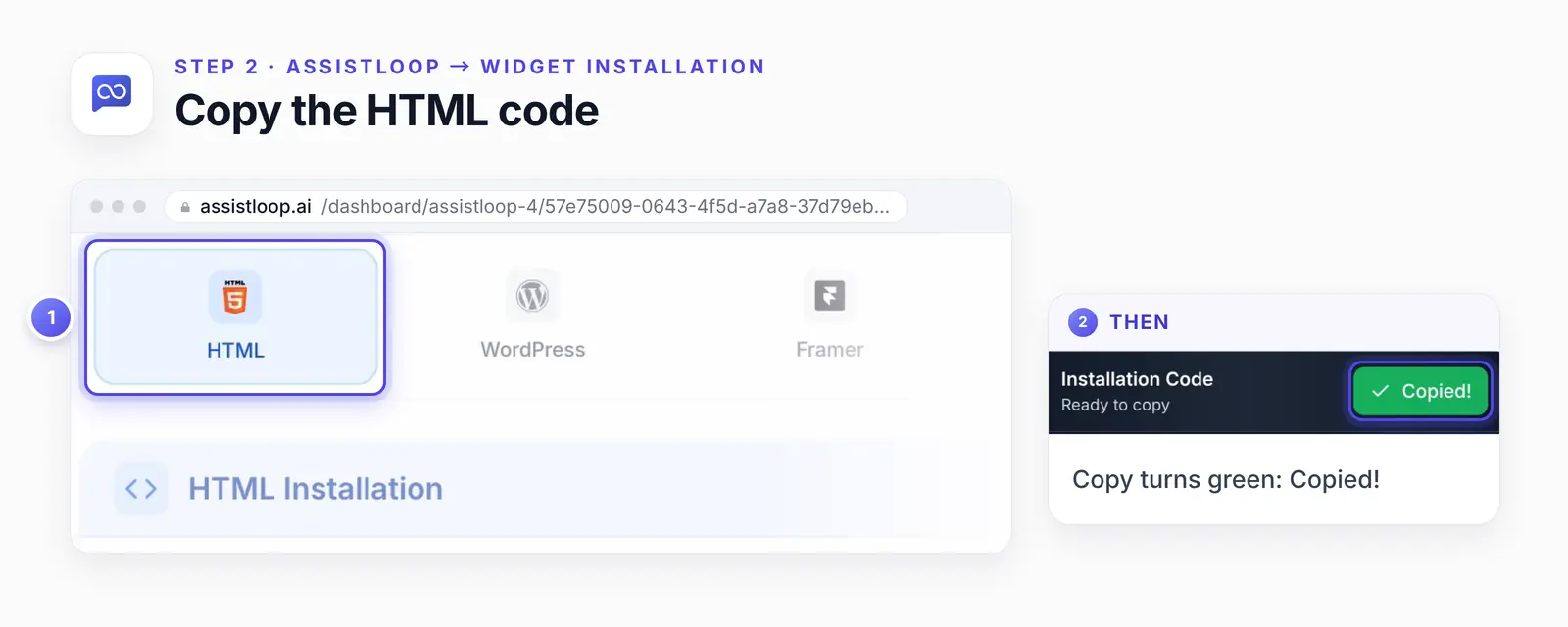
Green means the snippet is on your clipboard.
This is what Copy puts on your clipboard, with the agent's ID swapped for a placeholder:
<script> |
The card in the dashboard also prints a comment line above <script>. Copy leaves that line behind. So these twelve lines are what land in Footer code, as Step 4's screen shows.
Your copy already holds your agent's ID where the code above says YOUR_AGENT_ID, so paste it exactly as copied. Hand-built sites take the same snippet, as our guide to adding AI customer support to an HTML website shows.
The snippet carries the ID of whichever agent is open in the dashboard. Running two agents? Glance at the name at the top first.
Step 3: Open your site's Custom code settings
In your Webflow dashboard, find your site under All sites. Click the three dots (···) next to its name and choose Settings. In the Site settings sidebar (older guides call it Project Settings), click Custom code.
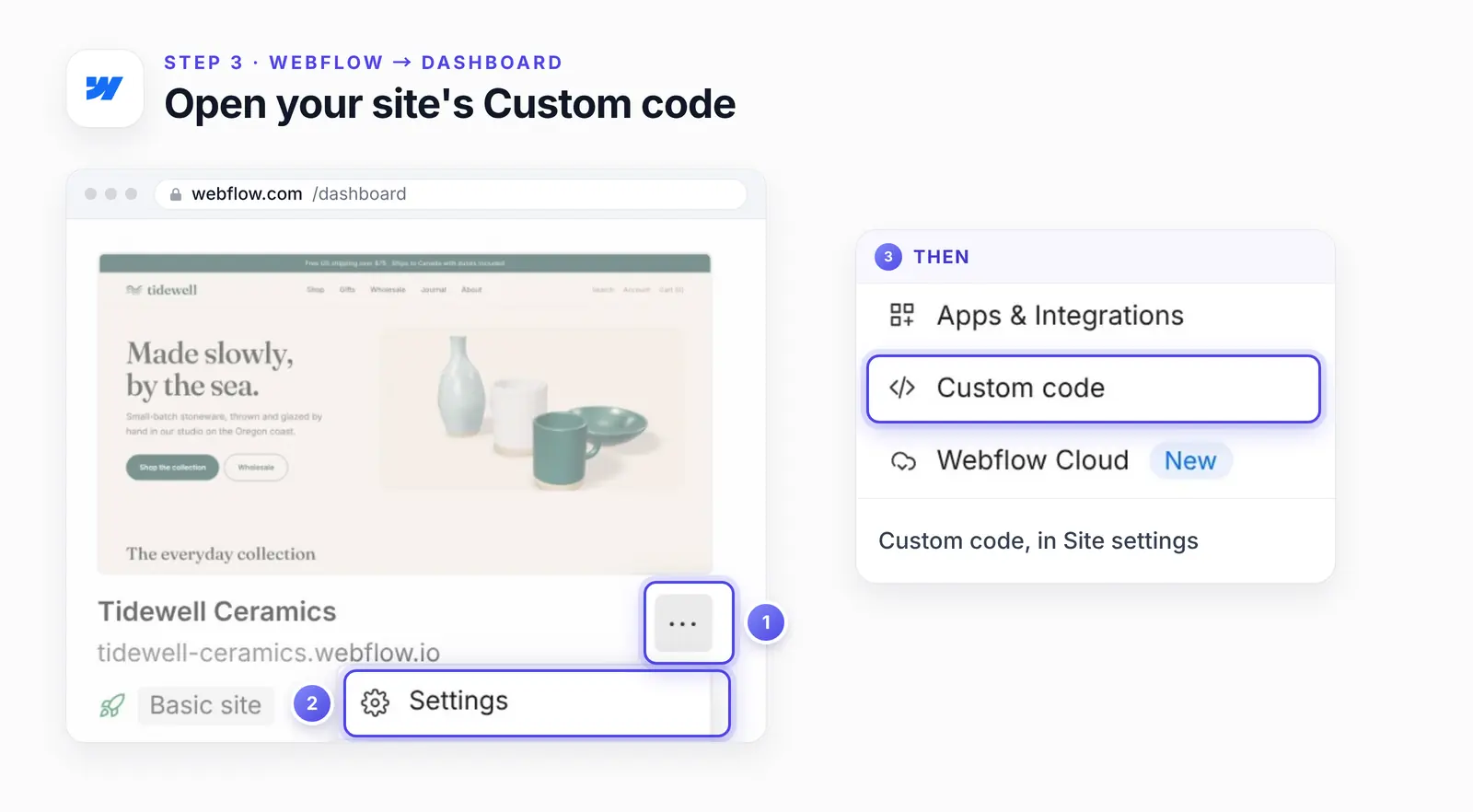
Site settings opens from the dashboard. The Designer stays closed.
The Custom code tab has two boxes: Head code at the top and Footer code below it.
Step 4: Paste into Footer code and save
Scroll to Footer code. The hint under its label reads "Add code before the </body> tag". Click in the box, paste, then press Save changes beside Footer code (our rebuilt screen labels it Save).
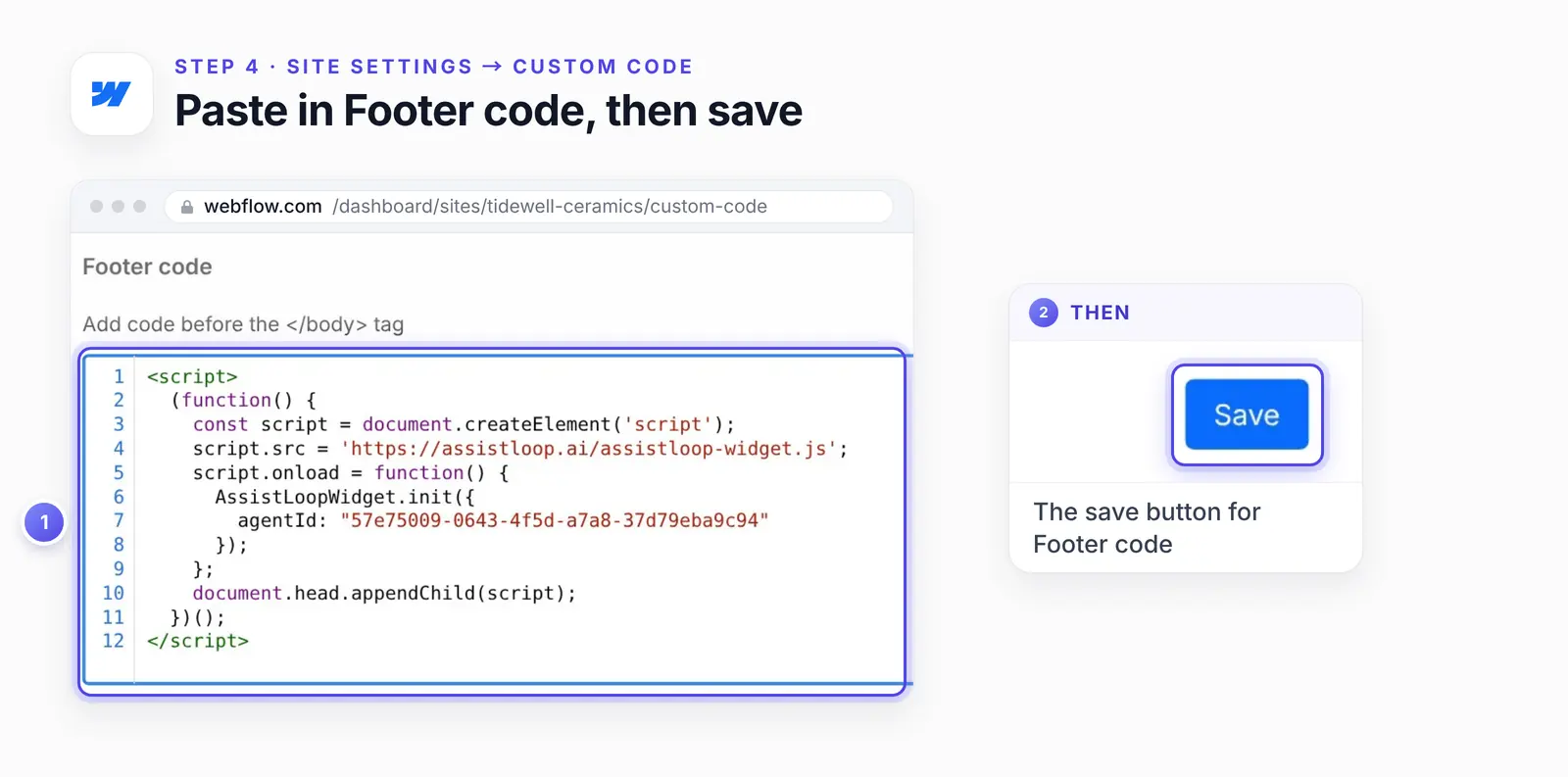
Saving stores the script in Webflow. Visitors don't get it until Step 5.
Webflow's custom code article caps Footer code at 50,000 characters, so other scripts can share the box. The same article explains why saving isn't enough. Visitors get the code only after a publish (Step 5), and the published site is where you check it (Step 6).
Step 5: Publish to staging first, then your domain
Press Publish at the top right. The menu lists Staging, your site's webflow.io address, and Production, any custom domain you've connected.
For a site that's already live, send the change to staging on its own first. Webflow's help points to staging for this. In its words: "To test custom code or get feedback and approval on your site design, you can publish your site to the Webflow staging subdomain" (Webflow Help Center, updated 4 August 2026).
Tick only the webflow.io box and press Publish to selected domains. Check the chat there (Step 6), then open the menu again, tick your custom domain and publish once more.
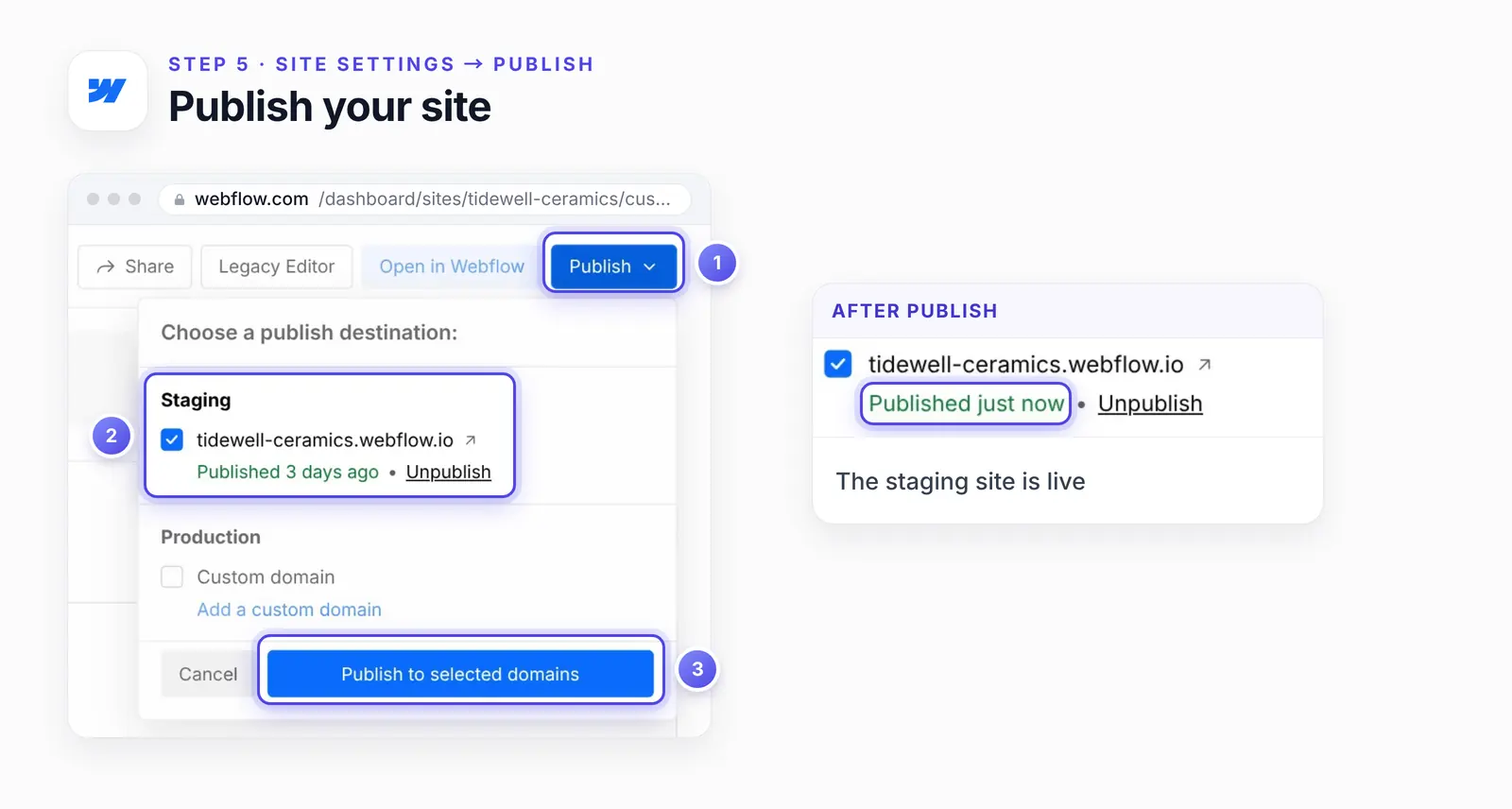
Our demo had no custom domain, so we ticked staging alone. Its status then read Published just now.
Leave the custom domain unticked and the chat exists only on webflow.io, an address your visitors never type.
Step 6: Check the chat on the published site
Open the published address in a normal browser tab, not the Designer. A round chat button waits at the lower right of each page, and a click opens the agent's greeting.
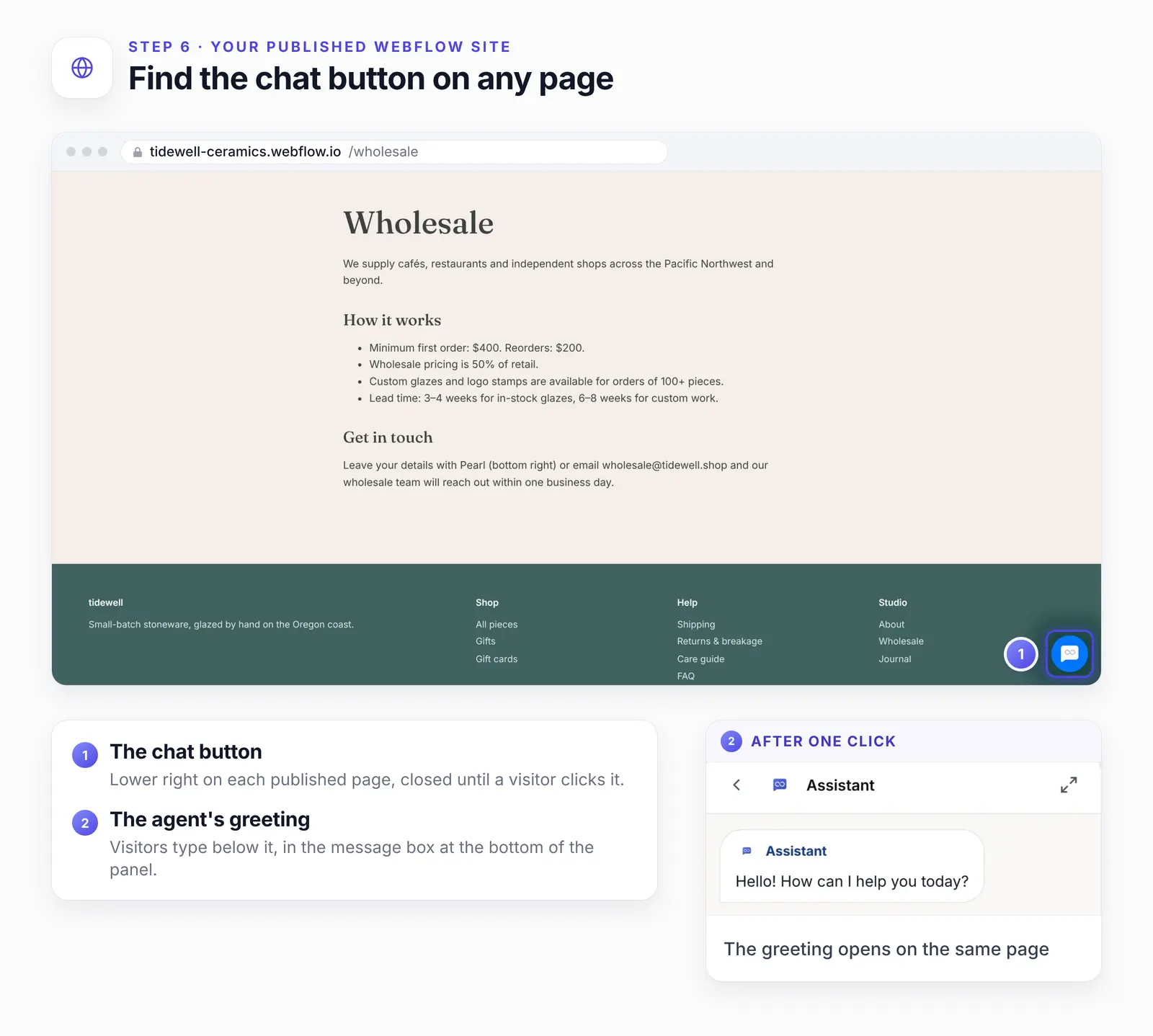
Closed until a visitor clicks. The greeting opens on the same page.
Then ask something the site already answers. On the Wholesale page we typed "Can you put our café's logo on the mugs?" and the agent wrote back:
Yes. Custom logo stamps are available for wholesale orders of 100 pieces or more. Wholesale pricing is 50% of retail, with a $400 minimum first order; custom work typically has a 6–8 week lead time.
We checked each number against the Wholesale page's How it works list: logo stamps for orders of 100+ pieces, wholesale pricing at 50% of retail, a $400 minimum first order, and 6–8 weeks for custom work. The café owner asked one thing and got every number they need to plan the order. The agent didn't quote a price for the logo or promise a date, because the page doesn't give one.
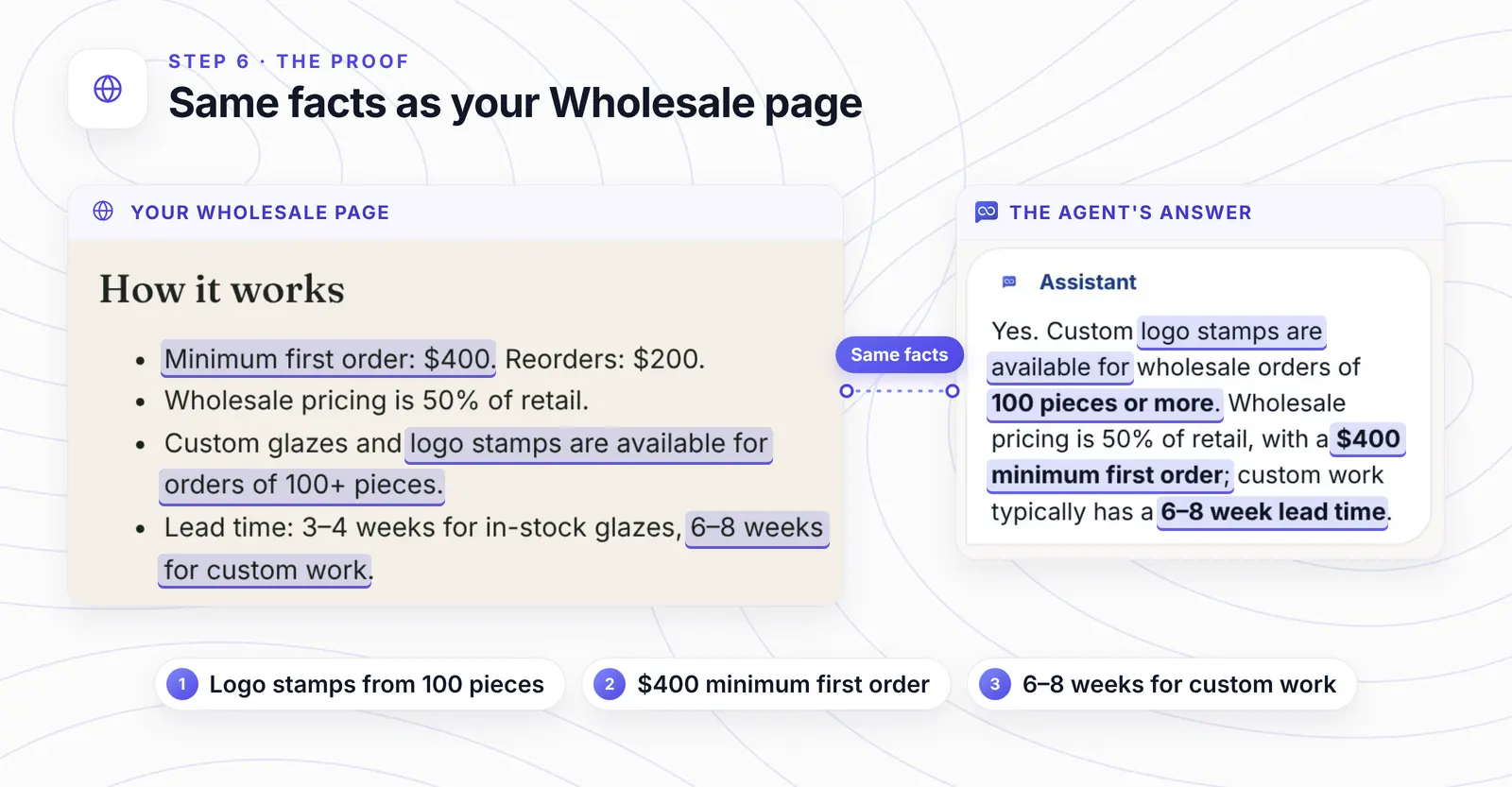
Each highlighted phrase in the answer has a twin on the page.
Next we clicked Shop in the site menu with the chat still open. The conversation came along, because Footer code had put the same snippet on that page too.
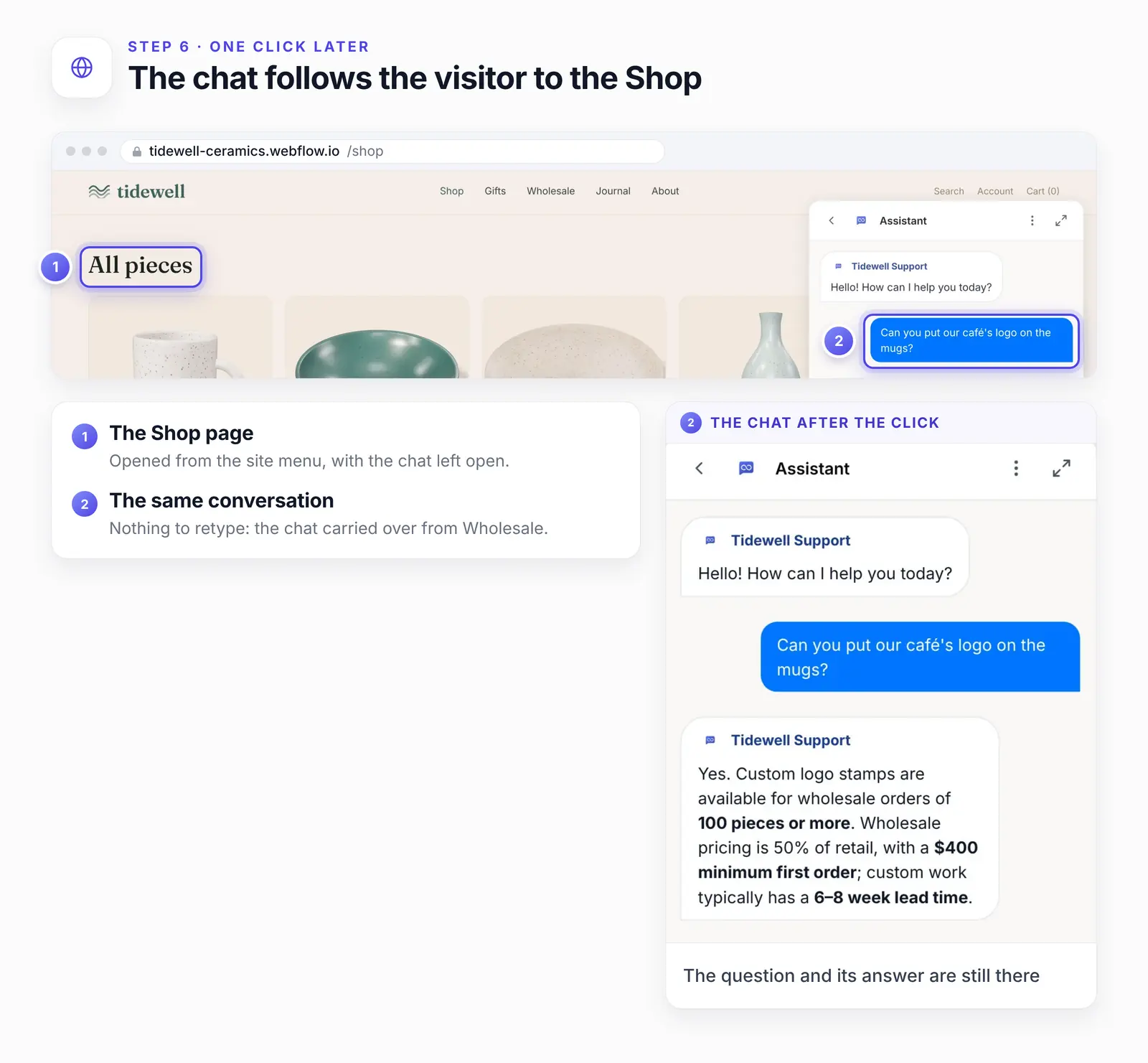
One click later, the Wholesale question and its answer are both still in the chat.
Before you call it done, look at the site the way a new visitor would:
Open the published URL in a private window, with no Webflow login and no saved chat.
Narrow the window to phone width and make sure a cookie banner or a sticky button doesn't sit on top of the chat button.
Send a test question, then find that conversation in Conversations, in the agent's menu in AssistLoop.
Repeat all three on your custom domain once you've published there.
Want your Webflow site answering like that? |
If the AI agent doesn't show up on your Webflow site
You saved but never published, or published to staging alone. Footer code stays off a domain until a publish reaches it. Press Publish, tick each domain, then Publish to selected domains, and reload.
You're checking inside the Designer. Webflow notes that custom code doesn't run in expand canvas view. Site settings also has a Run custom code in Preview switch (Webflow Help Center). We haven't tried the widget with it on, so trust the published site.
Your plan has no custom code. See the plan line under What you need.
The code sits in one page's box. A page's Before </body> tag box covers that page alone, so move the code into Footer code, save and publish.
The code went into Head code. That still loads on every page, so look at the other rows too. Webflow recommends scripts at the end of the body, though, so move it into Footer code, save and publish.
Your own display rules hide it. A schedule, a page rule or a country rule under Widget Appearance → Advanced → Display Restrictions keeps the button off some visits. Check them, or test from a page and at a time they allow.
The chat shows up twice. Footer code plus a page box or a Code Embed can load the widget twice on one page. Keep the Footer code copy, delete the other one, and publish.
An ad blocker or privacy extension is in the way. Try a private window with extensions off. If the button still doesn't appear, open the browser console and look for a blocked script from assistloop.ai.
The snippet came from a different agent. Reopen Widget Installation with the trained agent selected, copy again, and replace what's in Footer code.
Webflow's support team doesn't help with custom code setup. For anything this list misses, message us from the chat on assistloop.ai.
How we tested this
We set up Tidewell Support in our own AssistLoop workspace on 9 October 2026 and trained it on the studio's pages. Its answer in Step 6 is copied exactly as it appeared.
Steps 3 to 5 show a rebuild of Webflow's dashboard, Site settings, Custom code tab and publish menu. We made it from Webflow's help articles and from screenshots of Webflow published in February 2026.
The webflow.io site and its publish ran inside our test browser, so that address isn't a public site. Fetch Links on it read the same Tidewell pages, hosted at tidewell-c1z.pages.dev. The snippet that loaded the agent was the one the save had stored.
Tidewell Ceramics, its products and its wholesale terms are invented for the demo. The Wholesale page's copy names Pearl, the studio's usual agent.
The chat header shows the widget's name, Assistant here, which you set in Widget Appearance → Basic → Agent Name. On the Wholesale page the bubbles carried that name too. After the click to Shop, they showed the agent's own name, Tidewell Support.
The code block is the HTML snippet from Widget Installation, with only the agent ID replaced.
The screens are frames from the 9 October 2026 recording, plus the Wholesale page captured on 18 October 2026. Pins, rings and enlarged details sit around the interface. Nothing inside it was changed.
The Webflow help articles linked above were re-read on 19 October 2026.
What to do next
A new agent knows only what Fetch Links found. When visitors ask something your pages skip, add the answer in Data Sources as a file, text or Q&A pair. Retrain after big page changes.
Once chats start arriving, two guides help: writing instructions for your AI support agent sets its tone and limits, and fixing a wrong answer shows how a Q&A pair corrects a reply.
Some wholesale questions need a person, like a quote for a custom glaze. Handing the chat to a human covers that.
Webflow Ecommerce stores can answer "where's my order" too, but that part needs a developer, or a service that already shows order status at a web address. One Custom API action then does the lookup, as checking order status shows. Widget Appearance sets the chat's colours, greeting and suggested questions, so the button can sit comfortably beside your Webflow styles (widget customization). If wholesale enquiries should end with a name and an email in your inbox, the Collect Lead action asks for them in the chat, as collecting leads from website chat shows.
Frequently asked questions
Which Webflow plan do I need?
An active Site plan on that site, or a Core, Growth, Agency or Freelancer Workspace around it. Without either, as on the free Starter plan in a Starter Workspace, you can't add custom code, so the snippet won't load. Site managers and Designers can add the code.
Do I need an app from Webflow Apps?
No. AssistLoop installs with the HTML snippet in Footer code and one publish. There's nothing to install from Webflow Apps and nothing to keep updated.
Can I show the chat on only some pages?
Yes, two ways. Paste the snippet into the Before </body> tag box in Page settings on each page that should have it, instead of Footer code. Or keep it in Footer code and limit the pages in AssistLoop under Widget Appearance → Advanced → Display Restrictions → Pages, a setting on paid plans.
Does it show on my CMS Collection and blog pages?
Yes, the chat does, because Footer code covers CMS Collection pages along with the rest of the site. Training is a separate check. Make sure Fetch Links listed the blog posts or product pages you care about. To add a missing one, open Data Sources → Add source → Add a Website/Link, enter the page's address and click Save and Train.
Will it slow down my Webflow site?
It shouldn't hold up your page. Footer code runs at the end of the body, after your content, the spot Webflow recommends for scripts, and the snippet then adds the widget script. We haven't run a speed test of our own.
Should I train it on my webflow.io address or my custom domain?
Your custom domain, if you have one. That's the address visitors use, so the agent learns the pages they actually see.
Sunday evening, and the café owner already has the 100 pieces, the $400 minimum and the 6–8 weeks, long before you've packed up at the fair. On Tuesday, an order for 200 logo mugs is waiting. Set up an agent on AssistLoop and point it at your Webflow address. If your shop's site is on Framer instead, the Framer version of this guide uses a plugin rather than code.
 | Written by AssistLoop Team We build AssistLoop, an AI support agent that answers customers from your own website and documents, and hands the chat to your team when a person should step in. ★★★★★ "It's very flexible and user-friendly, making it easy to set up in about ten minutes." Ryan N., Managing Owner, Working Nomads, on G2 |
Build Custom AI Chatbot for Your Business FREE
Create intelligent AI agents that handle customer support, boost conversions, and work 24/7 for your business.
Build Your Agent