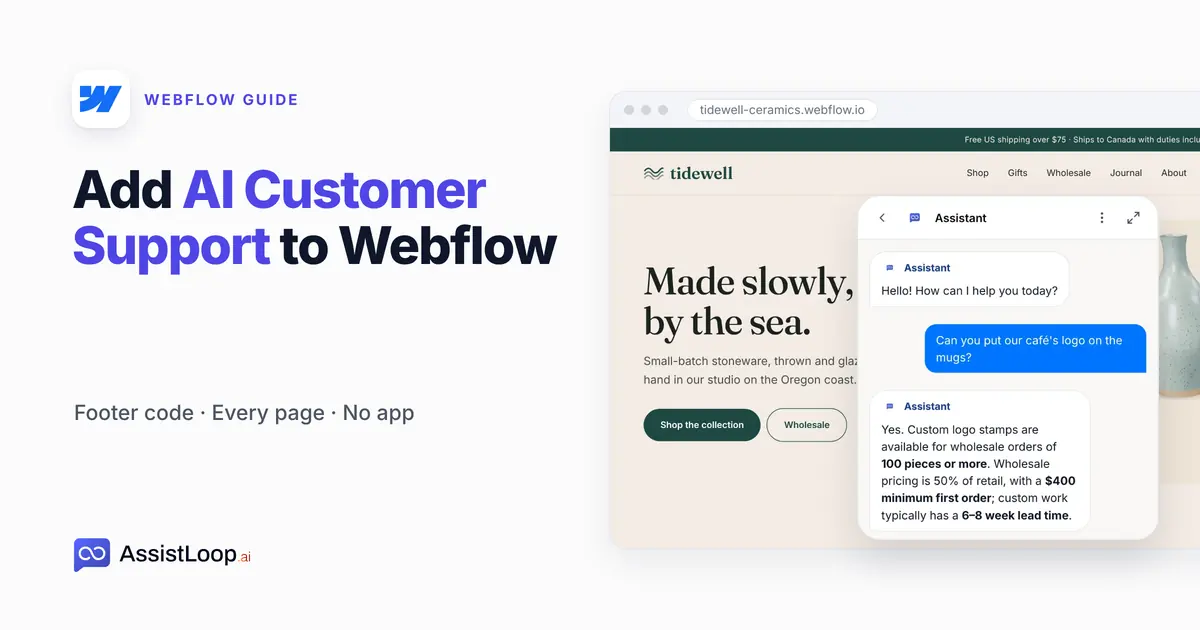
How to Add AI Customer Support to Framer (Free Plan, No Code)
You can add an AI support agent to a Framer site without code: install the AssistLoop Framer plugin from the Framer Marketplace, paste your agent's ID and publish. It ran on Framer's free plan in our test. The other route is pasting AssistLoop's script under Project Settings → Custom Code yourself. The setup takes four steps.
 AssistLoop Team13 min read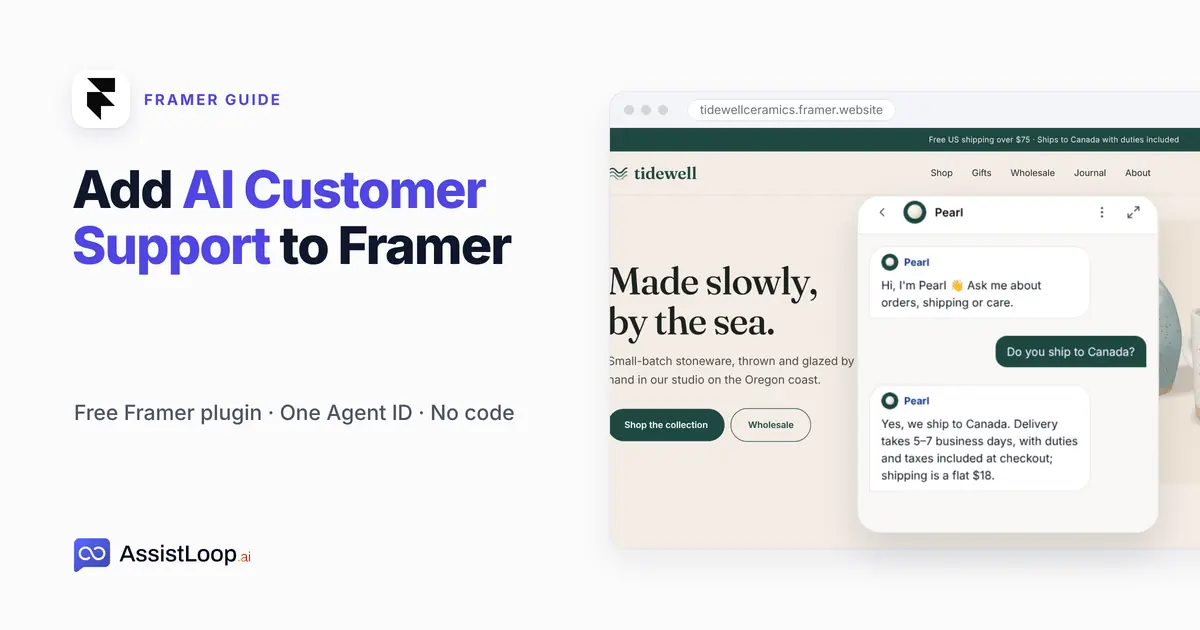
On this page
Last updated: October 2026. Before our video of this install went up on 8 October 2026, we installed the plugin on a free-plan Framer project, published it and asked the agent a shipping question; most figures are frames from our recording of that install (How we tested lists the exceptions). On 19 October 2026 we loaded the published site again and copied the code the plugin had placed in its page head.
Quick answer
|
Framer sites look finished the day they go live. Then the same questions start arriving by email: do you ship to Canada, how long does delivery take, can I return a gift? The answers already sit on your pages. Visitors just don't find them before they give up.
Our example is Tidewell Ceramics, a pottery studio we made up for these guides, with a Framer project of the same name. Its agent, Pearl, had already learned the studio's shipping, care and returns pages before we opened Framer. The Framer and AssistLoop screens below come from that build; How we tested explains the live-site pages.
The video runs a little over two minutes and follows the same four steps, from the copied ID to an answer on the published site.
What you need
An AssistLoop agent that has read your site. No agent yet? Sign up and type your site's address, and the agent learns from those pages. AssistLoop hosts the AI model, so there's no provider key to set up.
A Framer project you can edit and publish. Ours was on Framer's free plan at a framer.website address.
What each AssistLoop plan includes is on the plans page.
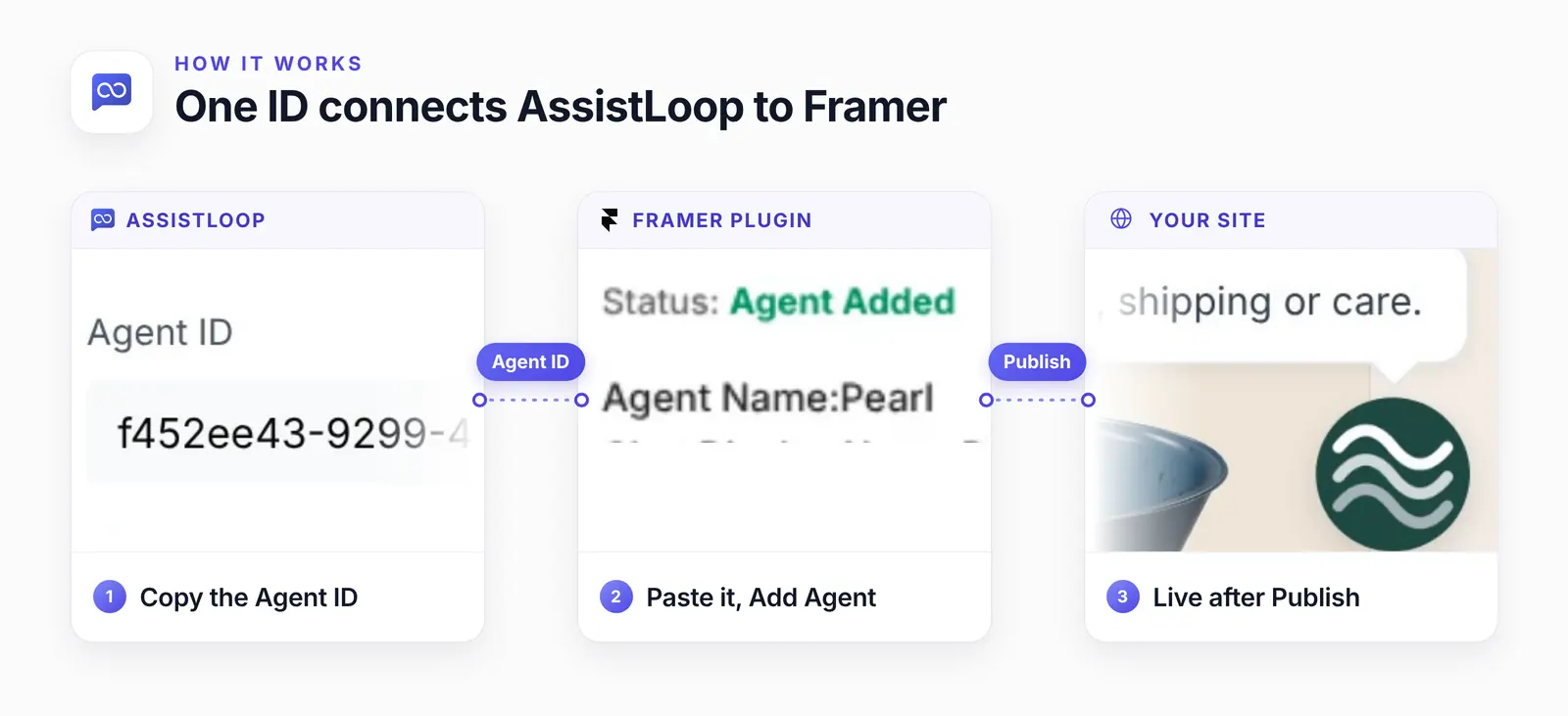
The ID travels once, from AssistLoop into the plugin. Publishing takes the plugin's code to every page.
Framer plugin, Custom Code or Embed component: which to use
For a chat launcher on every page of a Framer site, the AssistLoop plugin is the shortest route. It writes the site code and keeps it in one place. Framer has two other ways in.
| Route | You do | Use it when |
|---|---|---|
| Plugin | Paste the Agent ID | Every page (start here) |
| Custom Code | Add a script | Choose pages in Framer |
| Embed | Paste the iFrame code | Chat inside a page |
Framer's guide to adding custom code (updated 15 September 2026) puts scripts under Project Settings → Custom Code → Add Script. Take the code from AssistLoop's Widget Installation → Framer tab; it already carries your agent's ID, and the tab says to paste it at the end of the body, so pick that placement in Framer. This route suits you if you want Framer to decide which pages get the script, or you'd rather manage the code yourself.
The dialog also asks you to choose Once or Run on every page visit. Start with Once: Framer then runs the code a single time, and the widget should stay as visitors move between pages. Treat that as a starting point, since we haven't run this route on Framer.
After publishing, move between two pages of the live site and check that the launcher is still there, and only once. If it's missing after a page change, switch to Run on every page visit.
Either route can keep the chat to some pages: Framer lets you pick the pages for a script, and with the plugin you list them in AssistLoop under Widget Appearance → Advanced → Display Restrictions → Pages.
The Embed component places a chat inside one page's layout instead of a floating button. AssistLoop's Widget Installation → iFrame tab gives the code for that layout, one tag at full width and 100vh, and it goes into Framer's Embed component. We haven't set that up on Framer, so there are no steps for it here.
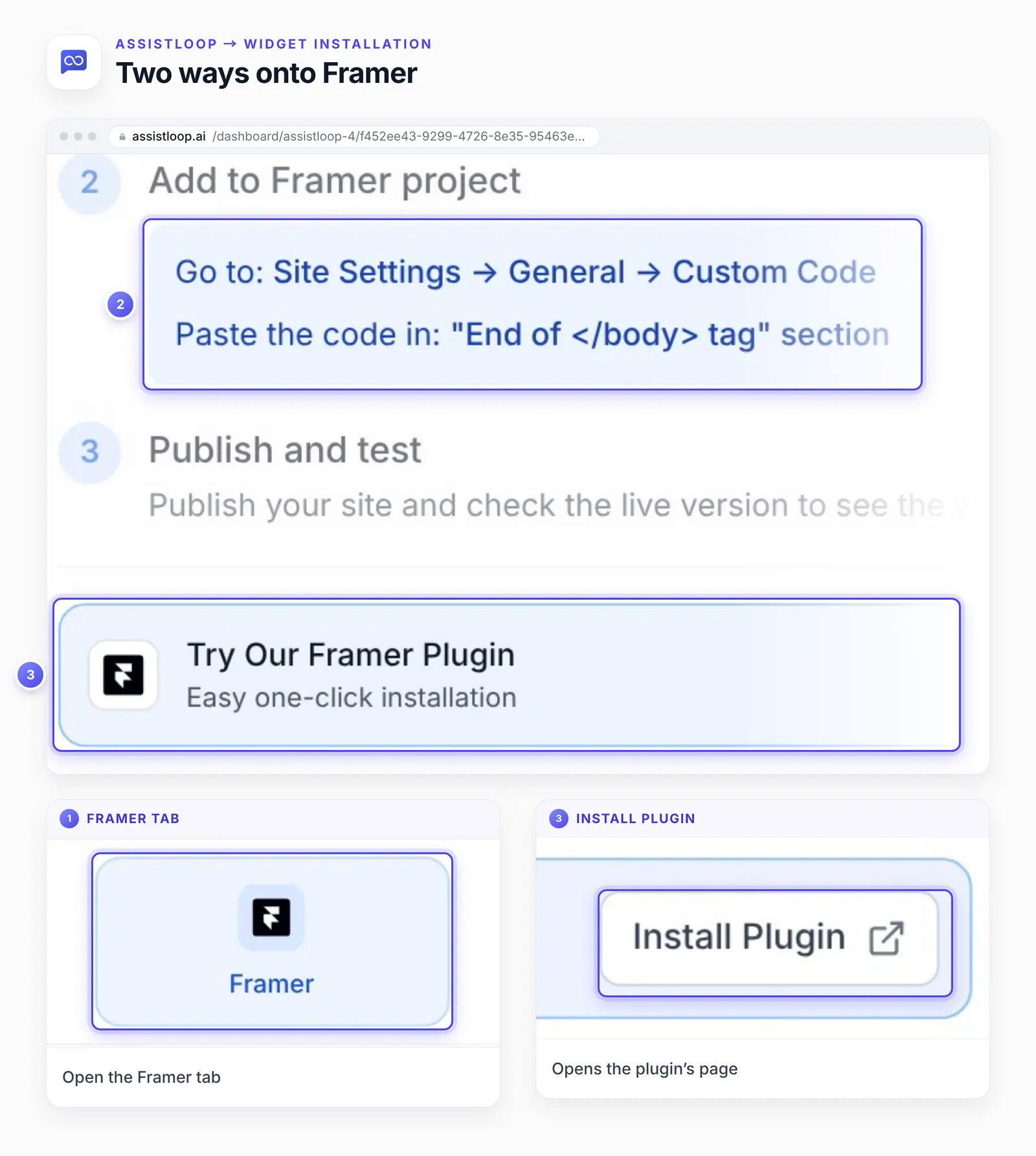
AssistLoop's own install page. Its custom code steps still name Site Settings → General; Framer's help now says Project Settings → Custom Code.
The plugin is one of AssistLoop's official plugins. Framer's setCustomCode reference is how a plugin adds site code, and the typings in the framer-plugin package (version 3.10.3) allow one block of custom HTML per location, such as the end of the head, with no list of pages. So the plugin's agent appears site-wide.
This is the block Add Agent puts in the head of every published page, copied from our test site on 19 October 2026 with the ID swapped for a placeholder:
<script>(function() { |
You don't edit this block: the plugin writes the ID you paste into it. The ID itself is in AssistLoop under Settings → General → Agent ID. For the Custom Code route, paste the Widget Installation code, not this block.
Stick to one route per site. The plugin's first line stops if the widget script is already on the page, but the Widget Installation code has no such check, so a pasted copy on top of the plugin can load the chat twice.
Step 1: Copy your Agent ID in AssistLoop
In AssistLoop, open Settings, the last item in your agent's left menu, and press the copy icon beside Agent ID, the first field under General. Each agent has its own ID, so check first that the name at the top of the dashboard is the agent that learned this site. The icon turns into a check, and a green notice confirms the copy.
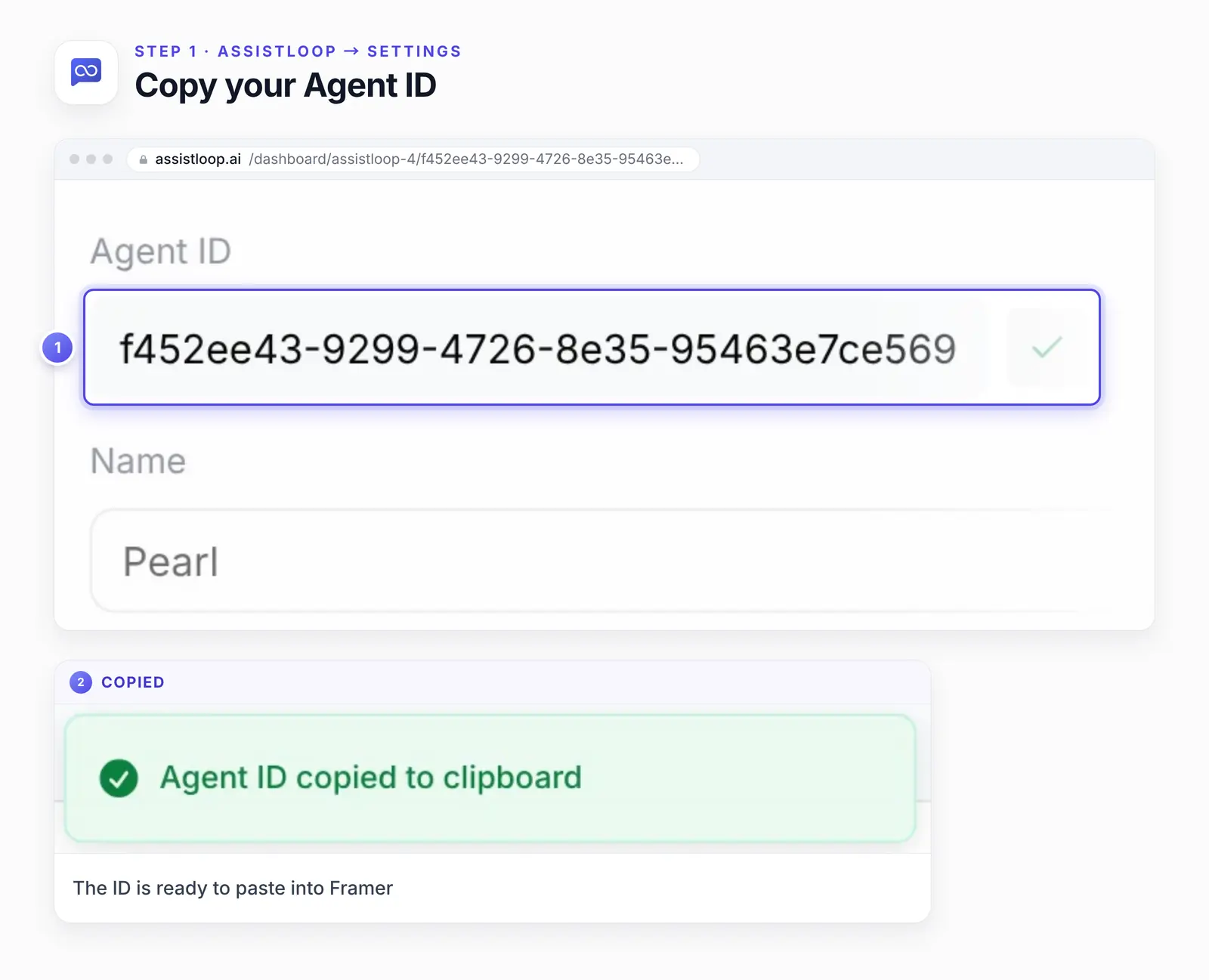
An Agent ID has 36 characters: letters and digits in five groups, split by dashes.
Step 2: Open the AssistLoop plugin in Framer
In Framer, click the main menu at the top left of the project (ours reads Canvas), point to Plugins, choose Browse all, type AssistLoop in the search and open AssistLoop - AI Chatbot, published by AssistLoop AI.
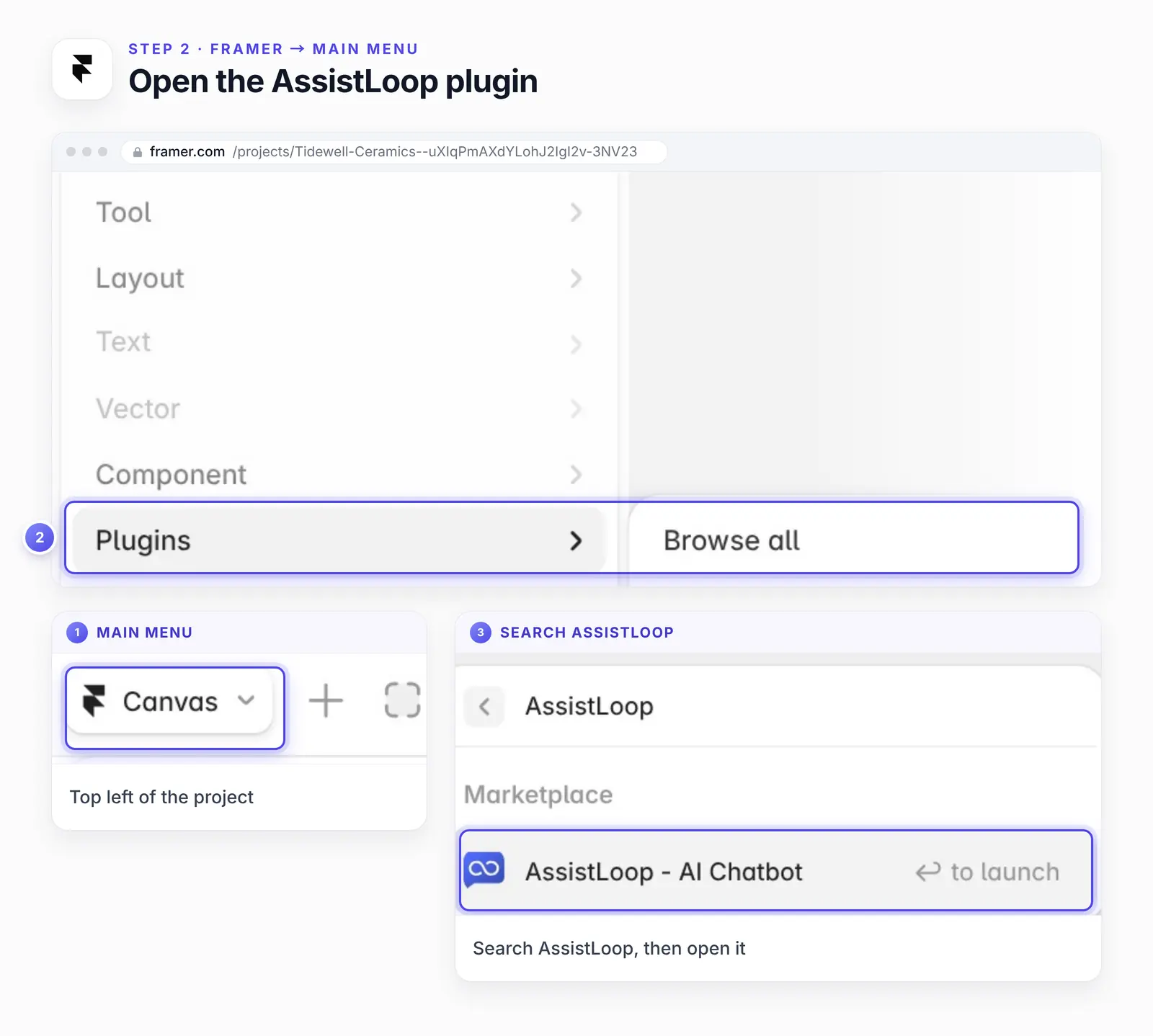
The plugin opens as a small panel over the canvas. Until an agent is connected, it shows Status: Agent Not Added.
Step 3: Paste your Agent ID and click Add Agent
Click the Agent ID field in the panel, paste the ID and press Add Agent. The status switches to Agent Added with your agent's name under it, and the button becomes Update Agent.
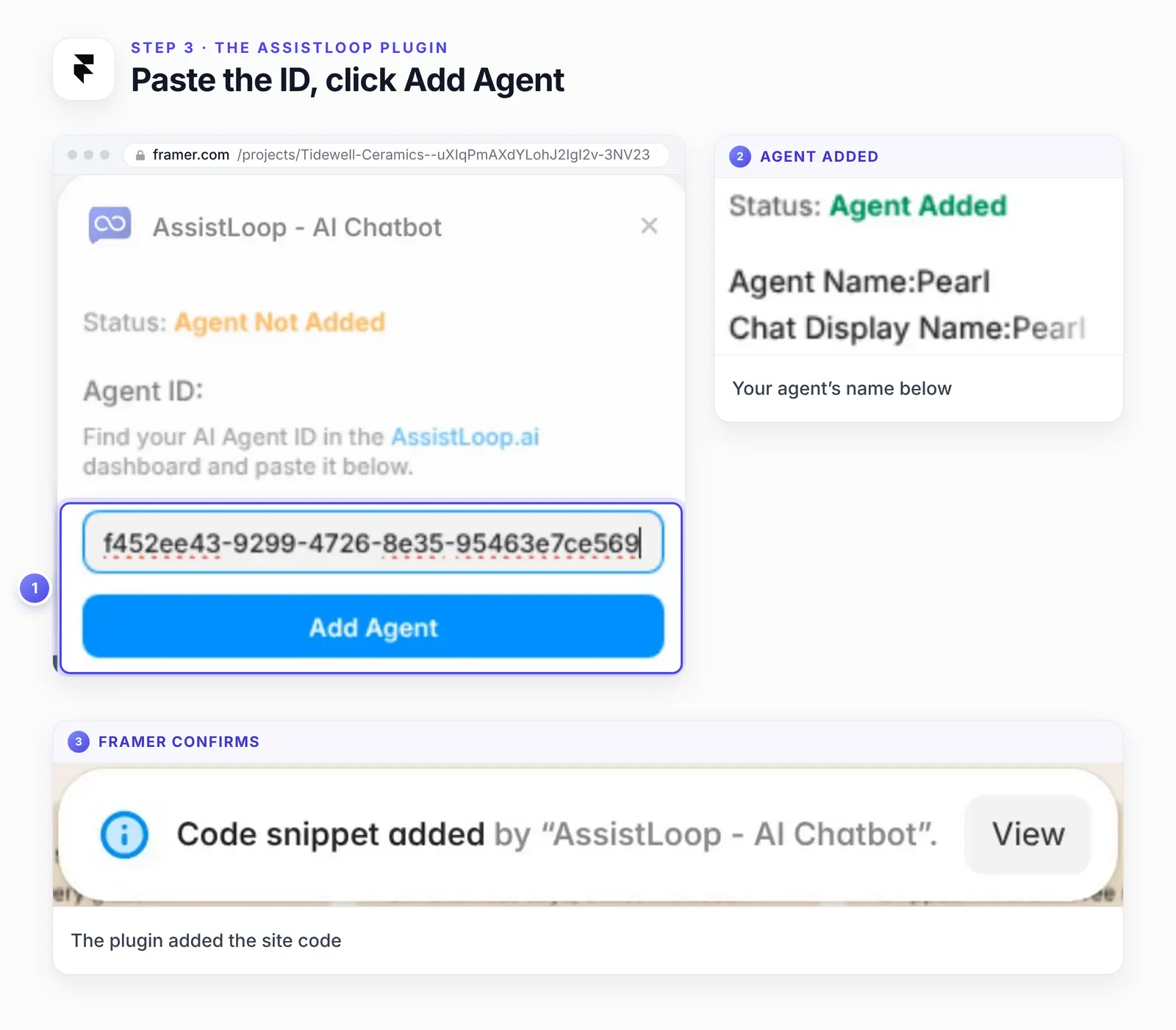
Framer reports the change at the bottom of the canvas, in a notice that reads Code snippet added by "AssistLoop - AI Chatbot". Beyond the panel and this notice, the canvas looks the same.
The chat won't show on the canvas yet. Framer Academy's custom code lesson says: "Framer does not load Custom Code in the canvas preview." (Add Custom Code to your site in Framer, a September 2023 lesson, checked 19 October 2026.)
Step 4: Publish and check your live site
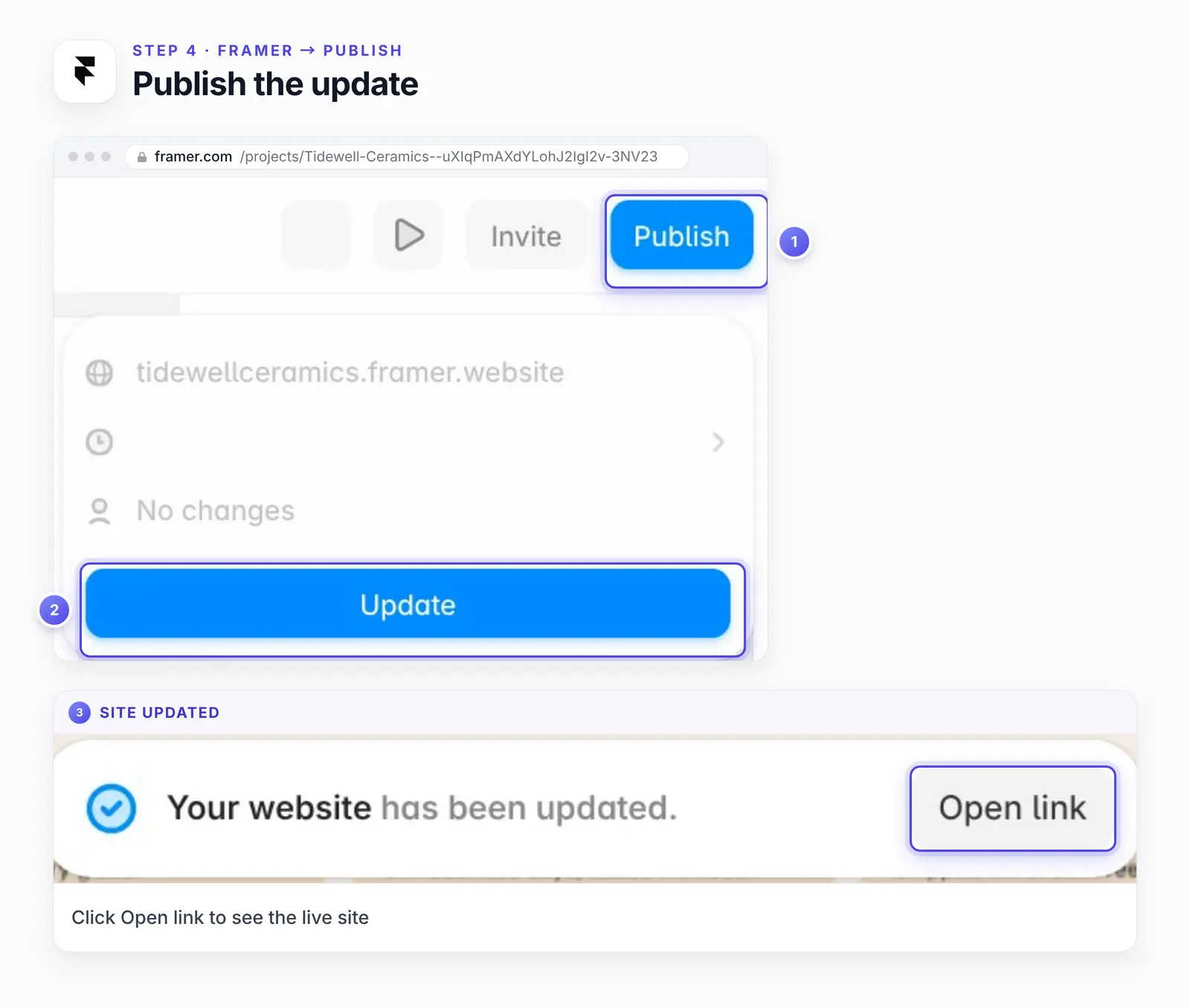
Click Publish at the top right, then Update, even if Framer says No changes; ours did, and the update still carried the agent. When the notice says Your website has been updated, click Open link at its right end. The launcher waits in the bottom-right corner (ours also showed Pearl's greeting above it). Our project had been published before, so these screens show an update to a site that was already live.
Framer's free-plan badge can crowd that corner; the fix is in the troubleshooting list below.
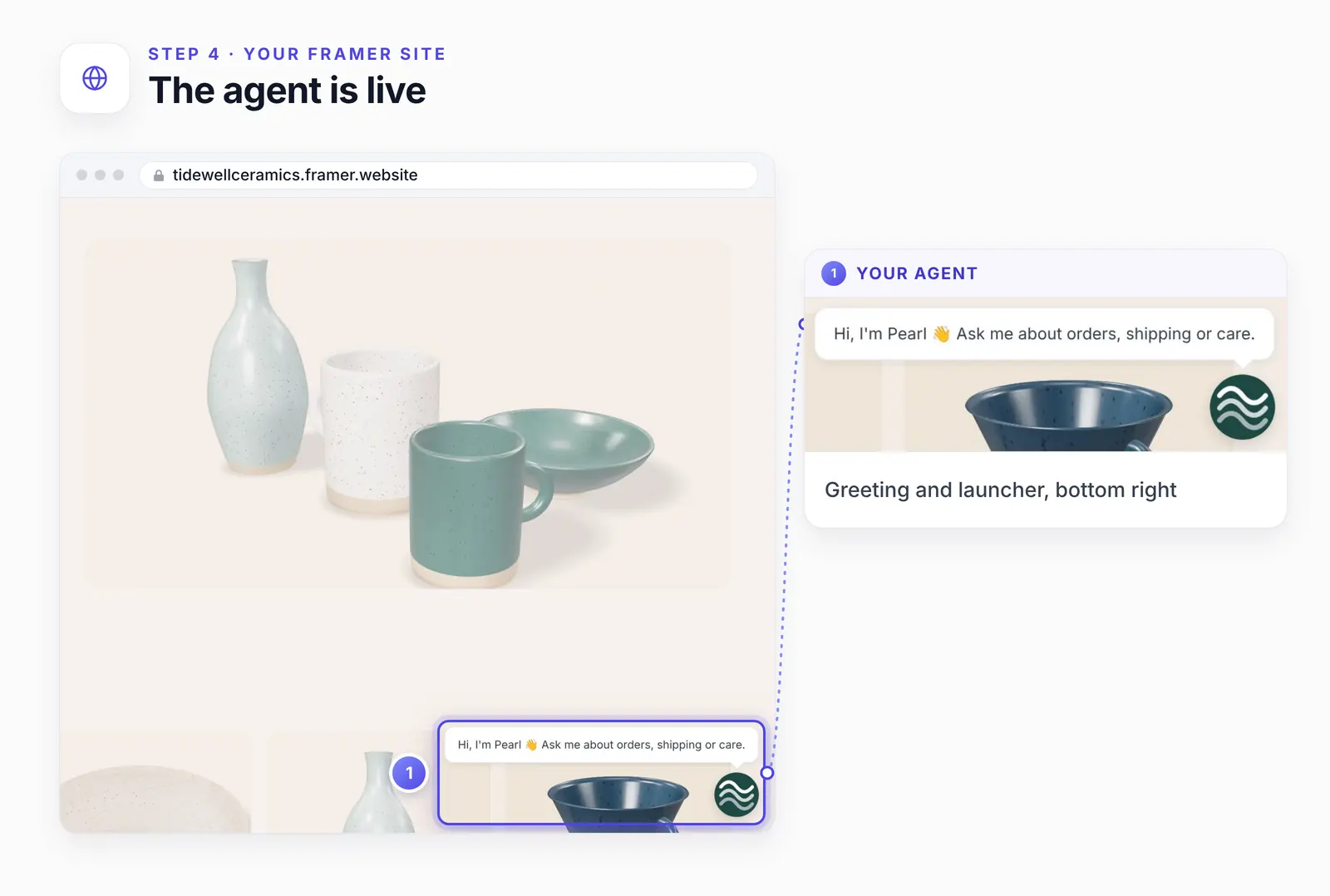
The studio's own pages, loaded at our Framer address with the plugin's code; they aren't Framer-built, so Framer's badge doesn't appear.
Now give it a question your site already answers. On the Tidewell home page we typed "Do you ship to Canada?" into the chat, and this came back:
Yes, we ship to Canada. Delivery takes 5–7 business days, with duties and taxes included at checkout; shipping is a flat $18.
The studio's Shipping page states the same three facts: 5–7 business days to Canada, duties and taxes included at checkout, and an $18 flat rate. Pearl's reply is that paragraph in fewer words.
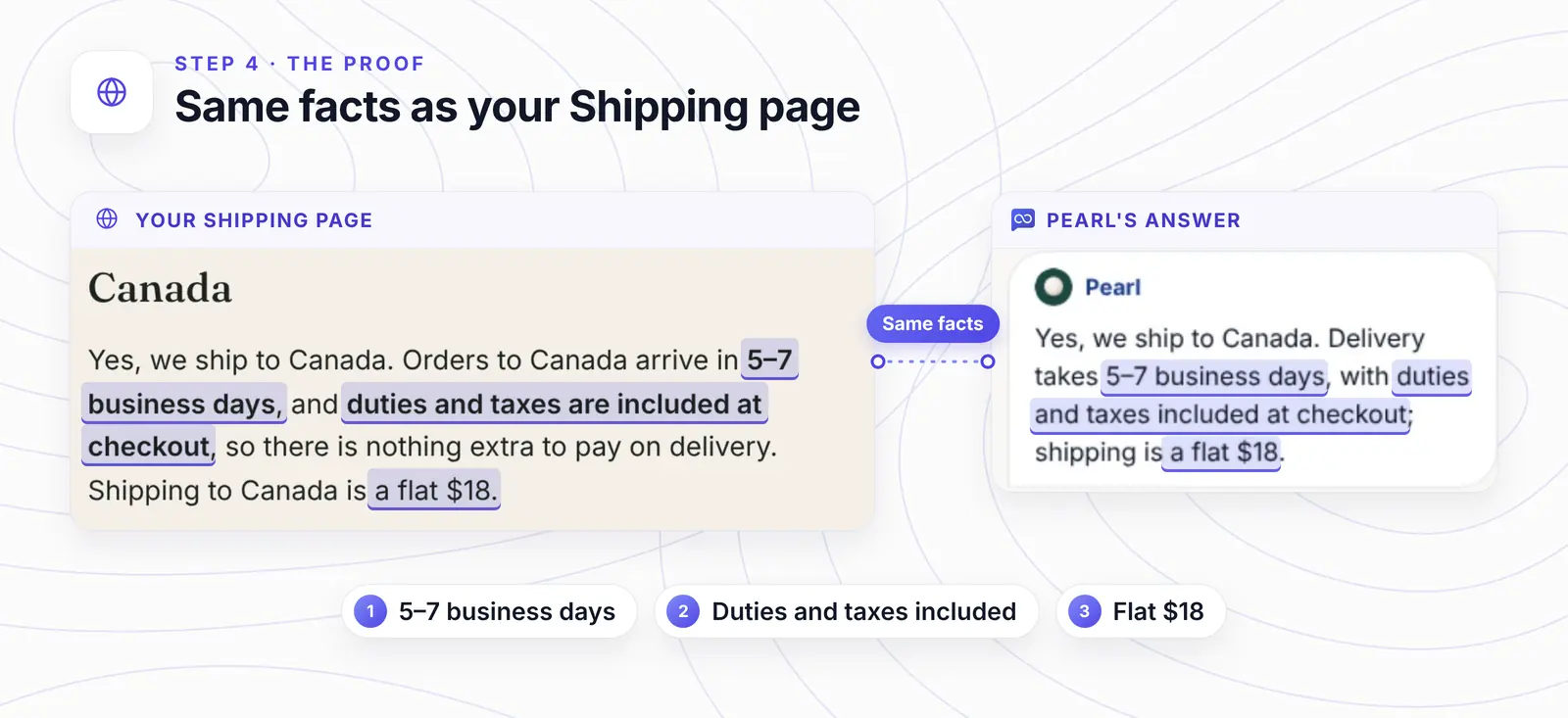
Each highlighted phrase on the left has its partner on the right.
Want answers like this on your Framer site? |
Check it like a visitor would
Before you announce it, test the published site the way a visitor meets it:
A private window, so a saved chat or your Framer session can't change what you see.
Phone width, or your own phone: look at the bottom-right corner, where Framer's badge meets the launcher.
A question one page answers, then that page open beside the chat to compare the facts.
A question no page answers. A good reply says plainly that it doesn't know, rather than guessing.
If the agent doesn't show up on your Framer site
You're looking at the canvas. Only the published site loads the agent. Publish, update and open the live link.
You haven't published since adding it. Click Publish and Update, even on No changes (see Step 4).
The Made in Framer badge sits on the launcher. On a second free-plan test project, published at a framer.app address (see How we tested), the badge covered the launcher in the bottom-right corner. Framer's help center says: "The “Made in Framer” badge will automatically disappear once you connect a custom domain or upgrade your site to a paid subscription." (Framer Help, updated 23 September 2026.) The same article adds that the badge only goes after you republish. On a free site, move the launcher instead: in AssistLoop, open Widget Appearance → Appearance, set Button Position to Left, save and reload the live site; this moves the launcher on every site that uses this agent.
A cookie banner or consent tool is in the way. Framer Academy's custom code lesson (linked in Step 3) suggests confirming a script's consent requirements before adding it. If your consent tool holds third-party scripts until a visitor agrees, accept and check again. Make sure its banner doesn't cover the launcher's corner.
The chat appears twice. The plugin and a pasted script are both on the site. Remove one, then republish.
The ID is incomplete. All 36 characters have to be there. Copy it again, click Update Agent in the plugin and publish.
The ID belongs to another agent. Switch to the agent that learned this site, copy its ID and update the plugin.
How we tested this
The project: a free-plan Framer project for Tidewell Ceramics, a made-up brand. Framer published the plugin's code at the project's framer.website address. The project's design is one image of the studio's homepage, so for the live-site screenshots, the Canada answer and the move from Home to About we loaded the studio's own pages, which weren't built in Framer, at that address with the same code.
A second project: a separate free-plan test project, published at a framer.app address. The agent loaded there too, and that's where the badge covered the launcher. It isn't pictured here.
The plugin: the AssistLoop listing on the Framer Marketplace, opened through Plugins and Browse all.
The agent and the answer: Pearl, which had learned the studio's pages. Step 4 quotes its reply exactly as it appeared.
The code card: copied from the published home page's source on 19 October 2026; only the agent ID was replaced.
The screenshots: frames from our screen recording of the install, plus a narrow capture of the studio's Shipping page so its paragraph reads at column width. We added pins, outlines and enlarged details; the Framer and AssistLoop screens under them are untouched.
What to do next
The install puts the agent on the page; what it says depends on what it has learned. When a conversation shows a gap, add the missing fact as a Q&A pair and ask again. To set its tone and keep it on your topics, give it six short instructions. After you edit prices, shipping or product pages in Framer, retrain the website source in AssistLoop: Data Sources → the row's ⋯ menu → Retrain.
Some questions need more than your pages. For "where is my order", connect the agent to your store with an order-status lookup. For anything that needs a person's judgment, pass the chat to your team in the same thread.
To make the launcher fit your Framer design, change its color, position and greeting with widget customization.
Frequently asked questions
Do I need a paid Framer plan?
Not for the plugin. Our test project stayed on Framer's free plan, and the agent loaded once the site was published. A paid site plan or a custom domain removes Framer's badge once you republish, which only matters if it covers the launcher.
Do I have to write any code?
No, not with the plugin: the ID goes into a field and the plugin writes the script. On the Custom Code route you paste AssistLoop's code as it comes, without editing it.
Will it slow down my Framer site?
It shouldn't hold up the page: the plugin loads the widget script asynchronously, so the browser keeps drawing the page while it downloads. We didn't measure load times. Framer Academy's custom code lesson, quoted in Step 3, notes that extra scripts can affect privacy and performance, and advises removing code a site no longer uses.
Can I show the chat on some pages only?
Yes, two ways. The plugin's code is site-wide, but AssistLoop can hide the chat on chosen pages under Widget Appearance → Advanced → Display Restrictions → Pages. Or skip the plugin and limit a Custom Code script to specific pages in Framer.
Does it work on a framer.website or framer.app address?
Yes, on both free addresses we tried. Framer published the plugin's code on our framer.website project, and the agent loaded on a second free project at a framer.app address (see How we tested). We haven't tried it on a custom domain.
How do I take the agent off my Framer site?
Open the AssistLoop plugin, click Remove Agent, then publish and update, and check the live site in a private window.
Running a shop or studio on Framer? Put an AssistLoop agent on your Framer site, and if you also look after a site built from plain files, the copy-and-paste HTML install gets the same widget onto it.
 | Written by AssistLoop Team We build AssistLoop, an AI support agent that answers customers from your own website and documents, and hands the chat to your team when a person should step in. ★★★★★ "The setup was extremely easy, and the learning curve is very small, especially compared to other programs." Jason K., Managing Director, on G2 |
Build Custom AI Chatbot for Your Business FREE
Create intelligent AI agents that handle customer support, boost conversions, and work 24/7 for your business.
Build Your Agent