How to Show Your AI Support Chat Only During Business Hours
A tested guide to showing an AssistLoop chat only during business hours: a weekly schedule under Display Restrictions, set in your time zone, hides the chat button outside your windows and brings it back by itself. Includes when a schedule makes sense, lunch breaks, holidays and what visitors see.
 AssistLoop Team9 min read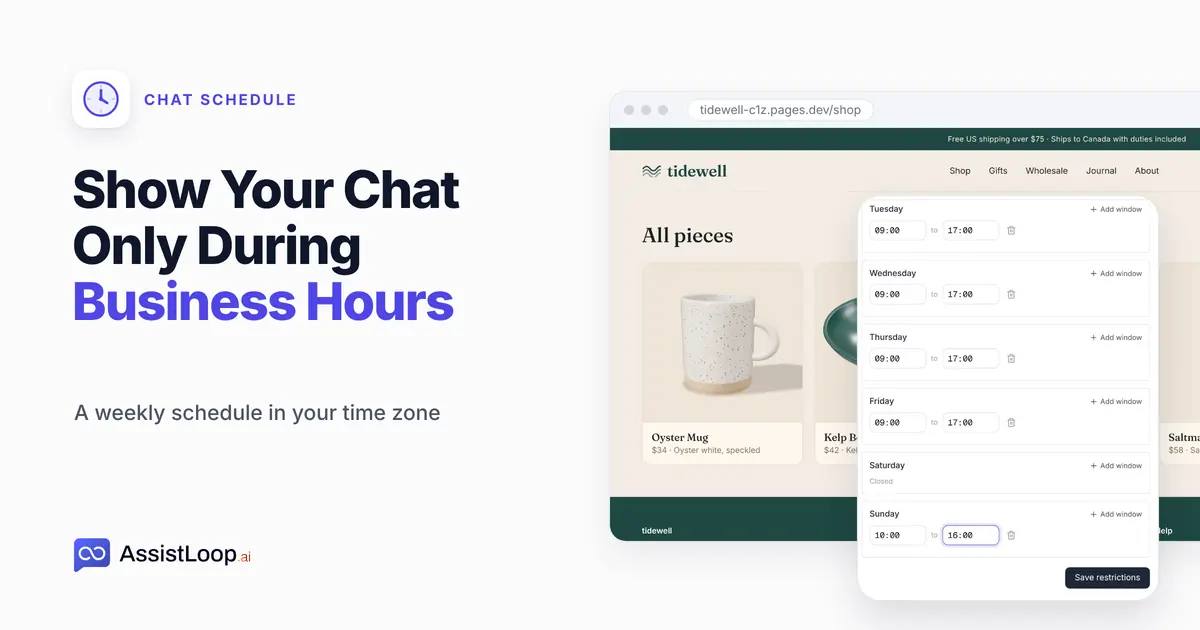
On this page
A chat button that's there at midnight tells shoppers a person is around, even when nobody is. This guide shows how to give your AssistLoop chat opening hours: a weekly schedule in your time zone, so the button hides outside your hours and comes back by itself. It also covers when the schedule is checked, lunch breaks, holidays and late nights. We tested it on a live shop on a Sunday; setting it up takes about two minutes.
Last updated: October 2026. We recorded this on Tidewell's live site on Sunday, 18 October 2026, at 12:05 Pacific time, then switched the schedule off again. On 25 October 2026 we reopened the Schedule tab without saving anything and read the widget's own code.
Quick answer
|
It's Sunday lunchtime at a small pottery shop. Nobody works weekends, but the chat button sits in the corner of every page, and a shopper who asks for a person will wait until Monday.
That shop is Tidewell Ceramics, our fictional pottery brand, and its agent, Pearl, answers from the Tidewell website in AssistLoop. The screens below are from Pearl's dashboard and the Tidewell shop.
The video runs under a minute and a half: the weekday hours, the chat gone on a Sunday, then a Sunday window that brings it back.
Should your chat keep hours at all?
An AI support agent can answer at 3 am, so a schedule isn't always the right call. It pays off when a person has to be there for the chat to work.
| Your chat | Schedule? |
|---|---|
| The AI answers alone | Usually not |
| Your team answers | Yes |
| The AI hands off often | Worth it |
Late hours still matter to shops. In SureBright's analysis of more than a million U.S. orders, published in May 2026, the four hours from 11 am to 3 pm brought 36.4% of each day's orders. The evening from 6 to 11 pm still brought 19.2%.
In the company's announcement, its CEO, Manish Chauhan, said: "The evening shopping peak is a myth." SureBright counted each order in the shop's own time zone. Busy hours sit inside a working day, then, but close to one order in five came in between 6 and 11 pm, so hide the chat at night only if nobody could answer it.
How the schedule works
When a page loads, the widget asks AssistLoop for its settings. Outside your hours, AssistLoop answers that the chat is restricted, and the widget doesn't draw its button at all.
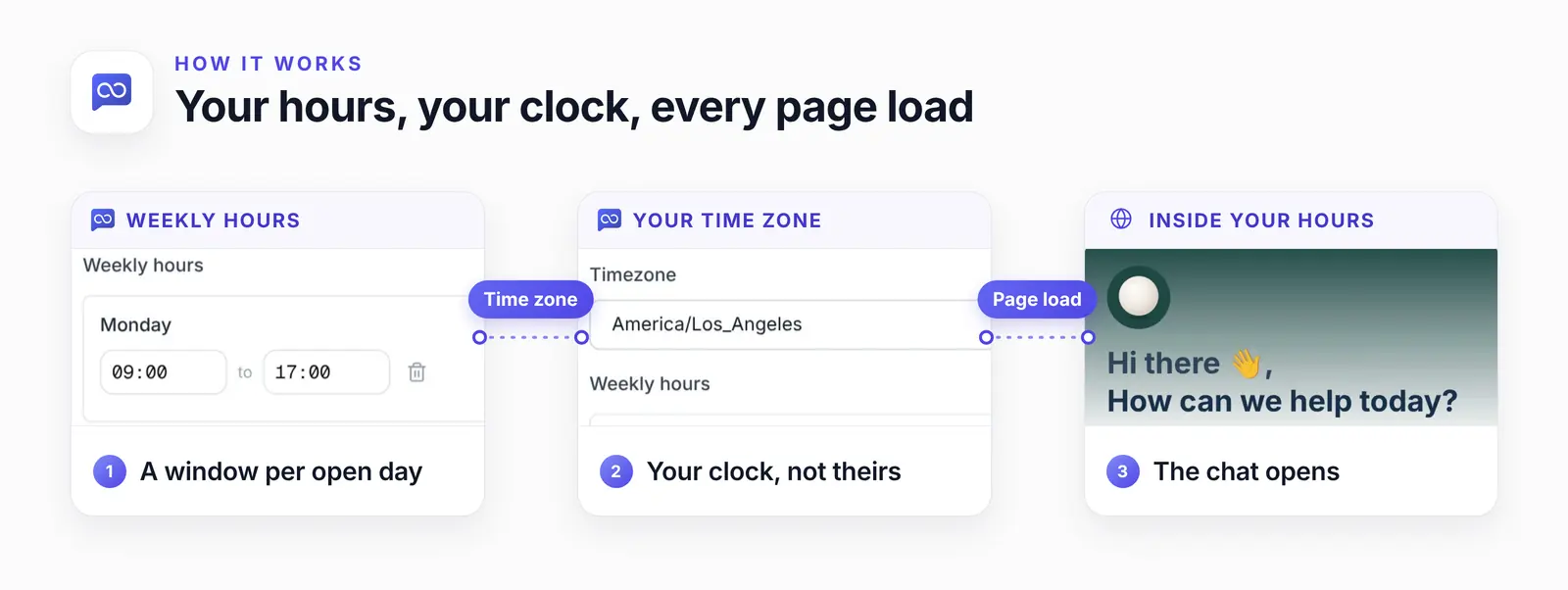
You set the windows and the zone; the shopper's page does the asking.
Two things follow from the widget's code, which we read on 25 October 2026:
The visitor's clock doesn't count. The widget sends the page address, not the time, so the decision is AssistLoop's, made with the zone you picked; the recording fits that.
The check runs once per page load. A shopper who opened a page at 4:58 keeps the button after 5:00 until they open another page or reload. On a single-page app, such as a React shop, moving between pages doesn't count: only a full reload does. We haven't tested whether a conversation already open at closing time keeps getting answers.
What you need
An AssistLoop agent with its chat on your site. If you don't have one yet, sign up and Create Agent with your website address. You also need your opening hours and the time zone your team works in.
Step 1: Open Display Restrictions
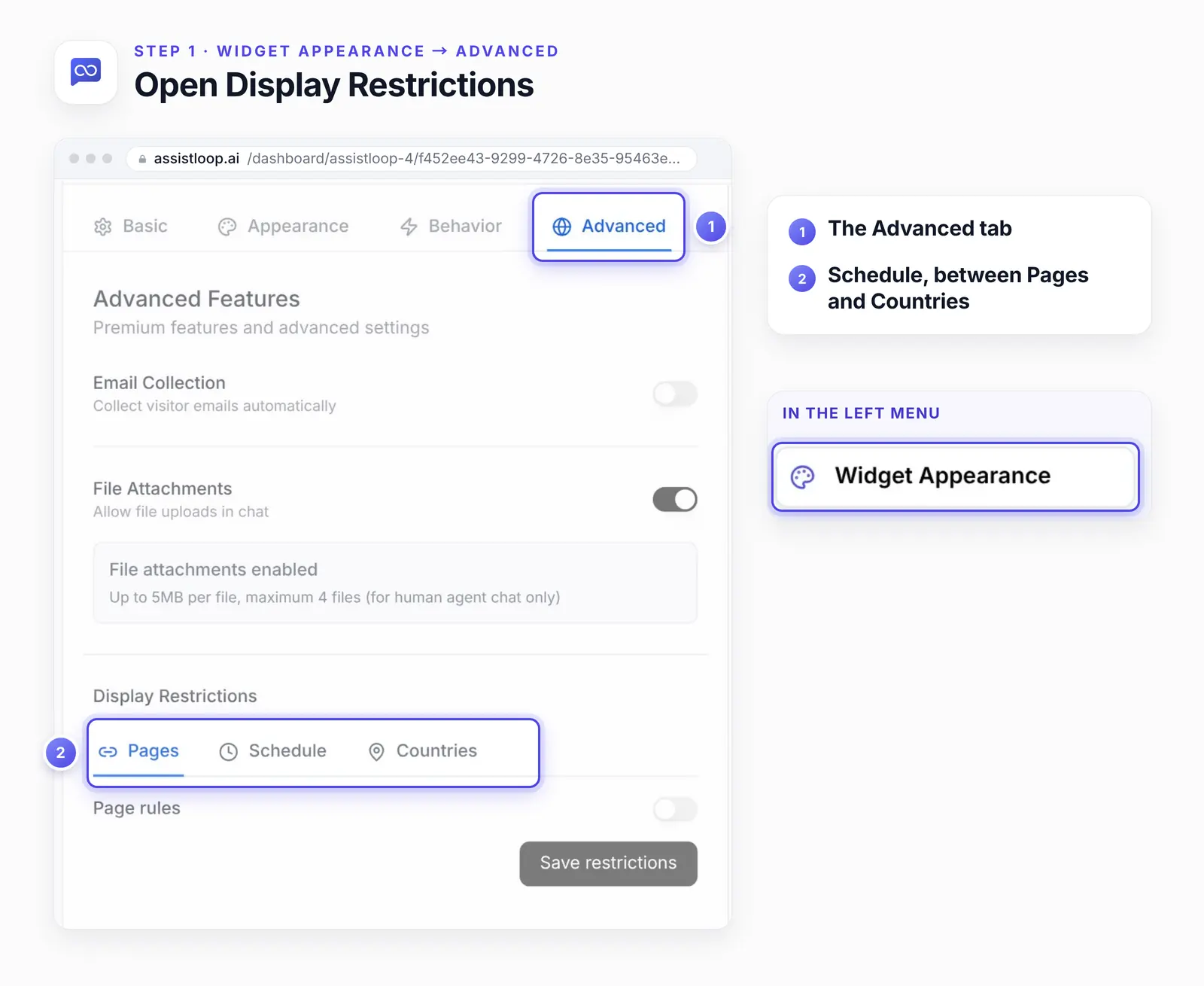
In your agent, open Widget Appearance in the left menu, then the Advanced tab. Display Restrictions sits at the bottom, with three tabs: Pages, Schedule and Countries.
Step 2: Turn the schedule on
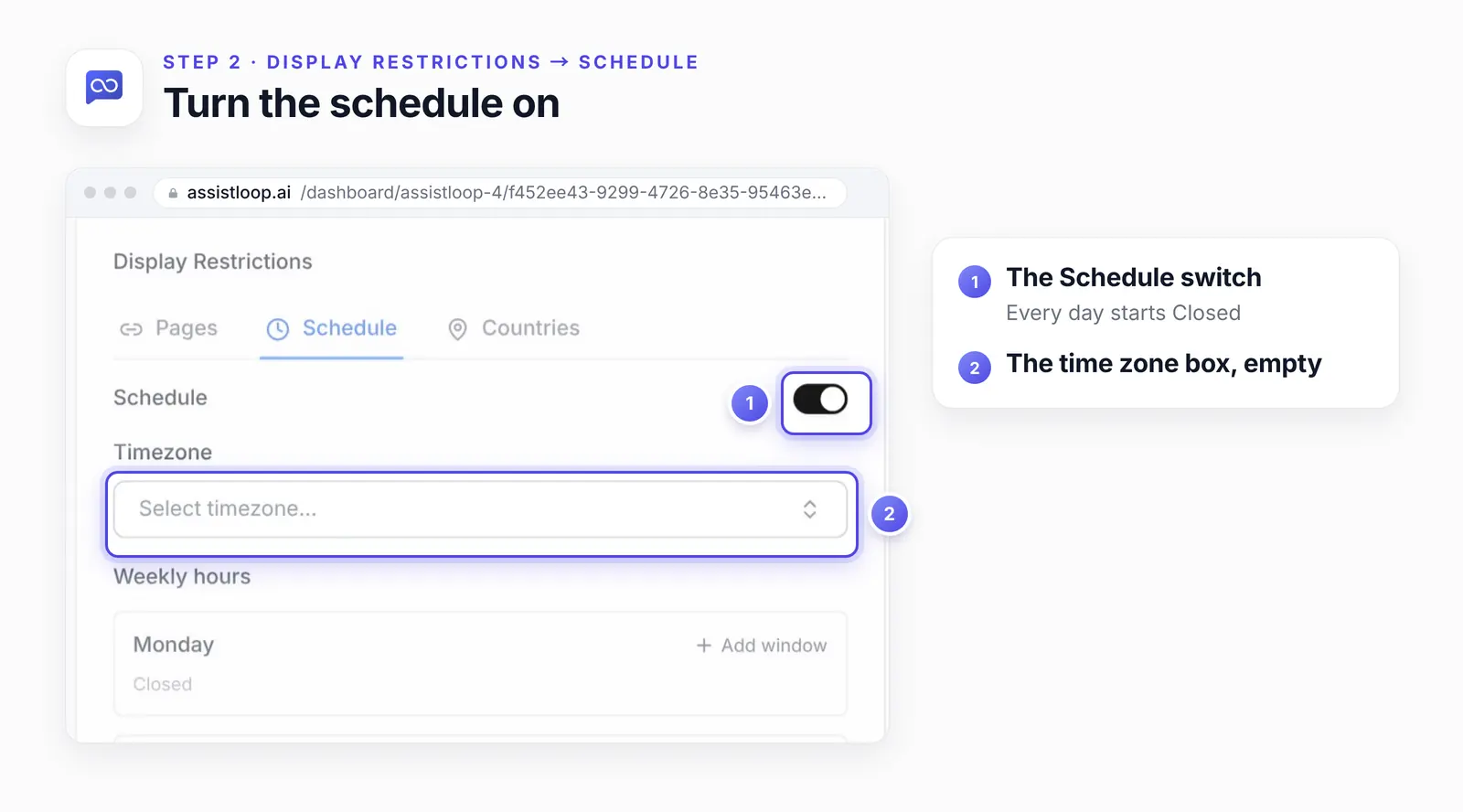
Choose Schedule and turn on its switch. Every day starts as Closed, and nothing changes on your site until you save.
Step 3: Pick your time zone
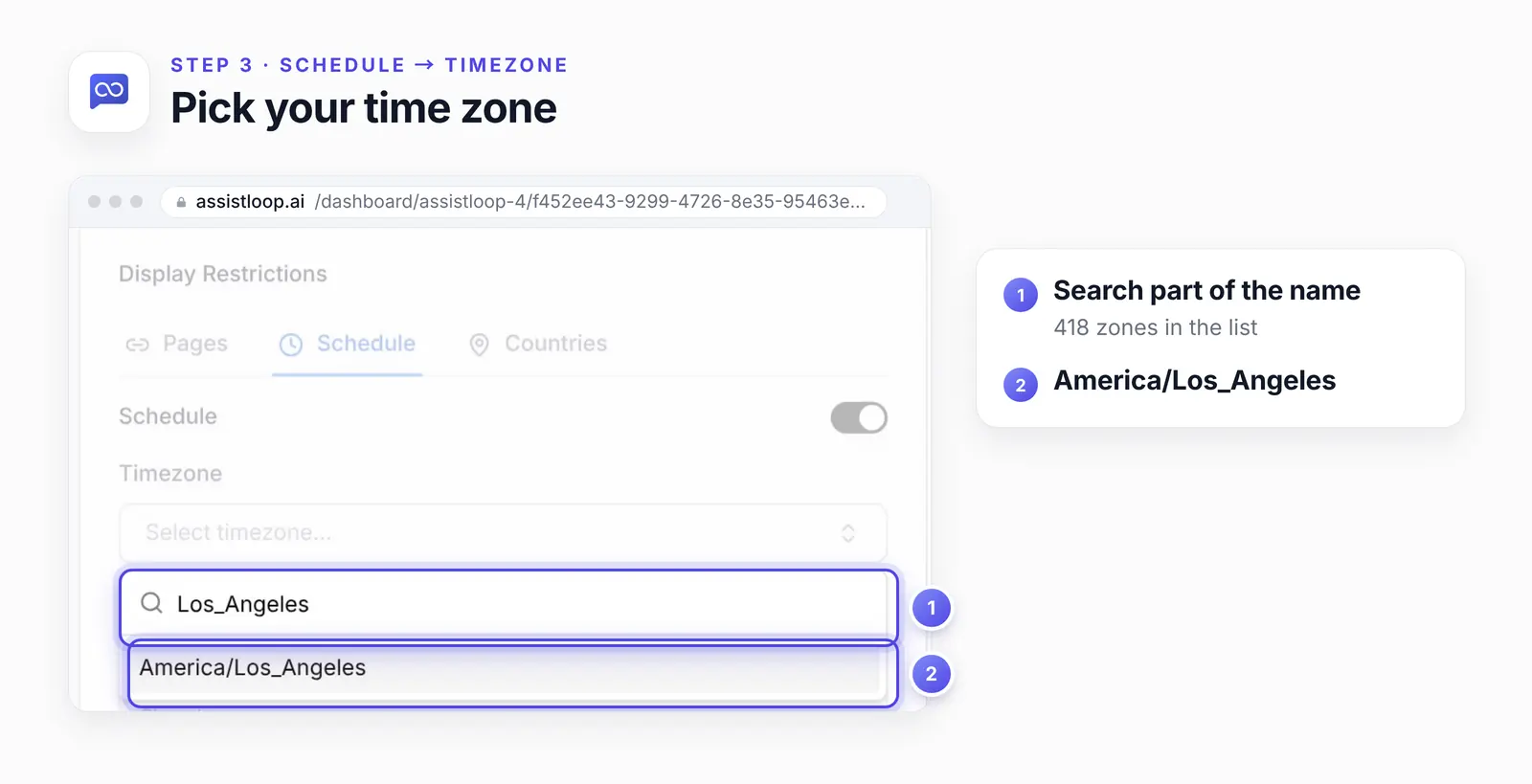
Click the Timezone box and type part of the zone's name, such as Los_Angeles, spelled as the list spells it. The list holds 418 zones, all named like America/Los_Angeles; we picked that one, because Tidewell works on Pacific time.
We haven't checked a schedule across a daylight-saving change, so look at your site the first morning after the clocks move.
Step 4: Add Monday's hours
Click Add window next to Monday. The window opens as 09:00 to 17:00, so for nine to five there's nothing to type; otherwise type over either time in the 24-hour format.
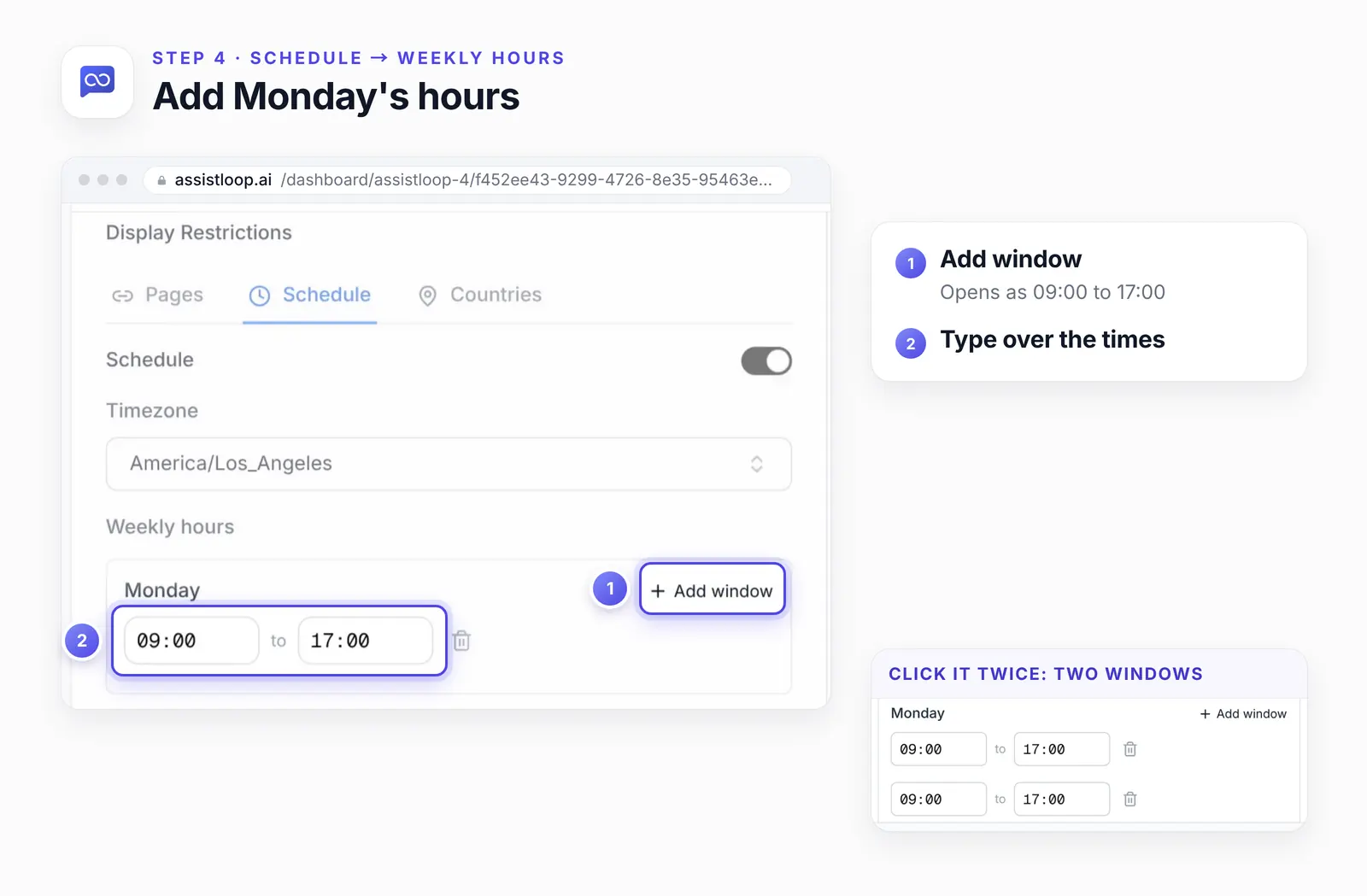
A second click adds a second window to the same day, for a lunch break, for example.
When we clicked Add window twice on our recheck, Monday got two windows, both 09:00 to 17:00. Set the first to end at noon and the second to start at 1 pm, and the chat closes for lunch. We closed the page without saving.
Step 5: Repeat to Friday, then save
Add a window for Tuesday through Friday the same way, then click Save restrictions. Saturday and Sunday stay Closed.
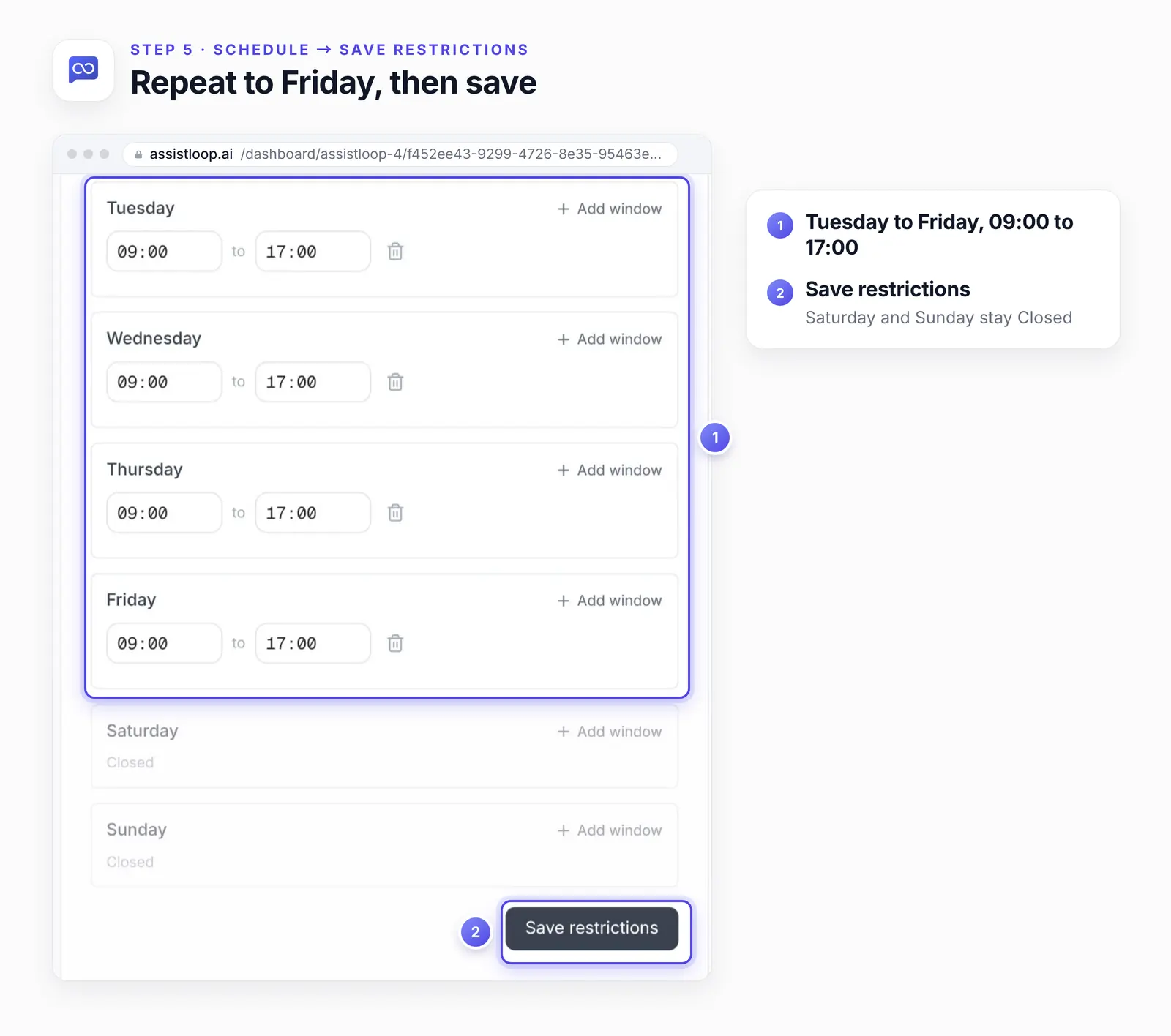
We saved at 12:05 on a Sunday, and the chat button was gone from Tidewell's Shop page on the next load. The video shows it at 0:54.
Step 6: Add a weekend window
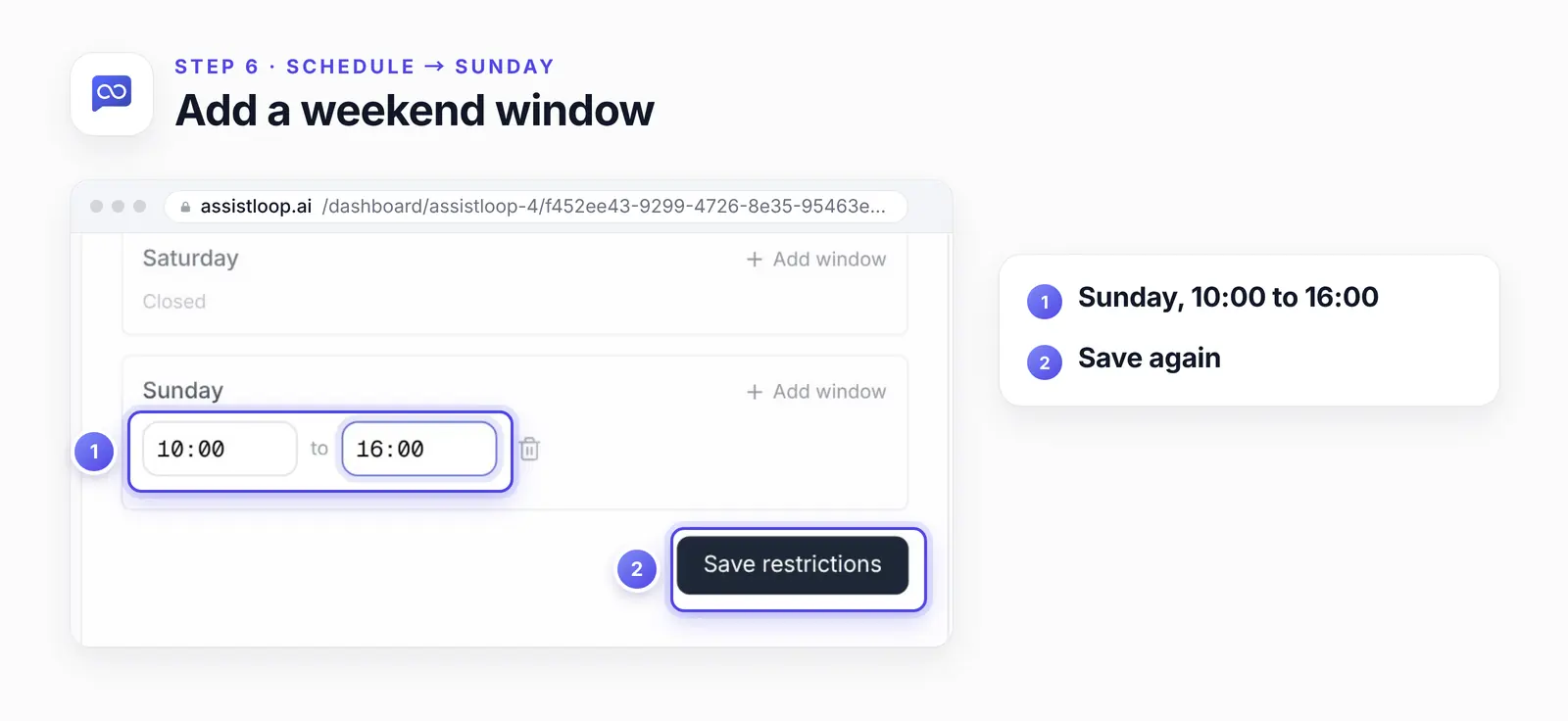
To open one weekend day, add a window for it. We gave Sunday 10:00 to 16:00 and saved again.
Then we reloaded the Shop page: the button and Pearl's greeting were back.
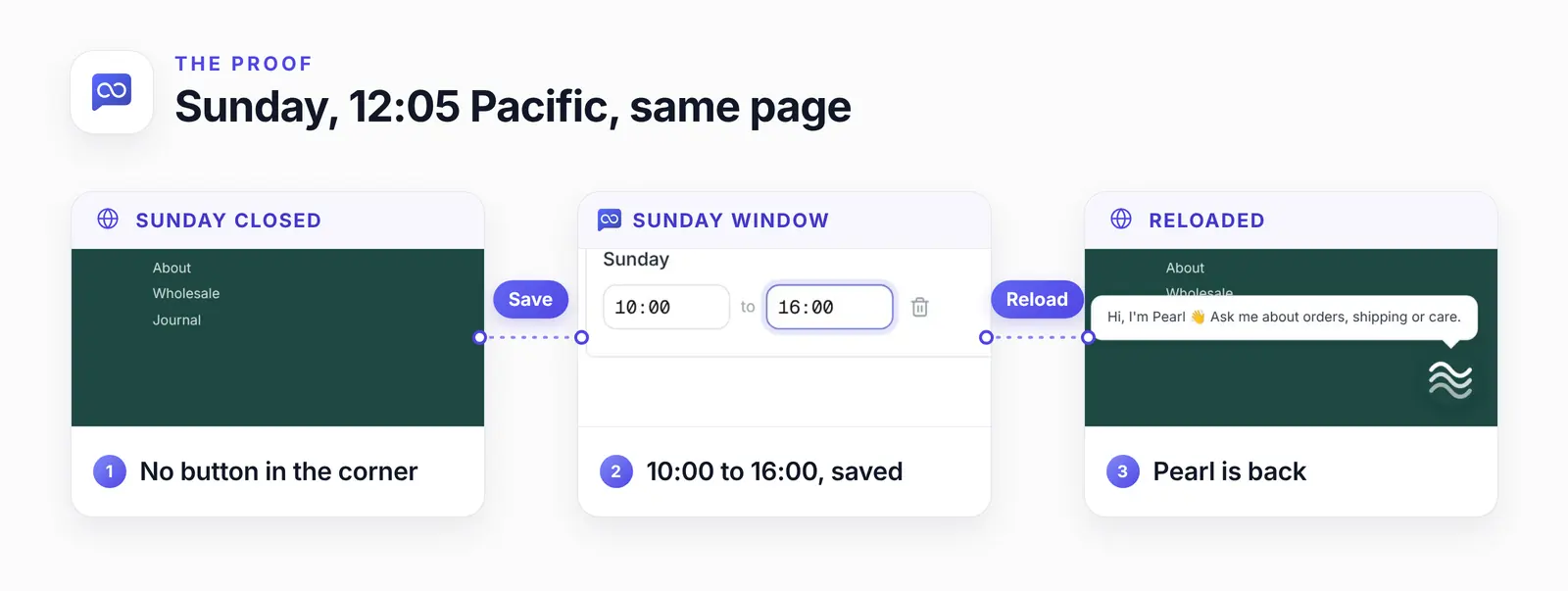
Same page, same Sunday: only the schedule changed.
Tidewell's schedule, as saved |
Want the chat to keep your hours? |
Holidays, late nights and closed hours
Holidays need a manual edit. The schedule is a weekly pattern with no dates. For a closed Monday, click the bin icon next to Monday's window, save, and add the window back afterwards. Google's Business Profile has dates for this: its help page says special hours are for "when your hours of operation change for a brief period of time." Update both when you close.
Late nights are untested. The editor accepted a Friday window from 22:00 to 02:00 without a warning, but we didn't save it, so we can't say how AssistLoop reads it. Before you rely on one, save it and check your site after midnight.
Visitors see nothing outside your hours. There's no closed message in the chat's place, so put your hours on your Contact page.
If the chat doesn't follow your hours
The button is still there after you save. Reload the page, or open your site in a new private window to see what a fresh visitor sees.
It's off by a few hours. Check the time zone. The schedule follows the zone you picked, not your visitors' clocks.
The chat is gone all week. The switch is on but no window is saved, so every day reads Closed.
It's hidden on some pages only. Look at the Pages and Countries tabs too; they hide the chat as well.
How we tested this
The recording, Sunday 18 October 2026: on Pearl, with Tidewell's live site in another tab. We saved Monday to Friday, 9 to 5 Pacific, at 12:05 Pacific, saw the button disappear, added Sunday 10 to 4 and saw it come back. Afterwards the schedule went back off, every day Closed.
The recheck, 25 October 2026: we reopened the Schedule tab, counted the time zones, added two windows to Monday and typed a Friday window from 22:00 to 02:00, then closed the page without saving. We also read the widget's script on the live site to see when it checks the schedule.
Not tested: a saved overnight window or lunch break, a clock change for daylight saving, a schedule together with page or country rules, and a shopper who stays on one page across closing time.
The figures: frames from the recording, cropped, with pins, outlines and highlights added, and one screenshot from the recheck; nothing in the interface was edited.
Frequently asked questions
What do visitors see outside my hours?
Nothing. The chat button doesn't appear at all, and there's no closed message in its place.
Which time zone does the chat schedule use?
The one you pick on the Schedule tab. For a shopper in London and one in Los Angeles, the chat opens and closes at the same moment, by the clock in your zone.
Can a day have more than one window?
Yes. Click Add window again on that day; each window has its own start and end time.
Does a shopper lose the chat at closing time?
Not on the page they already have open. The button goes away when they open another page or reload; on a single-page app, only a full reload removes it.
Can I limit the chat to certain pages or countries as well?
Yes. Display Restrictions also has Pages and Countries tabs, next to Schedule; here's how to show the chat only on certain pages and countries.
Back at Tidewell, the chat button now keeps the same hours as the shop, and a Sunday window takes one more click. Give your website an agent that keeps your hours, and if a person should take over when they're in, here's how to hand off an AI chat to your team.
 | Written by AssistLoop Team We build AssistLoop, an AI support agent that answers customers from your own website and documents, and hands the chat to your team when a person should step in. ★★★★★ "I like AssistLoop's ease of use compared to other systems." Jason K., Managing Director, on G2 |
Build Custom AI Chatbot for Your Business FREE
Create intelligent AI agents that handle customer support, boost conversions, and work 24/7 for your business.
Build Your Agent