How to Show Your Chat Widget Only on Certain Pages (and Countries)
A tested guide to limiting where an AssistLoop chat appears: page rules that allow or deny pages by address, country rules that allow or block countries, one save for both, and what we measured on a phone.
 AssistLoop Team9 min read
On this page
A chat button on every page isn't always what you want. On a blog post it greets readers who came to read, and in a country you don't ship to it invites questions you can only answer with no. This guide limits where your AssistLoop chat appears, with page rules for the addresses and country rules for where your visitors are. We tested both on a live shop; setting them up takes a couple of minutes.
Last updated: October 2026. We recorded this on Tidewell's live site on 18 October 2026, then switched both rules off again. On 26 October 2026 we reopened the Pages and Countries tabs without saving anything, read the widget's own code and measured the chat on a phone.
Quick answer
|
A small pottery shop keeps a journal, with a post on how it glazes its pieces. Its readers come for the story, and on the Journal the chat greets them and offers help with orders.
The shop is Tidewell Ceramics, a pottery brand we made up for these guides; Pearl is its AssistLoop agent, trained on the Tidewell site. Every screenshot below is from Pearl's dashboard or Tidewell's site.
The video runs 80 seconds: a Deny rule for the journal, two countries, then the two pages after saving.
Where the chat helps, and where it gets in the way
The chat earns its place where people have questions before they buy. It gets in the way where people are reading, or about to finish a task.
| Page | Chat? |
|---|---|
| Shipping, returns | Show it |
| Product pages | Show it |
| Checkout | Consider hiding |
| Blog posts | Your call |
Usability researchers say the same. Baymard Institute's 2019 article on live chat usability, drawn from its large-scale testing, recommends keeping chat off some pages, such as filtering interfaces and the checkout flow. On phones, Baymard says: "Sticky elements for live chat often block key page content on mobile sites in unforeseen ways."
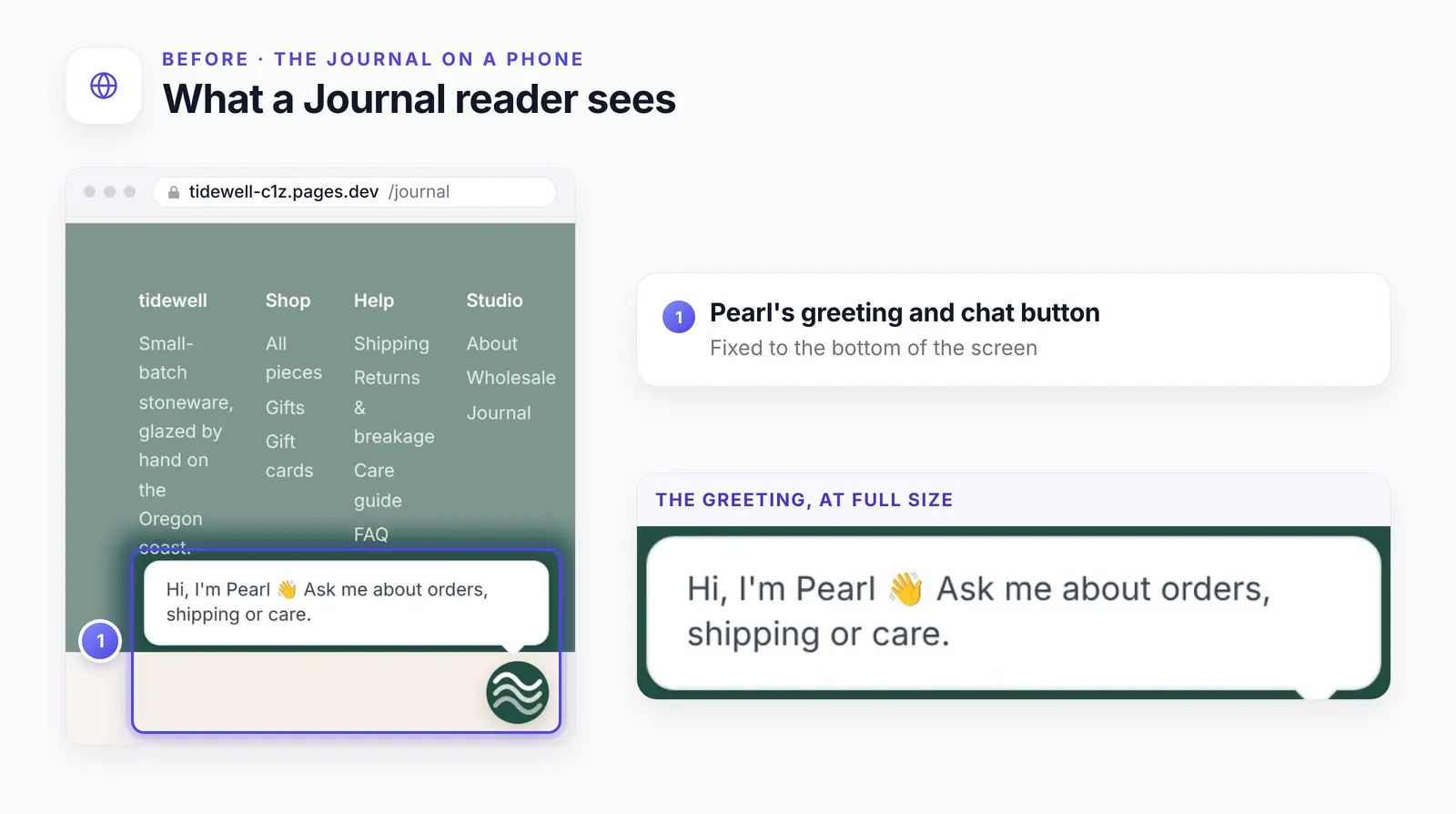
Tidewell's Journal at 390 px wide. The greeting pops up on every page of the site.
Size isn't the problem here. On a 390 × 844 phone screen we measured the greeting at 310 × 65 px and the button at 48 × 48, about 7% of the screen together. The Coalition for Better Ads sets the line for a large sticky ad on a phone at more than 30% of the screen.
The issue is where it sits: fixed to the bottom of the screen, over whatever is there. On the Journal that's the footer; on a long post it would be the article. On a store's checkout it covered the right end of the Place Order button on a 390 px phone, as our WooCommerce guide shows.
How page and country rules work
When a page loads, the widget sends AssistLoop the page's address and asks for its settings. If a rule blocks that page or that visitor's country, AssistLoop answers that the chat is restricted, and the widget doesn't draw its button. In our test, the denied Journal hid the chat for a visitor from an allowed country, and the Shipping page passed both.
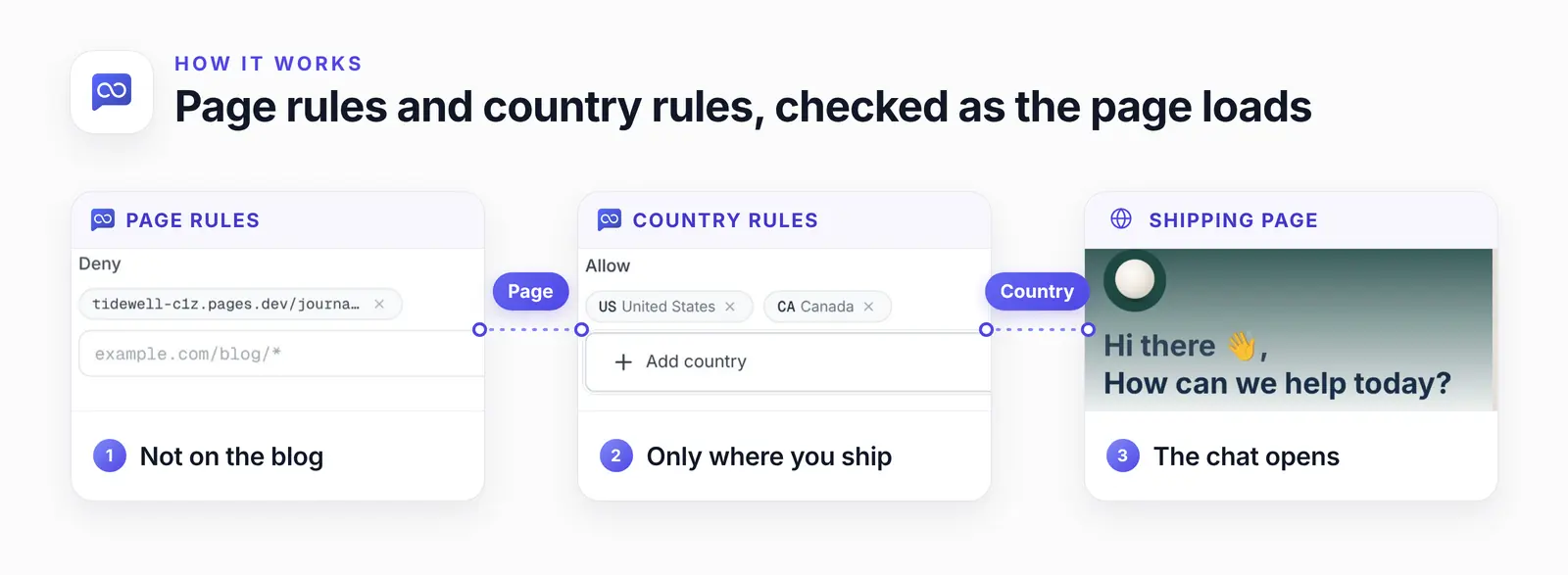
Each page load is checked against both lists.
From the widget's code, which we read on 26 October 2026:
The visitor's browser doesn't report a country. On AssistLoop's live service the widget sends no country of its own, so AssistLoop must work it out on its side. We only visited from the United States, so we haven't seen how a VPN is counted.
Single-page apps need a full load. In a single-page app, such as a React shop, the rules apply to the first page that loads. If that page is denied, the chat stays hidden on every page until a full reload; if it's allowed, the chat stays on later pages you denied.
What you need
You need an AssistLoop agent whose chat already shows on your site; new to it? Sign up and click Create Agent with your site's address. Have two lists ready: the page addresses to limit and the countries you serve. AssistLoop heads the Advanced tab Premium features and advanced settings; we used a workspace on the Pro plan.
Step 1: Deny the pages that don't need the chat
In your agent, open Widget Appearance, then the Advanced tab. Under Display Restrictions, open Pages and turn on Page rules. You get two lists, Allow and Deny. We used Deny, which hid the chat on the page we listed and left it everywhere else; by its name, Allow is for the opposite, a short list of the only pages that show it.
Type an address in the Deny box and click Add. Write it without https://, as the placeholder shows. The star at the end is meant to cover the rest of the address; we checked the Journal page itself. For Tidewell's journal we typed this, and it became a chip under Deny:
tidewell-c1z.pages.dev/journal* |
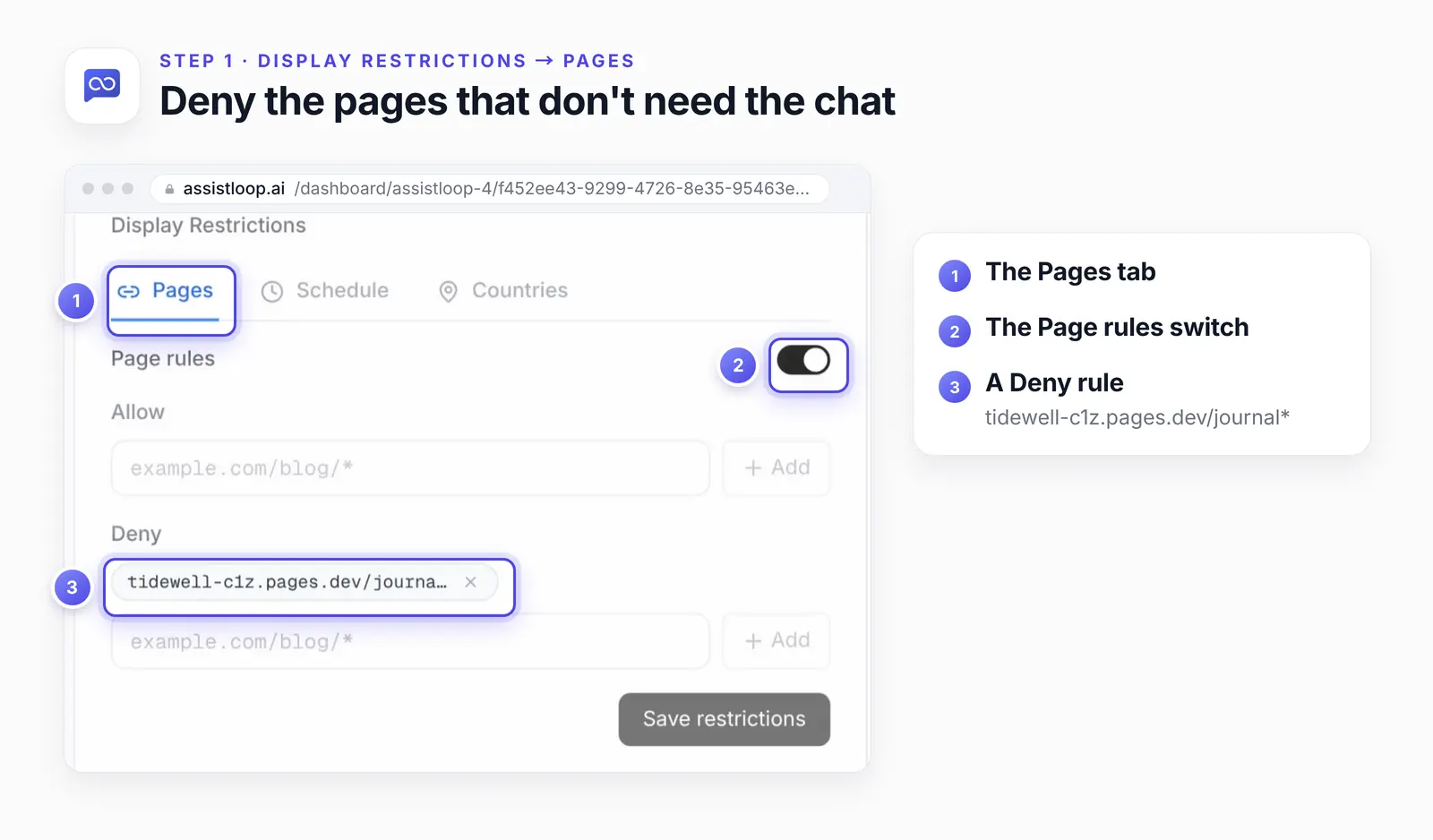
The chip shortens long addresses; the full rule is in the box above.
We used one Deny rule. We didn't test Allow rules, or both lists at once, so check your site after saving if you use them. If your site answers on both example.com and www.example.com, add a rule for each; we haven't tested whether one covers the other.
Step 2: Turn on country rules and add a country
Open Countries and turn on its switch. There are two lists here as well, Allow and Block. Click Add country under Allow and search by name or by two-letter code; the list holds 249 countries.
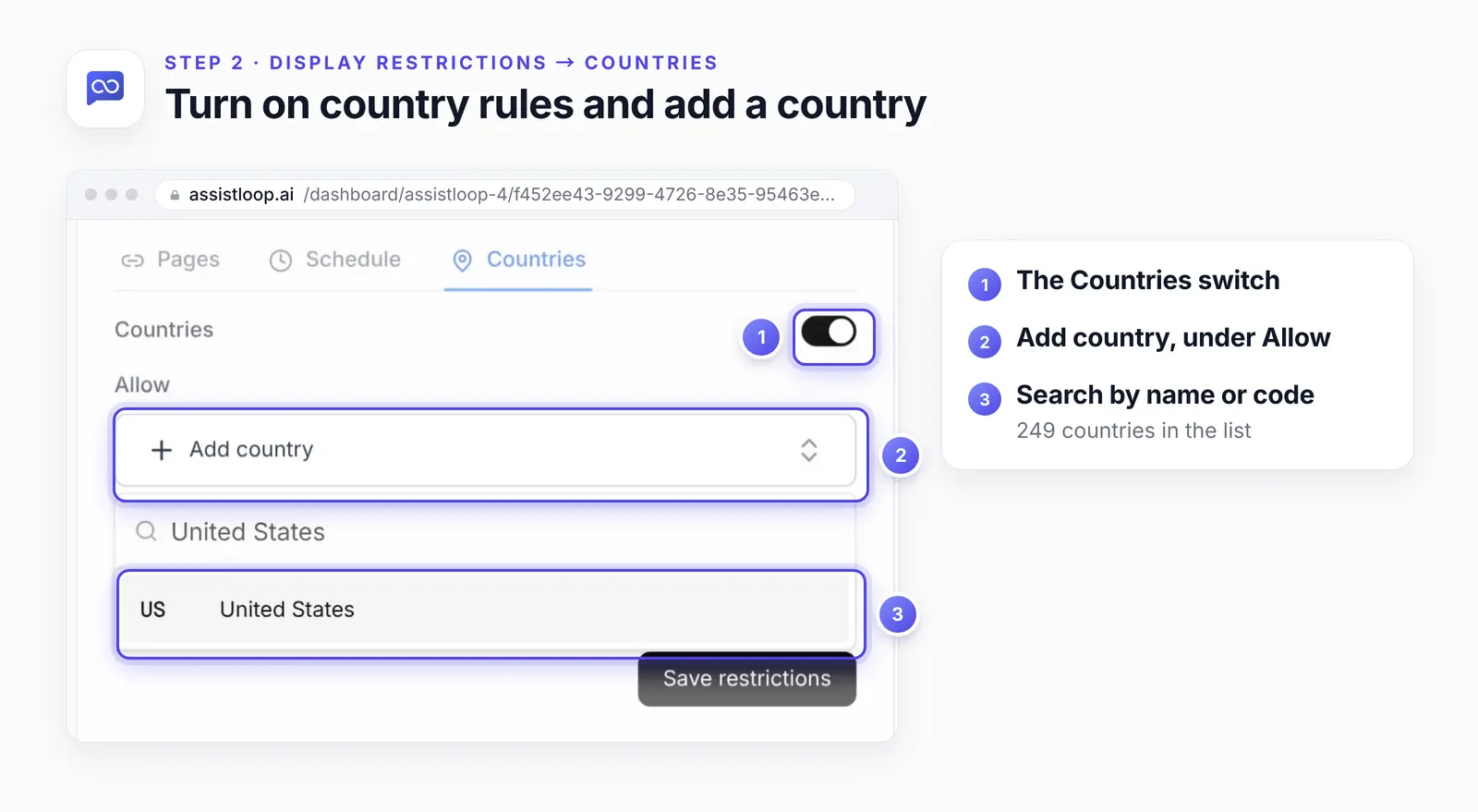
We used Allow, for a shop that ships to a short list of countries; a visitor from the United States kept the chat. Block, by its name, suits the opposite case: open to most of the world, with a few places you can't serve. We didn't test it.
Step 3: Allow where you ship, then save
Tidewell ships to the United States and Canada, so we added both under Allow. Then click Save restrictions, which stores the page rules and the country rules together.
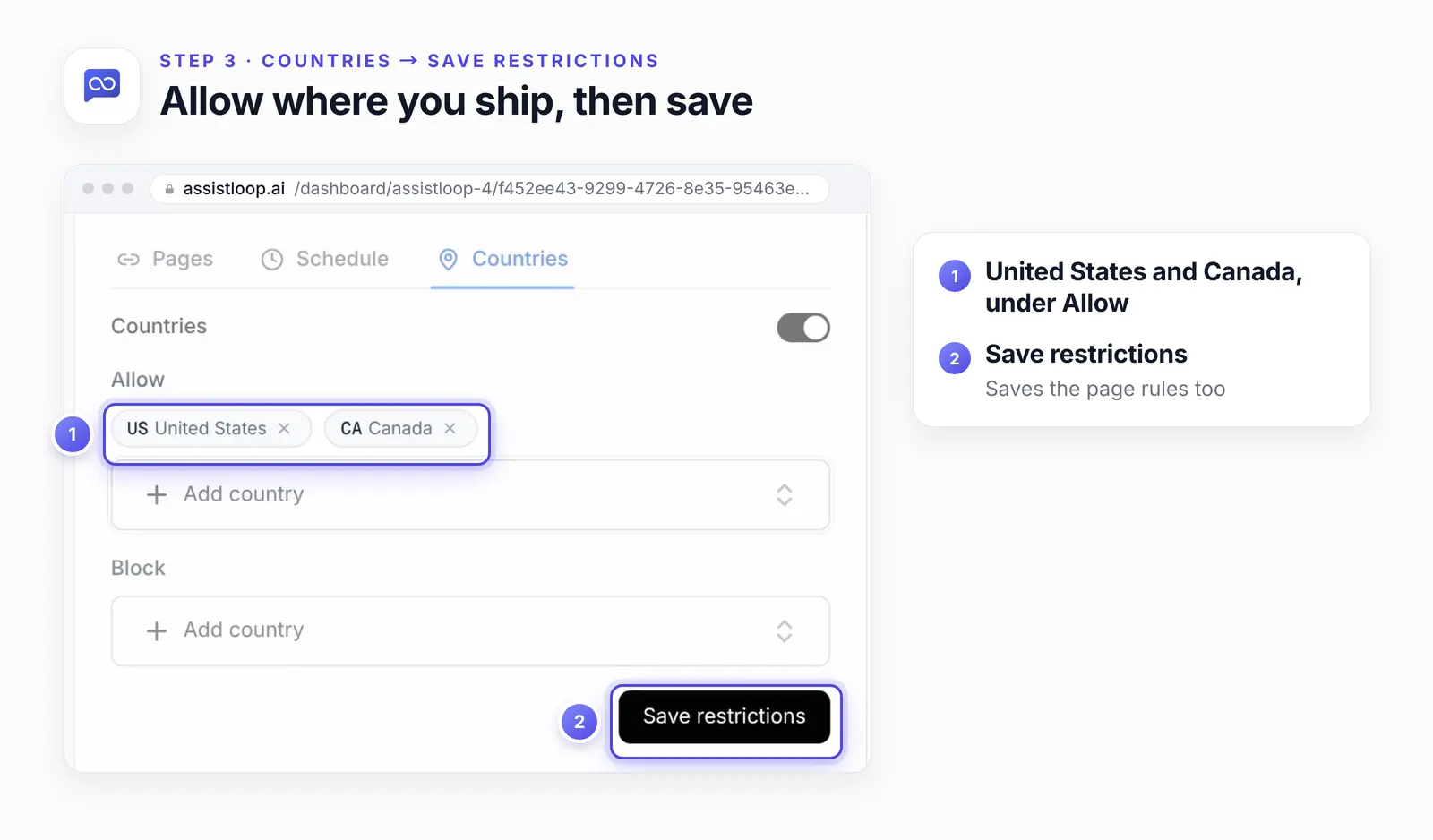
If you start shipping somewhere new, add that country here too; an Allow list is meant to leave out every country it doesn't name.
Check both pages
After saving, we opened Tidewell's Journal again: the greeting and the chat button were gone. On the Shipping page, the chat was still there.
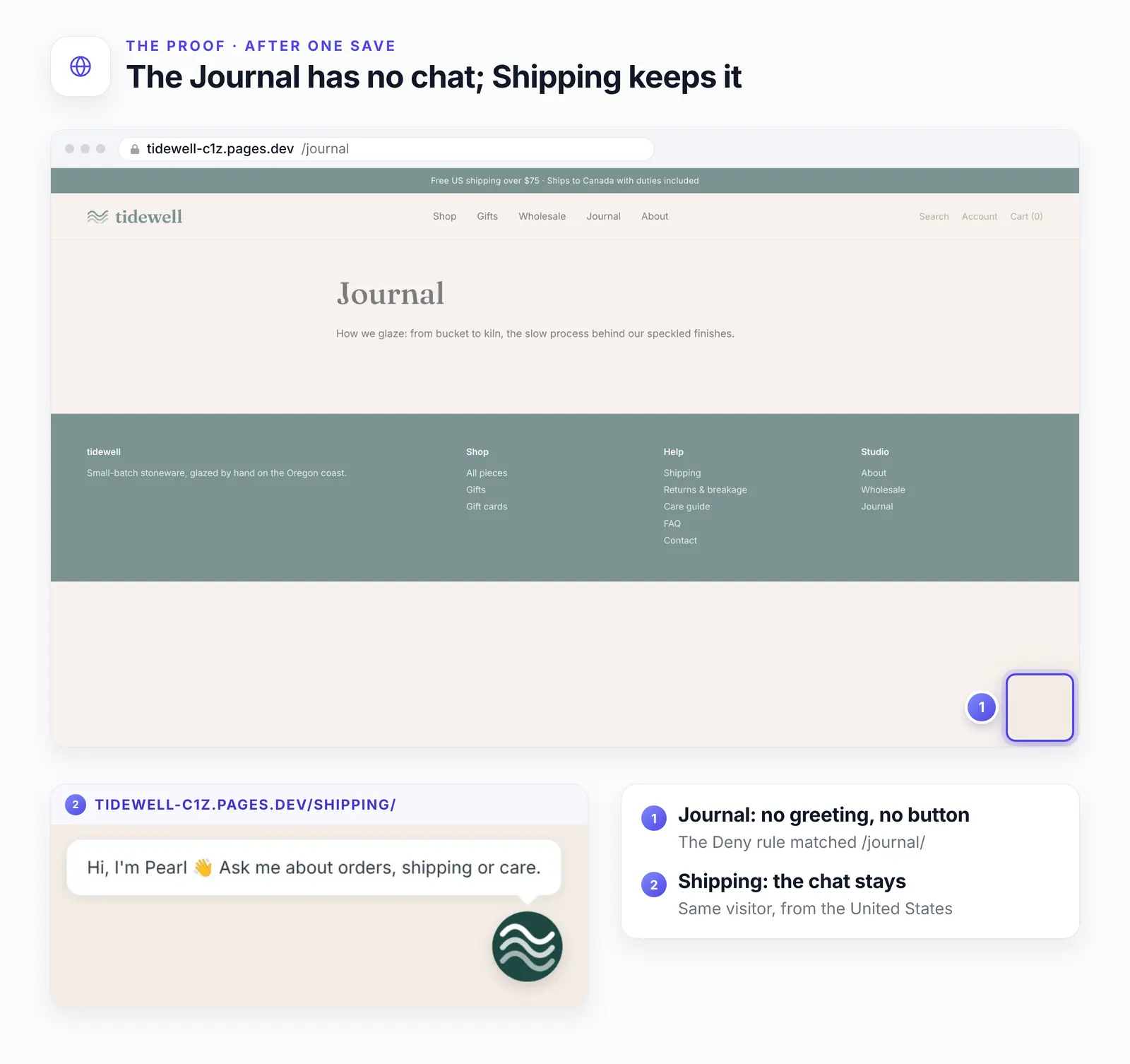
/journal/ lost the chat; /shipping/ kept it.
Want the chat only where it helps? |
If the chat shows up in the wrong place
It's still on a page you denied. Reload the page, or open it in a new private window; the rules apply on the next page load. Then check that the rule's address matches the one in your browser's address bar.
It's gone from every page. Look for an Allow rule under Pages that doesn't list the page you're on.
You can't see it while testing. Your own country may not be on the Allow list.
It's gone at certain times. A schedule may be hiding it outside your hours.
How we tested this
The recording, 18 October 2026: on Pearl, with Tidewell's live site. We added the Deny rule for the journal, allowed the United States and Canada, saved, and loaded the Journal and the Shipping page. Afterwards both rules went back off.
The recheck, 26 October 2026: we reopened the Pages and Countries tabs, turned both switches on to read the lists and placeholders, counted the countries, then closed the page without saving. We read the widget's script on the live site and measured the chat on Tidewell's Journal in a 390 × 844 phone view.
Not tested: Allow page rules, Allow and Deny together, Block country rules, visits from outside the United States or through a VPN, and www and non-www addresses.
The figures: frames from the recording and one phone screenshot from the recheck, cropped, with pins, outlines and highlights added; nothing in the interface was edited.
Frequently asked questions
What's the difference between Allow and Deny page rules?
Deny hid the chat on the page we listed and kept it everywhere else. Allow, by its name, works the other way round: you list where the chat should appear.
How do I hide the chat on my blog?
Add a Deny rule with your blog's address and a star at the end, such as example.com/blog/*, then open a post to check it's gone.
Can I show the chat only in some countries?
Yes. Turn on country rules and add those countries under Allow; we allowed the United States and Canada, and a visit from the United States still showed the chat.
What do visitors see where the chat is hidden?
Nothing. The chat button doesn't appear at all, and there's no message in its place.
Can I also limit the chat to business hours?
Yes, with the third tab under Display Restrictions, Schedule.
Back at Tidewell, the journal is a quiet place to read again, and shoppers in the US and Canada still find Pearl on the Shipping page. Put your agent where your customers ask, and if it should keep office hours too, here's how to show the chat only during business hours.
 | Written by AssistLoop Team We build AssistLoop, an AI support agent that answers customers from your own website and documents, and hands the chat to your team when a person should step in. ★★★★★ "The setup was extremely easy, and the learning curve is very small, especially compared to other programs." Jason K., Managing Director, on G2 |
Build Custom AI Chatbot for Your Business FREE
Create intelligent AI agents that handle customer support, boost conversions, and work 24/7 for your business.
Build Your Agent