How to Add AI Customer Support to WooCommerce
A tested guide to adding AI customer support to a WooCommerce store with AssistLoop's free WordPress plugin: copy the Agent ID, install and activate, paste and save, then the chat on product pages, the cart and checkout, with Coming soon mode and a phone checkout fix.
 AssistLoop Team9 min read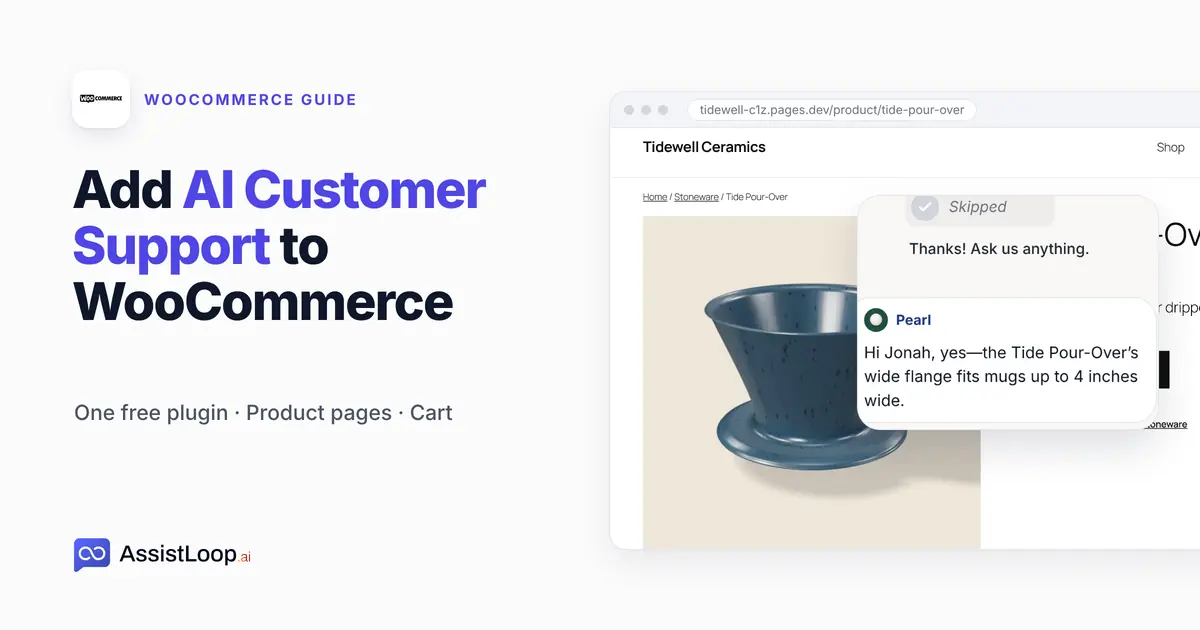
On this page
Shoppers in a WooCommerce store ask the same things at the worst moments: whether a product fits, and what shipping costs when the cart is full. With one free WordPress plugin, this guide adds an AssistLoop agent that already knows your store, then follows a shopper from a product page to the cart. It also covers two store-specific snags we found in testing: WooCommerce's Coming soon mode and the chat button on a phone's checkout. The install is three steps; the video covers it in under two minutes.
Last updated: October 2026. We recorded the install on a WooCommerce 11.2 store in October 2026. On 25 October 2026 we installed WooCommerce 11.2.1 on a fresh WordPress 7.1.3 site and loaded each store page as a logged-out visitor, and checked checkout on a 390 px phone screen.
Quick answer
|
A shopper on a pottery store's product page wants to know whether the pour-over dripper will sit on their wide mug. They add it to the cart anyway, with a mug, and then wonder whether they've reached free shipping.
That store is Tidewell Ceramics, our fictional pottery brand, running WooCommerce on WordPress with the default Twenty Twenty-Five theme. Pearl, the store's AssistLoop agent, was trained on Tidewell's website before we started. Every screen below comes from that store.
The video takes a minute and 42 seconds, from the Agent ID to the answer in the cart.
What you need
You need an AssistLoop agent trained on your store's website; if you don't have one, sign up and Create Agent with your store's address. You also need to sign in to WordPress as an Administrator, because only that role can install plugins on a normal single site. WooCommerce stores are easy to find this way: WordPress.org's plugin page listed more than 7 million active installations on 25 October 2026.
Where the chat shows up in a WooCommerce store
The plugin adds the chat through WordPress's own page footer, so it appears wherever the theme prints that footer. We loaded each store page as a logged-out visitor:
| Store page | Chat button |
|---|---|
| Shop | Yes |
| Product | Yes |
| Cart | Yes |
| Checkout | Yes |
| My account | Yes |
| Coming soon page | Yes |
The last row matters for new stores. In a January 2025 advisory, WooCommerce's developer blog says: "When installing WooCommerce 9.6 on a fresh site, the store pages will be hidden from visitors by default" (Developer advisory: Coming Soon Mode by default, Chi-Hsuan Huang).
With that mode on, a visitor opening the shop or a product saw a "Great things are on the horizon" page, and the chat button still loaded on it. Signed in as the owner, you see the open store, so test as a visitor in a private window. If the chat shouldn't be on the holding page, launch the store first.
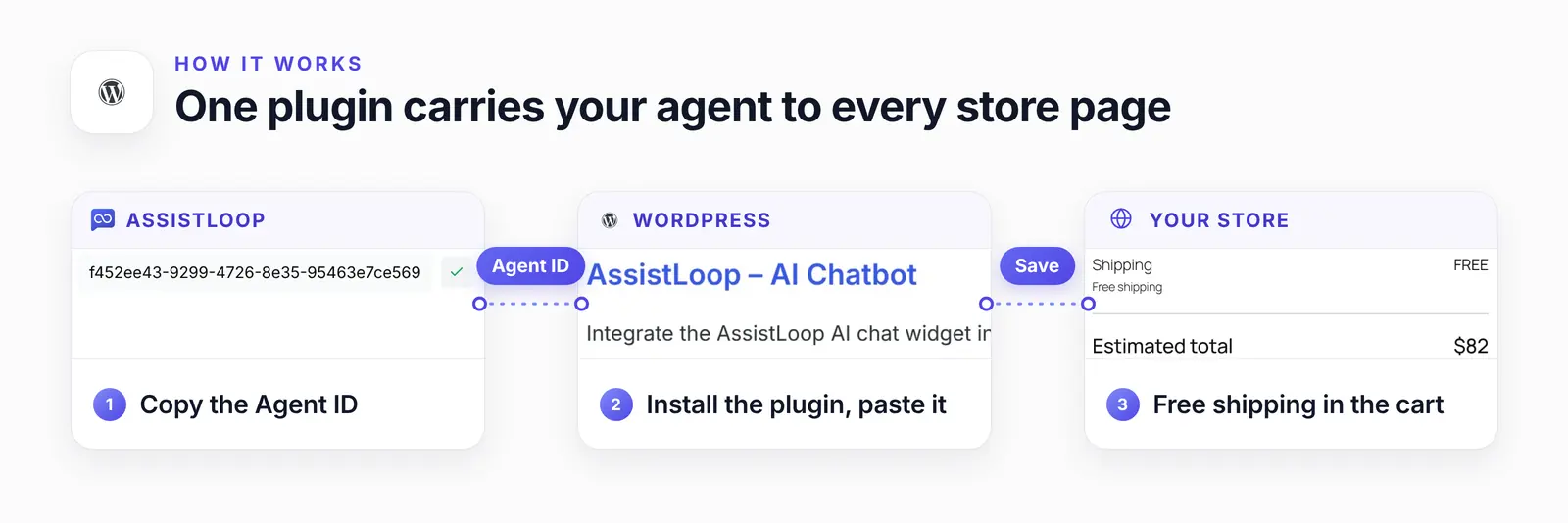
The ID from AssistLoop, the plugin it goes into, and the answer that comes out in the cart.
Step 1: Copy your Agent ID
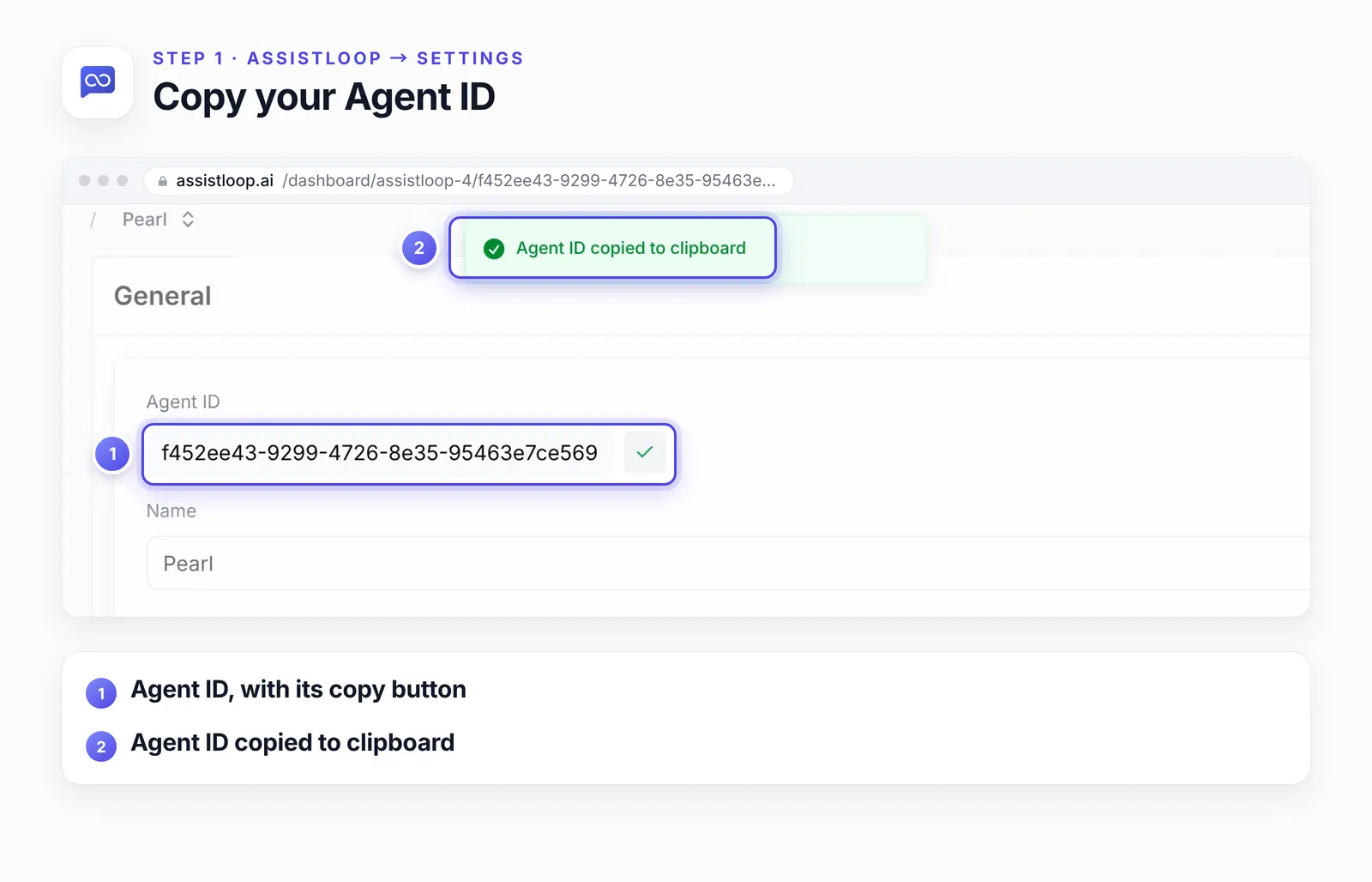
In AssistLoop, open your agent and choose Settings. Under General, the Agent ID has a copy button beside it; click it and AssistLoop confirms "Agent ID copied to clipboard".
Step 2: Install and activate the plugin
In your store's WordPress admin, open Plugins → Add Plugin and search for AssistLoop. The official plugin is listed as AssistLoop – AI Chatbot. Click Install Now; the button turns into Activate, so click it.
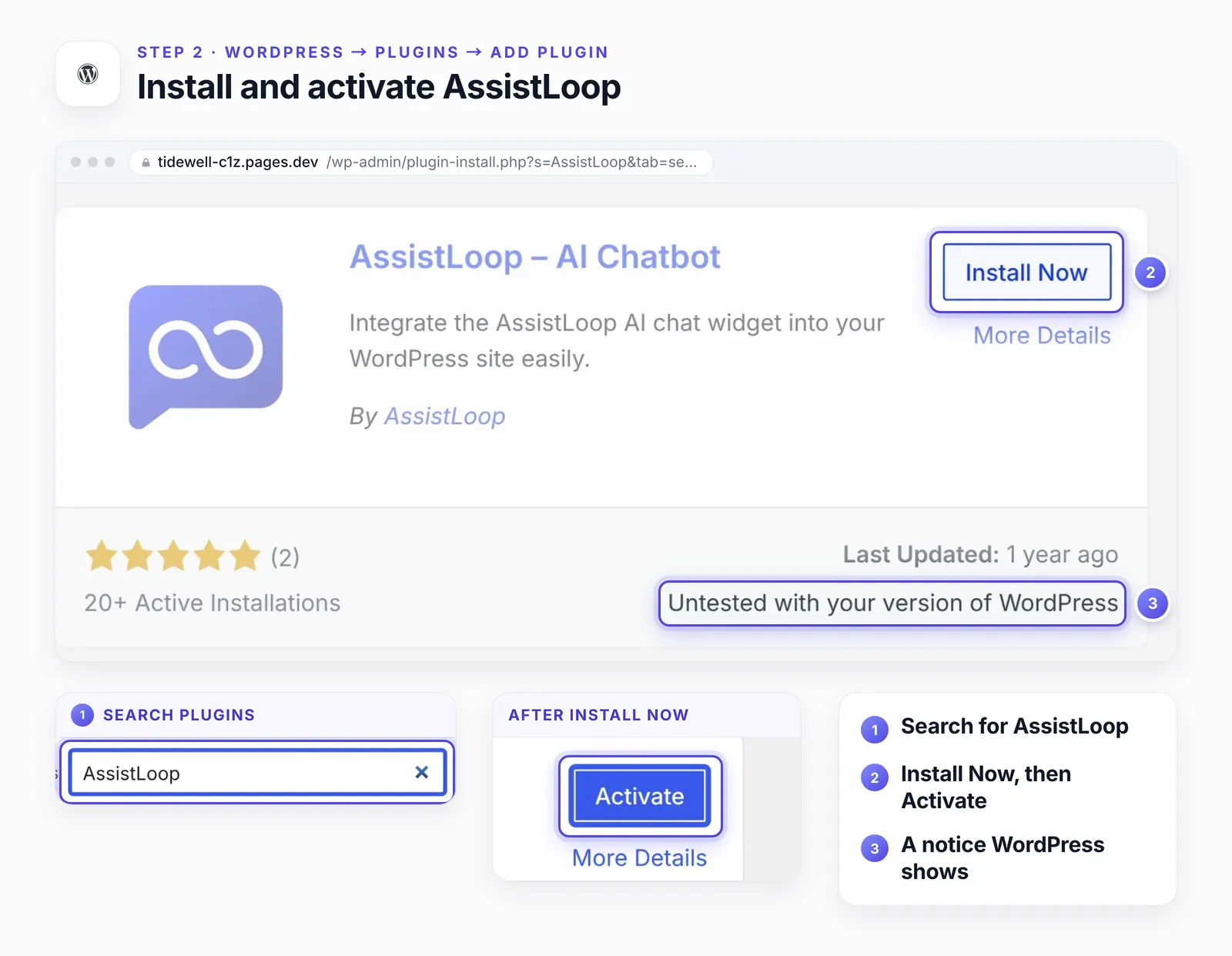
The card's "Untested with your version of WordPress" notice refers to the listing's last tested version, 6.8; the plugin ran on WordPress 7.1 in both our recording and our recheck.
Step 3: Paste the Agent ID and save
Open Settings → AssistLoop Settings, paste the Agent ID into its one field and click Save Settings. WordPress shows "Settings saved."
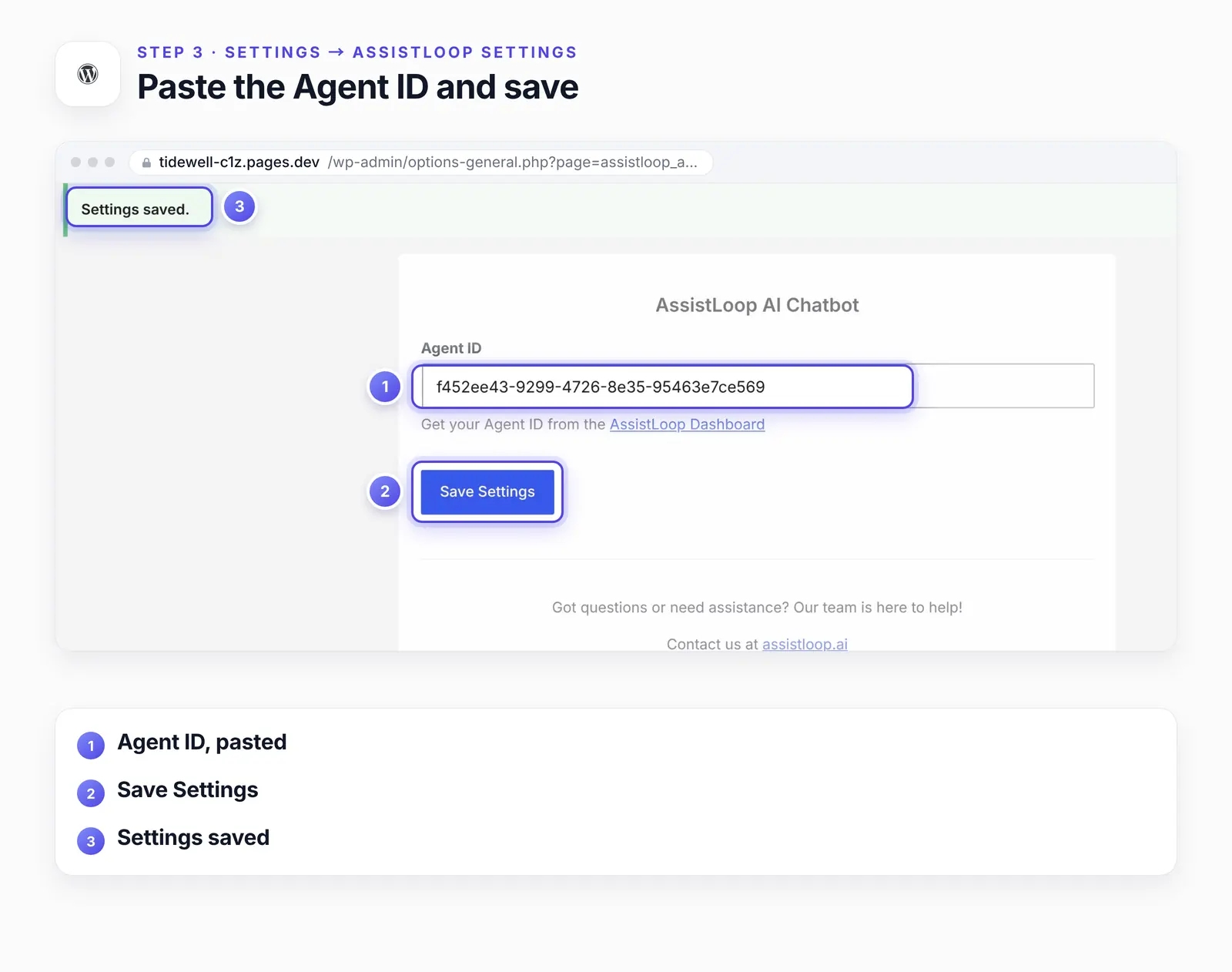
There's nothing to set up inside WooCommerce. The plugin works at the WordPress level, so every store page gets the chat from this one save.
Step 4: Ask a question from a product page
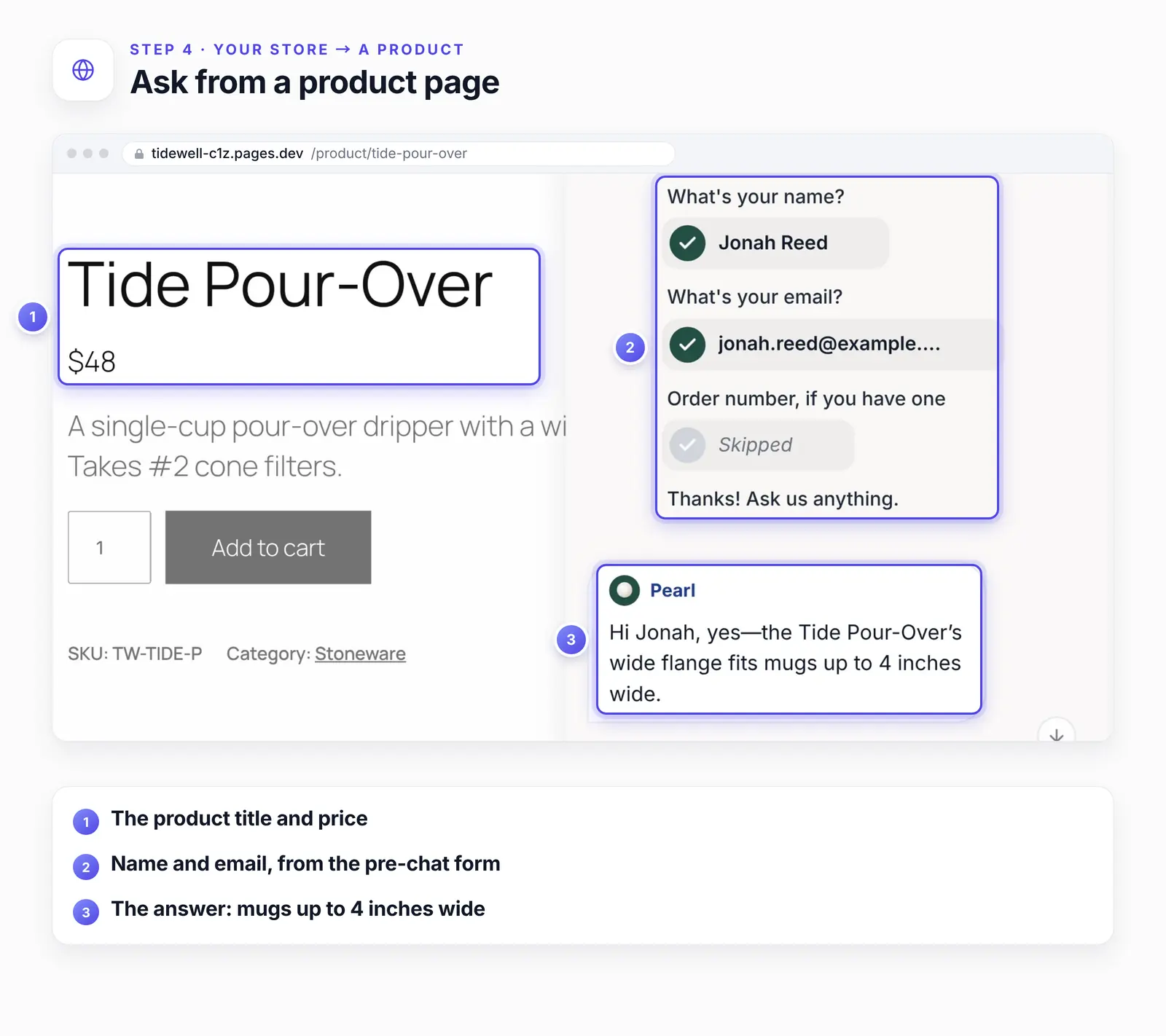
Open your shop as a visitor and pick a product. Our shopper, Jonah Reed, opened the Tide Pour-Over and asked "Will the Tide Pour-Over fit on my wide mug?" After the pre-chat form, Pearl answered:
Hi Jonah, yes—the Tide Pour-Over’s wide flange fits mugs up to 4 inches wide.
The product's own description lists "Wide flange fits mugs up to 4 in", and Pearl's answer matches it.
Step 5: Ask again from the cart
Jonah added the pour-over and an Oyster Mug and opened the cart. The chat came with him, the first answer still in the thread. He asked "I have the Tide Pour-Over and an Oyster Mug in my cart. Do I get free shipping?" and Pearl replied:
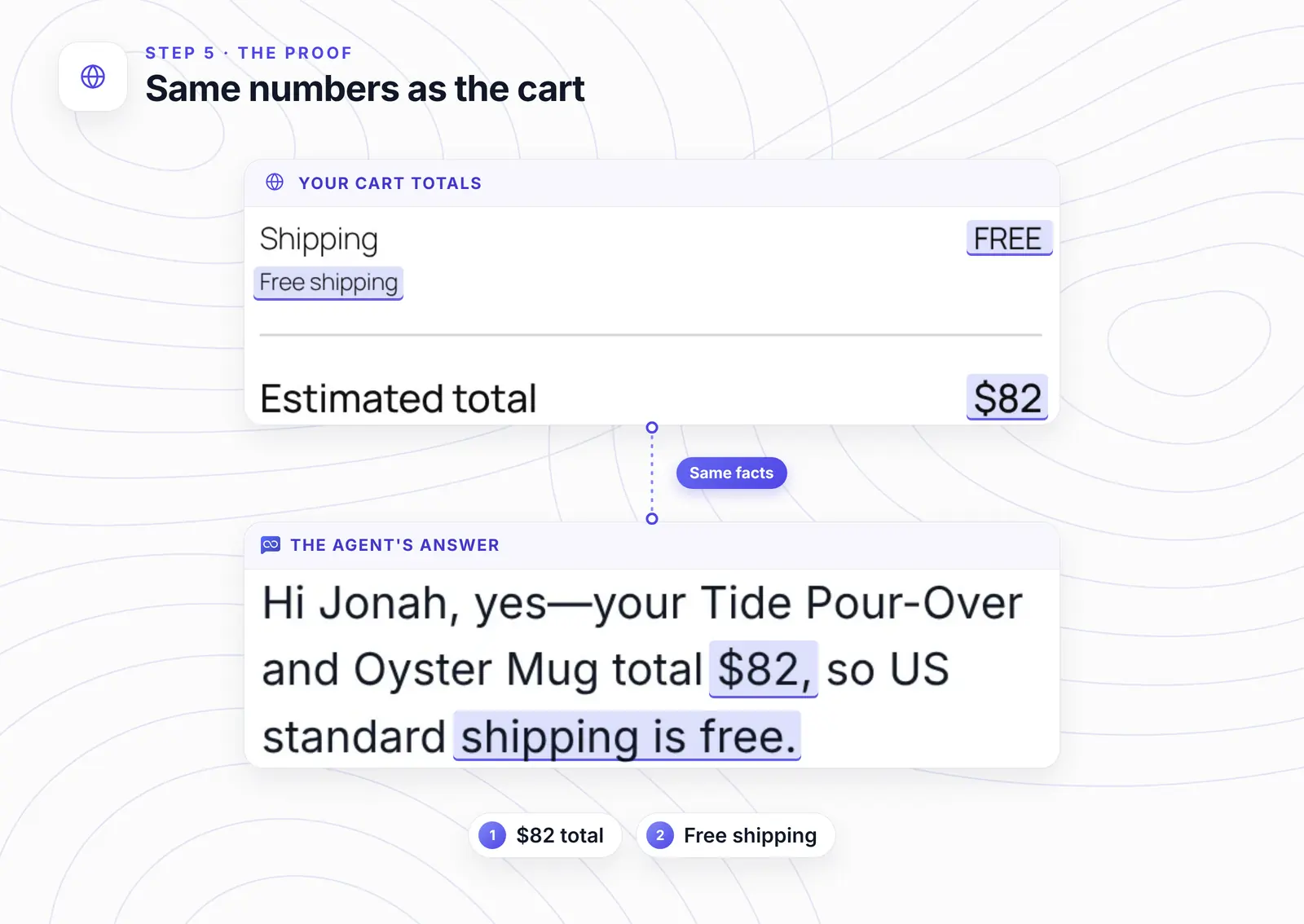
Hi Jonah, yes—your Tide Pour-Over and Oyster Mug total $82, so US standard shipping is free.
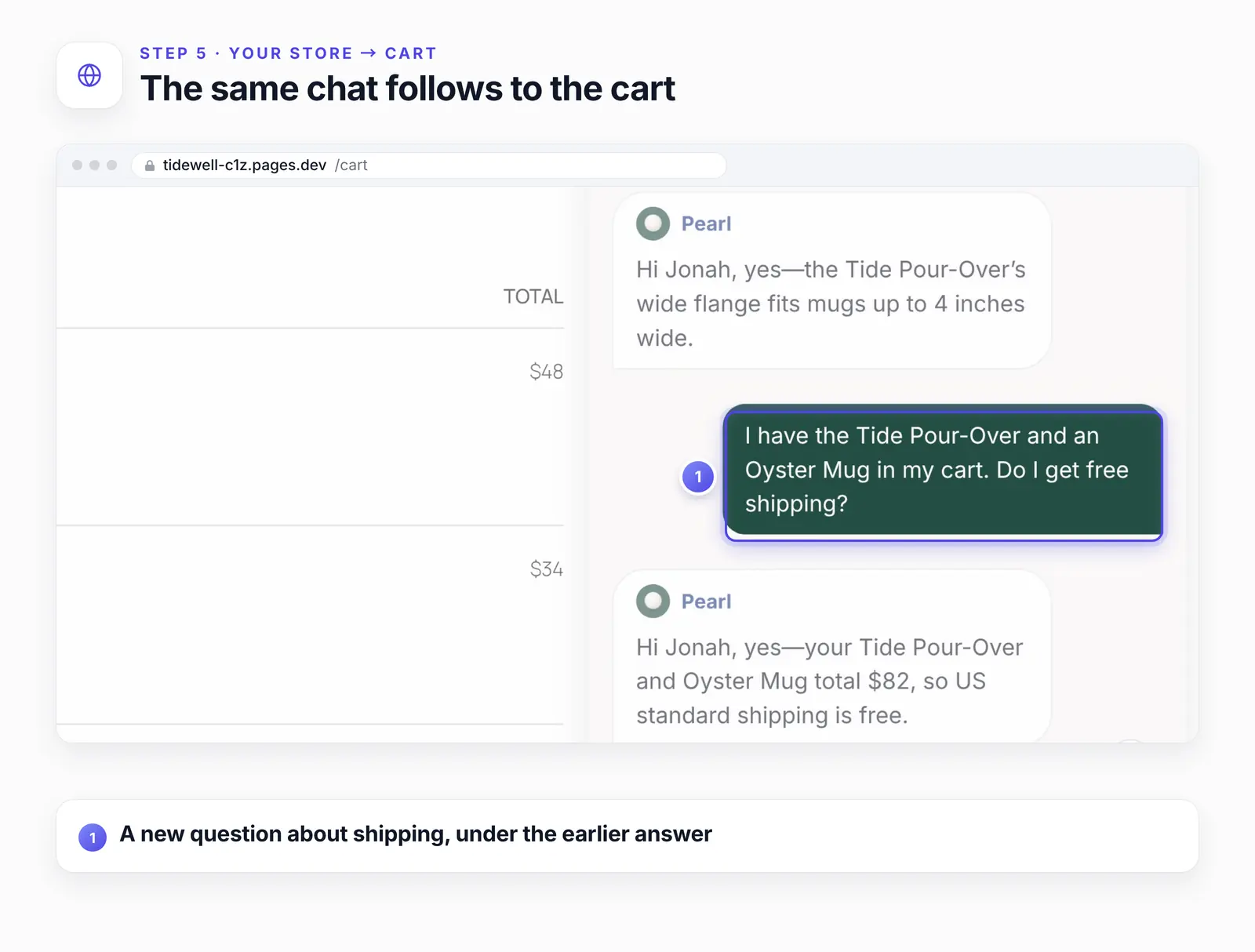
The plugin passes no cart data to the agent; it only loads the chat with your Agent ID. The answer came from the shopper's words and Tidewell's pages: $48 and $34, and free US shipping over $75. The cart's own totals agree.
Want answers on your product pages and in the cart? |
Check checkout on a phone
On our 390 px phone screen, the chat button sat on the right end of the Place Order button, and the agent's greeting covered the order totals above it. The left part of the button stayed clear, but it's the last thing you want in a shopper's way.
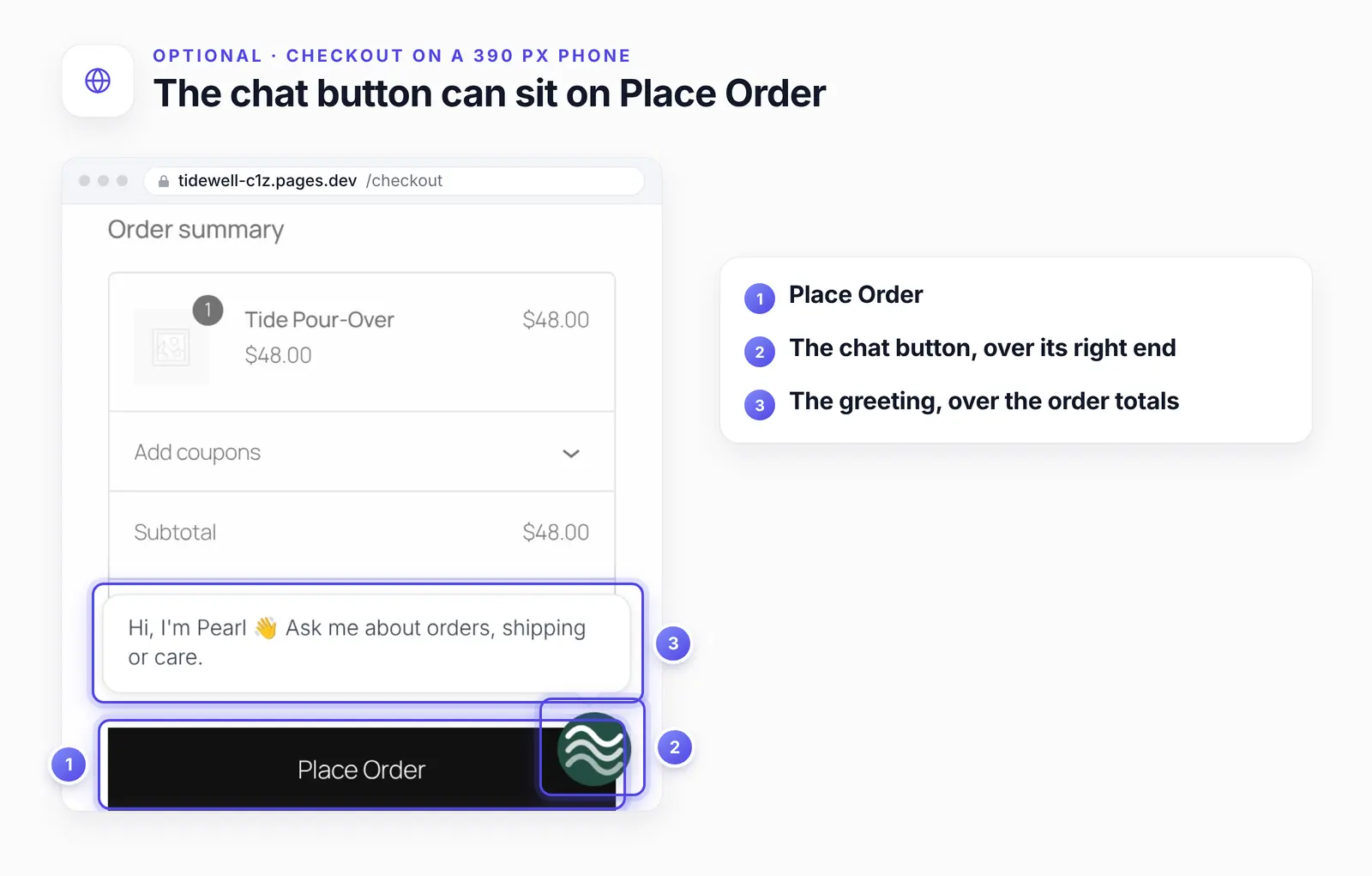
Our recheck store, with one product and no photo. The layout is WooCommerce's own block checkout.
To keep the chat off checkout and nowhere else, add this to a code snippets plugin or your child theme's functions.php:
// Keep the chat button off checkout, where it can cover Place Order on phones |
With it in place, our checkout loaded no chat, while the cart and product pages still had it. Leave checkout alone if shoppers there ask about delivery dates; in that case, check the page on your own phone first.
If the chat doesn't show up
Visitors see a holding page instead of your shop. That's Coming soon mode. The chat still loads there, but your products don't. Launch the store, then test in a private window.
No chat anywhere. Check that the plugin is active and that the saved Agent ID matches the one in AssistLoop's Settings.
Two chat buttons. The HTML code is probably also in your theme; the WordPress guide explains why to keep one route only.
A caching or speed plugin is on. Clear its cache after saving. We didn't test optimization plugins that delay scripts.
How we tested this
The recording: a WooCommerce 11.2 store on WordPress 7.1 with Tidewell's products, prices and shipping rules (free US shipping over $75), the official plugin installed from WordPress.org during the take. Both answers are quoted word for word.
The agent: Pearl, trained on Tidewell's website, with its pre-chat form on.
The recheck, 25 October 2026: WooCommerce 11.2.1 and AssistLoop plugin 1.0.2 on a fresh WordPress 7.1.3 site. We counted the chat script and button on each store page as a logged-out visitor, in Coming soon mode with store pages only and with the whole site, and on checkout at 1440 × 900 and 390 × 844. We also tested the checkout snippet, installed as a must-use plugin.
Not tested: classic themes, page builders, optimization plugins, and WooCommerce order data, which the plugin doesn't read.
The figures: frames from the recording and screenshots from the recheck, cropped, with pins, outlines and highlights added; nothing in the interface was edited.
Frequently asked questions
Can the agent see my WooCommerce orders?
No. The plugin only adds the chat, and the agent answers from what it was trained on. For order status, connect an order-lookup API action to your own order system.
Does it work with any WooCommerce theme?
We tested the block theme Twenty Twenty-Five. The plugin uses WordPress's standard footer hook, which themes are expected to call, but check your own theme in a private window.
Will the chat show on my store before it launches?
On our store it did: the chat loaded on WooCommerce's holding page too. Test yours as a logged-out visitor.
Does the agent know my product details?
It knows what it learned from your site, product pages included. Pearl's 4-inch answer matched the product description. When something is missing, add it as a text snippet or a PDF.
Does the conversation follow the shopper to the cart?
Yes. Jonah's product-page answer was still in the thread when he opened the chat from the cart.
Back in Tidewell's store, Jonah gets his mug answer on the product page and his shipping answer in the cart, in one conversation. Connect an agent that already knows your store, and for the plugin route on a WordPress site without WooCommerce, here's the WordPress guide.
 | Written by AssistLoop Team We build AssistLoop, an AI support agent that answers customers from your own website and documents, and hands the chat to your team when a person should step in. ★★★★★ "It reduces their need to answer calls or minor inquiries, as the answers come from our website database." Jason K., Managing Director, on G2 |
Build Custom AI Chatbot for Your Business FREE
Create intelligent AI agents that handle customer support, boost conversions, and work 24/7 for your business.
Build Your Agent