How to Let Your AI Support Agent File Support Tickets
Some customer problems outlast the chat: a bowl missing from the box, a refund that needs a yes, an order that has to change. Your AI support agent can't settle those on the spot. It can, though, create a support ticket from chat, with the customer's email, a reference number and a link to the conversation. This guide sets it up in AssistLoop and follows one ticket from the chat to your team's queue.
 AssistLoop Team11 min read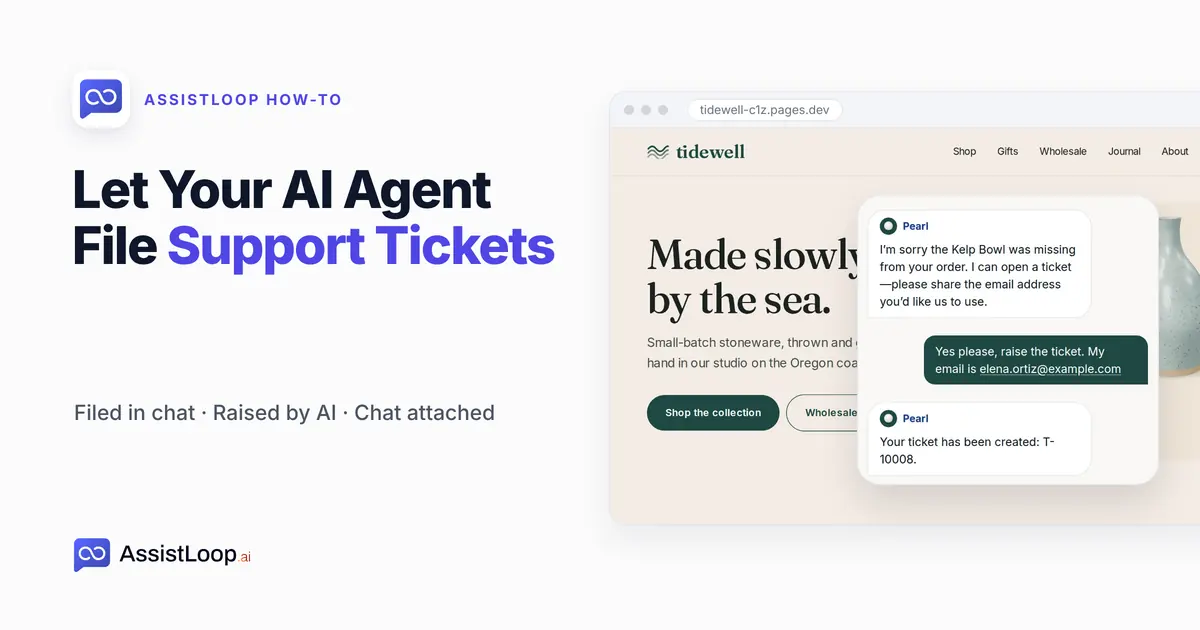
On this page
Last updated October 2026, with screens taken from our recording of 12 October 2026.
Quick answer
|
A shopper opens the chat on a pottery shop's site: "Hi! My order TW-2302 arrived, but the Kelp Bowl is missing from the box. Could you open a ticket?"
You can't post a bowl from inside a chat window. The agent can pass the job to someone who will, with the order number attached.
They're a minority, but a steady one. The Institute of Customer Service's UK Customer Satisfaction Index for January 2026, built from 59,500 customer experiences, found that "83.2% of customer experiences were right first time, the highest recorded in the UKCSI". About one in six still weren't, and in a chat some of those can only be fixed later by a person. A ticket gives those an owner.
Our test shop is Tidewell Ceramics, a stoneware studio we invented, at tidewell-c1z.pages.dev. Its agent is called Pearl.
The 2:32 video films this same ticket, then shows how the team works it, which this guide only sketches.
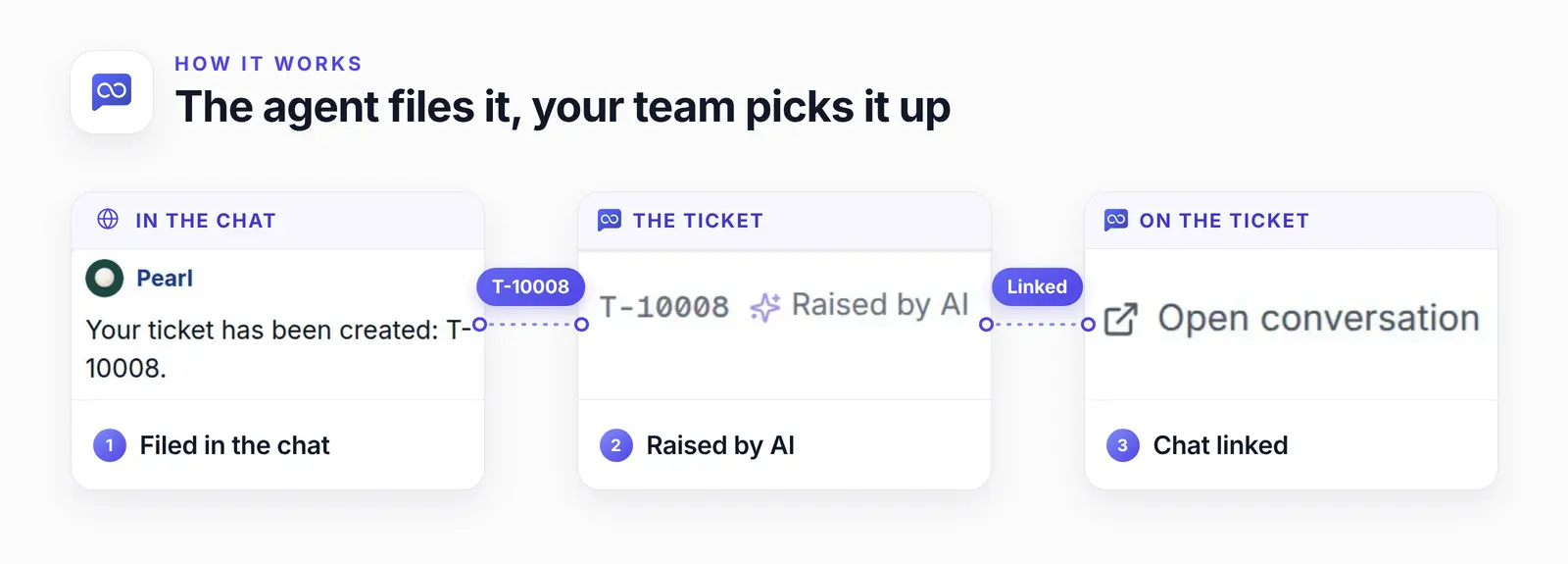
One reference, T-10008, ties the chat to the ticket.
When should the agent create a ticket from the chat?
File a ticket when the work carries on after the customer has left. AssistLoop's tickets page draws the same line: "Handoff is for a customer who is still waiting in the widget. A ticket is for work that will continue after they leave" (AssistLoop).
When the AI can't answer and nobody is online, a ticket is the way out. Instead of a dead end, the agent escalates the chat to a ticket and the customer goes away with a reference.
| Situation | The agent |
|---|---|
| Sources cover it | Answers |
| Not in your sources | Hands off or files |
| Wants a person now | Hands off |
| Missing or wrong item | Files a ticket |
| Refund or approval | Files a ticket |
| Order change | Files a ticket |
| After hours | Files a ticket |
For the rows that hand off, set up human handoff as well.
Before it files, the agent needs what went wrong and the customer's email, where your team's reply goes. The rule we filmed asks for the customer's yes and an email, nothing more; adding the order number is our suggestion.
Step 1: Enable ticketing and choose your notifications
In AssistLoop, open your agent, click Tickets in the left sidebar, then Enable ticketing. A toast confirms "Ticketing is on for this agent." The switch is per agent, so a sales agent can go without tickets. You need a paid plan and an agent already trained and on your site.
Next, choose Notification settings from the ⋮ menu to the right of New ticket. In Ticket notifications, every event has an In app switch and an Email switch, and AI raised a ticket starts with both on. Leave them on: nobody is in the chat when these arrive.
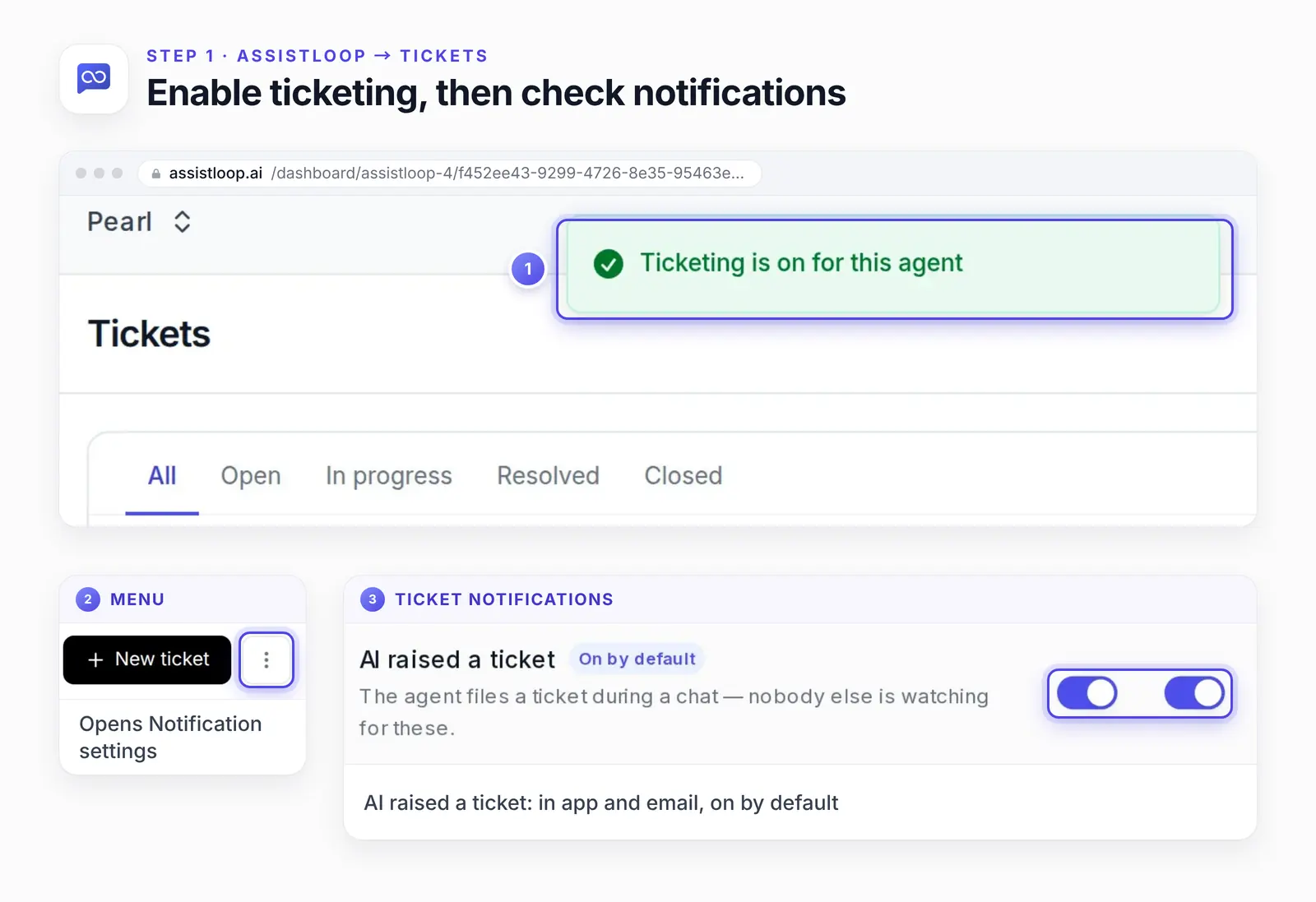
The row's own note: "nobody else is watching for these."
Step 2: Tell the agent when to file a ticket
Go to Agent Actions, click + Add Action and pick AssistLoop Ticket (its card stays greyed out until ticketing is on). Fill in the form and click Create Action.
If your agent already has the action, as ours did, click Edit Action on its card and save with Update Action instead. We renamed ours "Raise a support ticket". The field that matters most is When to use this action: the agent checks it before filing. Its instructions can still overrule it (see the troubleshooting list below).
Below it sits the required Default Response Text. Ours read "Done — I've raised a ticket, and our team will follow up by email."
In our chat, the shopper saw the ticket message instead: "Your ticket has been created: T-10008." Pick a default Priority and save, and the action's card shows its switch on.
The action has one rule field, so merge the cases you want into one rule. Five versions follow, the last one merged.
The default the action ships with:
Trigger this action when the user confirms they want a support ticket raised for an issue that cannot be resolved from the knowledge base. |
Ours, the one we filmed:
Trigger this action when the customer agrees to a support ticket and has shared their email, for example for a damaged, missing or wrong item, or an order change. |
For refunds and approvals (untested):
Trigger this action when the customer asks for a refund, a return or anything else a person must approve, once they agree to a ticket and have shared their email and order number. |
For after hours (untested):
Trigger this action outside our opening hours when the customer needs a person, once they agree to a ticket and have shared their email. |
The agent only knows your hours if they're written down, so put your opening hours and time zone in its instructions. If you use the chat schedule in Display Restrictions, the chat is hidden outside those hours, and this rule only matters when the chat stays on around the clock.
All of the above in one rule (untested):
Trigger this action when the customer agrees to a support ticket and has shared their email, for a damaged, missing or wrong item, an order change, a refund, a return or anything else a person must approve, or when they need a person outside our opening hours. |
What the agent says around the ticket belongs in its instructions, not in the rule. This line is adapted from the Orders and handoff section of our instructions template. Treat it as a starting point and test it:
If something arrived damaged, missing or wrong, or an order needs changing, apologize, offer a ticket and ask for their email and order number; when they share them, file the ticket and give the reference number. Don't promise a refund or a fix; say our team decides and replies by email. Outside opening hours, say the reply comes on the next working day. |
Only our filmed rule was tested on camera. Try the others in your agent's Playground before customers meet them.
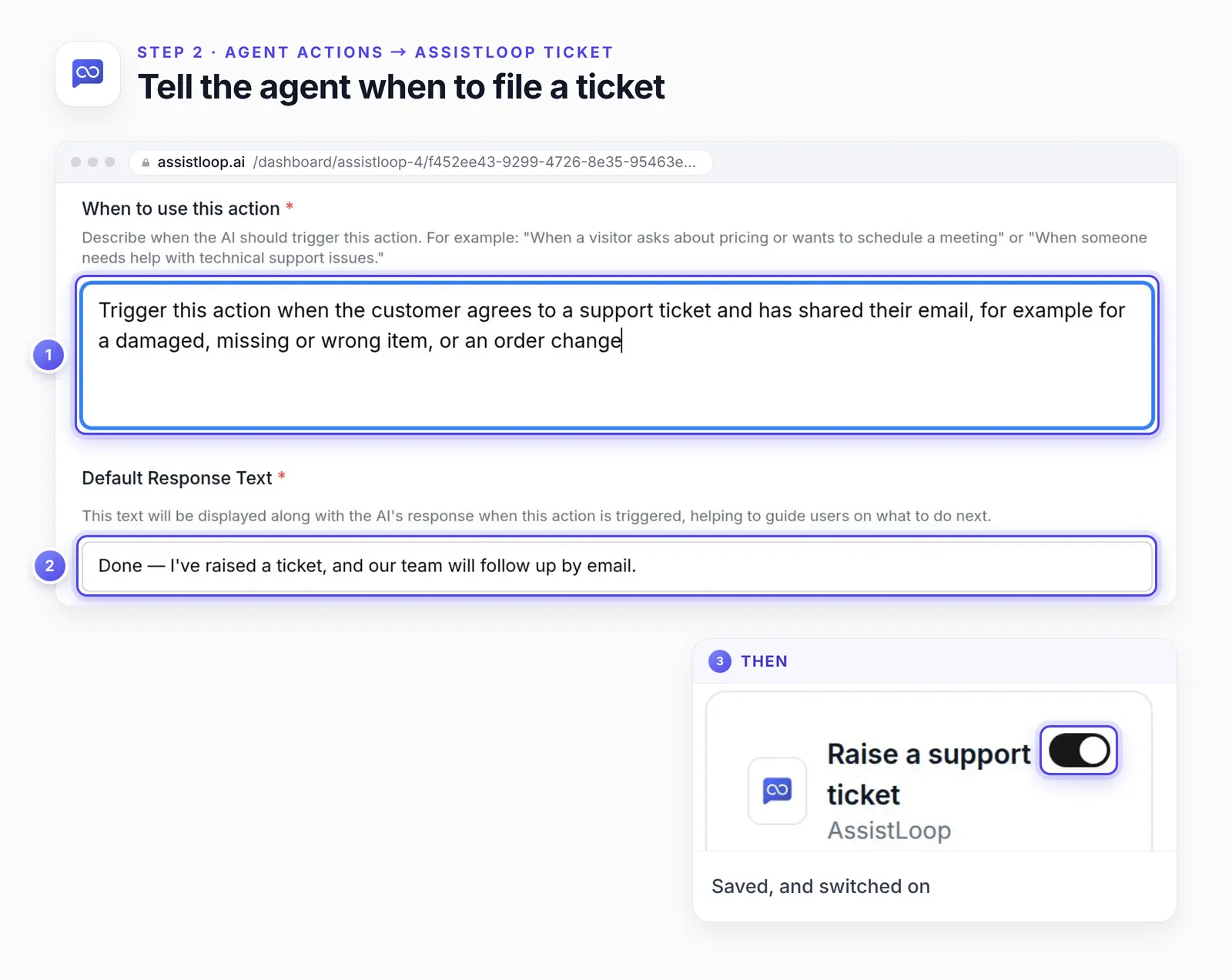
Agreement and an email first, so the agent doesn't file on its own.
Step 3: The customer asks, and the agent files it
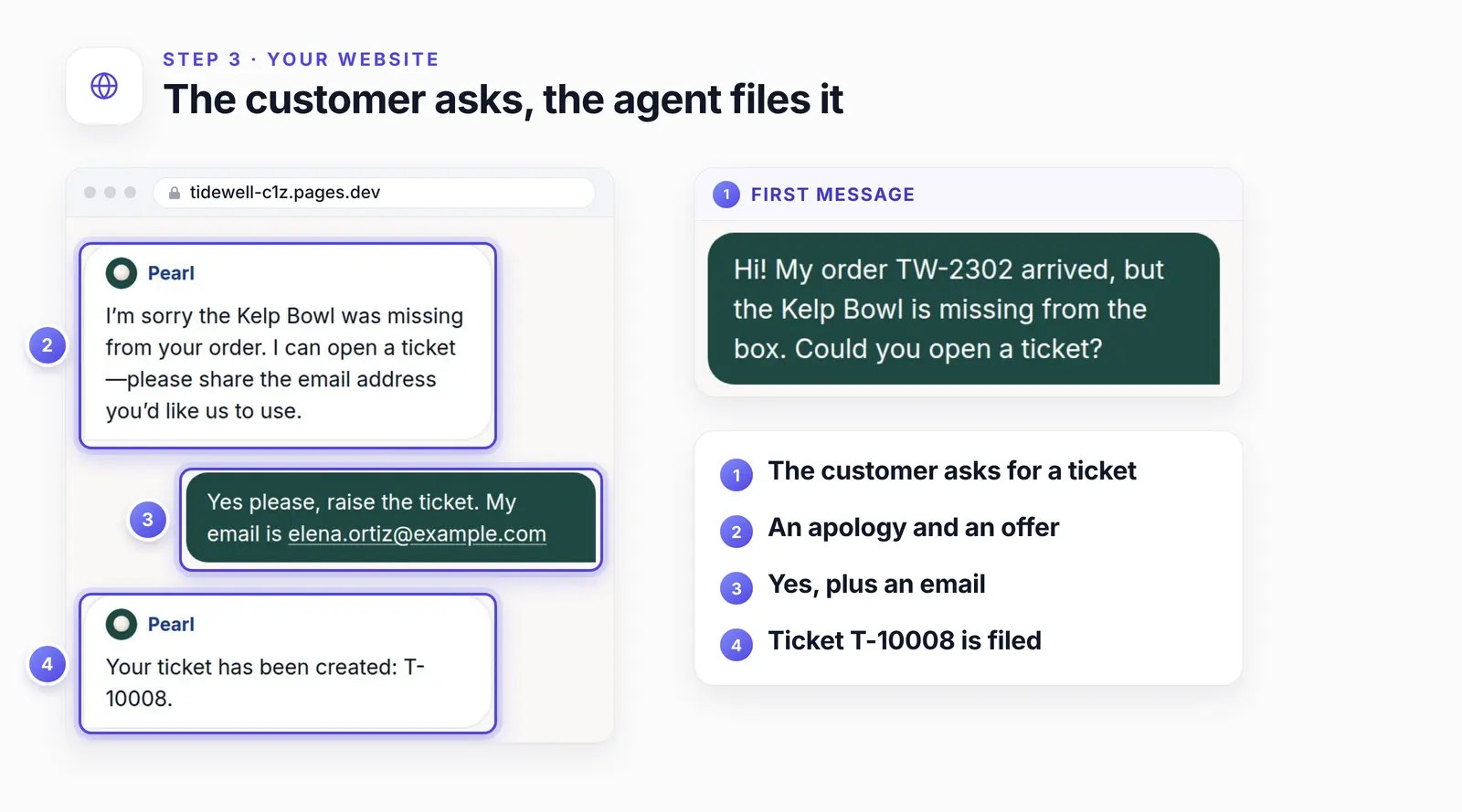
On the demo site, our shopper sent the message from the top of this guide, and the agent replied:
I’m sorry the Kelp Bowl was missing from your order. I can open a ticket—please share the email address you’d like us to use.
She said yes and gave a test address in one message. The agent filed the ticket and answered: "Your ticket has been created: T-10008." The shopper now holds a reference she can quote back to you.
Step 4: The ticket arrives, raised by AI
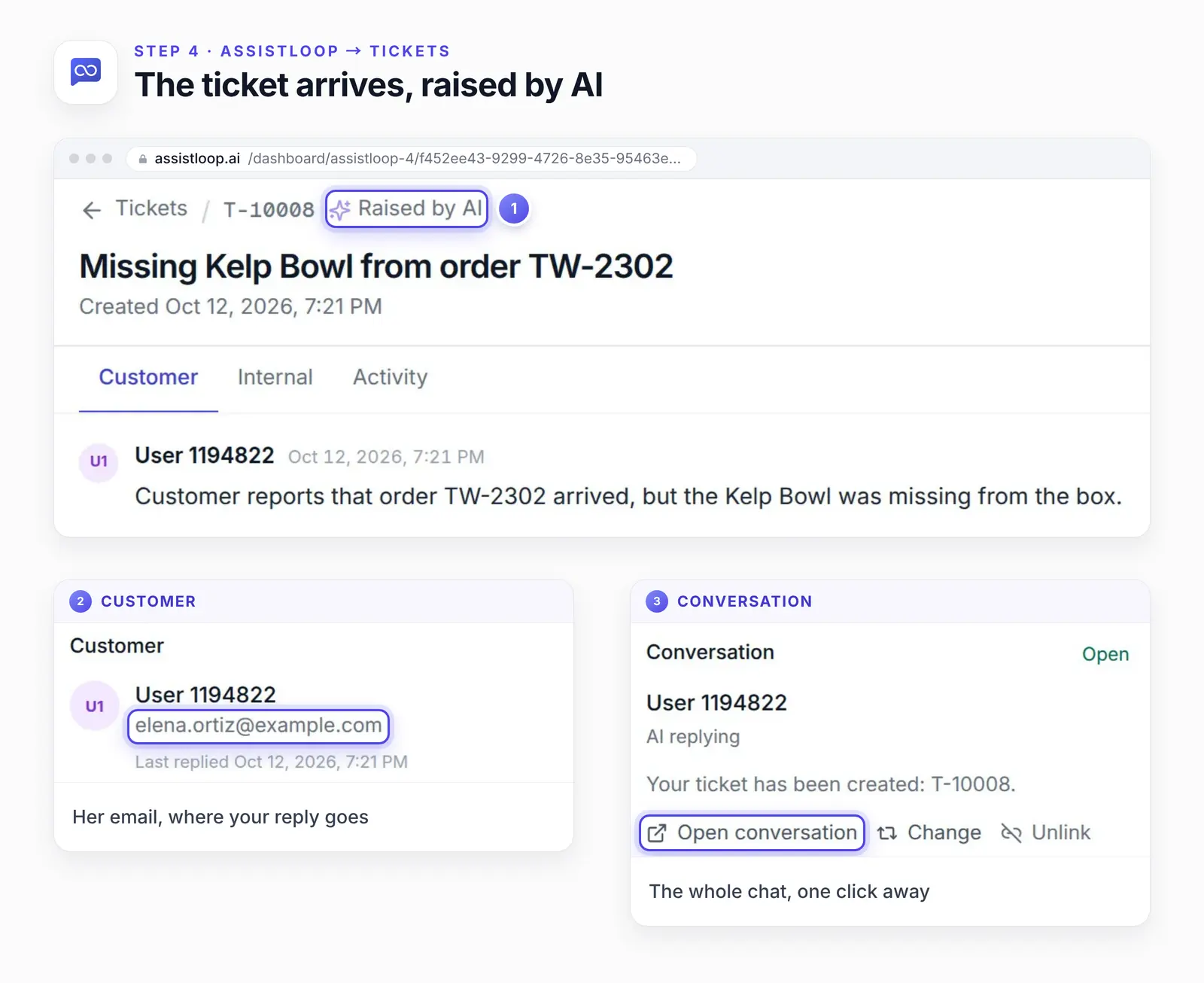
The ticket appears at the top of the agent's Tickets page with a sparkle by its subject, and the bell alerts your team. Open it and the header reads Raised by AI. Ours was titled "Missing Kelp Bowl from order TW-2302". The agent wrote that title itself, plus a one-line summary as the first message: "Customer reports that order TW-2302 arrived, but the Kelp Bowl was missing from the box."
The Customer panel holds her email, and the Conversation panel links the whole chat. AssistLoop's tickets page describes it: "Those tickets are created open and unassigned, with the conversation attached" (AssistLoop).
Help desks treat the chat as part of the ticket. Zendesk's help center says: "if the conversation is escalated to a human agent, then the conversation history is backfilled and any initial messages are inserted in the ticket upon escalation" (Zendesk, accessed October 2026). AssistLoop links the chat instead and opens the ticket with a summary. Whoever opens it starts from that summary and the order number, with the customer's own words one click away.
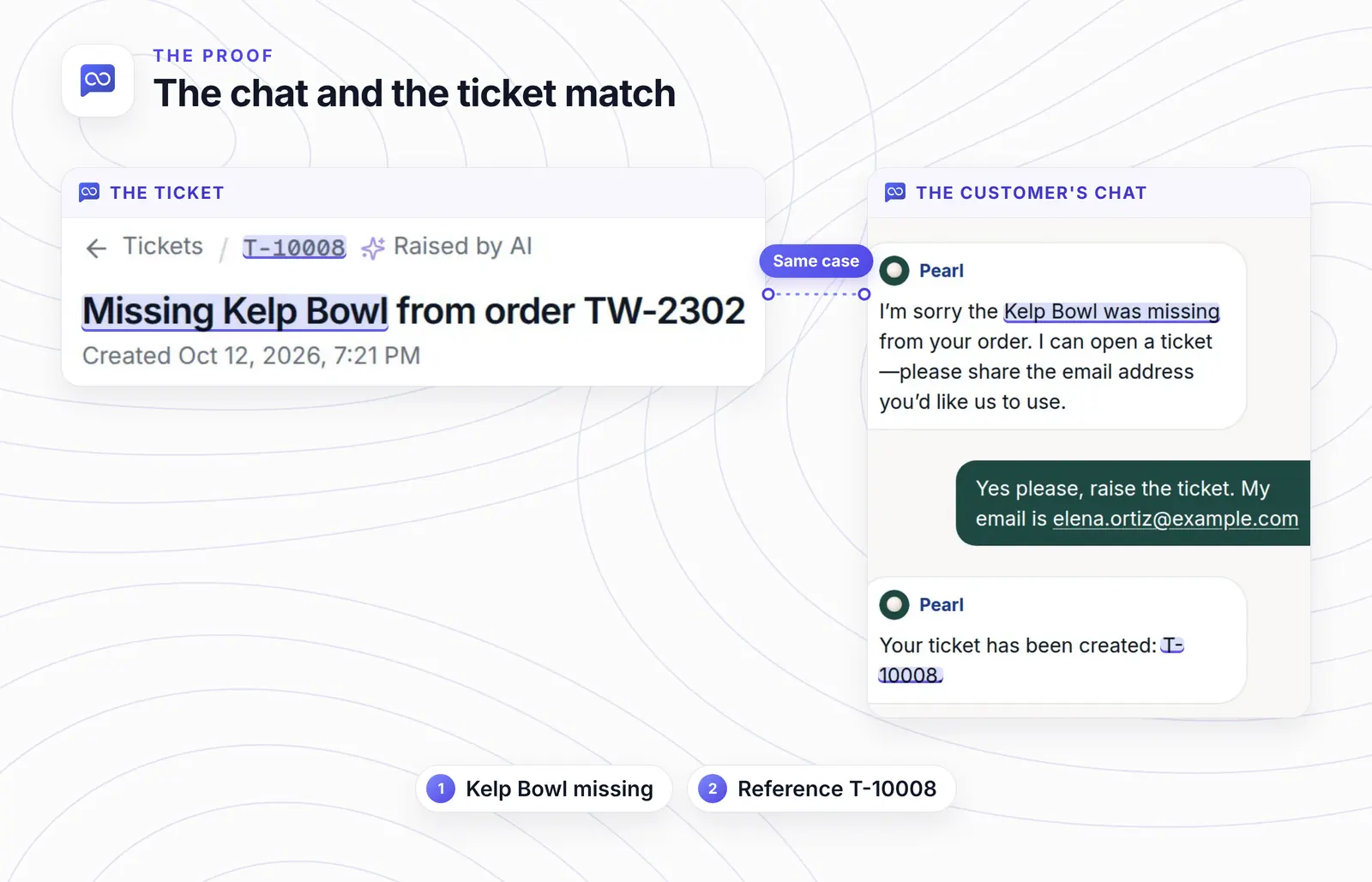
The shopper's reference is your team's ticket.
Want the missing-bowl chats to end with a reference? |
After the ticket is filed
Your team opens it from Tickets or the bell, sets status, priority and assignee, and replies. The customer gets that reply by email with a private link to the ticket. If a ticket exists only because the agent lacked a fact, add that fact as a source. Here's how to fix a wrong answer.
If the agent doesn't file a ticket
Ticketing is off. Check the agent's Tickets page.
The action is missing or off. Add it with + Add Action in Agent Actions, or switch on its card.
It shows on, but files nothing. After ticketing goes off and on, switch the action off and on once.
No agreement or email. The rule we filmed needs both.
Your instructions say hand off. Then it will. Name the ticket cases there too.
How we tested this
Setup: we turned on ticketing and edited the ticket action on camera, on our demo agent Pearl.
The chat: one shopper on the Tidewell demo site, with a test email. Replies are quoted word for word.
The ticket: T-10008, as it arrived, labelled Raised by AI.
The rules: the first is the setup form's default, the second is the one we filmed. The other three, and the instructions line adapted from our template, are untested.
The figures: crops of frames from that recording, with rings and insets on top. Nothing in the app was redrawn.
What to do next
List the situations that should end in a ticket. Put that list in the action's rule and in the Orders and handoff section of your agent's instructions. Then the agent gets one answer per case, not two.
Is "where is my order?" your most common ticket? Let the agent check order status itself. Those chats then end without one.
Frequently asked questions
How does the customer follow up on the ticket?
From the private link in the email. AssistLoop's tickets page says it opens the ticket's subject, status and thread, and the customer can reply there without an AssistLoop account. Your team can rotate or revoke the link at any time.
Does the ticket include the chat?
Yes, as a link: Open conversation on the ticket shows the whole chat. The same panel has Change and Unlink, so your team can point the ticket at another chat if the agent linked the wrong one.
Do I need the customer's email?
With the rule we used, yes. If a customer won't share one, that rule never fires, so have the agent offer a handoff to your team while they're still in the chat.
Can it file the ticket in HubSpot instead?
Yes. AssistLoop's tickets page says that if you already run support in HubSpot, the agent can still file a ticket there through an action or the HubSpot integration. You can use both.
Are tickets on the free plan?
No. Native tickets come with AssistLoop's paid plans; see AssistLoop pricing.
The shopper who lost her Kelp Bowl closed the chat holding T-10008. Whoever picks up that ticket finds her order number and a summary waiting, with her chat one click away, so nobody asks her to tell it twice. Set up an agent that files tickets like that one, and if a chat turns out to be a sale rather than a problem, have it collect the lead instead.
 | Written by AssistLoop Team We build AssistLoop, an AI support agent that answers customers from your own website and documents, and hands the chat to your team when a person should step in. ★★★★★ "…reducing direct communication but still offering the ability to connect to employees if needed." Jason K., Managing Director, on G2 |
Build Custom AI Chatbot for Your Business FREE
Create intelligent AI agents that handle customer support, boost conversions, and work 24/7 for your business.
Build Your Agent