How to Train Your AI Support Agent on a PDF
A tested guide to training an AI support agent on a PDF in AssistLoop: Upload a File in Data Sources, what to do when it says Not trained, how to check a PDF has selectable text, and the answer it gave from a spec sheet.
 AssistLoop Team10 min read
On this page
Some answers your customers need live in a document, not on your website: a spec sheet, a price list for trade accounts, a care guide. This guide uploads a PDF to your AssistLoop agent so it answers from that file, then asks the same question again to prove it. It also shows how to check a PDF before you upload it, because the upload dialog asks for selectable text, and a scanned page has none. Plan on ten minutes, most of it testing.
Last updated: October 2026. We recorded the upload in mid-October 2026. On 24 October 2026 we checked the upload dialog and the file's status again, and compared the PDF's text with a scanned copy's.
Quick answer
|
A café owner on a pottery shop's Wholesale page wants two facts before ordering: how many mugs come in a case, and whether they survive a commercial dishwasher. The website doesn't say. The answers sit in a one-page spec sheet the shop emails to cafés.
That shop is Tidewell Ceramics, our fictional pottery brand, and its agent, Pearl, had learned the Tidewell website in AssistLoop. The Tidewell Café Line spec sheet is a PDF we made for this test, with facts that appear on no page of the site. Every screen below comes from that setup.
The video takes a minute and a half, from the unanswered question to the answer.
What you need
You need an AssistLoop agent that already answers from your site. No agent yet? Sign up and choose Create Agent; it learns your website first, and the PDF adds what the site leaves out.
You also need the document itself, with text you can select (the section below shows how to check), and one question only that document answers, so you can test before and after.
Upload a file, or add the facts another way?
Data Sources has four ways in, and a PDF is the right one when the facts already live in a document. Pick by where your facts are now.
| Facts are in | Add them as |
|---|---|
| A PDF or Word file | Upload a File |
| Your website | Website/Link |
| A few sentences | Raw Text |
| One question | Q&A pair |
A file keeps one source for each document. When the document changes, you replace one row instead of hunting through snippets.
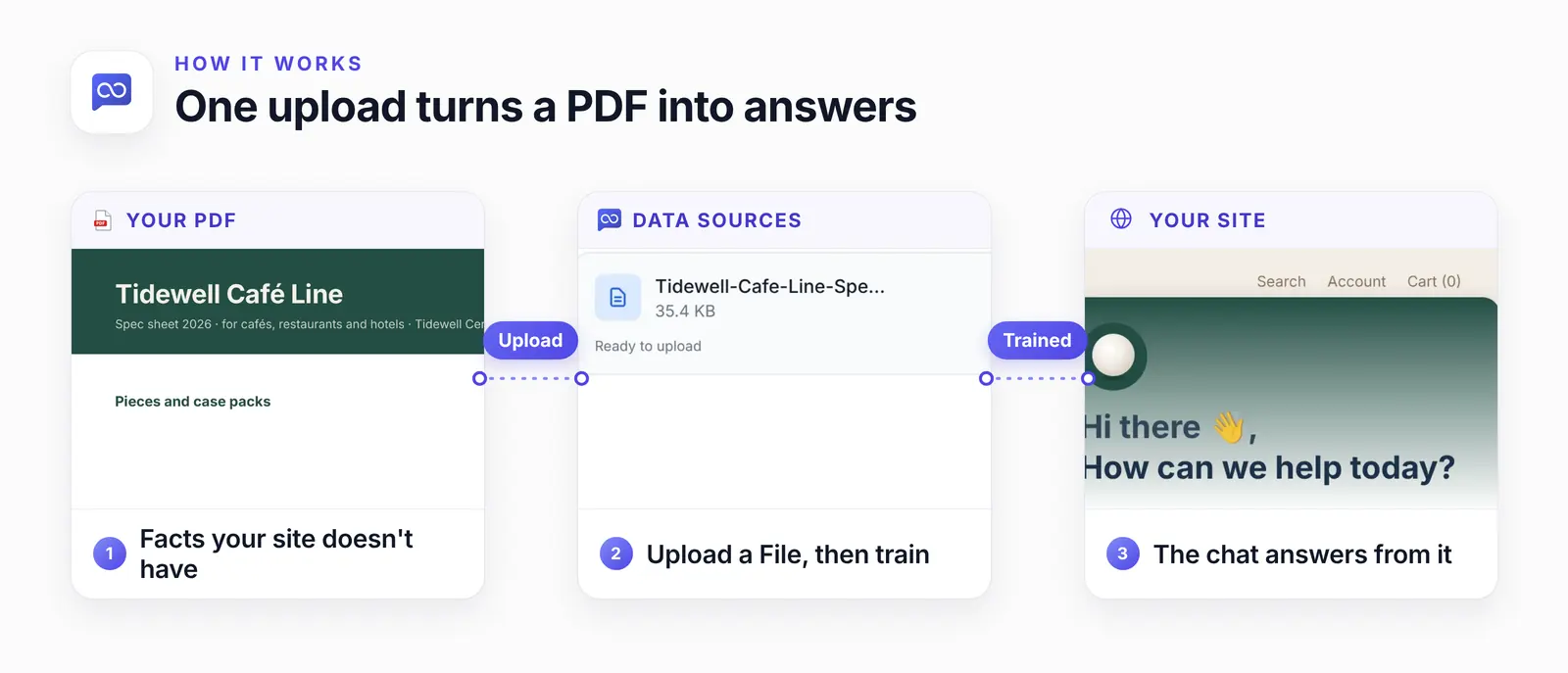
The PDF, the upload and the answer it makes possible.
Check that your PDF has selectable text
AssistLoop reads the text inside a PDF, and a scan has no text to read. The upload dialog says: "For PDFs, ensure text is selectable (not scanned images)." The U.S. Bankruptcy Court for the District of Nevada explains why in its guide to making PDFs text-searchable: scanned documents are "essentially image files and do not contain recognizable text by default."
We tested it on our spec sheet. We turned the page into a grey, slightly tilted 150 dpi image, like a scan, and saved it as a second PDF. Then we pulled the text out of both with pdftotext:
| Check | Spec sheet | Scanned copy |
|---|---|---|
| Text found | Every line | None |
| Fonts inside | Inter | None |
| After OCR | Not needed | Facts back |
The quickest check on your own file: open it, press Ctrl+F (Cmd+F on a Mac) and search for a word you can see on the page. If the viewer finds nothing, it's a scan.
To fix a scan, run text recognition (OCR) on it. Acrobat has it built in, and the free Tesseract does it from the command line. We ran Tesseract 5.3.4 on the scanned page:
tesseract scanned-page.png spec-sheet pdf |
That wrote spec-sheet.pdf with a text layer, and the case packs and the 180 °F rinse rating came back word for word. Tesseract reads images, not PDFs, so export each scanned page as a PNG first; most PDF viewers can, or use pdftoppm.
A PDF exported from a word processor usually keeps its text. Scans, photos and design files with text flattened to outlines don't, and the Ctrl+F check tells you which you have. PDFs are everywhere: Adobe says its customers opened more than 400 billion of them in Acrobat products in 2022, and plenty of them began life on a scanner.
Step 1: Find a question your agent can't answer yet
Ask the question your document answers, on your own site, before you upload anything. Our café owner, Grace Park, asked on Tidewell's Wholesale page: "How many Oyster Mugs come in a case? And can they go through a commercial dishwasher?" After the pre-chat form, Pearl said:
Hi Grace, I don't have a case-pack quantity for Oyster Mugs. They're listed as dishwasher safe, but I can't confirm suitability for commercial dishwashers.
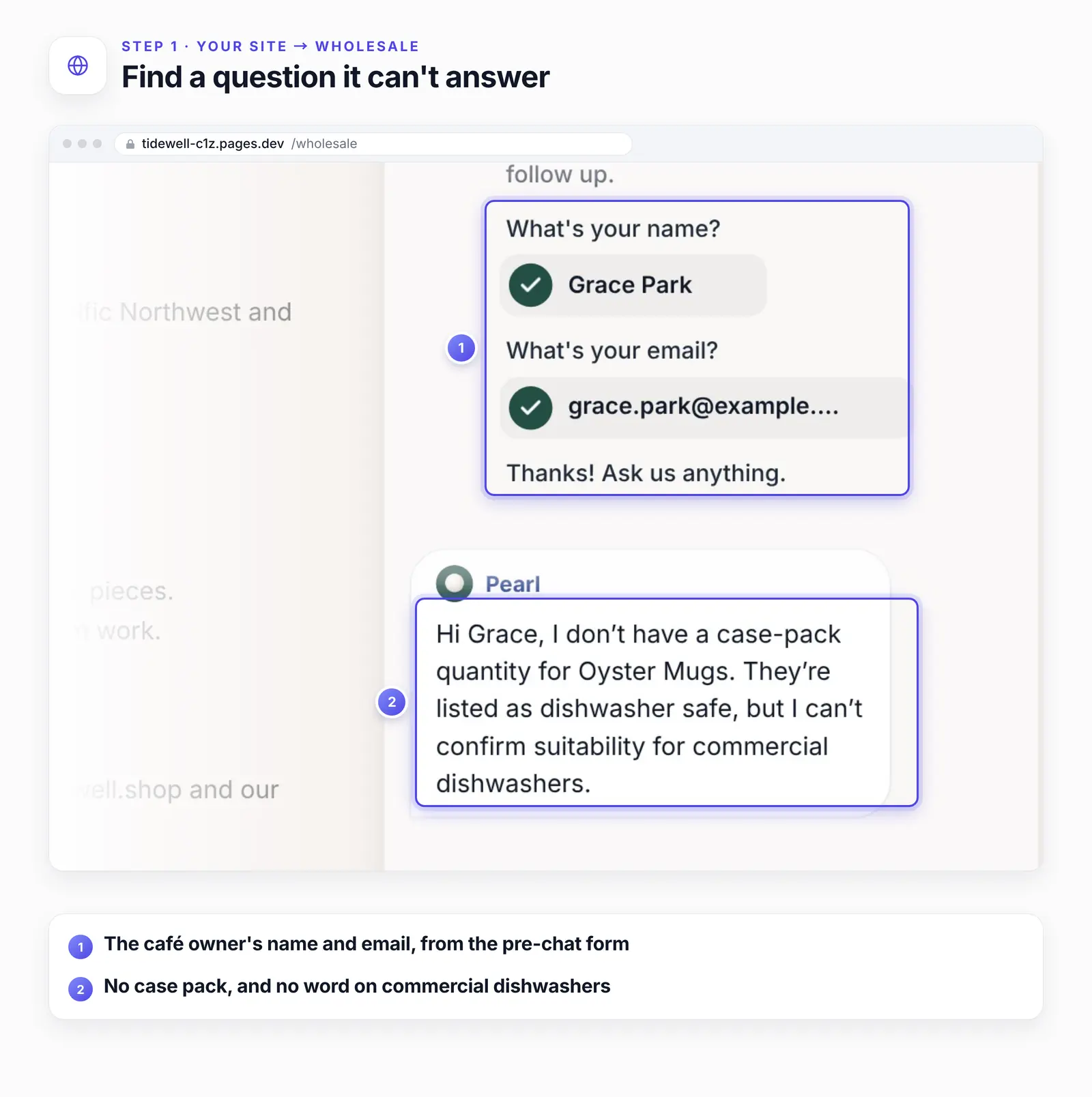
That's the honest gap you want before a fix: the agent says what it doesn't know instead of guessing. Keep this chat open; you'll ask again in it.
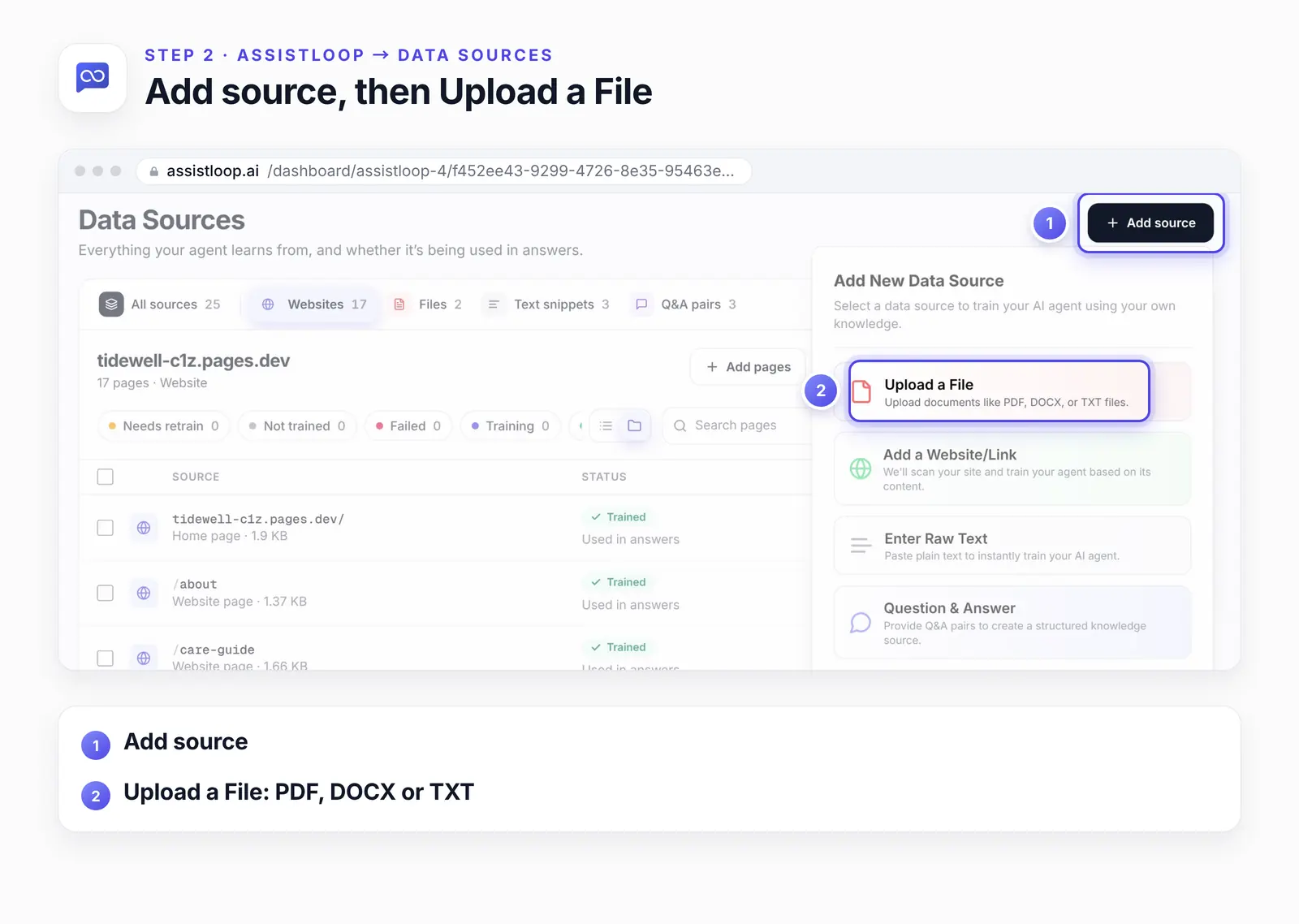
Step 2: Open Data Sources and choose Upload a File
In AssistLoop, open your agent and choose Data Sources in the sidebar. Click Add source, then Upload a File. The Files tab also has its own Upload file button.
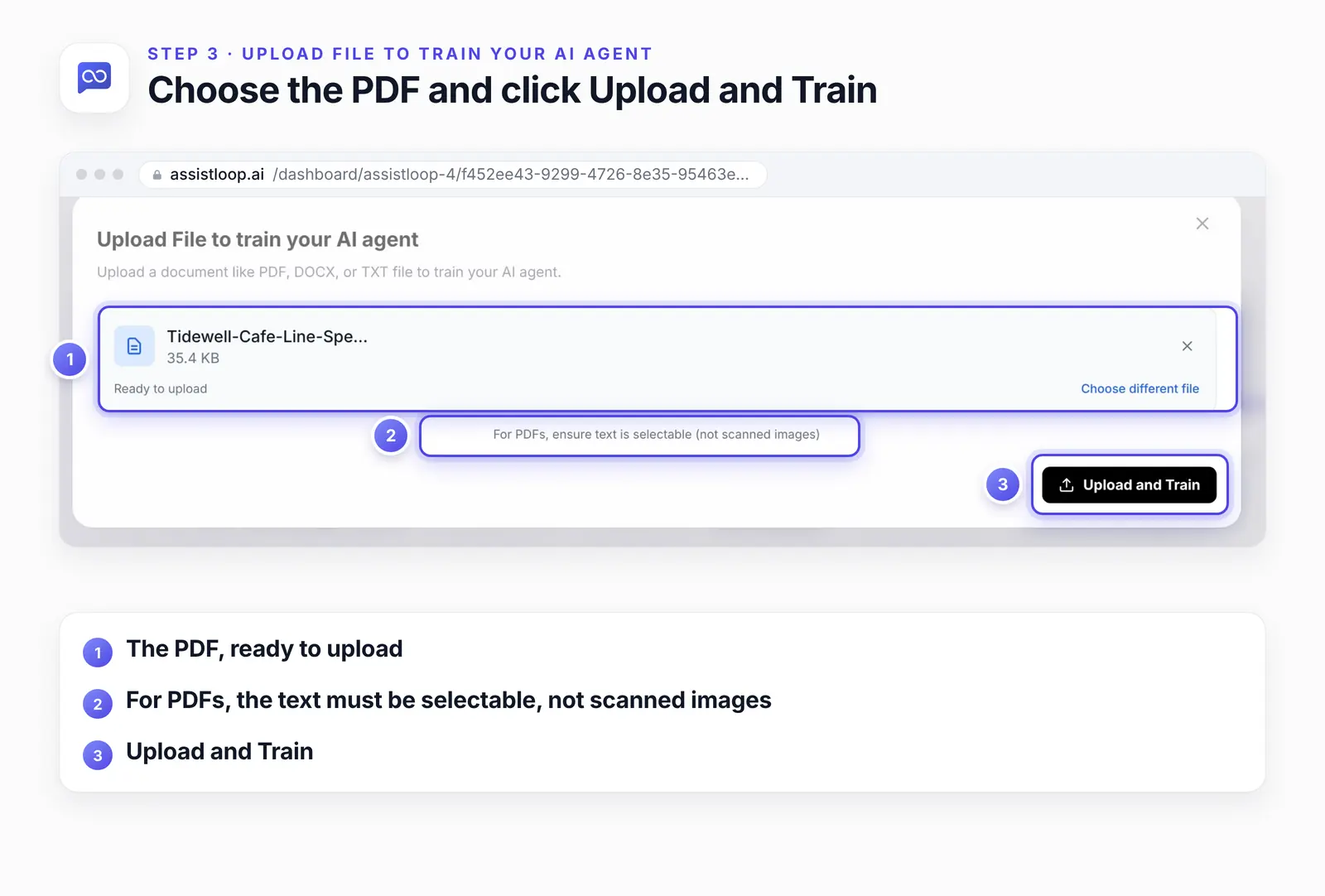
Step 3: Choose the PDF and click Upload and Train
Drag the file into the dialog or click to browse. The dialog shows the file's name and size with "Ready to upload". Click Upload and Train.
Step 4: Train it if it says Not trained
The new file appears in the Files list with a status. In our recording it stopped at Not trained, with "Saved, not used in answers yet" and a Train button. In a rehearsal outside our screen recorder, the same upload trained by itself. Either way, click Train if you see it.
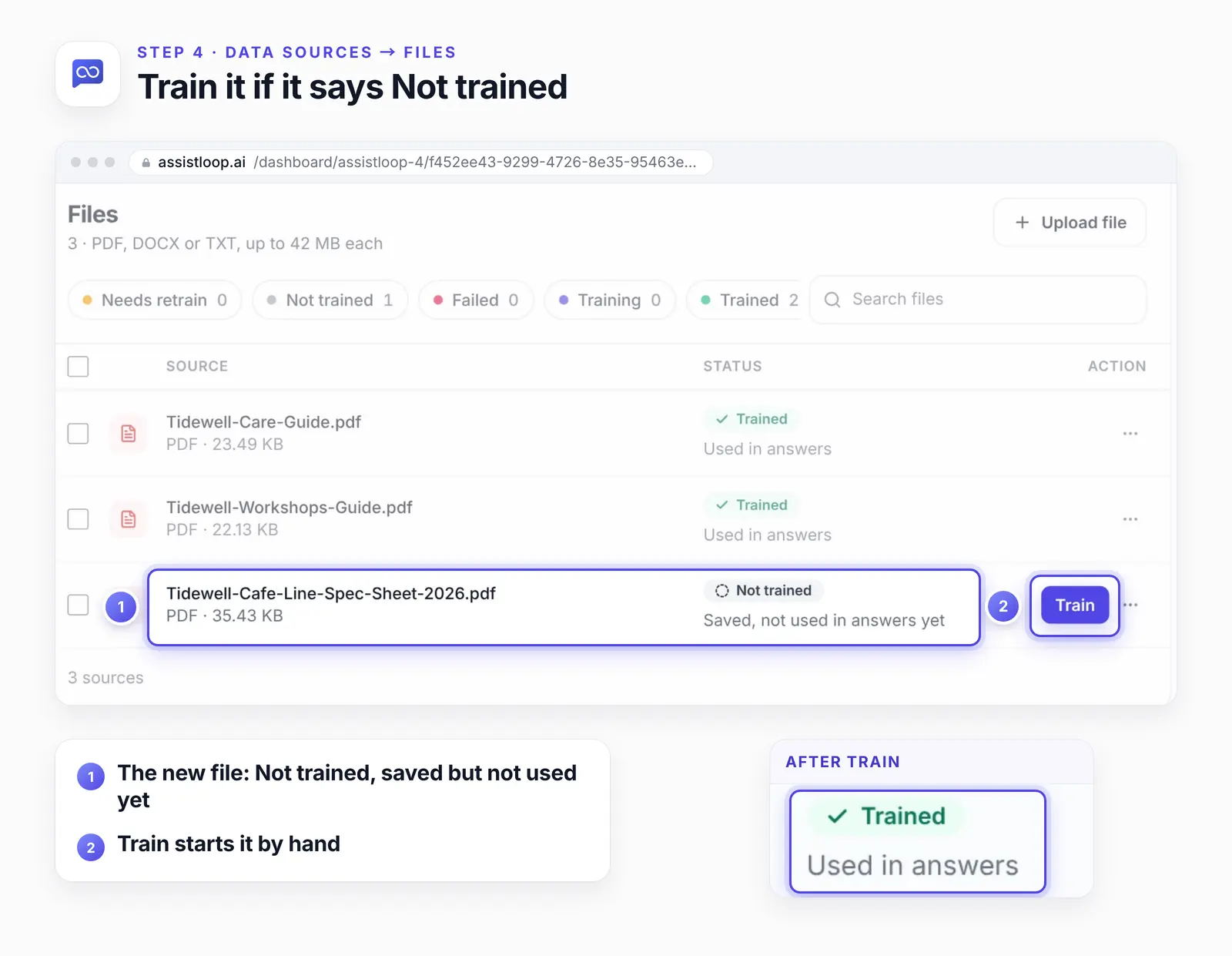
A one-page PDF took a few seconds. The status filters above the list are the ones to watch: Needs retrain, Not trained, Failed, Training and Trained. Your file is ready when it says Trained and Used in answers.
Step 5: Ask again in the same chat
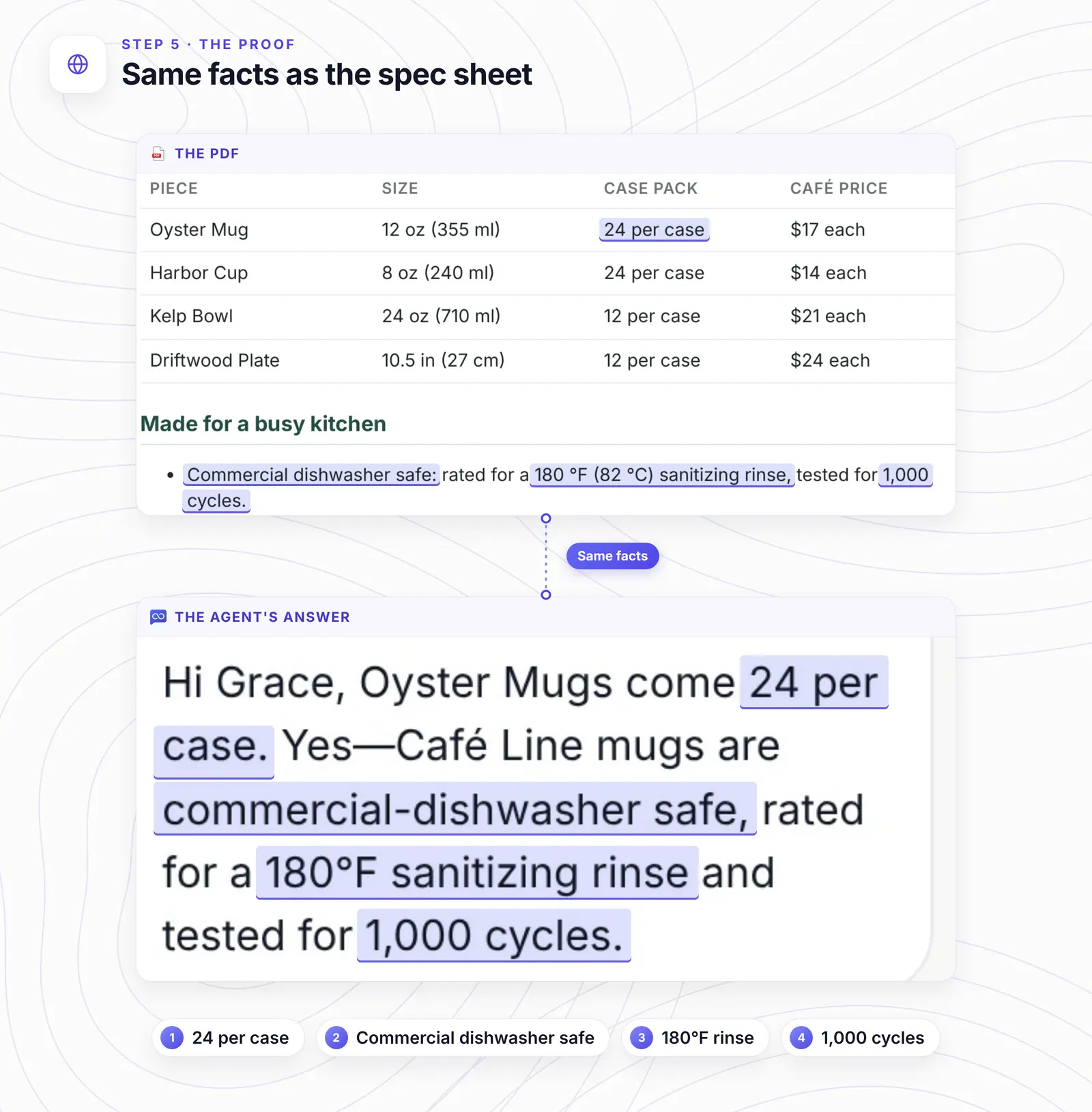
Go back to the conversation from Step 1 and ask again. Grace asked "So how many come in a case, and are they OK in a commercial dishwasher?" in the chat that had started before the upload. Pearl answered:
Hi Grace, Oyster Mugs come 24 per case. Yes—Café Line mugs are commercial-dishwasher safe, rated for a 180°F sanitizing rinse and tested for 1,000 cycles.
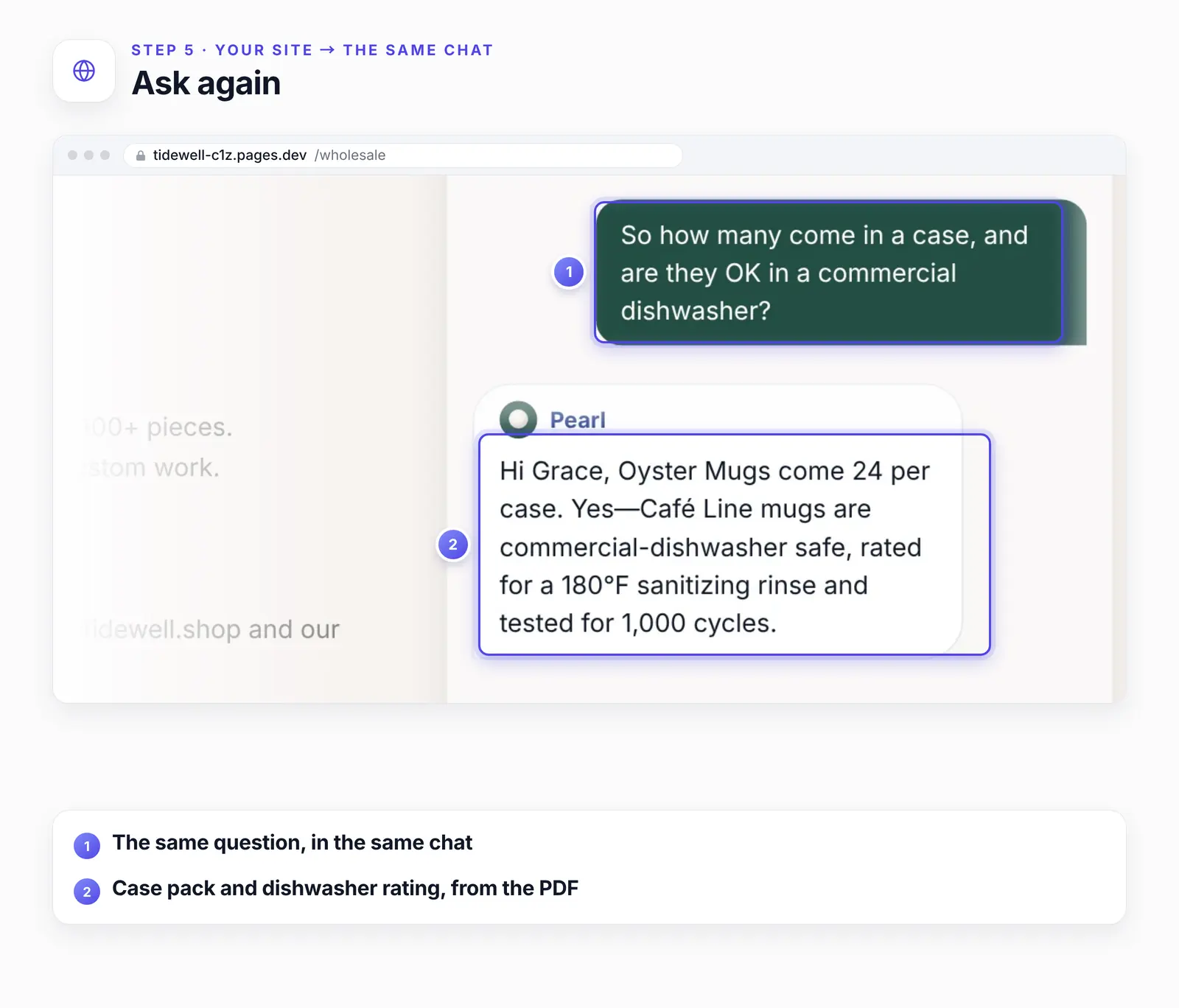
Every number in that reply comes from the spec sheet. The case pack came out of a table, and the rinse rating out of a bullet point.
Got a document your customers keep asking about? |
Write documents the agent can use
Put each fact in words. Text inside a photo, a chart or a logo may not be picked up, so write the fact out too. Our case packs sat in a plain table, and the agent found them.
Name things the way customers do. The sheet said Oyster Mug: the name on the shop page and the one Grace typed.
Keep one current version. When a document changes, upload the new file and delete the old row from its ⋯ menu, so the agent never has two answers to choose from.
Split very different topics. A trade spec sheet and a returns policy are easier to replace later as two files.
If it still doesn't answer from the PDF
The row says Failed or stays Not trained. Click Train, or Retrain in the row's ⋯ menu. If it fails again, check the file opens and its text can be selected.
The agent still says it doesn't know. Search the PDF for the fact. If your viewer can't find it, it's in an image: retype it or run OCR.
A form appears instead of an answer. If your agent collects leads, a question that sounds like a sales enquiry can open the lead form. In rehearsal, a question worded as a wholesale enquiry did that; asking for the facts plainly got the answer.
The file is refused. Uploads are PDF, DOCX or TXT, up to 42 MB each. Split a bigger document or save it as one of those formats.
How we tested this
The document: a one-page Tidewell Café Line spec sheet we made for the test, printed to PDF from a web page, so its text is selectable. Its case packs, dishwasher rating and chip warranty appear nowhere on the Tidewell site.
The agent: Pearl, trained on Tidewell's website before the upload, with its pre-chat form on. Both replies above are copied exactly from the recording.
The recheck, 24 October 2026: the Upload a File dialog and the Files list opened again without uploading anything; the spec sheet still showed Trained and Used in answers. The scanned copy and the OCR test ran on our own machine with pdftotext and Tesseract 5.3.4; we didn't upload the scan to AssistLoop.
Not tested: DOCX and TXT uploads, long multi-page PDFs, and how the agent handles two files that disagree.
The figures: frames from the recording and a render of the PDF page, cropped, with pins, outlines and highlights added; nothing in the interface was edited.
Frequently asked questions
How long does a PDF take to train?
Seconds for our one-page PDF: the row went from Not trained to Trained and Used in answers right after we clicked Train.
Does the agent use the PDF in chats that already started?
Yes. Grace's chat began before the upload, and her second question in it got the answer from the PDF.
Does the PDF have to be on my website?
No. You upload the file to AssistLoop, so a document you only email to customers can still feed the agent's answers.
Can the agent read tables in a PDF?
It read ours: the case pack came from a four-row table. Keep tables as text, not as a pasted image.
How do I update a document?
Upload the new version, then delete the old row from its ⋯ menu. If only the file's training failed, Retrain in the same menu reads it again.
Back on Tidewell's Wholesale page, the café owner gets her case count and dishwasher rating without waiting for an email. Upload the document your customers keep asking about, and to keep the agent careful about what the file doesn't cover, here's how to write its instructions.
 | Written by AssistLoop Team We build AssistLoop, an AI support agent that answers customers from your own website and documents, and hands the chat to your team when a person should step in. ★★★★★ "The system allows my managers to use their knowledge to create databases that AI can draw from…" Jason K., Managing Director, on G2 |
Build Custom AI Chatbot for Your Business FREE
Create intelligent AI agents that handle customer support, boost conversions, and work 24/7 for your business.
Build Your Agent