How to Add AI Customer Support to WHMCS (Free Addon)
Hosting clients ask the same few things at 2 am as at 2 pm: will my site drop during a transfer, which nameservers do I use, can I upgrade without losing email? This guide puts an AI support agent on every page of your WHMCS client area, trained on your own site, so those questions get answered where they're asked. It takes about fifteen minutes. Train the agent, upload AssistLoop's free WHMCS addon and paste one Agent ID.
 AssistLoop Team17 min read
On this page
Last updated: October 2026. We trained the agent and ran the addon on 10 October 2026. On 19 October we re-read WHMCS's docs, the Marketplace listing and the addon's code.
Quick answer
|
A designer wants to move riverastudio.com to your hosting. At 11 pm they're on your Transfer Domain page with the domain typed in. One worry stops them from clicking Add to Cart. Will the site go down while the domain moves?
Your website already says it won't. To learn that, they'd have to leave checkout, hunt for the right page and trust it applies to them. So they open a ticket, and it sits until your first shift logs in.
In WebPros and CloudLinux's Web Hosting Trends Report 2026, 36% of 446 hosting providers said they already use AI in customer support (cPanel, June 2026). It's a vendor's survey: WebPros owns both cPanel and WHMCS.
Our test bed is Harborlight Hosting, a web host we made up for this guide. Its marketing site lives at harborlight.host and its WHMCS client area at my.harborlight.host. Its AssistLoop agent is called Harborlight Support. The WHMCS screens below, admin and client area, are a recreation we built for filming; How we tested this explains why.
The two-minute walkthrough follows the same build, from an empty agent form to the answer on the Transfer Domain page.
What you need
An AssistLoop account. Signing up is free. You never paste in a key from OpenAI or anyone else. Human handoff and AssistLoop tickets, used later for the chats your team keeps, come with the paid plans. Step 1 builds the agent from your site's pages (how training works).
A self-hosted WHMCS 8. The addon's listing names the WHMCS 8 releases it supports, up to 8.13 (WHMCS Marketplace). For WHMCS 9, see the FAQ. WHMCS's own docs send self-hosted installs to the Marketplace for extra addon modules (WHMCS Documentation).
File access and an admin login. You'll upload one folder over SFTP, SSH or cPanel's File Manager. Your admin role must be able to open System Settings.
Everything below comes down to one value travelling from AssistLoop into one WHMCS setting:
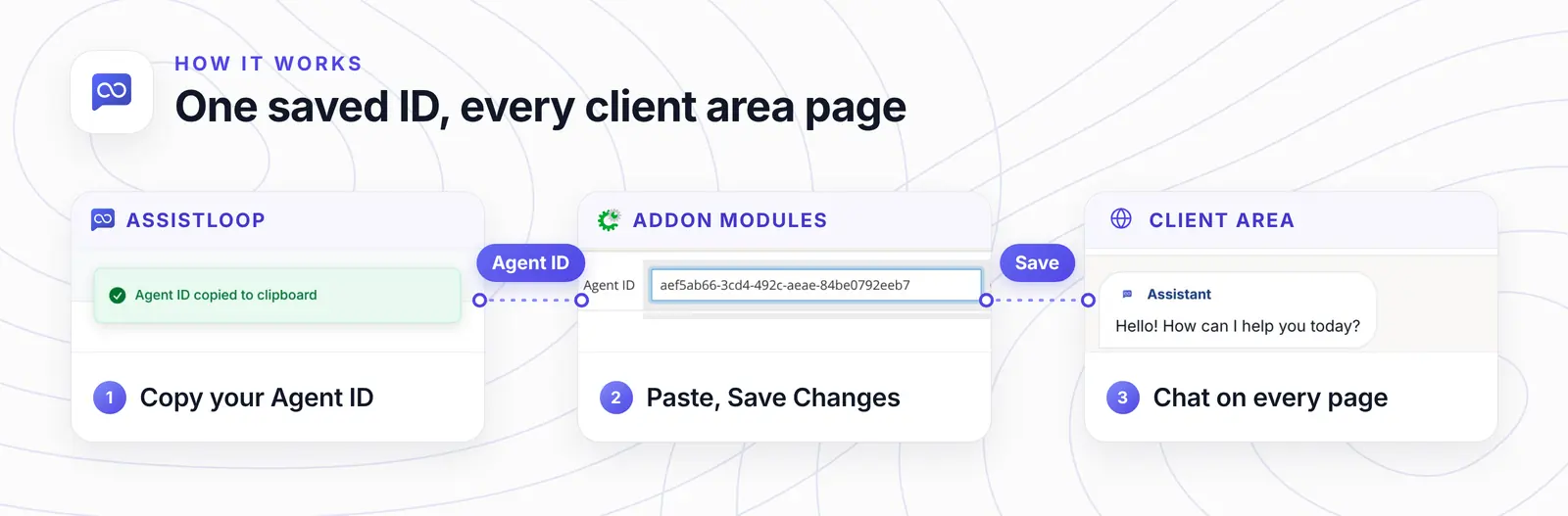
Once that ID is saved, the addon's hook prints the chat on each client area page.
A WHMCS addon or a footer.tpl edit
Use the addon. It adds the chat through WHMCS's ClientAreaFooterOutput hook, so no template holds the script.
Some guides have you paste a script into the theme's footer.tpl instead, and the AssistLoop addon's own README keeps that as a fallback. WHMCS's theme docs recommend customising a child theme or your own copy rather than the stock theme, so an update can't wipe your edits (WHMCS Developer Docs). Even in your own copy, switching themes later leaves the script behind in the old one.
The addon leaves your templates alone. For ClientAreaFooterOutput, WHMCS's hook reference says: "Return HTML to be output before the closing body tag of the page output" (WHMCS Developer Docs). WHMCS calls it on each client area page, and any theme that keeps {$footeroutput} in its footer prints it. Its stock Twenty-One theme prints that output with {$footeroutput}, just before the closing body tag (footer.tpl on GitHub).
| Compare | Addon | footer.tpl edit |
|---|---|---|
| Theme updates | Kept | Lost in stock theme |
| New theme | Needs footer tag | Paste again |
| Agent ID | In the addon | In the code |
You could also write your own ClientAreaFooterOutput hook in /includes/hooks. The addon is that same hook with a settings screen for the Agent ID, so there's no PHP for you to maintain.
Client area pages include the cart, checkout and knowledgebase as well as account screens, so the hook covers all of them. In our recreated client area, we filmed it on the Transfer Domain cart page and the Knowledgebase. Step 7 lists what to check on the rest. The hook doesn't run in the admin area, so your staff screens stay as they were.
Step 1: Train an agent on your hosting site
In AssistLoop, click Create Agent and type a name for your agent (ours is Harborlight Support). Under Data Sources to Train Your Agent, open Website/Links. Enter your marketing site's address (we used https://harborlight.host) and click Fetch Links.
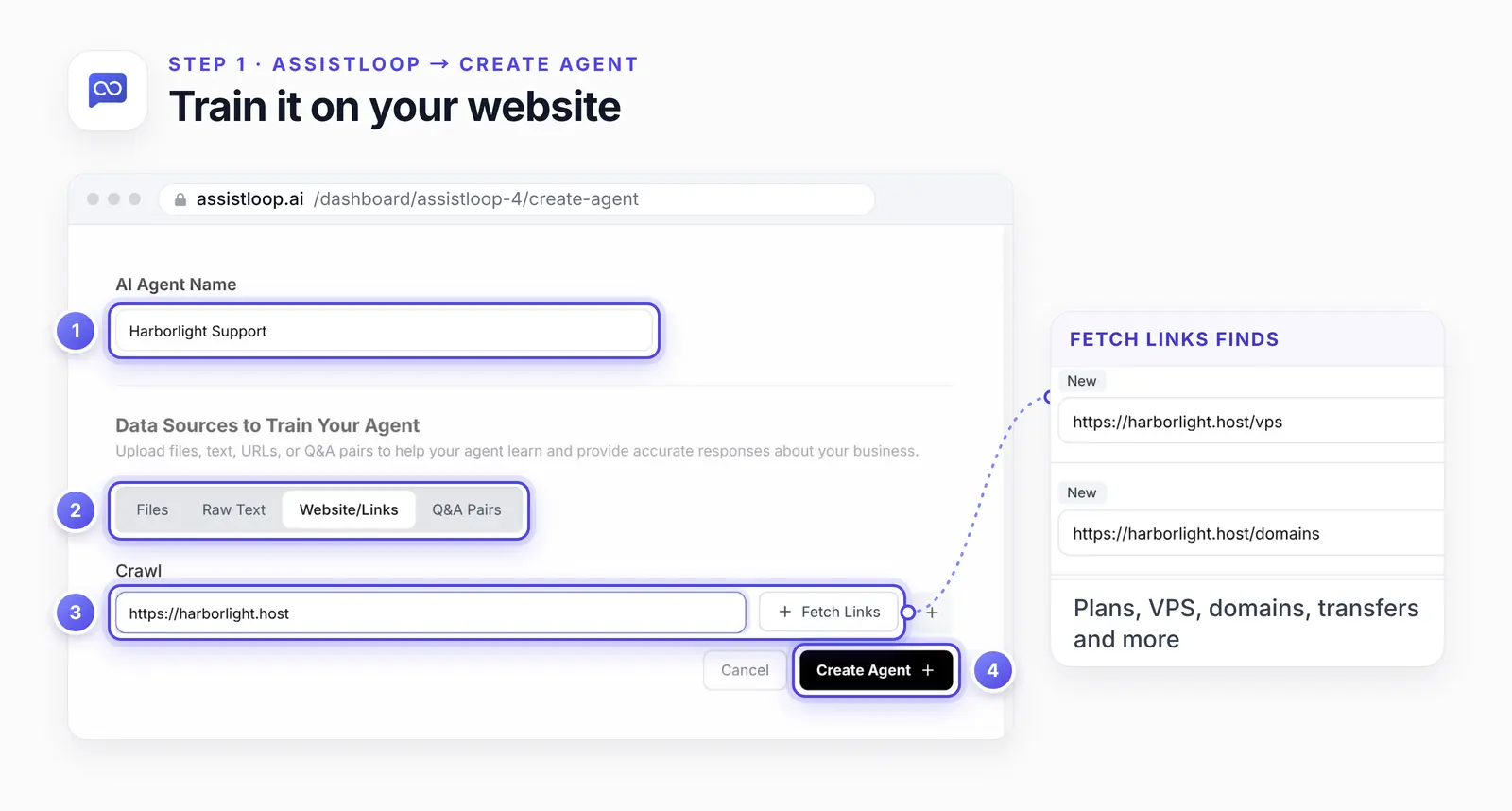
Delete any page you'd rather the agent ignored, an expired promo for example, before training starts.
The list fills with plan, VPS, domain, transfer, migration and support pages. Press Create Agent once more to train on them.
AssistLoop returns to your agents list. Training runs in the background: under Data Sources, each page reads Trained when it's done. Wait for that before the Step 7 test, or an early "I don't know" can look like a broken install.
Open the new agent, pick a model from the Model menu in its Playground and press Save Changes. We picked GPT-5.6 Terra. Any current model works; cheaper ones use fewer credits per message.
Point the crawl at your marketing site, not the client area. Plans, policies and how-tos live on the public site, while most of the client area sits behind a login. Public knowledgebase articles can go in too, as page addresses or as uploaded files.
Step 2: Copy your Agent ID
Open Settings in the agent's sidebar. The Agent ID is the first field under General, with a copy button beside it. One click, and AssistLoop shows Agent ID copied to clipboard.
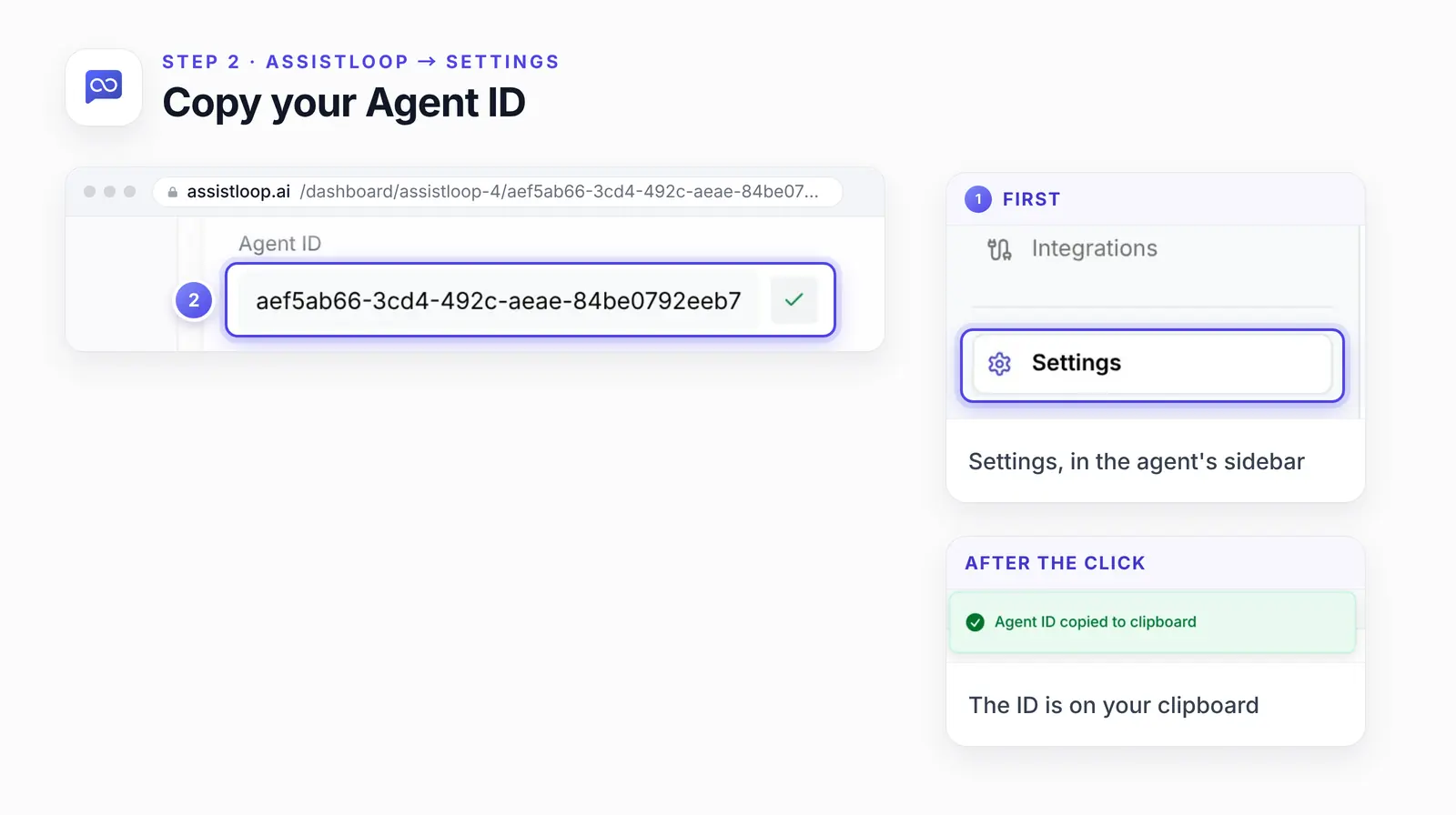
WHMCS needs this ID and nothing else; there's no script to copy for this install.
Every agent has its own ID. With several agents in one workspace, glance at the agent name at the top before you copy.
Step 3: Download the free addon
Search the WHMCS Marketplace for AssistLoop. The listing you want is AssistLoop - AI Chatbot, developed by AssistLoop and marked Free. Click Get It Now and the addon arrives as a zip file.
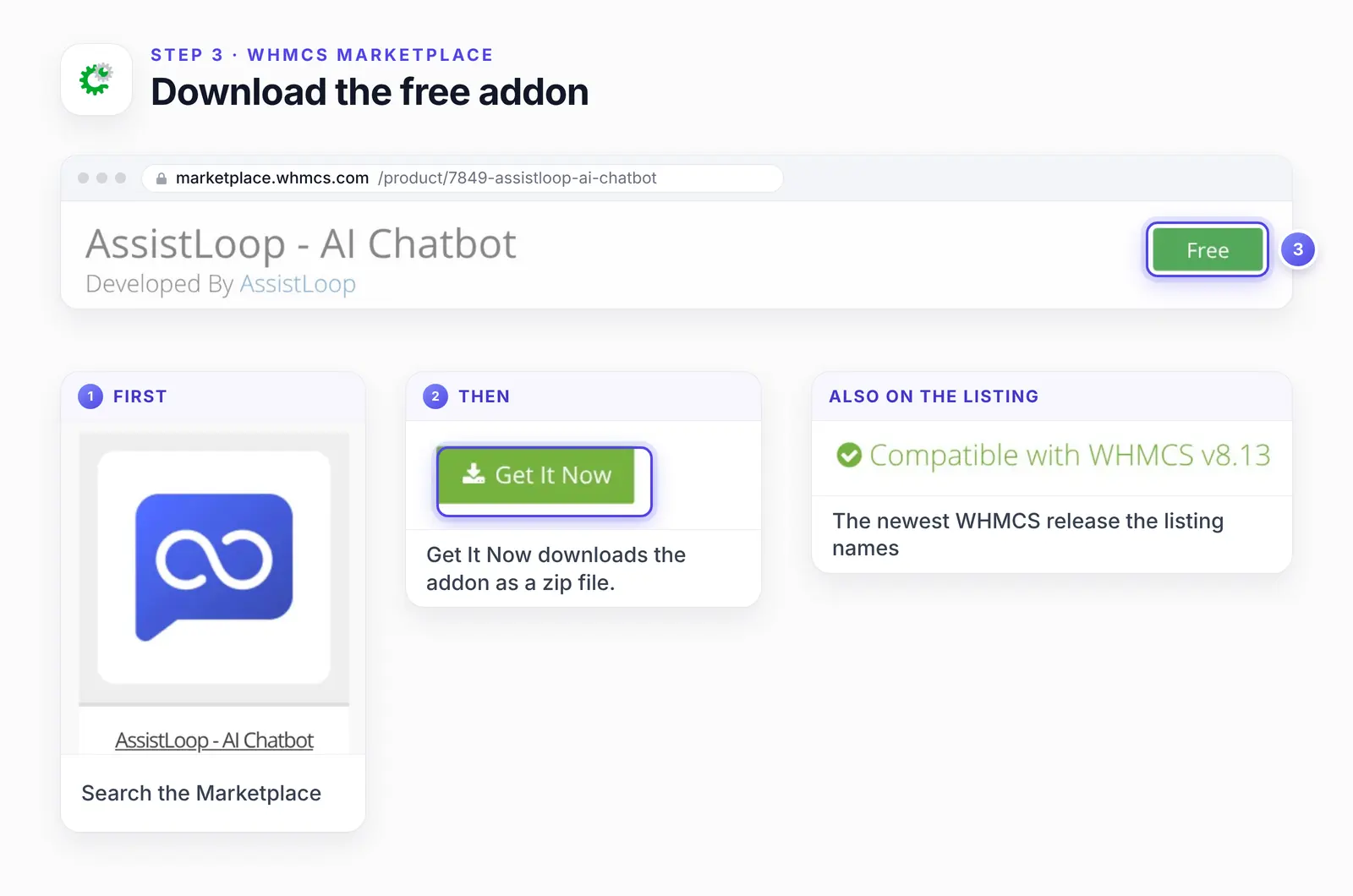
Pick the listing developed by AssistLoop. Other AI modules on the Marketplace are separate products.
Step 4: Upload it to modules/addons/assistloop
On your server, open the WHMCS folder and go into modules/addons. Make a folder called assistloop there and unzip the addon into it. WHMCS's user docs describe the same move: unzip the module, then upload its files into the installation's /modules/addons directory (WHMCS Documentation).
You name the folder yourself, because the zip doesn't bring one; its four files (three PHP files and a README) sit at the top level. WHMCS's developer docs give each addon a directory named after the module, and the main file takes the module's name "to match the folder" (WHMCS Developer Docs). Here the main file is assistloop.php, so the folder has to be assistloop:
modules/addons/assistloop/ |
Leave the files as they are. Your Agent ID goes in through the admin in Step 6.
Step 5: Activate the addon
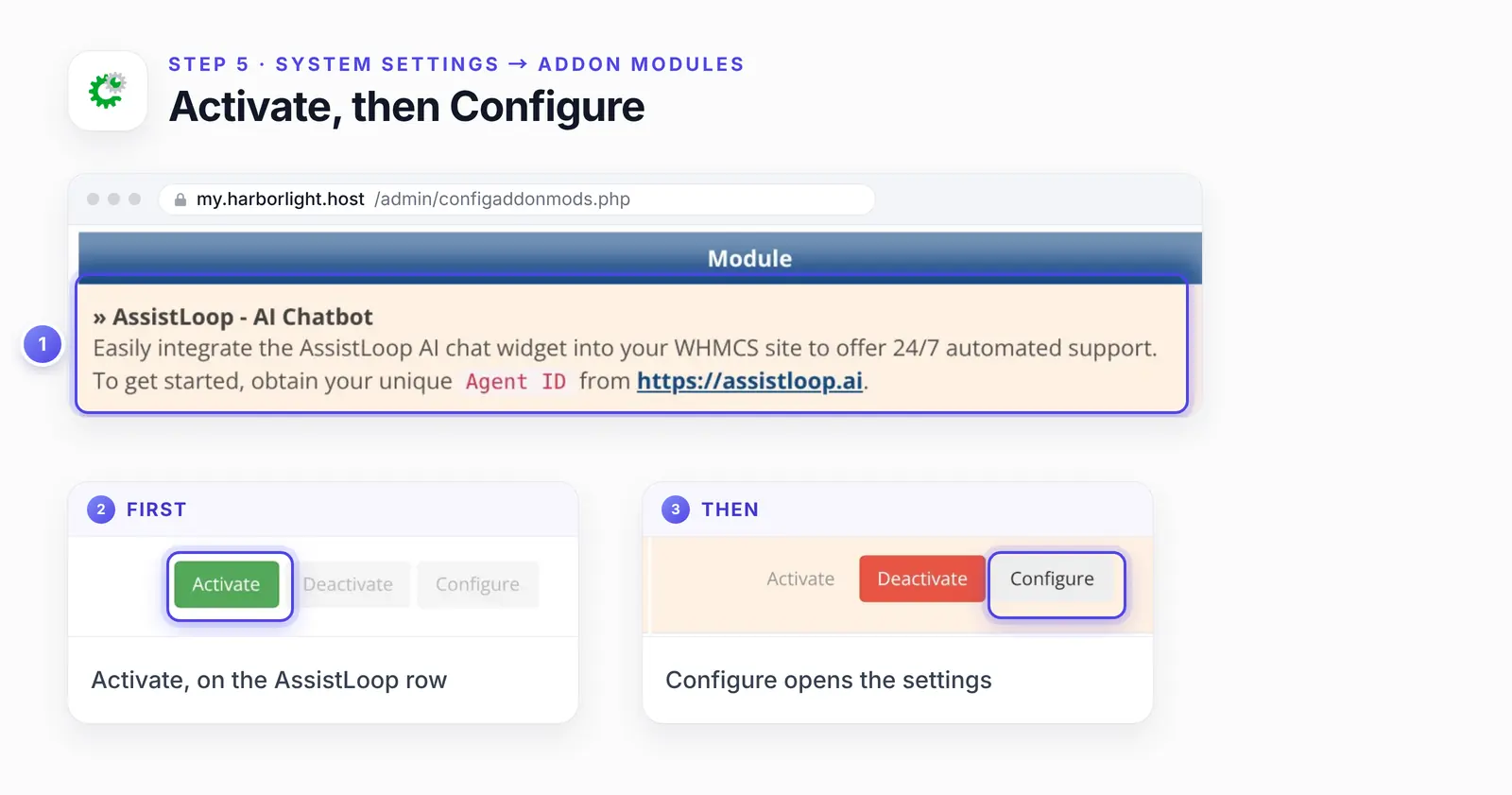
In the WHMCS admin, open the wrench icon's Configuration menu and choose System Settings. Then click the Addon Modules tile. WHMCS 9's documentation gives the same menu path.
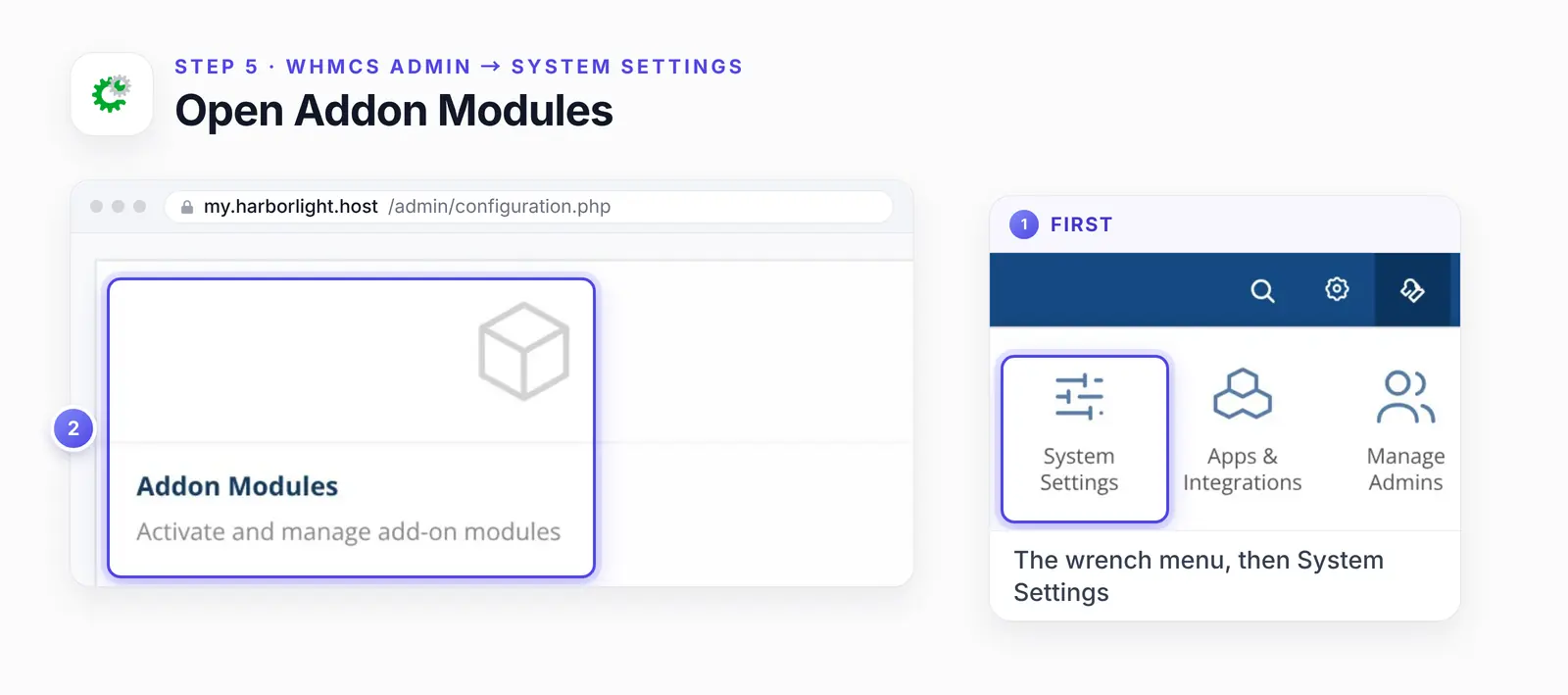
No AssistLoop row in the next list means the Step 4 folder is misnamed or in the wrong place.
Find AssistLoop in the list and click Activate. A green Addon Module Activated notice appears, and the row's Configure button turns active. Click it.
Step 6: Paste your Agent ID and save
Paste into the Agent ID field and click Save Changes. WHMCS replies with Changes Saved Successfully!
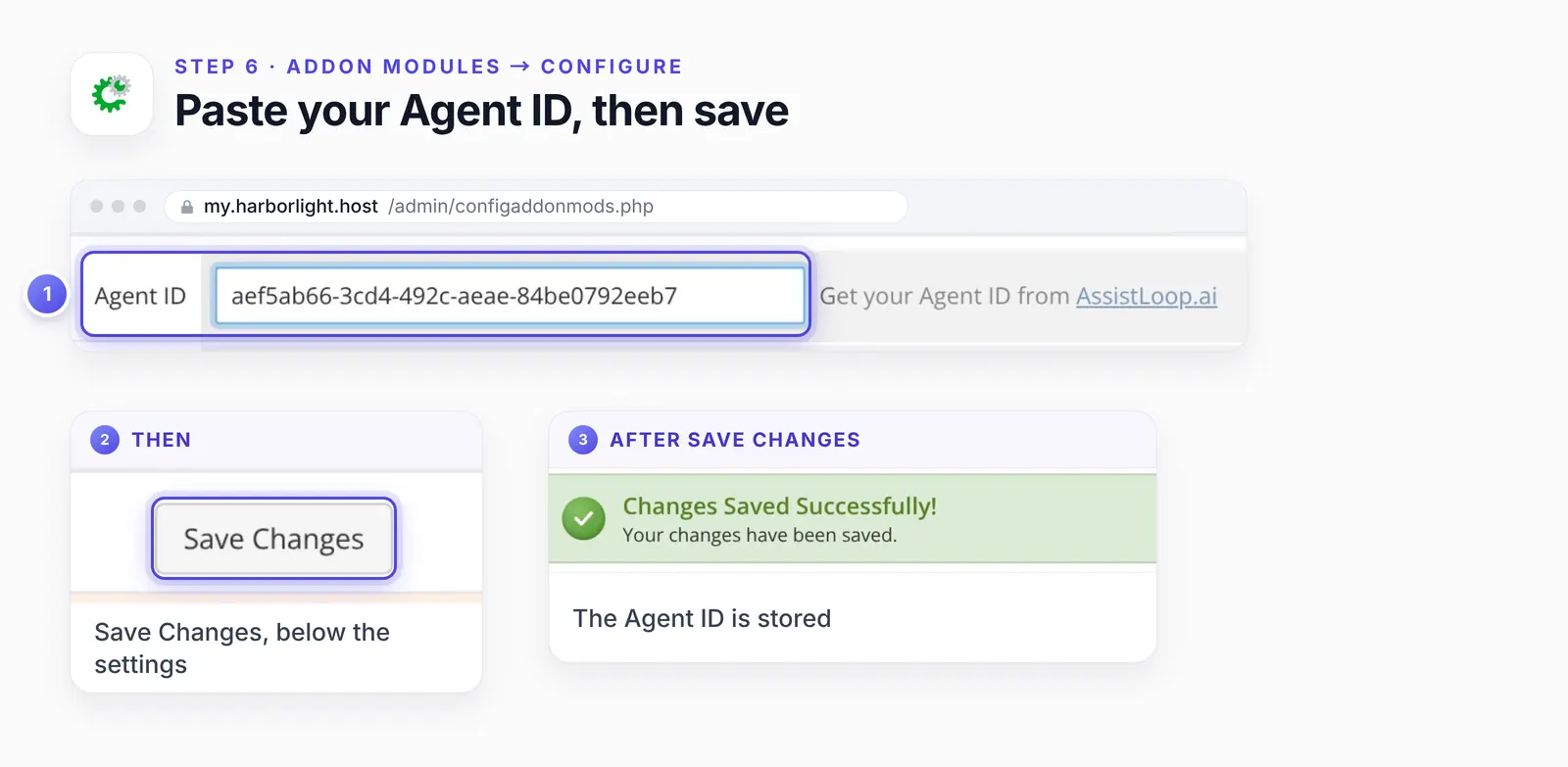
Further down, Access Control picks which admin roles may manage the addon. Clients never see that setting.
The install ends there. Nothing needs publishing and no cache needs clearing: WHMCS adds the chat to the very next client area page it serves.
Step 7: Check your client area
From the admin's account menu, click Visit Client Area. A round chat button now waits in the lower-right corner of each page. Click it, then Start a New Chat, and the agent says hello.
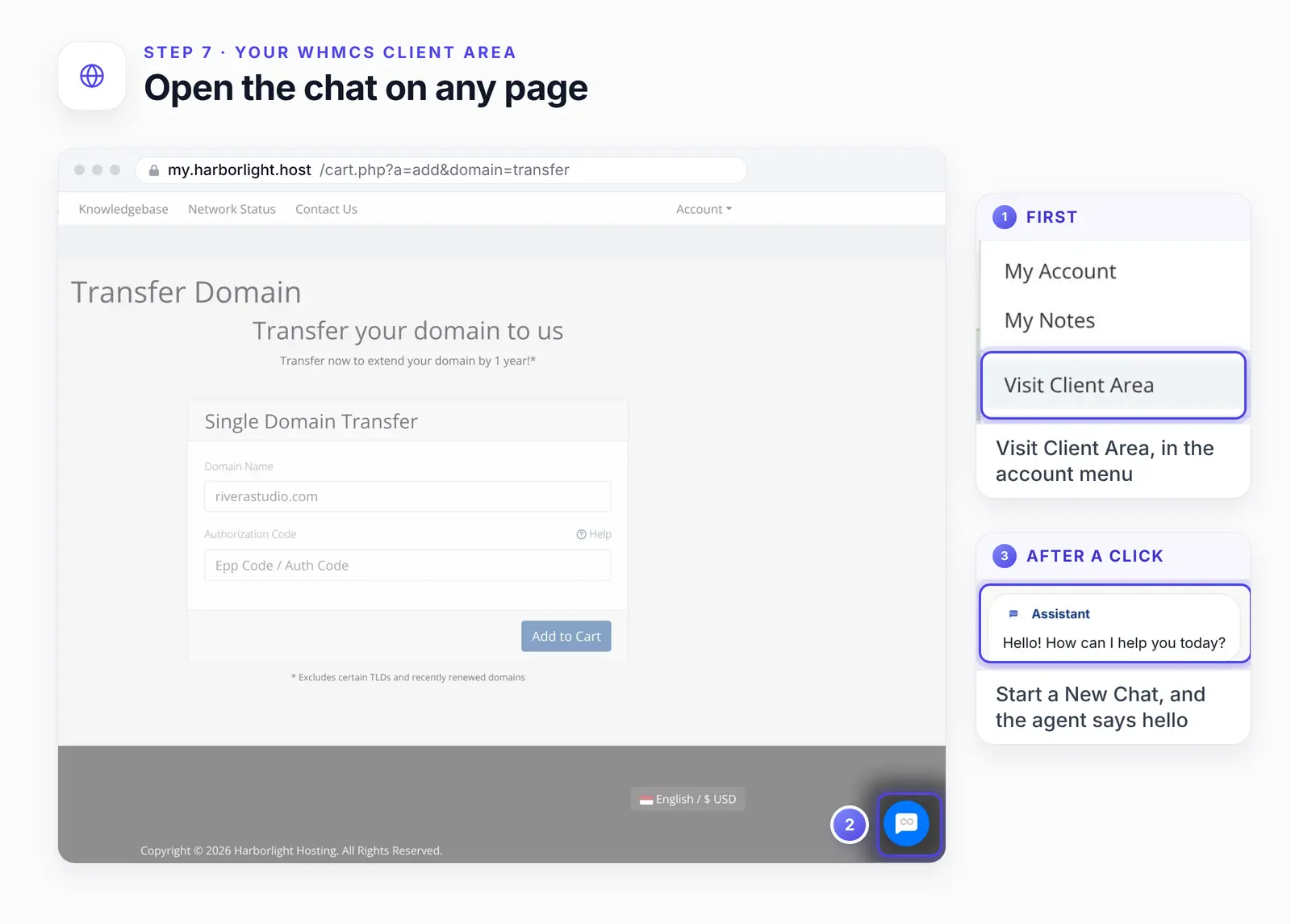
The chat's header reads Assistant, the default. To show your own name, change Agent Name on the Appearance tab of Widget Appearance; saving it needs a paid plan.
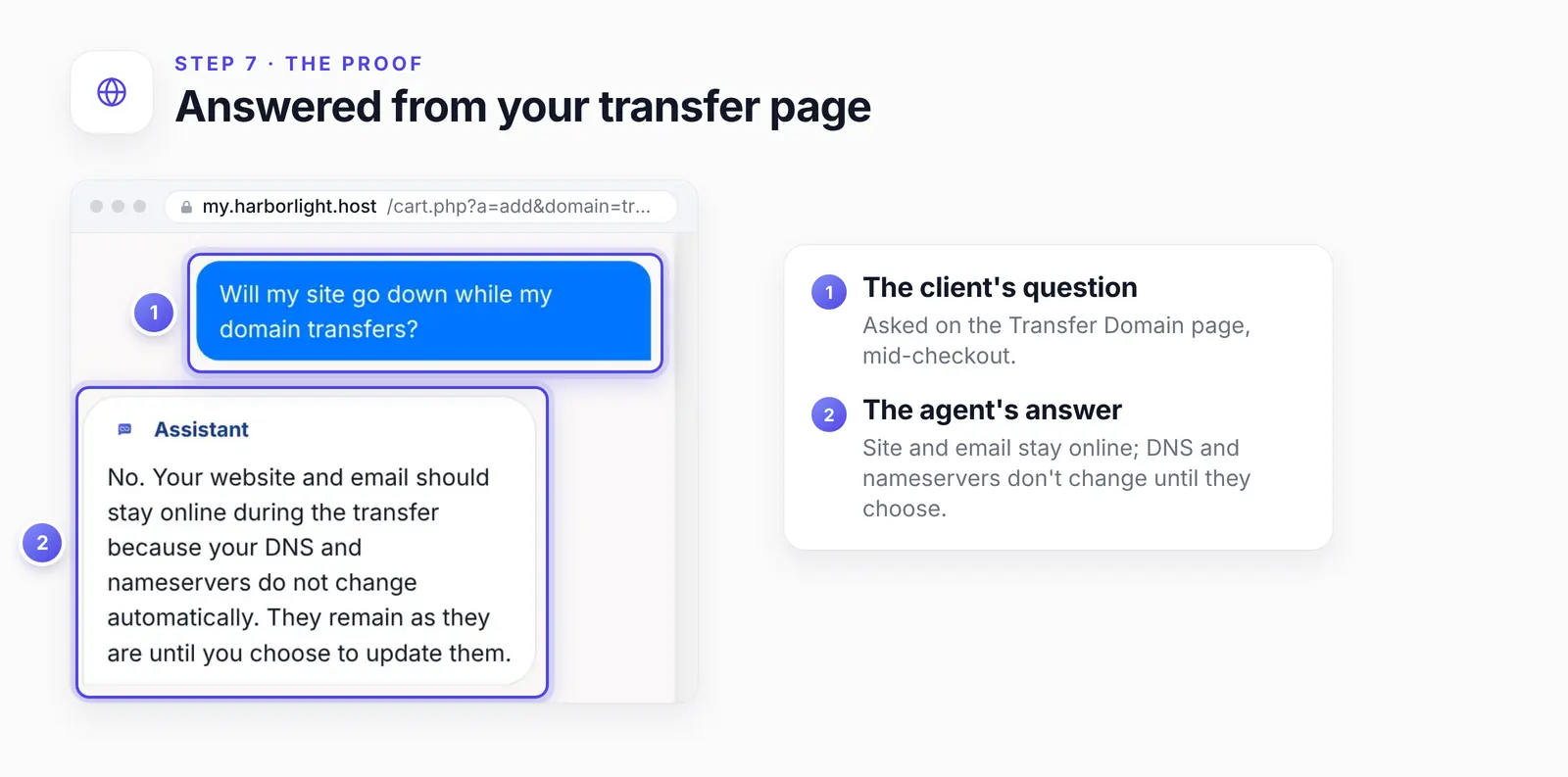
Then ask something your site covers. On the Transfer Domain page, with riverastudio.com in the form, we asked "Will my site go down while my domain transfers?" The agent replied:
No. Your website and email should stay online during the transfer because your DNS and nameservers do not change automatically. They remain as they are until you choose to update them.
It drew on the domain transfer page we trained it on. That page reads: "Your website and email stay online during the transfer, because your DNS and nameservers do not change until you choose to change them." The client got that without leaving checkout.
Next we clicked Knowledgebase in the menu, mid-conversation. The chat came along with the question and answer still in it, because the hook runs on that page too.
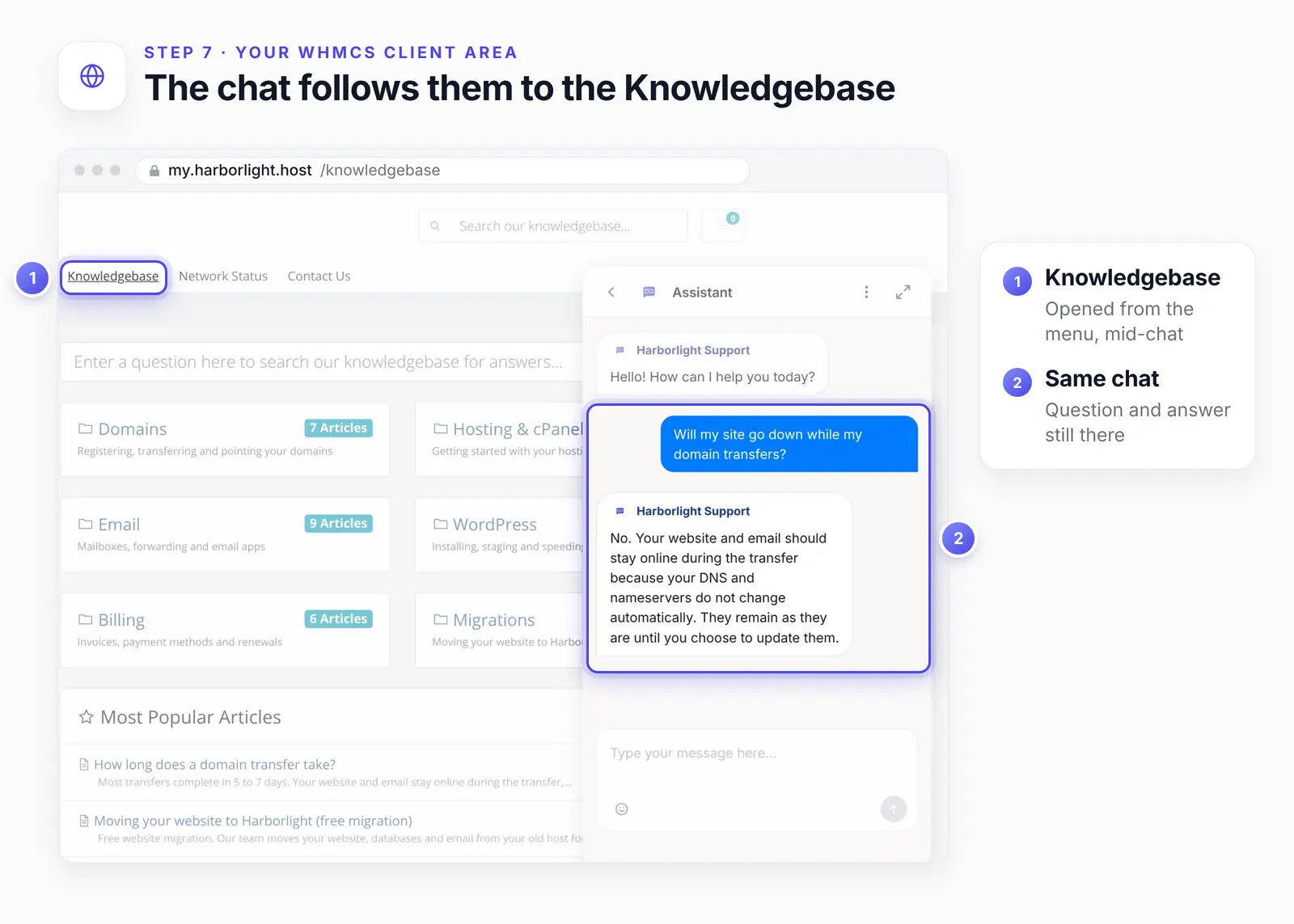
Here the messages carry the agent's name, Harborlight Support, while the header still shows the default Assistant.
Before you tell clients about it, run four checks:
Ask the five questions your tickets get most, once logged out and once logged in, to confirm the button shows on account pages too.
Open the cart and checkout at phone width, and make sure the chat button doesn't sit on the order button. If it does, set Button Position to Left on the Appearance tab of Widget Appearance and save, or hide the chat on checkout pages under Advanced → Display Restrictions → Pages with a Deny page rule, then Save restrictions. Both changes save on paid plans only.
Confirm your test chats show up under Conversations in AssistLoop.
View a page's source and search for assistloop-widget.js. If it isn't there, start with the checks under "If the agent doesn't show up".
Which chats your hosting team should keep
Keep outages and hacked sites, billing disputes and refunds, cancellations, abuse reports, anything that needs the client's account, and any client who asks for a person. Hacked sites are one of the biggest drains on hosting support. The 2026 Web Hosting Trends Report counts "security incidents including hacked sites and malware (35%)" among "the four largest consumers of support time across the industry" (cPanel, June 2026). Here's why each of these goes to a person:
| Chat | Why staff take it |
|---|---|
| Site down or hacked | Needs server access |
| Billing dispute or refund | A judgement call |
| Cancellation | Worth a conversation |
| Abuse report | Policy and legal |
| Invoices, services, tickets | Agent can't see them |
| Asks for a person | Their choice |
With this addon, the agent doesn't know which client is logged in. The addon hands the chat your Agent ID and nothing more (we read its hooks.php). So the agent can't open invoices, services or tickets, and it answers only from what you trained it on.
Your staff need the client's account email or domain to look them up. The agent can ask for it in the chat, or the pre-chat form can ask for a name and email at the start of each chat.
To have the agent pass these chats on, first switch on human handoff for the agent, and ticketing too if you want tickets after hours. Then add lines like these to its instructions, putting your own days, hours and time zone in the brackets. They're a starting point to adapt to your own policies, not wording we've measured:
If a client reports a site that is down or hacked, an abuse problem, a billing dispute, a refund or a cancellation, apologise briefly and hand the chat to the team. |
Our guide to agent instructions shows where these lines go and how to test them.
Pre-sales questions about plans, transfers and migrations get answered from your pages at any hour. Account questions become a live chat with your team. After hours, the agent can file a ticket for the morning; those are AssistLoop tickets, kept in AssistLoop's dashboard rather than in WHMCS.
Want transfer questions answered before checkout stalls? |
If the agent doesn't show up
Most often the folder is misnamed or the Agent ID is empty; view any client area page's source and search for assistloop-widget.js to see which. This is the block the addon prints when the hook runs, with your ID where the placeholder is:
<script> |
If the block isn't in the source, the hook isn't running: the folder, the activation or the saved ID is the problem. If the block is in the source but no chat appears, check the theme and ad-blocker rows below.
No AssistLoop row in Addon Modules. WHMCS finds the addon only at /modules/addons/assistloop with assistloop.php directly inside. A second level, such as assistloop/assistloop, hides it.
An empty Agent ID. Until an ID is saved, the hook prints nothing. Paste it under Configure and save.
You're looking at the admin area. The chat only runs on client area pages; reach one through Visit Client Area.
A pasted copy in footer.tpl. An older manual install can make the chat load twice. Delete the pasted script.
Answers from the wrong knowledge. The saved ID belongs to another agent. Copy the ID of the agent you trained on this site and replace it under Configure.
The upload fails. Addon files need a self-hosted WHMCS you can reach over SFTP, SSH or a file manager. If you can't reach the WHMCS folder yourself, ask whoever hosts your WHMCS to upload it.
Missing only on a custom theme. A heavily customised theme may have dropped {$footeroutput} from its footer.tpl. Put it back before the closing body tag. Failing that, paste the block above with your Agent ID just before the closing body tag of your child theme's footer.tpl, wrapped in {literal} and {/literal} so Smarty leaves its braces alone. Keep one copy only, or the chat loads twice.
An ad blocker or privacy extension. Test in a private window with extensions switched off.
How we tested this
The agent and its answer. We set up Harborlight Support in our own AssistLoop workspace on 10 October 2026. Because harborlight.host isn't a live site, our test setup answered Fetch Links with its page list and gave AssistLoop those pages' text to train on. The list and the training screens are AssistLoop's own; on your site, Fetch Links crawls your published pages. The Step 7 reply appears exactly as the agent wrote it.
The addon. We ran the official zip's own PHP (its settings fields, Activate and the hook that printed the chat) in a small stand-in for WHMCS, since a licensed install wasn't available. On 19 October 2026 we read its code for the two code blocks and for the fact that it passes only the Agent ID.
The WHMCS screens are a recreation. WHMCS requires a paid licence. So the admin screens in Steps 5 and 6, and the account menu in Step 7, copy WHMCS 8.13's Blend theme from WHMCS's documentation and screenshots. The client area pages (Portal Home, the Transfer Domain cart page and the Knowledgebase) are recreated from WHMCS's Twenty-One templates and stylesheets; the chat in them is the live AssistLoop widget.
The content. Harborlight Hosting doesn't exist. Its plan, domain, transfer and migration pages are what the agent learned from. The designer and riverastudio.com are an illustrative scenario typed into the test form.
The Knowledgebase. The open chat there is a frame from the same recording, a few seconds after the answer. In it the agent's messages are labelled Harborlight Support, while the header still reads Assistant.
The screenshots. Every figure is cut from that 10 October recording. The numbers, rings and enlarged panels are ours; the screens under them are left as captured.
The docs. WHMCS's developer docs, its 9.0 documentation and the Marketplace listing were re-read on 19 October 2026.
What to do next
Add your plan limits, migration policy and most-read knowledgebase articles under Data Sources, and retrain whenever a plan changes.
When a chat shows the agent quoting an outdated limit, correct it with a Q&A pair so the next client hears the right figure. To make the chat button match your client area's colours, use widget customization.
Frequently asked questions
Does the AssistLoop addon work on WHMCS 9?
Not confirmed yet. The Marketplace listing names WHMCS 8 releases up to 8.13 and doesn't list 9, and we ran the 8.13 path. WHMCS 9's docs keep the same Addon Modules path, so try the addon on a copy of your install first. If it won't run there, the pasted block under "If the agent doesn't show up" puts the chat in your client area without the hook.
Can the agent see a client's invoices, services or tickets?
Not through this addon. It passes only your Agent ID to the chat, so the agent knows what you trained it on and nothing about the logged-in client. Send account questions to your team, with the client's email.
Do I need an OpenAI key or a separate AI subscription?
No. AssistLoop runs the model for you, and you pick which one from the agent's Model menu.
Does the chat show in the cart and checkout?
Yes. Both are client area pages, and we filmed the chat on the Transfer Domain cart page. Check the checkout steps at phone width before launch. If the chat button hides the order button, set Button Position to Left on the Appearance tab of Widget Appearance, then save; that setting is kept on paid plans only.
Can it learn from my WHMCS knowledgebase?
Yes, as content you add. Give AssistLoop the public addresses of your articles as links, or upload their text as a file. Add the articles you care about directly rather than counting on the site crawl to find them.
How do I remove the addon?
Back up first, because WHMCS warns that deactivating an addon can delete its data. Then deactivate it in Addon Modules and delete the assistloop folder from /modules/addons (WHMCS Documentation). The AssistLoop addon creates no tables of its own. Still, if you switch it back on, check that the Agent ID is filled in under Configure.
Your designer at 11 pm gets the answer on the Transfer Domain page and clicks Add to Cart. Set up your hosting agent for free, and if your marketing site runs on WordPress, our WordPress guide puts the same agent there.
 | Written by AssistLoop Team We build AssistLoop, an AI support agent that answers customers from your own website and documents, and hands the chat to your team when a person should step in. ★★★★★ "It's been excellent value for money, and I'm not exaggerating." Zara, Customer Service Manager, on G2 |
Build Custom AI Chatbot for Your Business FREE
Create intelligent AI agents that handle customer support, boost conversions, and work 24/7 for your business.
Build Your Agent