How to Add a Pre-Chat Form to Your AI Support Agent
Your AI support agent answers visitors all day, but in your inbox each one is "User 1259491". When a parcel goes missing, you have no name and no email to reply to. A pre-chat form asks a couple of quick questions inside the chat, then the agent answers as usual. This guide sets one up in AssistLoop in about five minutes.
 AssistLoop Team9 min read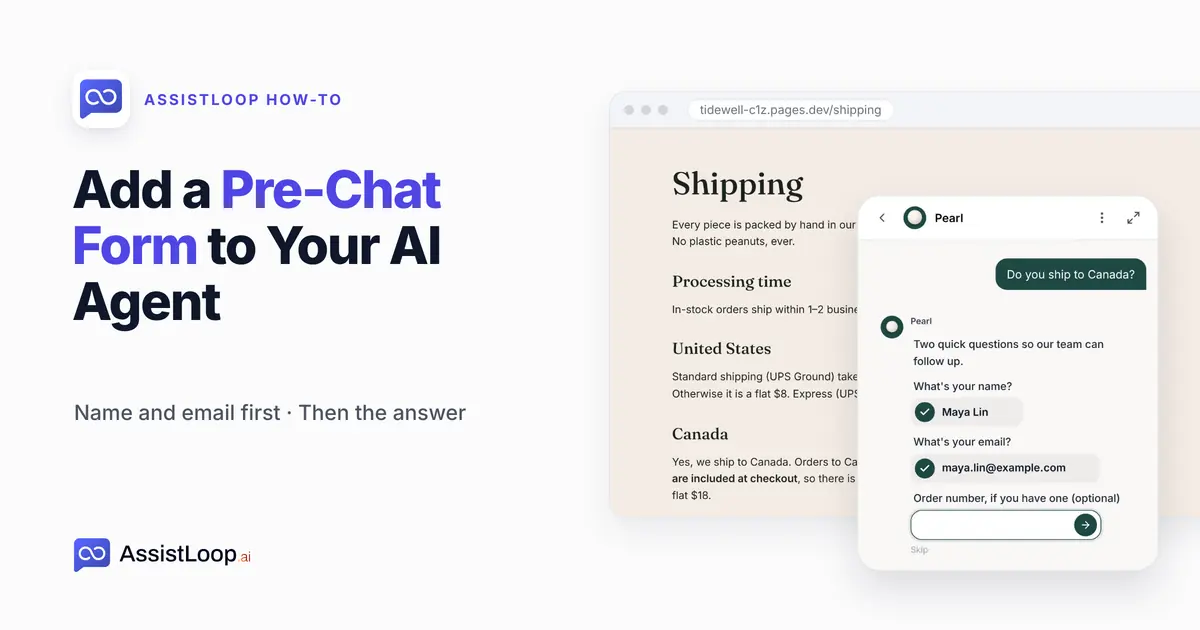
On this page
Last updated: October 2026. We built the form for a demo agent on 17 October 2026 and filmed it. Each step picture is a still from that film.
Quick answer
|
In the inbox below, one numbered chat is a customer whose mug never arrived. Someone has to step in. Under her number there's only + Add email address.
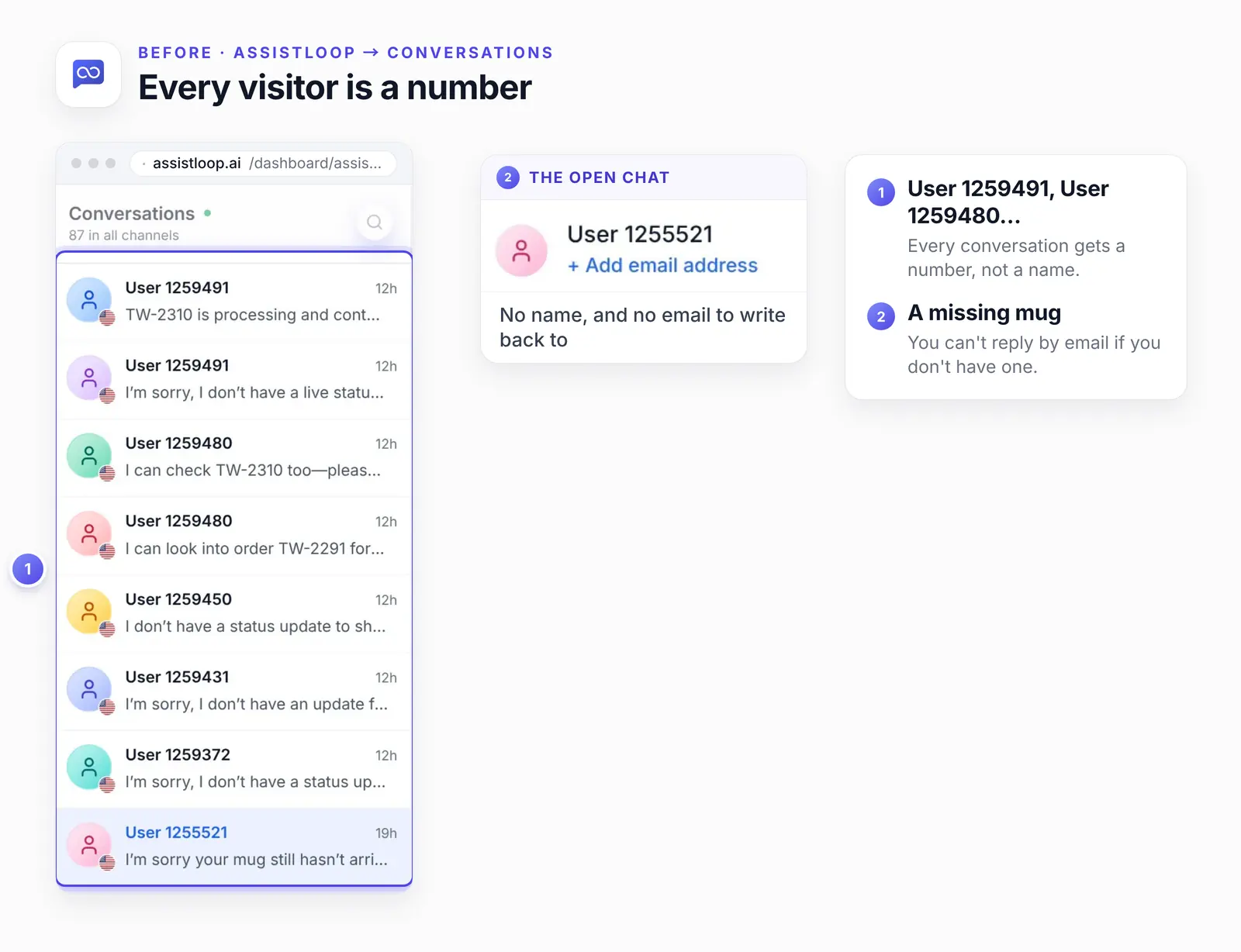
A number for every visitor, and a + Add email address link where an email should be.
Our example shop is Tidewell Ceramics, a stoneware studio we invented. Its agent is Pearl. The two-minute video goes from that anonymous inbox to a named chat.
Pre-chat form or lead form?
Use a pre-chat form when any chat might need an email reply. Use the lead form (the Collect Lead action under Agent Actions) when only a few chats deserve a follow-up. Some live chat tools call the first a pre-chat survey.
| Compare | Pre-chat form | Lead form |
|---|---|---|
| When | After first message | Later in chat |
| Who | Every visitor | Some visitors |
| Best for | Named inbox | Sales leads |
A shop that gets order questions is the pre-chat case. Almost any chat there can become a parcel to chase, so collect visitor details before a conversation goes further. A quote request is the lead form case. Only the few who ask for a price are worth a call.
What to ask in a pre-chat form
Ask for a name and an email, and make anything else optional. Leave phone number and company out unless someone acts on them. An order number works well as an optional question, because not everyone has placed one yet.
The UK data regulator puts it plainly: "So you should identify the minimum amount of personal data you need to fulfil your purpose. You should hold that much information, but no more." (ICO guidance on data minimisation, read October 2026.)
Each required question can lose someone who only wanted one quick answer. The form covers the whole agent, not one page. If most chats start on pricing or checkout pages, where a dropped chat costs more, let the lead form ask after the agent has helped.
If your customers sign in to your site, AssistLoop's Identity Handoff can pass their name and email from their account. We haven't tested it with the pre-chat form, so check both before you rely on them.
Step 1: Switch it on, then write two lines
In AssistLoop, open your agent's Settings and scroll to Pre-Chat Form. Switch on Enable Pre-Chat Form.
Give the form a title (ours is "Before we begin"), then fill in the two messages. The intro shows before the first question, and the completion message after the last. In our test the chat showed the intro and the questions, not the title. So the title is mainly a required label for the form.
Use the intro to say why you're asking. Ours says "so our team can follow up". People have reason to be wary. In a 2023 survey of 5,101 US adults, "Some 67% say they understand little to nothing about what companies are doing with their personal data, up from 59%." (Pew Research Center, 18 October 2023.)
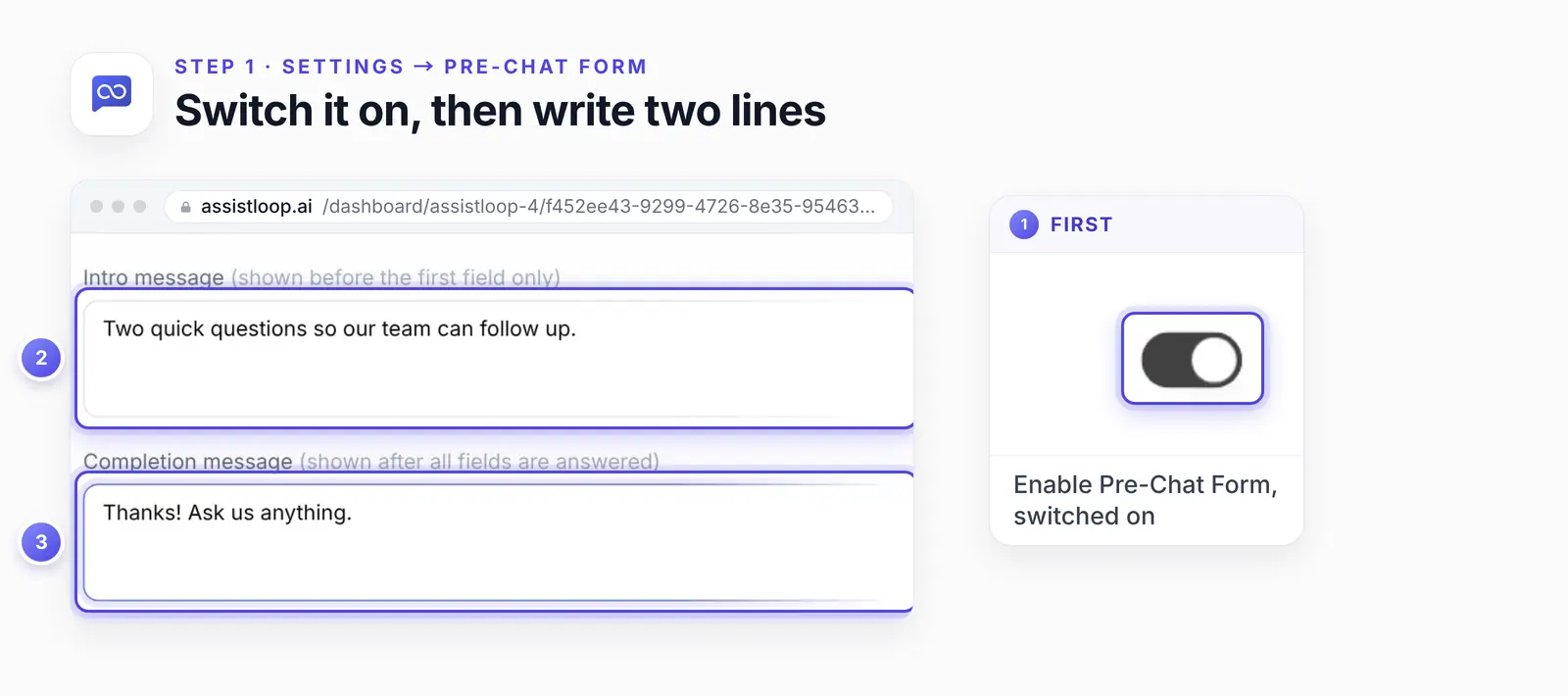
The form won't save until the title, the intro and the completion message all have text.
Step 2: Ask for a name, an email, and one optional question
The form starts with two questions already in place: "What's your name?" and "Where can we reach you?". Keep the first, and reword the second if you like (we used "What's your email?"). On the name question, Save as the visitor's name puts a name in your inbox instead of a number. The email question needs type Email and Save as the visitor's email.
Click Add question for anything else. A new question starts with Required off, which gives it a Skip link in the chat. That switch sits at the right end of the question's type row.
Click Save at the bottom when you're done. Here is our whole form:
Title: Before we begin |
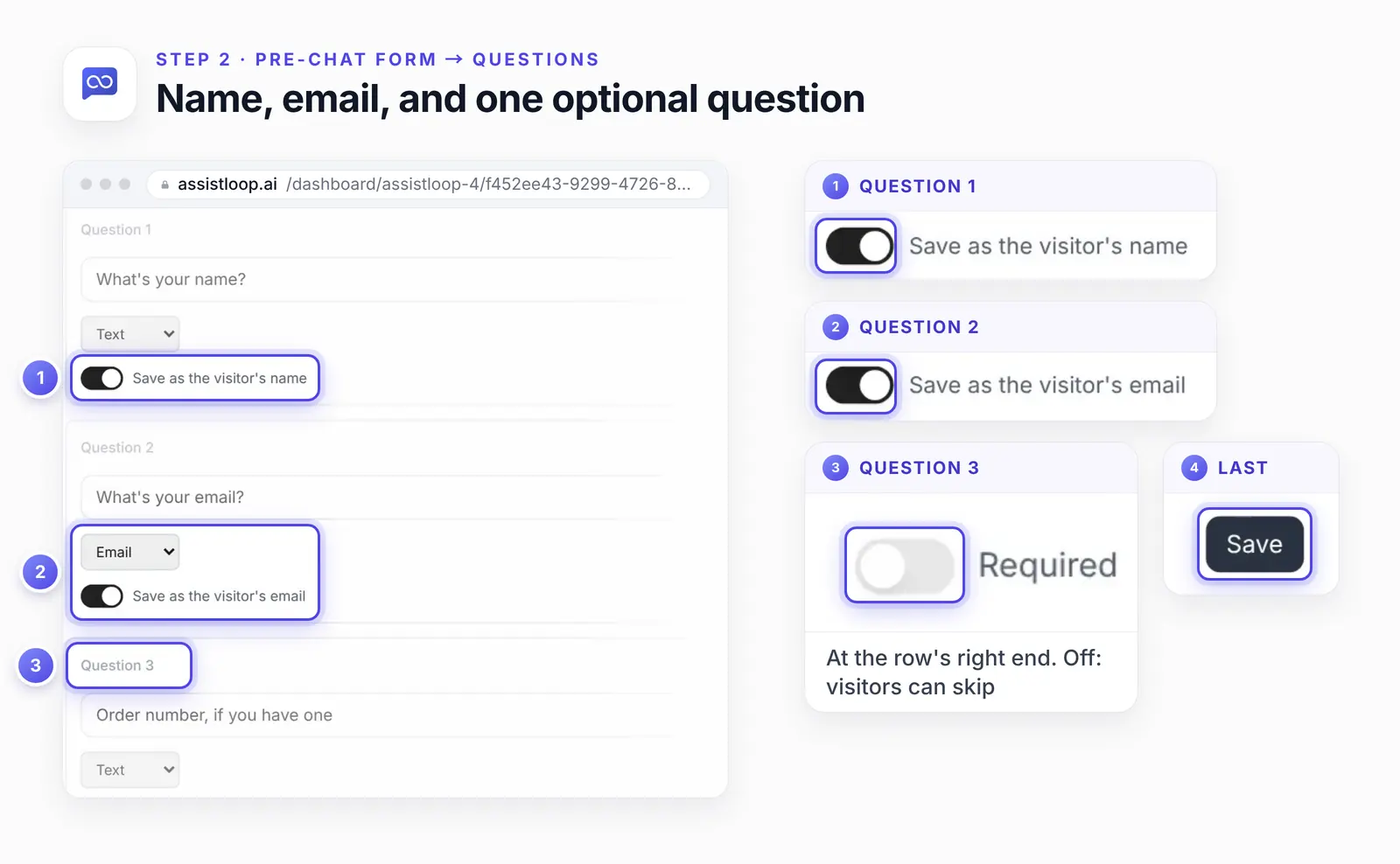
Visitors get the questions one at a time, in this order. The form takes up to ten, and each extra one asks for a bit more patience.
Step 3: See the form in the chat
Open your site in a private window and start a chat. On the Shipping page we asked "Do you ship to Canada?"
The agent holds its answer, shows your intro, then asks each question in turn. We typed the name Maya Lin and a test email address, then clicked Skip on the order number.
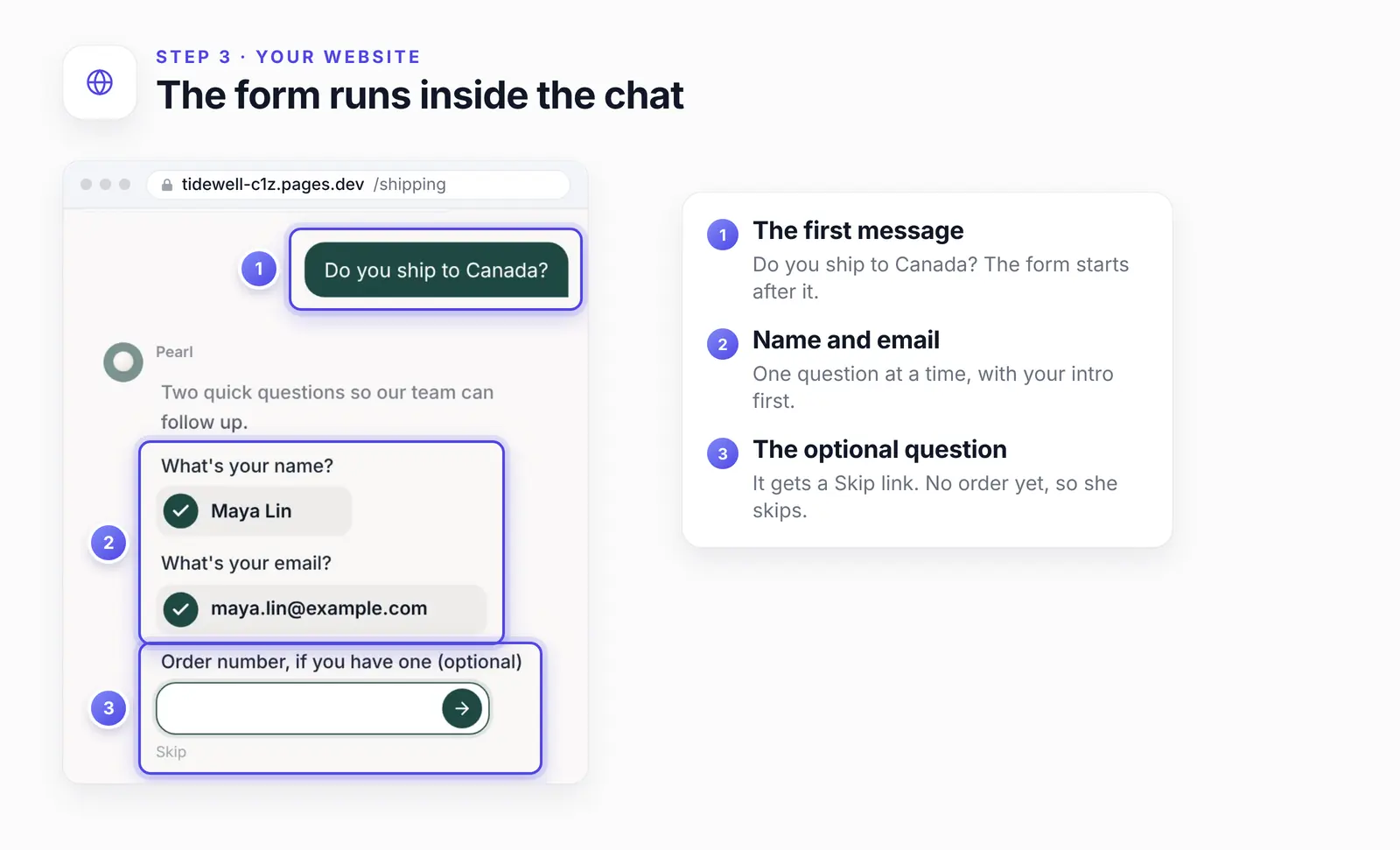
Then came the completion message, "Thanks! Ask us anything.", and the answer:
Hi Maya, yes—we ship to Canada. Delivery typically takes 5–7 business days, with duties and taxes included at checkout; shipping is a flat $18.
Pearl used the name from the form in its first two words. The rest is the Canada section of the Shipping page, put into a sentence.
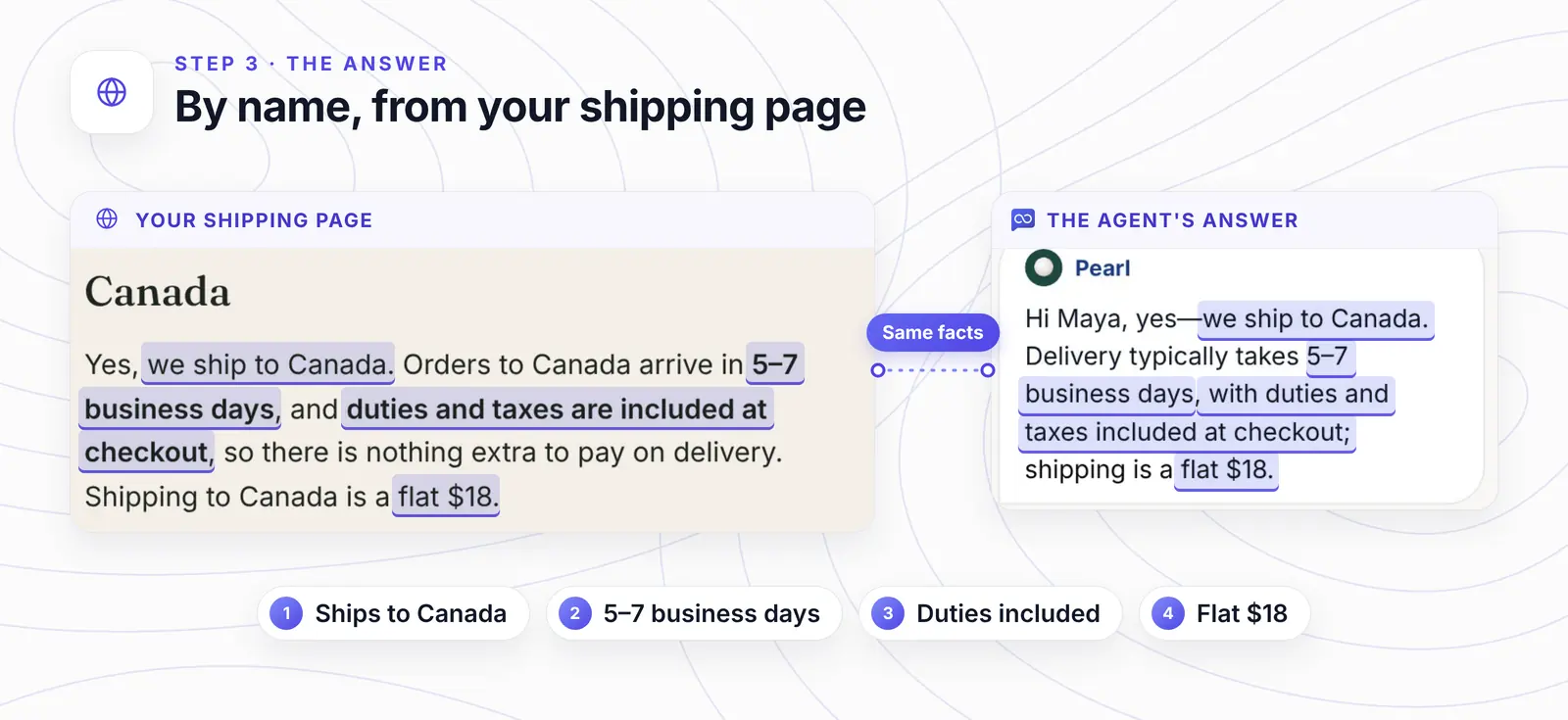
Every fact in the answer comes from the Shipping page. The only thing the form added was her name.
Want a name on every chat? |
Step 4: Find the name and email in your inbox
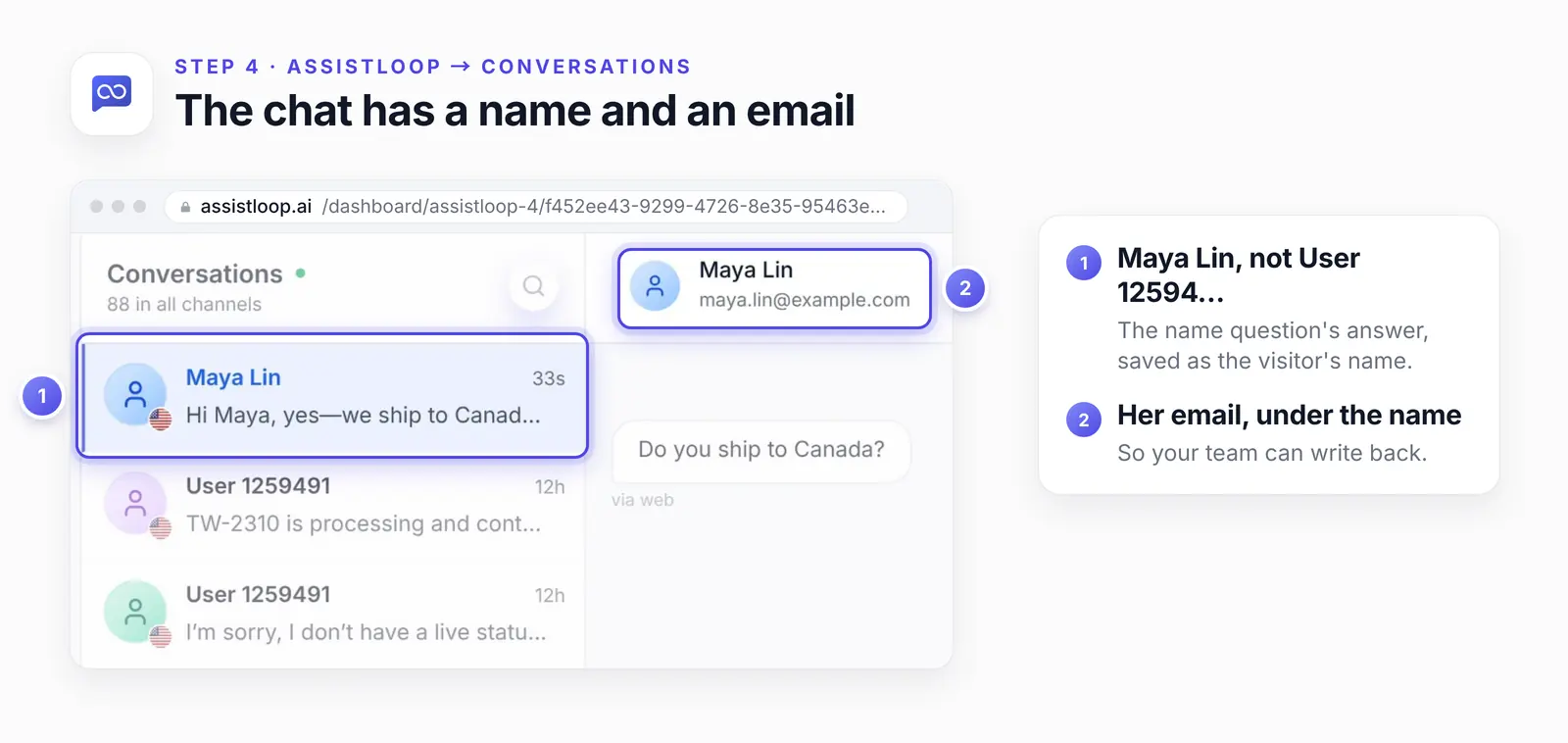
Open Conversations, and the chat that went through the form is listed under the visitor's name, Maya Lin, instead of a User number. Open it, and her email is under her name in the header. The older rows under Maya's keep their numbers, because only chats started after you switch the form on arrive with a name.
Step 5: See every answer in Pre-Chat Responses
Click Pre-Chat Responses in the agent's sidebar. Each completed form is one row, dated, with a column per question, so you can scan answers without opening chats.
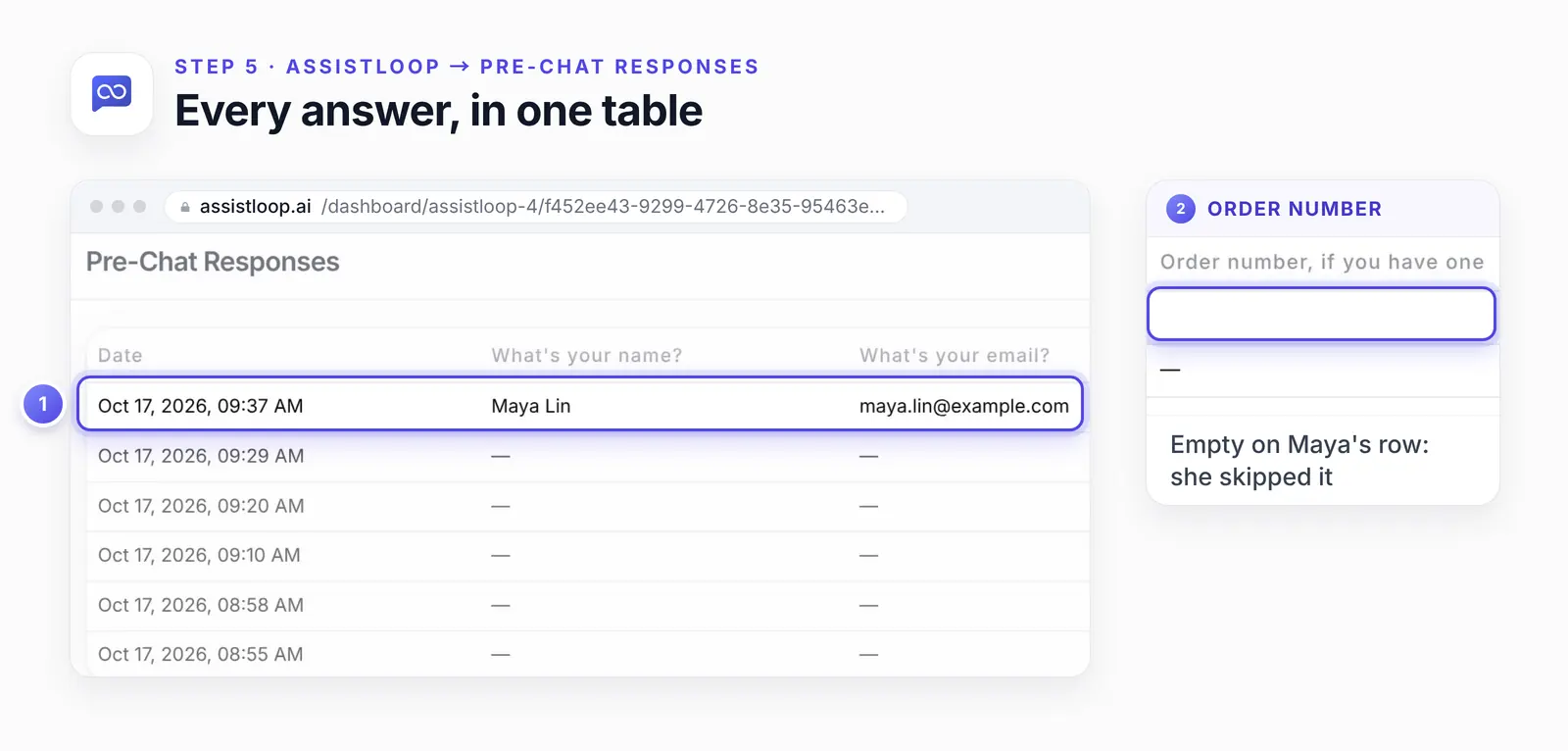
Maya skipped the order number, so that cell stays empty.
If the pre-chat form doesn't work as expected
No form when the chat opens. That's expected; see the first FAQ below.
Save didn't stick. The title, intro and completion message each need text before the form saves.
The inbox still shows a number. Switch on Save as the visitor's name for the name question.
The test chat skips the form. The widget remembers that this browser already answered it. Test in a private window.
Shoppers don't read English. Type the title, messages and questions in their language; here's how to answer customers in their own language.
The agent answers the question wrong. Here's how to fix a wrong answer from your AI support agent with one Q&A pair.
How we tested this
The form: set up on camera in our AssistLoop account with the three questions above, and left on for the demo agent afterwards.
The chat: one shopper on the demo shop's Shipping page, with test values for the name and email. Pearl's answer is quoted word for word, and we opened the same chat in Conversations and Pre-Chat Responses straight after.
The Playground: we saw the same form there while filming our fix-a-wrong-answer video in October 2026.
The pictures: stills from the 17 October 2026 film, plus the Shipping page as captured on 18 October 2026. Each one is cropped to what its step needs. We drew the numbered rings over the screens and set the enlarged details beside them, and we changed nothing inside the product.
Frequently asked questions
When does the pre-chat form appear?
Right after the visitor's first message, not when the chat window opens. The agent holds its reply until the form is done, then answers that message.
Does the AI agent use the visitor's name?
Yes. Pearl's reply to Maya began "Hi Maya", so the name she typed was already in the chat it answered. The Save as the visitor's name switch is a separate thing: it labels the conversation in your inbox.
What happens to answers if I delete a question?
They go with it: the form warns that "Removing a question deletes its previously collected answers". In our account the old rows stayed in Pre-Chat Responses, with a dash in each column.
Does the form run in the Playground too?
Yes. Answer it once there, then keep asking in that chat.
The next customer chasing a lost parcel arrives the way Maya Lin did, with a name and an email your team can write to. Start an AssistLoop agent and switch the form on. When a chat needs a person, hand it off to your team. If only sales chats need details, collect leads during the chat instead.
 | Written by AssistLoop Team We build AssistLoop, an AI support agent that answers customers from your own website and documents, and hands the chat to your team when a person should step in. ★★★★★ "It's also flexible and you can customize it to suit your brand." Verified User, small business, on G2 |
Build Custom AI Chatbot for Your Business FREE
Create intelligent AI agents that handle customer support, boost conversions, and work 24/7 for your business.
Build Your Agent