How to Add AI Customer Support to Wix (No Plugin Needed)
A lot of what visitors ask a small Wix business is already on the site somewhere: Sunday delivery, pickup hours, how far you'll drive. Most won't hunt for it, so they send the contact form and wait. To add an AI support agent to Wix that answers from your own pages, you train it on your site's address and paste one snippet into Wix's Custom Code settings. It takes about ten minutes and no developer.
 AssistLoop Team16 min read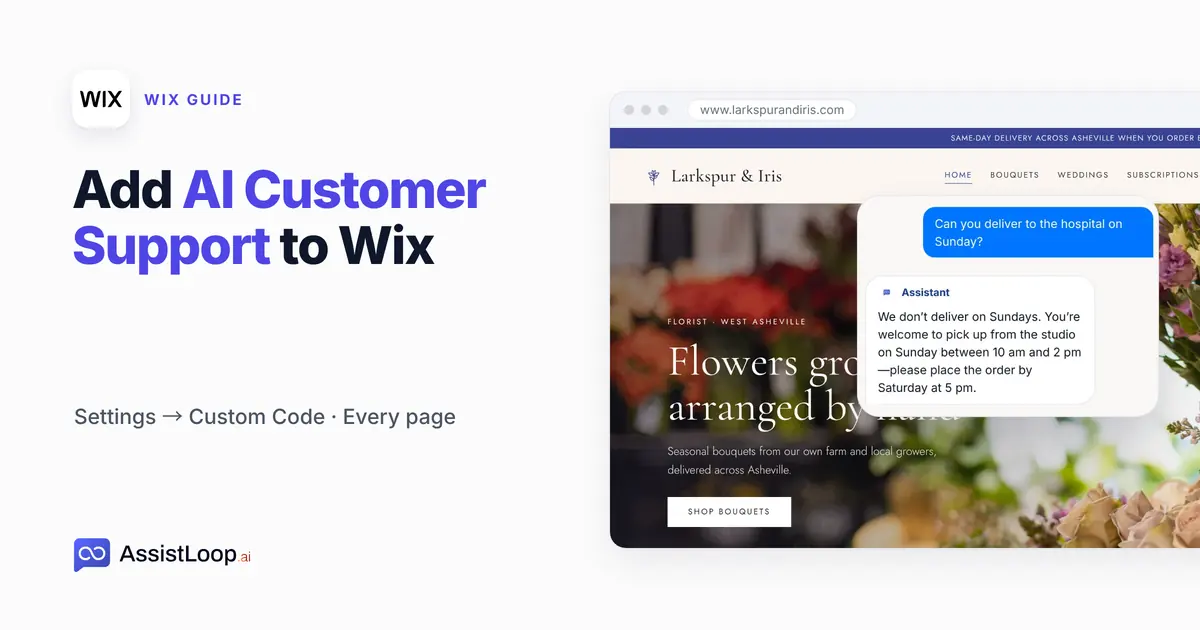
On this page
Last updated: October 2026. We created and trained the agent on 10 October 2026, captured the studio's Delivery page again on 18 October, and re-read each Wix help article cited here between 19 and 21 October 2026.
Quick answer
|
Someone wants flowers at the hospital for a friend who just had surgery. It's Saturday night.
They land on your Delivery page and have one question: can you deliver tomorrow? The answer is on the page, three paragraphs down. They don't scroll. They fill in your contact form, and you see it on Monday.
Plenty of small studios are in that spot. As of October 2026, W3Techs finds Wix behind 4.2% of all websites, roughly one site in every 24.
Our example is Larkspur & Iris, a flower studio in Asheville that we made up, and its agent, Larkspur Support. The Wix dashboard you'll see in Steps 3 to 5 is our recreation, and the studio's site at www.larkspurandiris.com only ever ran in our test browser, so the address won't open for you.
The two-minute walkthrough follows that same studio from an empty agent to a Sunday delivery answer.
What you need
An AssistLoop account. AssistLoop hosts the AI model, so there's no API key to paste anywhere. Step 1 builds the agent and trains it on your website; what each plan includes is on the pricing page.
A Wix site on a paid plan, published, with a domain connected. Wix only runs custom code on a published site that has a connected domain (Wix Help Center), and a domain can't be connected until the site is upgraded (Wix Help Center). Still on a free wixsite.com address? See the FAQ at the end.
The code leaves AssistLoop once, and Wix serves it from then on:
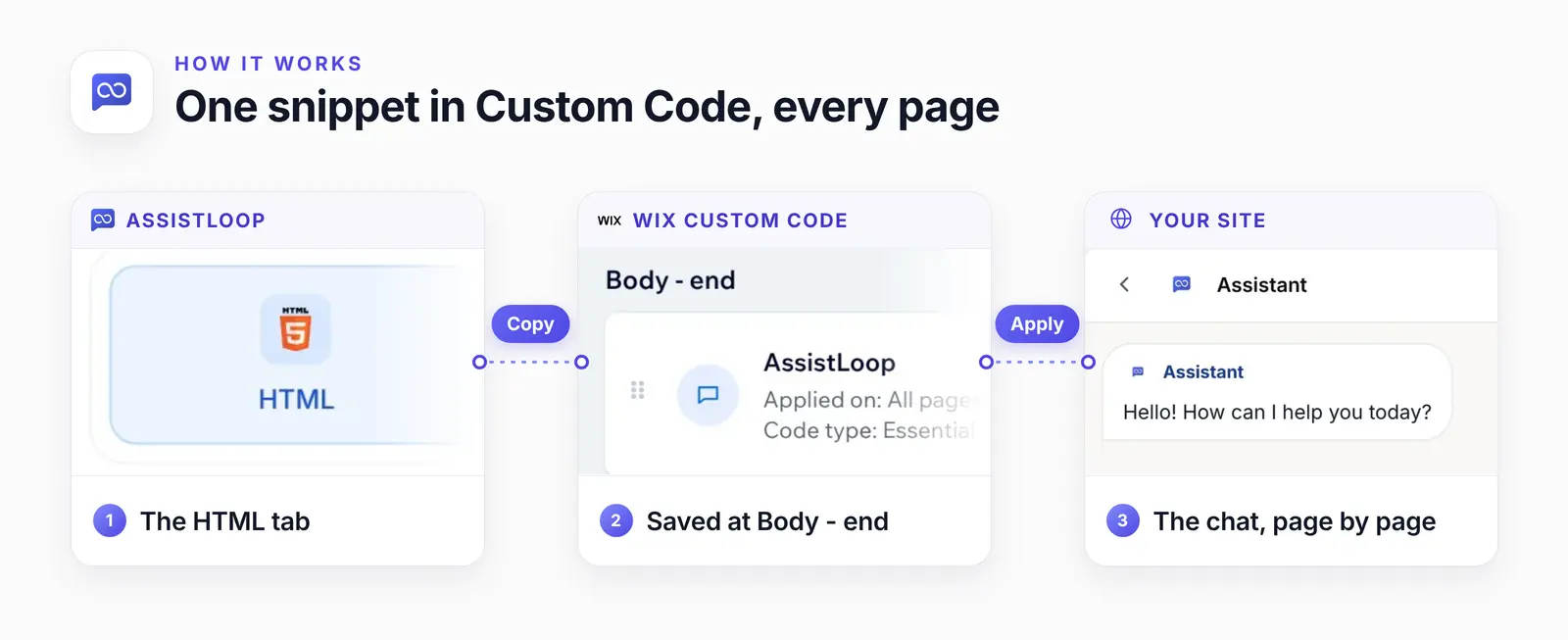
Wix keeps the snippet in its own list, where you can edit it or switch it off later.
Wix Smart Chat or an AI agent you add with Custom Code?
Use Wix Smart Chat if your business lives in one Wix site. Add an agent through Custom Code when it has more to do. The same agent can serve your other sites too, and it can call your own systems through Agent Actions, such as an order lookup.
Some background first. Wix's help article on the switch describes the older Wix Chat as live conversations your team handles. Smart Chat keeps those and adds AI replies drawn from your site content and any training you give it. That training takes knowledge rules typed as text or uploaded as PDF or DOCX files (Wix Help Center).
Wix Chat is being retired, too: Wix says it is leaving the App Market and will stop getting updates. Smart Chat is the app Wix used to call AI Site Chat, and it now draws on Wix AI credits.
| Option | Answers from | Fits when |
|---|---|---|
| Wix Chat | Your team only | Existing installs only |
| Wix Smart Chat | Site content, rules, files | A single Wix site |
| Custom Code agent | Pages, files, Q&A pairs | Several sites, Agent Actions |
Either way, a chat that needs a person can reach your team. With AssistLoop, the chats from every site one agent serves land in a single list, under Conversations.
Choose one of them, though. Wix itself advises against running Wix Chat and Smart Chat together because "two chat widgets can confuse visitors" (Wix Help Center), and the same holds for any pair.
Why Custom Code, and not the Embed HTML element
Put the chat in Custom Code, not the Embed HTML element (Add Elements → Embed Code in the Editor). Embed HTML holds code in a fixed box, so the chat would sit inside that rectangle instead of floating in the corner. Wix's help is plain about what the element is: "The HTML and URL elements in our editor are iFrames" (Wix Help Center).
Custom Code, under your site's settings, puts the snippet into the page itself, on whichever pages you choose. Wix's developer docs even name chat widgets from customer support platforms as one of the jobs Custom Code is for.
| Compare | Custom Code | Embed HTML |
|---|---|---|
| Shows on | Pages you choose | Where you place it |
| Runs in | The page itself | A fixed iframe |
| Chat button | Bottom-right corner | Inside the box |
Head or body? Wix's guidance puts tracking and verification codes in the head and other working scripts in the body, which is where this one belongs. The AssistLoop snippet also builds its own script tag only once it runs. So at Body - end your content doesn't wait on the chat.
Step 1: Create the agent from your site's address
In AssistLoop, start with Create Agent and name the agent; ours is Larkspur Support. Under Data Sources to Train Your Agent, open the Website/Links tab, type the site's address (we typed https://www.larkspurandiris.com) and press Fetch Links.
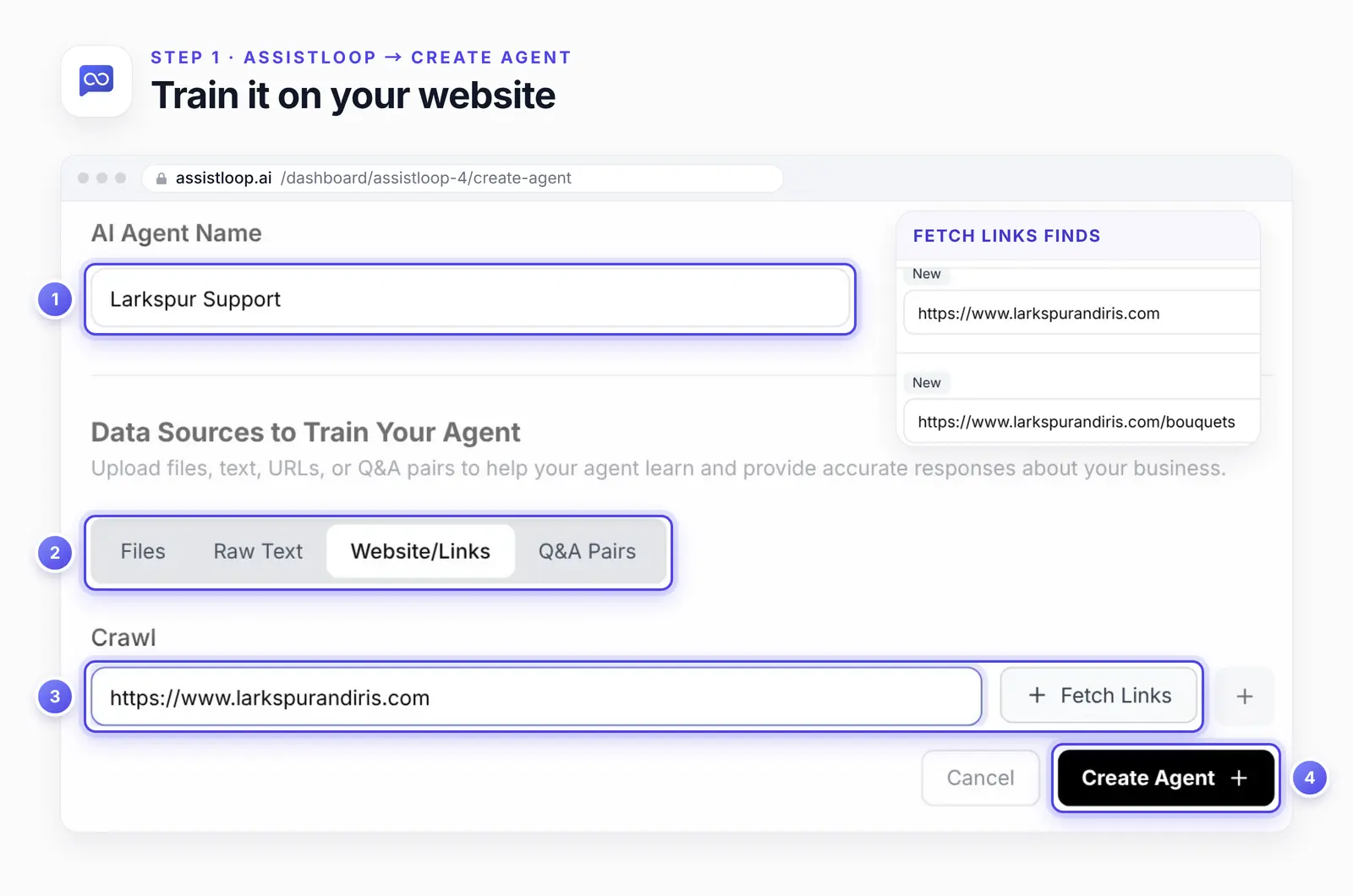
Each page found gets its own row with a delete icon, so anything you'd rather keep out of training can go first.
For the studio, the list held the home page, Bouquets, Weddings, Subscriptions, Delivery and Flower care, among others. Press Create Agent and training covers every page still on the list. AssistLoop then returns you to your agents. Open Larkspur Support, and on its Playground pick a current model from the Model menu, then press Save Changes.
Step 2: Copy the code from the HTML tab
Open Widget Installation in the agent's menu and stay on the HTML tab. There's no Wix tab, and you don't need one: Custom Code takes the HTML version as it is, so paste it without edits. Press Copy on the dark Installation Code card, and the button turns green with Copied!
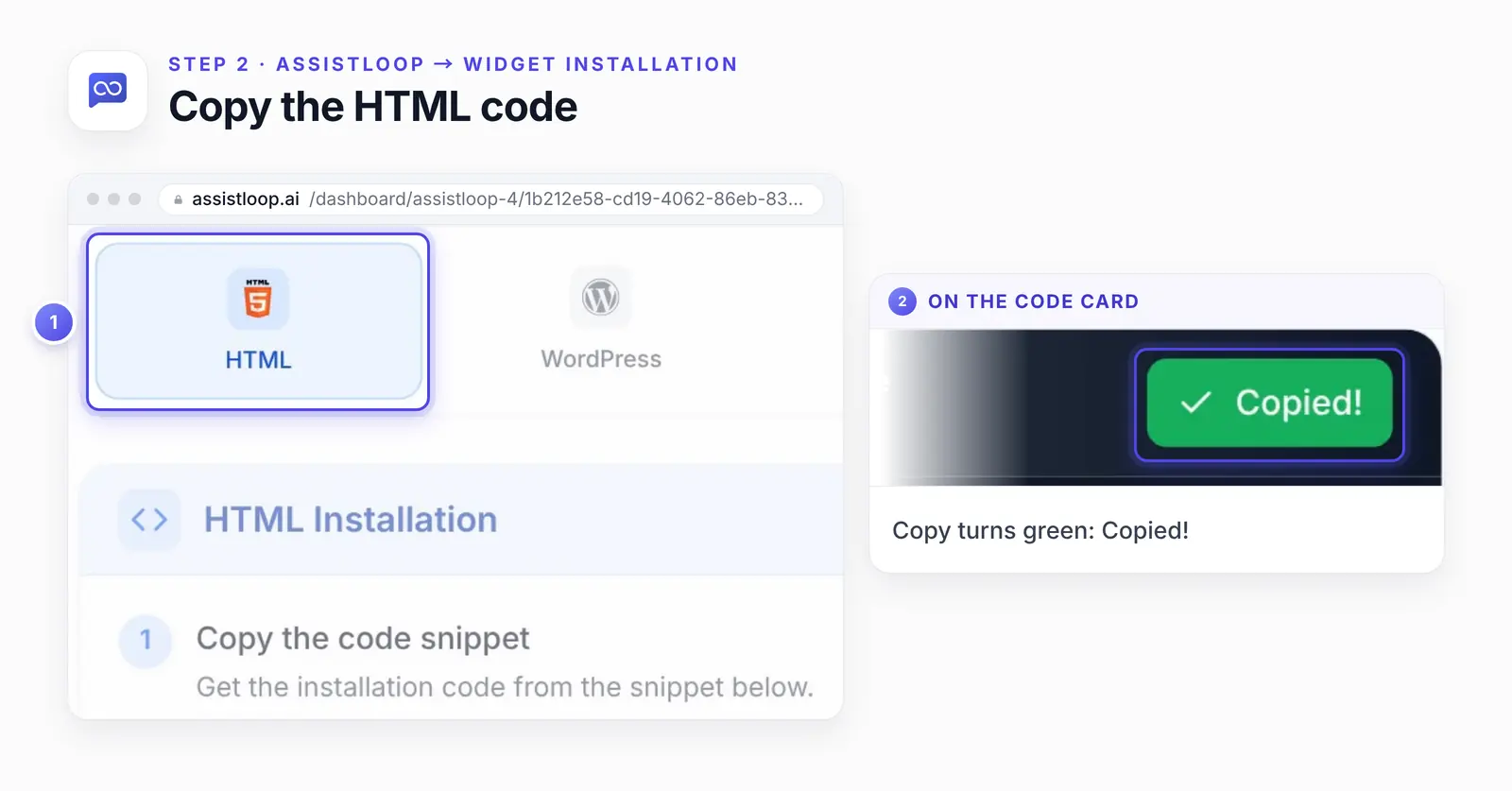
Nothing to retype: the copied code already carries this agent's ID.
This is what the HTML tab hands you, shown here with a placeholder where your agent's ID goes:
<!-- AssistLoop Chat Widget --> |
Paste the copy from your dashboard, not this one, because yours holds the right ID. It's the same code our HTML website guide pastes by hand above a closing body tag.
One check before you leave AssistLoop. The code is tied to the agent named at the top of the dashboard. With several agents in your workspace, make sure it's the one trained on this site.
Step 3: Open Custom Code in your Wix dashboard
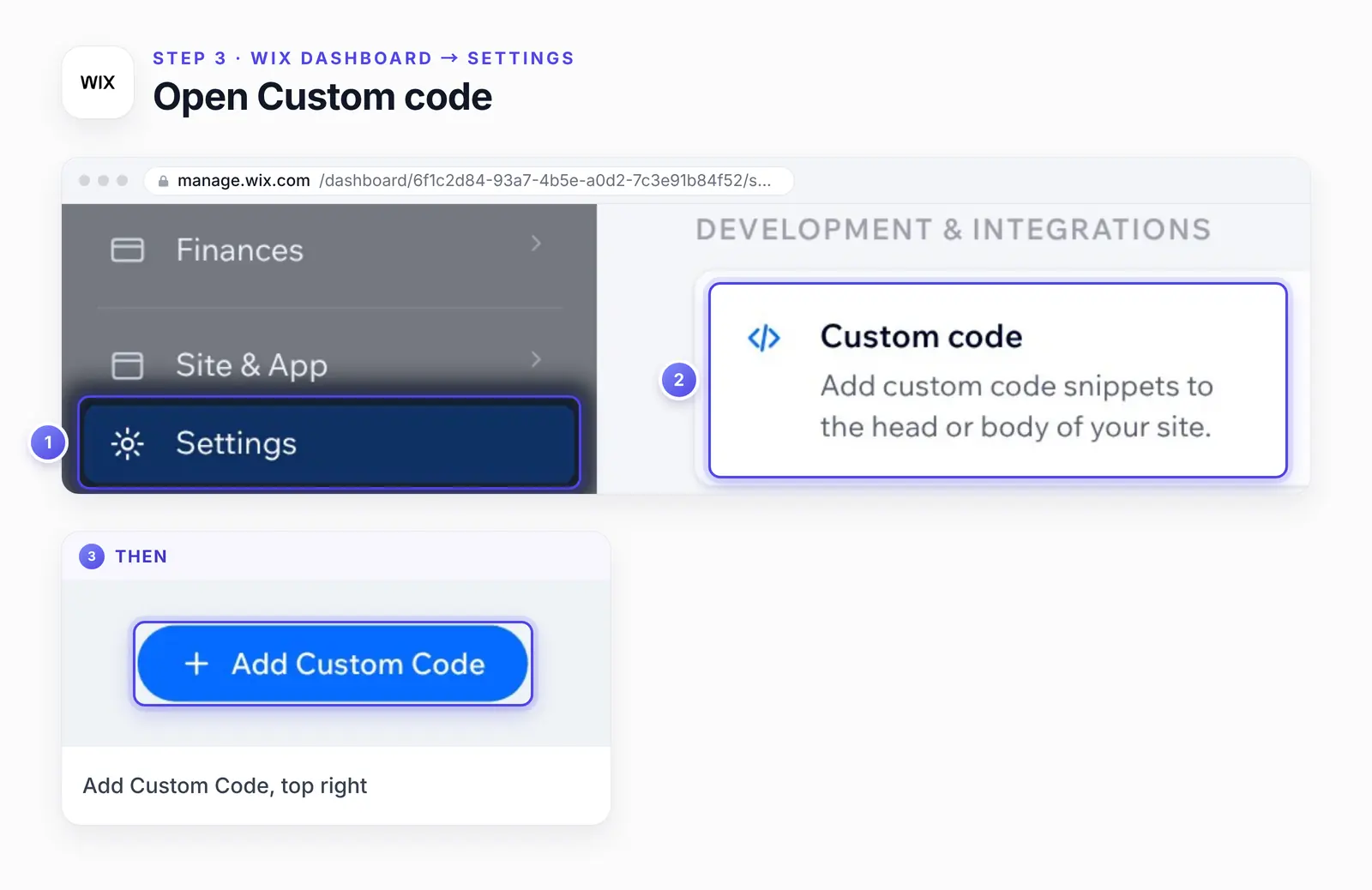
In your Wix site's dashboard, go to Settings → Custom code (under Development & integrations) and press + Add Custom Code, the same path Wix's custom code help gives. Settings sits in the menu on the left, the Custom code tile is in the Development & integrations group, and the button waits in the top-right corner of the page that opens.
Step 4: Paste the code and name it
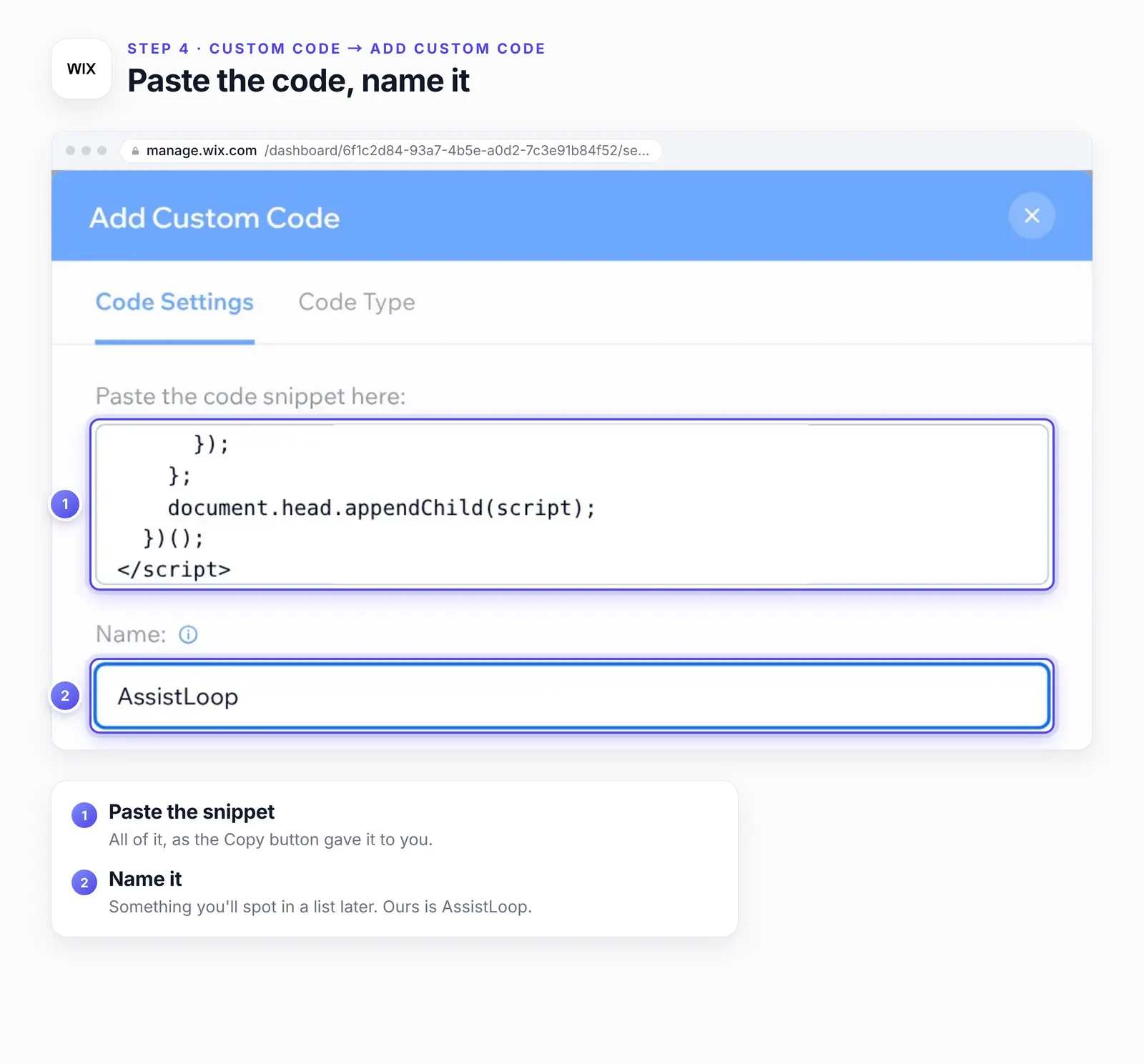
The Add Custom Code dialog opens on Code Settings. Click inside Paste the code snippet here and paste.
In Name, give the snippet a label you'll recognize in a list later, as Wix suggests. Ours says AssistLoop.
Step 5: Choose All pages and Body - end, then Apply
Leave Add Code to Pages on All pages. Wix's help says that option covers each page on the site, "including any new pages that you create in the future" (Wix Help Center).
The menu under it decides whether the code loads once per visit or again on every page a visitor opens. Start with Load code once; if the chat button is missing after a visitor clicks to another page, edit the snippet and switch to Load code on each new page.
Set Place Code in to Body - end.
The dialog's second tab, Code Type, sorts snippets by the kind of cookie they count as, for consent banners: Essential, Marketing, Analytic or Functional. Wix files custom code as Essential by default, and says that code "is loaded prior to visitor consent and cannot be disabled" (Wix Help Center). Picking the category that fits is left to you.
We kept Essential, so the chat loads for every visitor. If your privacy setup files the chat as Functional instead, test the site after declining cookies.
Then press Apply.
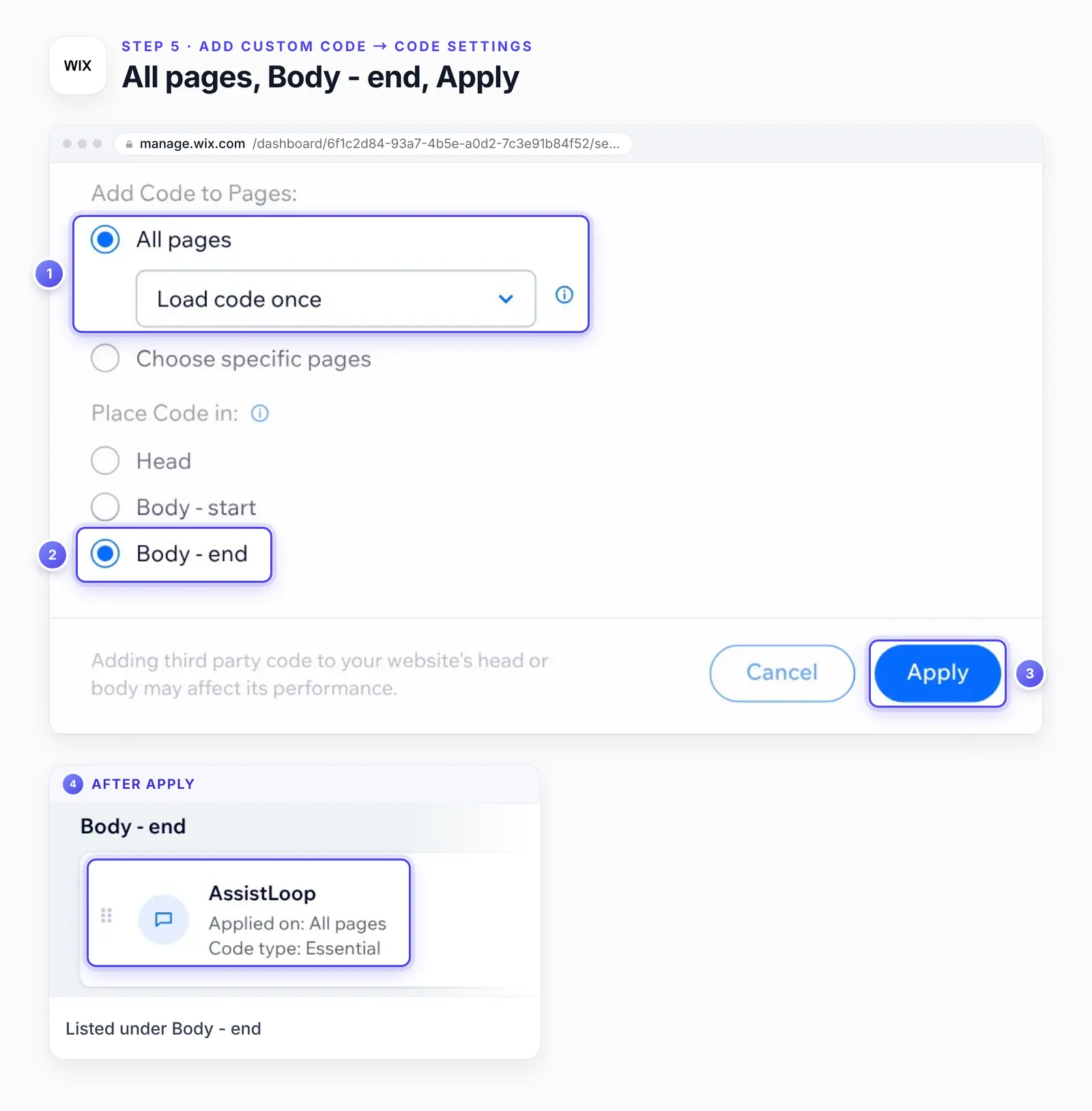
Back on the Custom Code page, the snippet sits in the Body - end group with Applied on: All pages.
Wix's steps stop at Apply. Custom code doesn't run inside the Editor, only on your published site, which is where you test it next.
Step 6: Ask your site something it already answers
Open the site's published address in a fresh tab, since neither the Editor nor Preview shows the chat. The button waits in the bottom-right corner. Click it and ask about something one of your pages covers; on the Delivery page we asked "Can you deliver to the hospital on Sunday?"
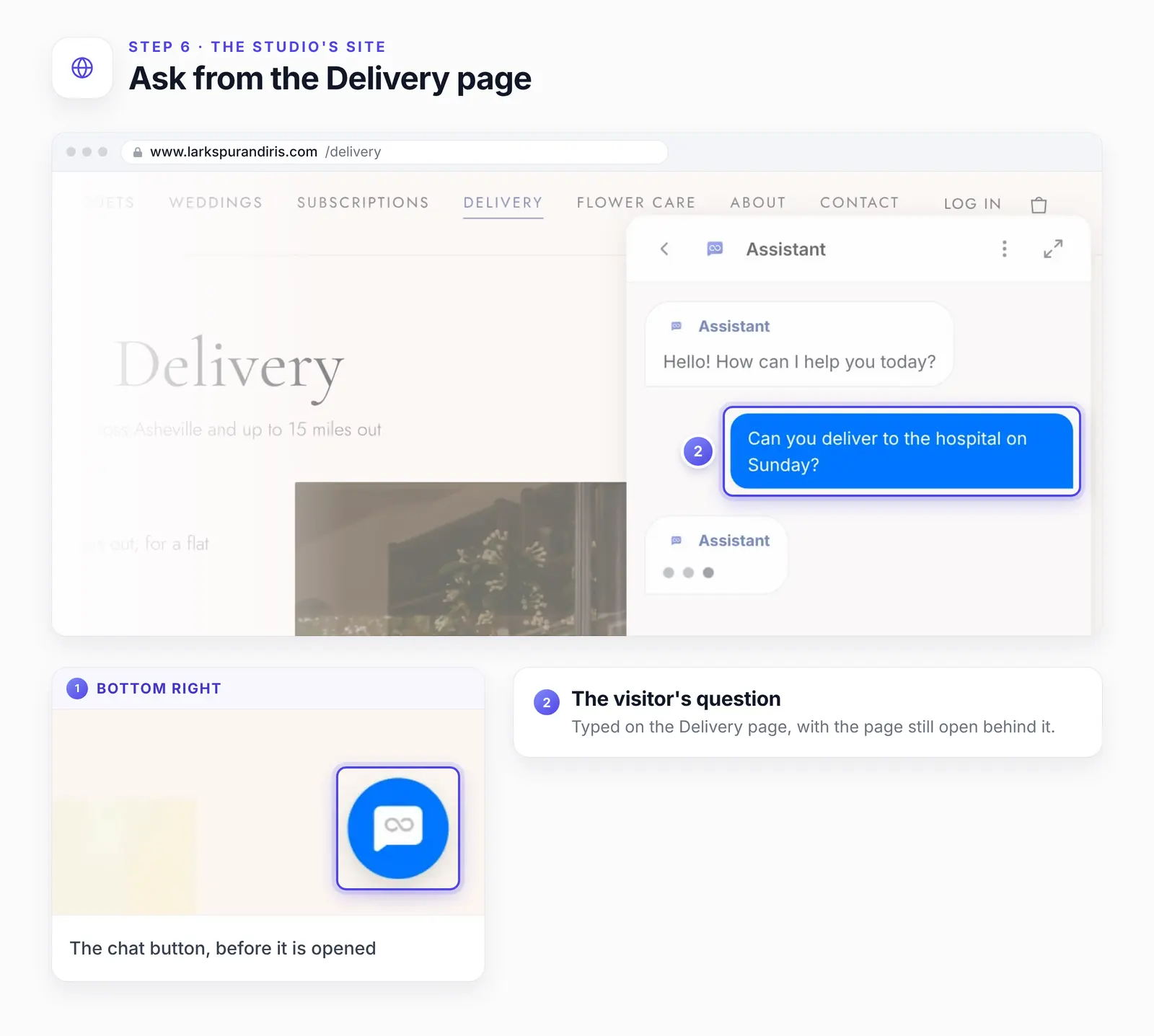
The header says Assistant, the default name; visitors see whatever you type in Widget Appearance → Basic → Agent Name.
The agent replied:
We don’t deliver on Sundays. You’re welcome to pick up from the studio on Sunday between 10 am and 2 pm—please place the order by Saturday at 5 pm.
Now hold the reply up against the page it came from. Every fact is in the Delivery page's Sundays and holidays paragraph: no deliveries on Sundays, pickup at the studio from 10 am to 2 pm, and orders in by Saturday at 5 pm. The agent answered the question that was asked, offered the option that still gets flowers to the hospital, and made no promise of a delivery the studio doesn't do.
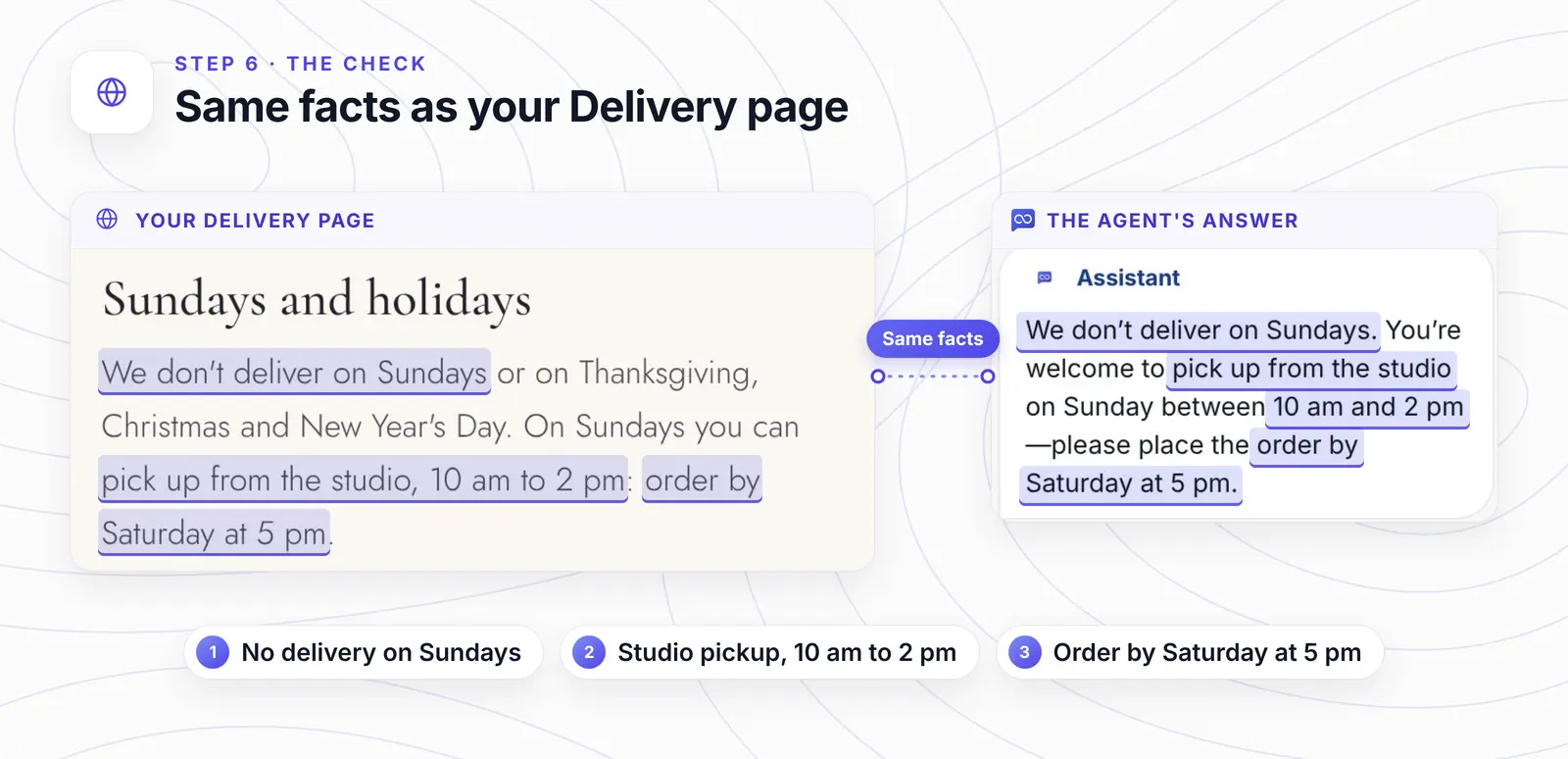
Three facts in the answer, each traced to the line it came from.
Run this check with any AI agent, ours included. Wix's help for its own AI chat warns: "AI may generate and present inaccurate or misleading information to your site visitors and members. Wix assumes no liability for these generated results." (Wix Help Center)
Then ask about something your site never mentions and check that the agent admits it doesn't know instead of guessing. When an answer comes back wrong or thin, add a Q&A pair that corrects it.
Last, open another page with the chat still open. We clicked Bouquets in the menu, and the conversation stayed in the corner with the Delivery question still in it.
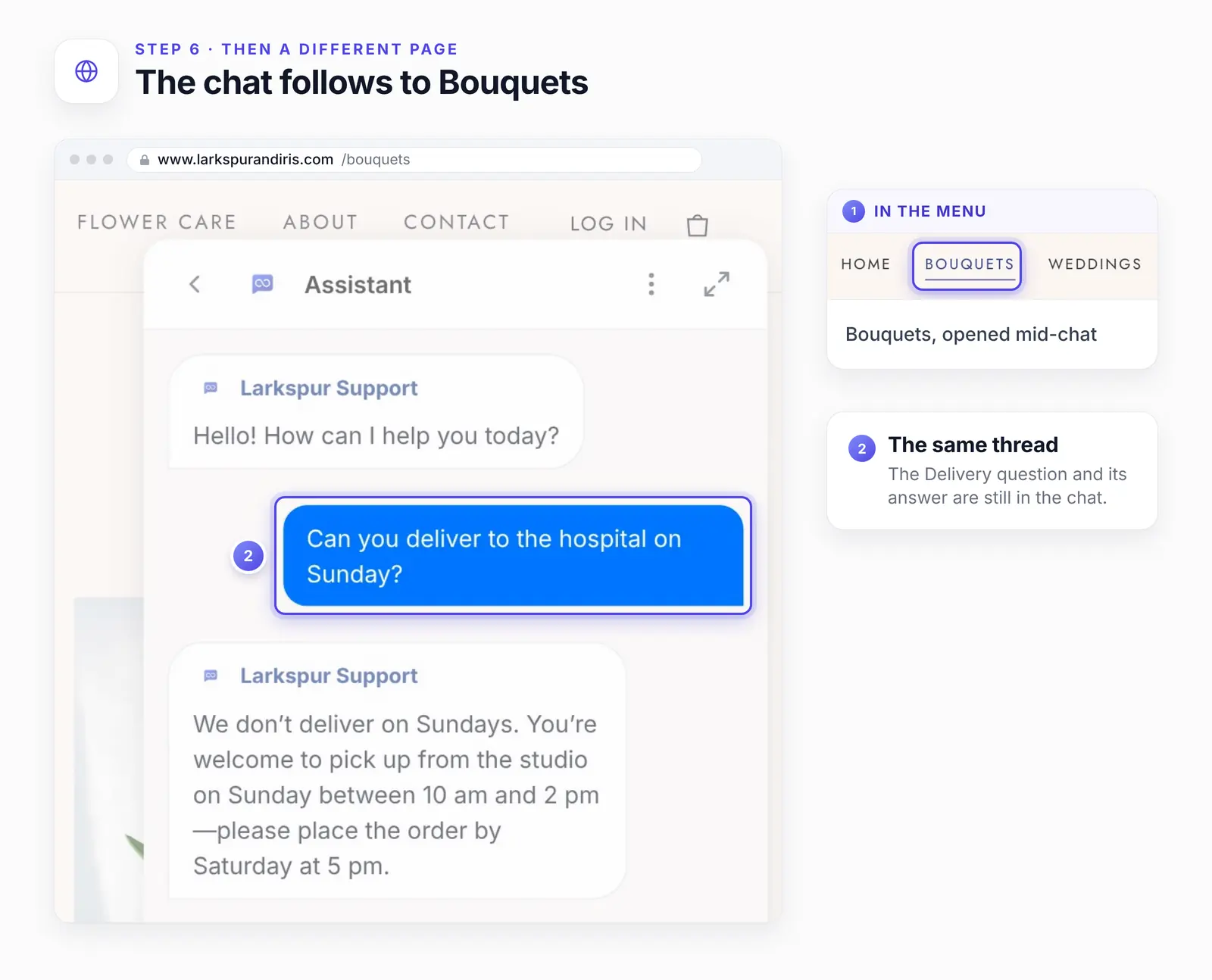
The page changed; the conversation didn't. After the page load, the earlier replies carried the agent's own name, Larkspur Support.
Before you call it done, look at it the way a visitor will:
Open the published address in a private window, so you see it signed out of Wix.
Narrow the window to phone width, or use your phone, and make sure no sticky "Book Now" bar or cookie banner covers the chat button.
Send a test message and find it under Conversations in AssistLoop.
Want your Wix pages answering like this? |
If the agent doesn't show up
You're in the Editor or Preview. Wix runs custom code on the published site only, so open your site's own address in a new tab.
The site isn't published, or no domain is connected. Publish the site and connect a domain first (see What you need).
The snippet is set to Choose specific pages. Only the ticked pages load it then. Edit the snippet on the Custom Code page and switch it to All pages.
The chat appears only after a visitor accepts cookies. Check the snippet's Code Type tab. Wix loads Essential code before consent; a snippet in another category is one visitors can decline.
The snippet's toggle is off. Each snippet on the Custom Code page has its own switch; turn the AssistLoop one on.
The code came from another agent. Select the agent trained on this site at the top of the AssistLoop dashboard, copy its code again and replace the snippet's contents.
You changed domains. Wix ties snippets to a domain and deletes them when a different one is assigned (Wix Help Center), so add the snippet again after the switch.
It's still missing on the published site. Try a private window with extensions off, then open the browser console and look for a blocked assistloop.ai script. If another snippet might clash, Wix suggests switching the toggles off one at a time and testing after each.
Two chat buttons appear. Wix Smart Chat or another chat app is installed as well. Keep one.
Wix doesn't support problems in third-party snippets (Wix Help Center), so for anything this list doesn't cover, message us through the chat on assistloop.ai.
How we tested this
Larkspur Support: we built the agent in our AssistLoop workspace and trained it on the studio's pages. The reply in Step 6 is copied exactly as the chat showed it.
The Wix side: Custom Code needs a paid plan and a connected domain, so the dashboard screens in Steps 3 to 5 are our recreation. We built them from Wix's help articles and current screenshots, labeled the way Wix labels them today (Development & integrations).
The test site: the studio's site ran only in our test browser, so AssistLoop didn't crawl a public Wix site; our setup gave Fetch Links the site's page list, and the agent trained on those pages' text. When we pressed Apply, our copy of the site added the saved snippet at the end of every page's body, and that snippet loaded the agent. Our copy saved Load code once without acting on it, so we can't tell you how that option behaves on Wix.
The content: Larkspur & Iris, its bouquets and its delivery rules are made up.
The code card: the code from Widget Installation → HTML, with the agent's ID swapped for YOUR_AGENT_ID. We reopened that tab on 21 October 2026, and the card still matched it.
The screenshots: frames from our 10 October 2026 recording, the Delivery and Bouquets views among them, plus the Delivery page captured on 18 October 2026 at phone width. Every figure is cut from those captures; the numbered rings and cards sit around the interface, and nothing inside it was changed.
The help articles: each Wix page linked here was read again between 19 and 21 October 2026.
What to do next
Delivery rules and holiday hours change between site edits. Add each change as a text snippet or Q&A pair, and retrain after you edit the site: in Data Sources → Websites, each crawled page has its own row, so open the changed page's ⋯ menu and pick Retrain. A page you've added since goes in through Add pages. Then set the agent's tone and limits with a few written house rules.
A wedding quote is a conversation for a florist, so let the agent pass chats like that to your team. If you sell through Wix Stores, know that Custom Code can't read your store or booking data (Wix Developers). Answering "where's my order?" takes an Agent Action that calls an orders API, as in letting the agent check order status. Finally, match the button's color and greeting to your site with widget customization.
Frequently asked questions
Does Wix have its own AI chat?
Yes. Wix Smart Chat, formerly AI Site Chat, answers visitors from your site content and uses Wix AI credits. It works inside your Wix site; the comparison near the top shows when a separate agent fits.
Do I need a Wix Premium plan?
Yes, a paid plan that lets you connect a domain. On a free wixsite.com site Custom Code won't run, and the only place for code is the Embed HTML element, a fixed iframe box (Wix Help Center) where the chat can't float in the corner. We haven't tested AssistLoop's widget inside one.
Does it work on Wix Studio?
Yes. Custom Code runs in every Wix editor, Studio included, and you add it from the site dashboard (Wix Developers).
Will it show on pages I add later?
Yes, with All pages there's nothing to redo. A snippet set to Choose specific pages is different: tick each new page in the snippet's settings on the Custom Code page.
Will it slow my Wix site down?
It shouldn't hold up your content. At Body - end the snippet runs after the page, and it adds AssistLoop's script as a new element instead of a blocking tag. For numbers on your own site, run PageSpeed Insights before and after.
Can it answer questions about my Wix Store orders or bookings?
No. The snippet can't reach Wix Stores or Bookings data. For order status, add an Agent Action that calls your own orders API. The agent still answers what your pages say, such as your delivery area or return policy.
Picture that hospital order again, but this time the visitor asks on Saturday afternoon. The chat explains that Sunday is a pickup day with a Saturday 5 pm cutoff, they order in time, and your Monday starts with a sale instead of an unanswered form. Set up an agent for your Wix site, and if another of your sites runs on Squarespace, the same code goes in through Code Injection.
 | Written by AssistLoop Team We build AssistLoop, an AI support agent that answers customers from your own website and documents, and hands the chat to your team when a person should step in. ★★★★★ "I also love that it's flexible enough to be used with different websites, and it's brandable, allowing for customization." Ryan N., Managing Owner, Working Nomads, on G2 |
Build Custom AI Chatbot for Your Business FREE
Create intelligent AI agents that handle customer support, boost conversions, and work 24/7 for your business.
Build Your Agent