How to Add AI Customer Support to Shopify (No App Needed)
Shoppers ask the same things all day: is this oven safe, do you ship to Canada, how do returns work? Those answers already sit on your product and policy pages, yet people message you instead of looking. This guide adds an AI support agent to your Shopify storefront that replies from that content. It takes about ten minutes, and you won't need an app or a developer.
 AssistLoop Team16 min read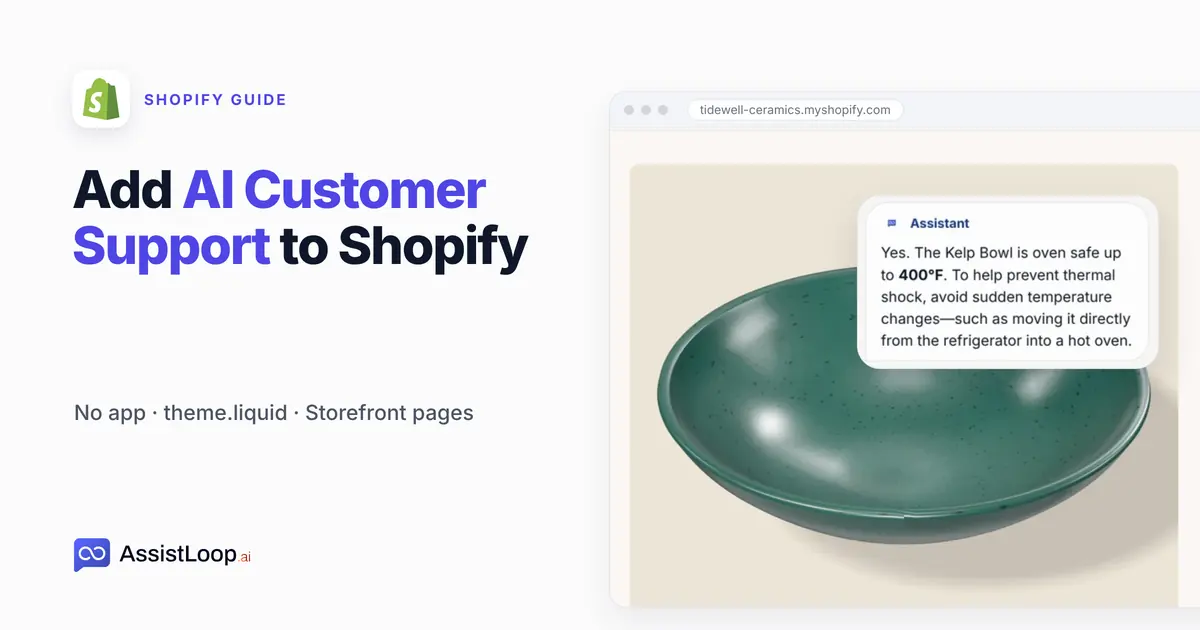
On this page
You train the agent on your store's address, paste one snippet into the theme file theme.liquid and save.
Last updated: October 2026. We filmed the install on 9 October 2026, from training the agent on a demo store to asking it a question on a product page. The Care guide page was captured on 18 October; Shopify's docs were re-read on 19 and again on 21 October.
Quick answer
|
A shopper is on your Kelp Bowl page at 11 pm, about to buy, with one question: can it go straight from the fridge into a hot oven? The product page lists 400°F. The warning about sudden temperature changes is only in your care guide, two clicks away. If nobody answers, the tab may simply close.
Baymard Institute's cart abandonment list works out "the average cart abandonment rate of 70.22%" from 50 studies (Baymard Institute, 2026 list).
The same page lists why US shoppers who weren't just browsing left a checkout. Extra costs such as shipping, tax and fees: 40%. Slow delivery: 20%. The returns policy: 13%.
Those terms usually already sit on your policy pages, so an agent trained on them can state them before checkout.
Our example store, Tidewell Ceramics, is a pottery studio we invented. Its storefront is our recreation at a Shopify-style address, tidewell-ceramics.myshopify.com.
That address doesn't open a public store; the same pages are public on the Tidewell demo site. How we tested this, below, has the details. The store's AssistLoop agent, Tidewell Support, learned everything it knows from the studio's pages.
The two-minute video covers the same five steps. It closes with the chat still open as the shopper moves on to the Shipping policy.
What you need
An AssistLoop account. The AI model runs on AssistLoop's side, so you won't paste an OpenAI key anywhere. If you'll want handoff, more pages trained or premium models, compare the plans first.
Access to your theme's code. Store owners have it; a staff account needs the Edit code permission, which Shopify lists under Online store in its store permissions.
The job is carrying one snippet from AssistLoop into one theme file:
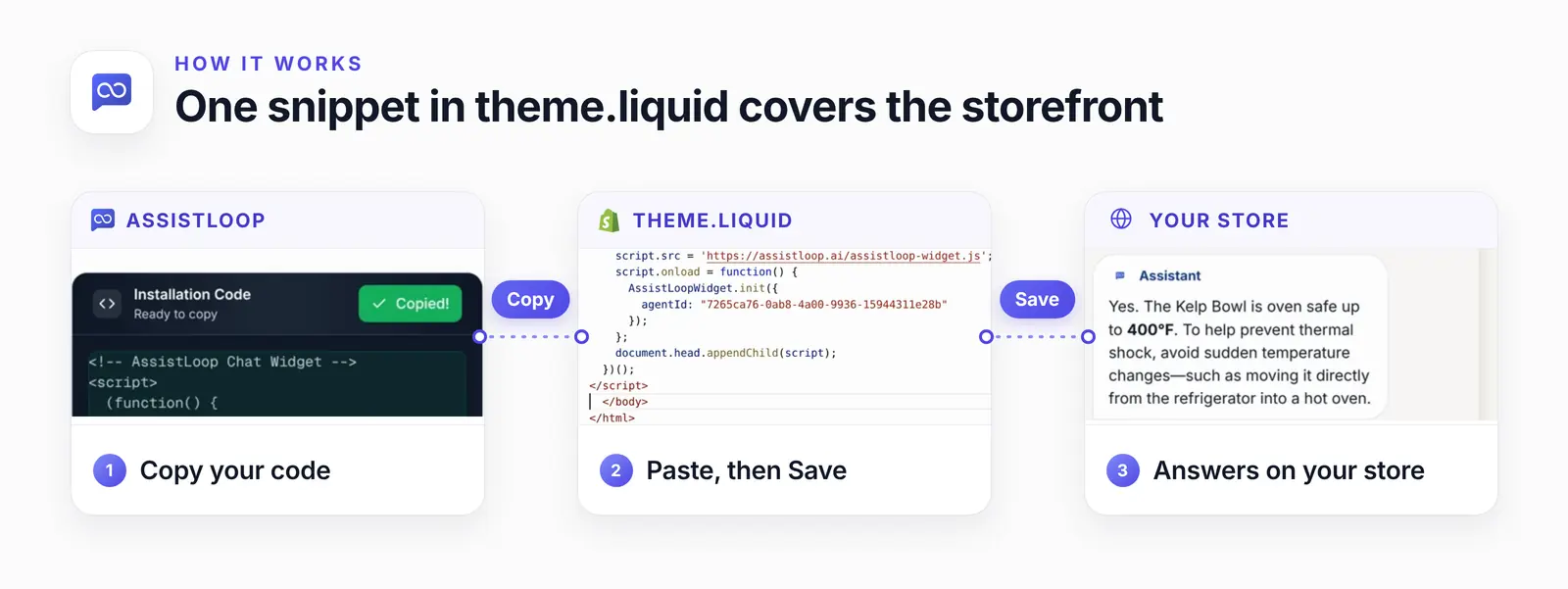
Copy in AssistLoop, paste in theme.liquid, and the answer turns up in the store's chat.
Why the code goes in theme.liquid
theme.liquid is the one layout file every Shopify theme has, so code pasted there loads on the storefront pages built on it. Shopify's developer docs say so: "Layouts are the base of the theme, through which all templates are rendered." They add: "The default layout file, which must be included in all themes, is theme.liquid" (Shopify layouts). Your home page, product pages, collections and policy pages all render inside it.
| Compare | Theme file | One template |
|---|---|---|
| Shows on | Every page | That template |
| Files to edit | One | One each |
| New theme | Paste again | Paste again |
Put it just above the closing body tag. The snippet builds the widget's script tag in JavaScript once your page's markup has loaded, so the browser doesn't stop to fetch it.
theme.liquid snippet, a Shopify app, or page rules?
You don't need a Shopify app: the snippet in theme.liquid adds AI customer support to every page built on your theme's layout. AssistLoop's page rules narrow it down to the pages you choose.
| Route | You get | Watch for |
|---|---|---|
| Snippet | Answers from your content | New theme: paste again |
| Shopify Inbox | AI sales help | Two chat buttons |
| Snippet + rules | Chosen pages only | Keep one paste |
Shopify Inbox, Shopify's own free chat app, is the app route. Its App Store listing says "Inbox puts an AI-powered sales associate on your storefront" (Shopify Inbox, read October 2026). With AssistLoop, the agent learns from the pages, PDFs and Q&A pairs you give it. It hands chats to your team, and the same agent can answer on your other sites as well.
If Inbox's chat is on your storefront, switch it off when you add the snippet, so shoppers see one button. In Online Store, click Edit theme, select App embeds and then Online store chat, turn it off and click Save (Shopify Inbox chat settings).
Some pages only. Keep the snippet in theme.liquid. In AssistLoop, open Widget Appearance → Advanced → Display Restrictions → Pages and switch Page rules on. Type a Deny pattern for the pages to skip, such as yourstore.com/blogs/*, click Add, then click Save restrictions. Pasting the snippet into a section as well gives those pages two chat buttons.
Checkout. theme.liquid covers the storefront pages that use the default layout. Checkout never does, and neither does a template with its own layout. Shopify's checkout isn't built from your theme's layout files on any plan: checkout.liquid, once a Shopify Plus option, is now marked deprecated and unsupported for the checkout steps in Shopify's layouts docs. So the chat stops at the cart.
In Dawn and most themes, the password page uses its own layout, password.liquid, so the chat skips it too.
Orders. The agent learns from your store's pages, not from your Shopify orders. To answer "where is my order?" it needs an action that fetches the order. The order-status guide shows how an AI support agent can look orders up.
Step 1: Create your agent and train it on your store
In AssistLoop, click Create Agent and give the agent a name. In the Data Sources to Train Your Agent section, choose Website/Links, enter your store's address and click Fetch Links. The address is https://your-store.myshopify.com, or your own domain if you've connected one.
While your store is in private mode (password protected), Fetch Links may not reach its pages. A new store starts in private mode, and Shopify lets you make it public only once its setup steps are done (store access). Until then, add your shipping, returns and care pages as text or files, and retrain once the store is public.
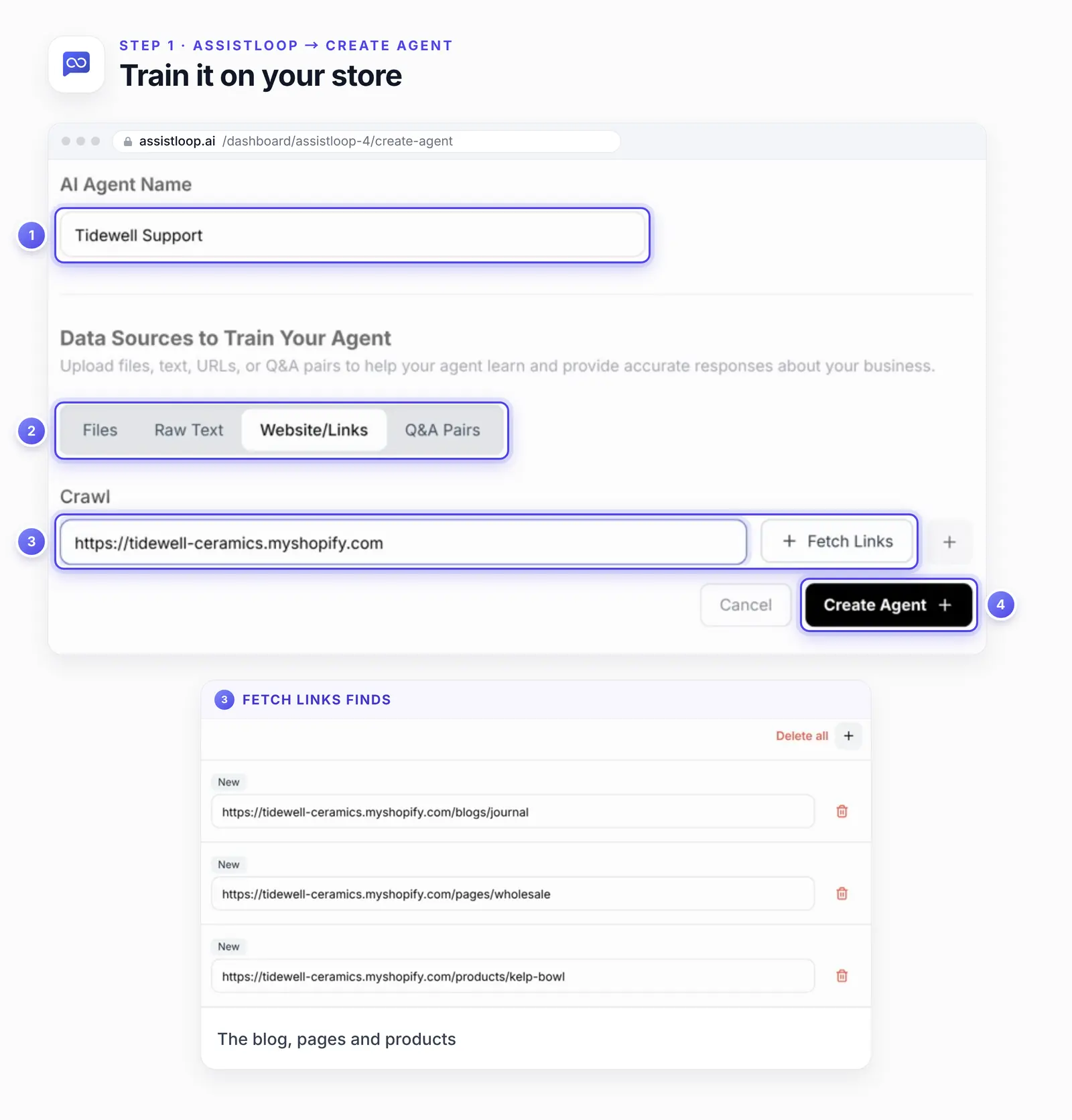
Each URL in the list becomes training material; the red bin at the end of a row drops it.
The list fills with your storefront's URLs: products, shipping, returns, the journal. To leave a page out, click the red bin at the end of its row before you click Create Agent, which trains on whatever rows are left.
When the agent is ready, open it. In its Playground, pick an AI model in the Model menu and click Save Changes. We chose a current flagship model; the models on offer depend on your plan.
Step 2: Copy the Shopify install code
In the agent's sidebar, open Widget Installation and select the Shopify tab. Shopify's steps sit on the left, the code card on the right. Click Copy. It flips to a green Copied! once the snippet is on your clipboard.
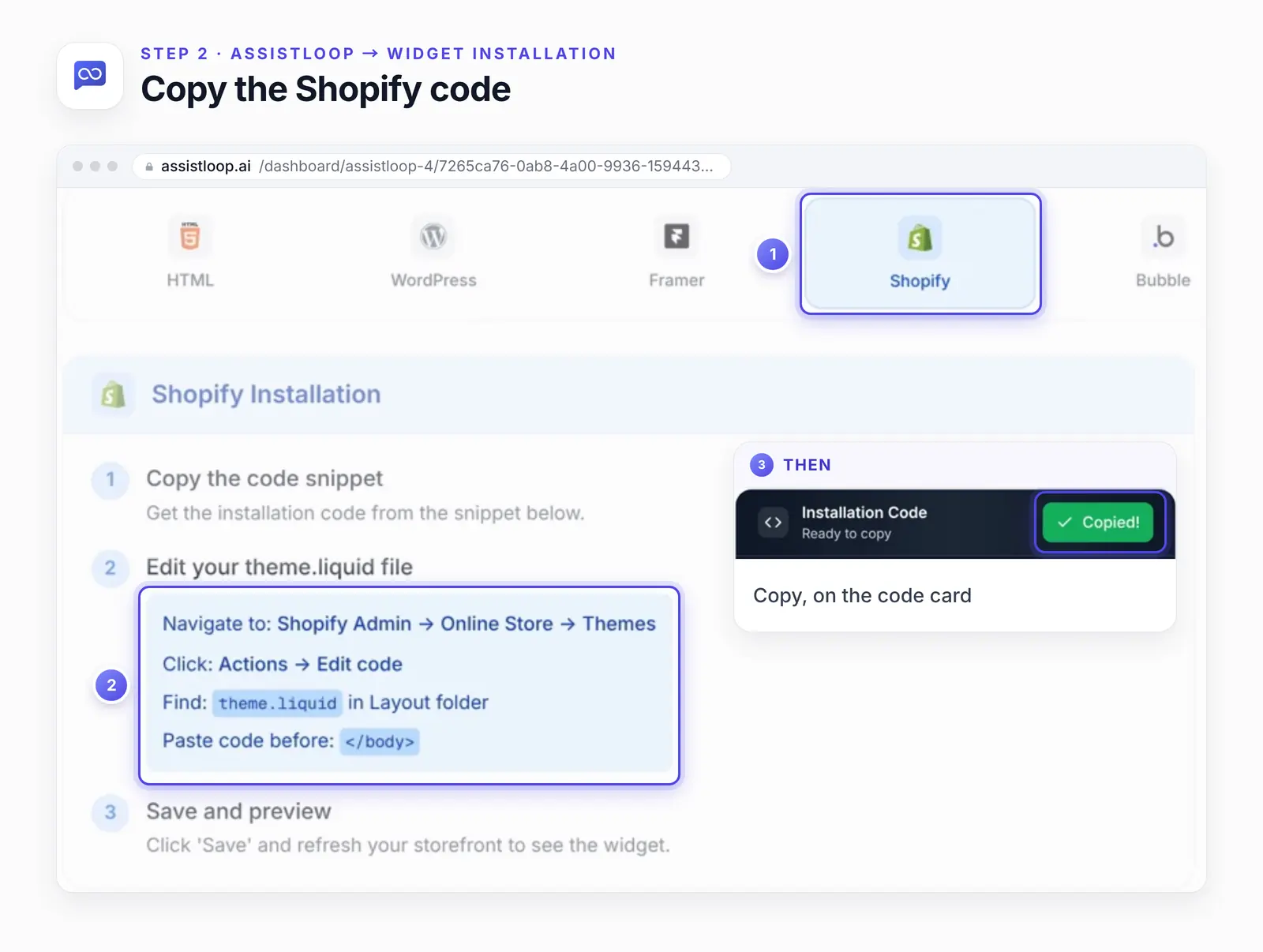
Copy puts the whole snippet on your clipboard, your agent's ID included.
Here's the embed code as the Shopify tab gives it (checked again on 21 October 2026). Yours carries your agent's ID where this says YOUR_AGENT_ID:
<!-- AssistLoop Chat Widget --> |
Copy from the dashboard, not this page. The dashboard fills in the ID of whichever agent its top switcher shows, so pick your store's agent first.
Step 3: Open Edit code in your Shopify admin
In your Shopify admin, open Online Store. Before you edit, make a copy to fall back on: on your current theme's row, click ··· and choose Duplicate. That adds a second version to your theme library, named Copy of plus the theme's name (Duplicating themes).
Then open the same menu on the current theme and choose Edit code. The steps in AssistLoop's Shopify tab say Actions; in today's admin that's the ··· button on your theme's row. Shopify's Editing theme code help page gives the same path, and its Timeline view, in the code editor, restores an earlier version of a file. If an edit goes wrong, restore theme.liquid there, or publish your copy from the theme library.
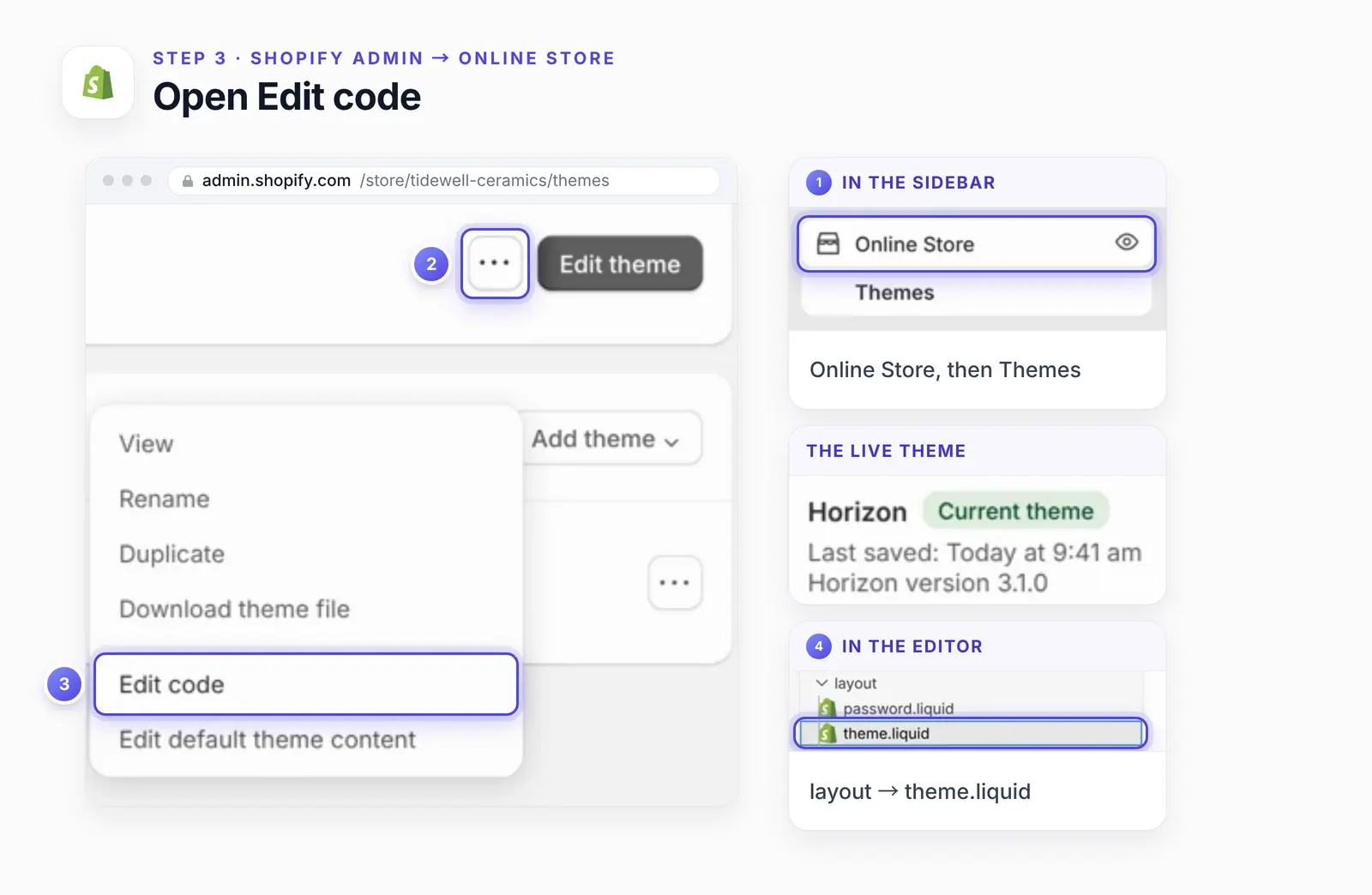
Steps 3 and 4 show our recreation of Shopify's admin, at the URL the live admin uses.
The code editor opens. In its file list, open layout and click theme.liquid.
Step 4: Paste the code before the closing body tag, then save
Scroll to the end of theme.liquid; the last two lines close the body and the page. Click at the start of the closing body line, paste, and press Enter so that tag drops onto its own line. The file should end like this:
<!-- paste the AssistLoop snippet from step 2 here --> |
Then click Save at the top right of the editor, or press Ctrl+S (⌘+S on a Mac).
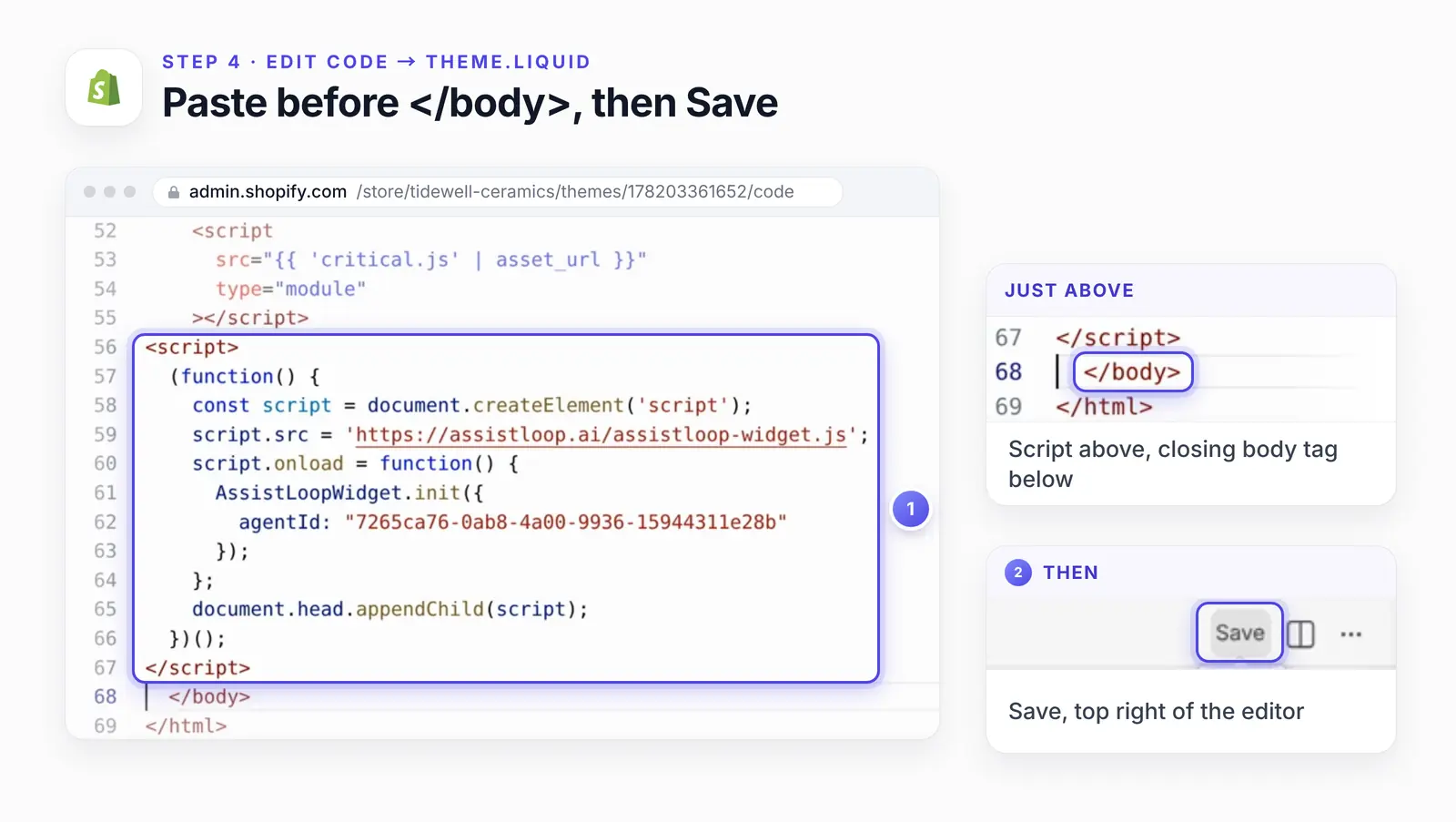
The pasted script runs from line 56 to 67, with the closing body tag on line 68.
Our paste starts at the script tag. Yours may carry the AssistLoop comment line above it, which is fine.
Saving is the install. Code edits to your current theme go live on save; there's no publish step.
Step 5: Check your store
Open a product page on your storefront. A round chat button now sits at the bottom right. Click it, and the chat opens with a greeting.
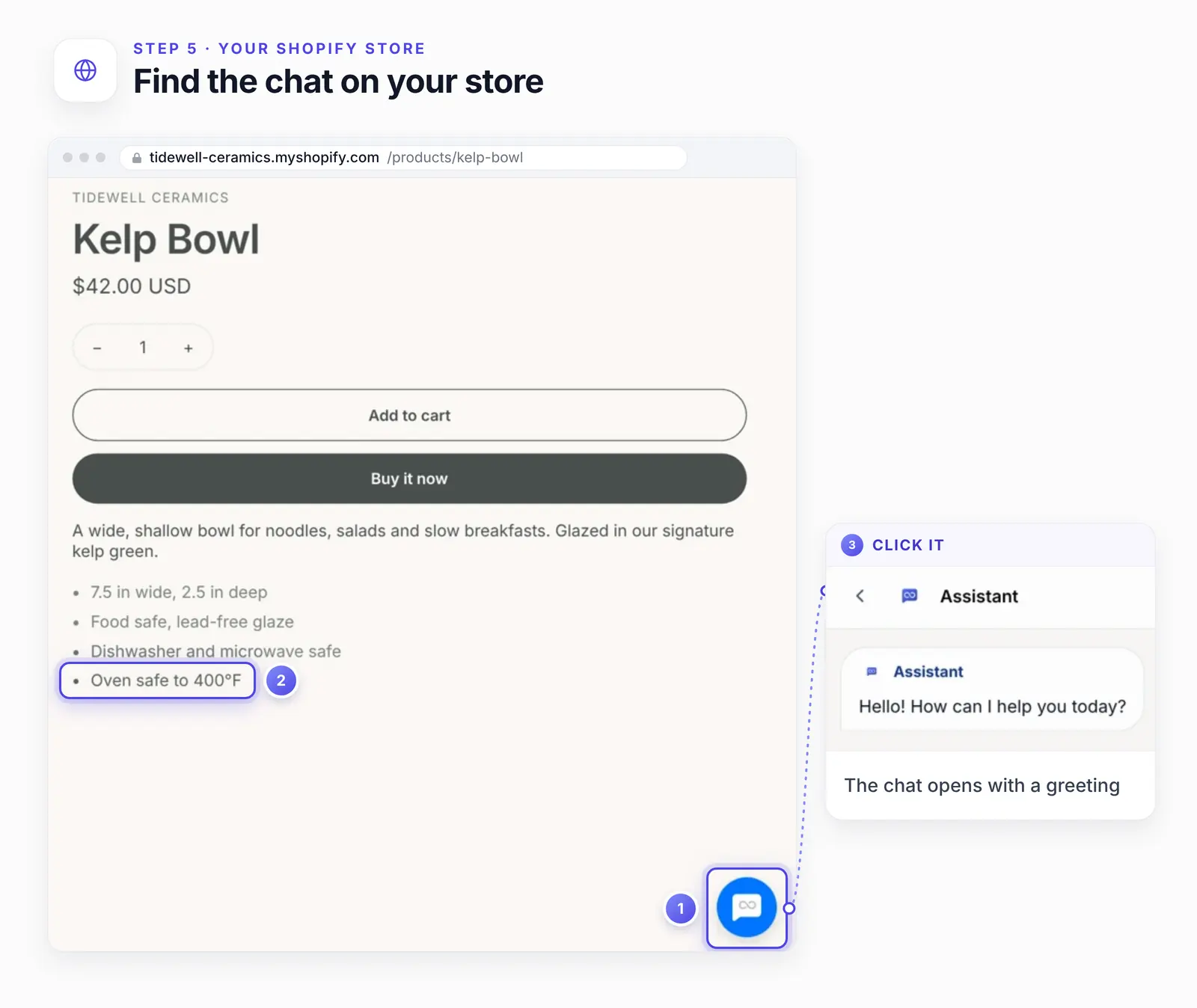
Ask something your pages answer. Our Kelp Bowl page lists Oven safe to 400°F, so we typed "Can I put the Kelp Bowl in the oven?" The agent replied:
Yes. The Kelp Bowl is oven safe up to 400°F. To help prevent thermal shock, avoid sudden temperature changes—such as moving it directly from the refrigerator into a hot oven.
Only the 400°F is on the product page. The thermal-shock advice comes from Tidewell's Care guide, which reads "Bowls and plates are oven safe up to 400°F. Avoid sudden temperature changes (for example straight from the fridge to a hot oven)." The agent took the rule from a page the shopper never opened and stated it in one line.
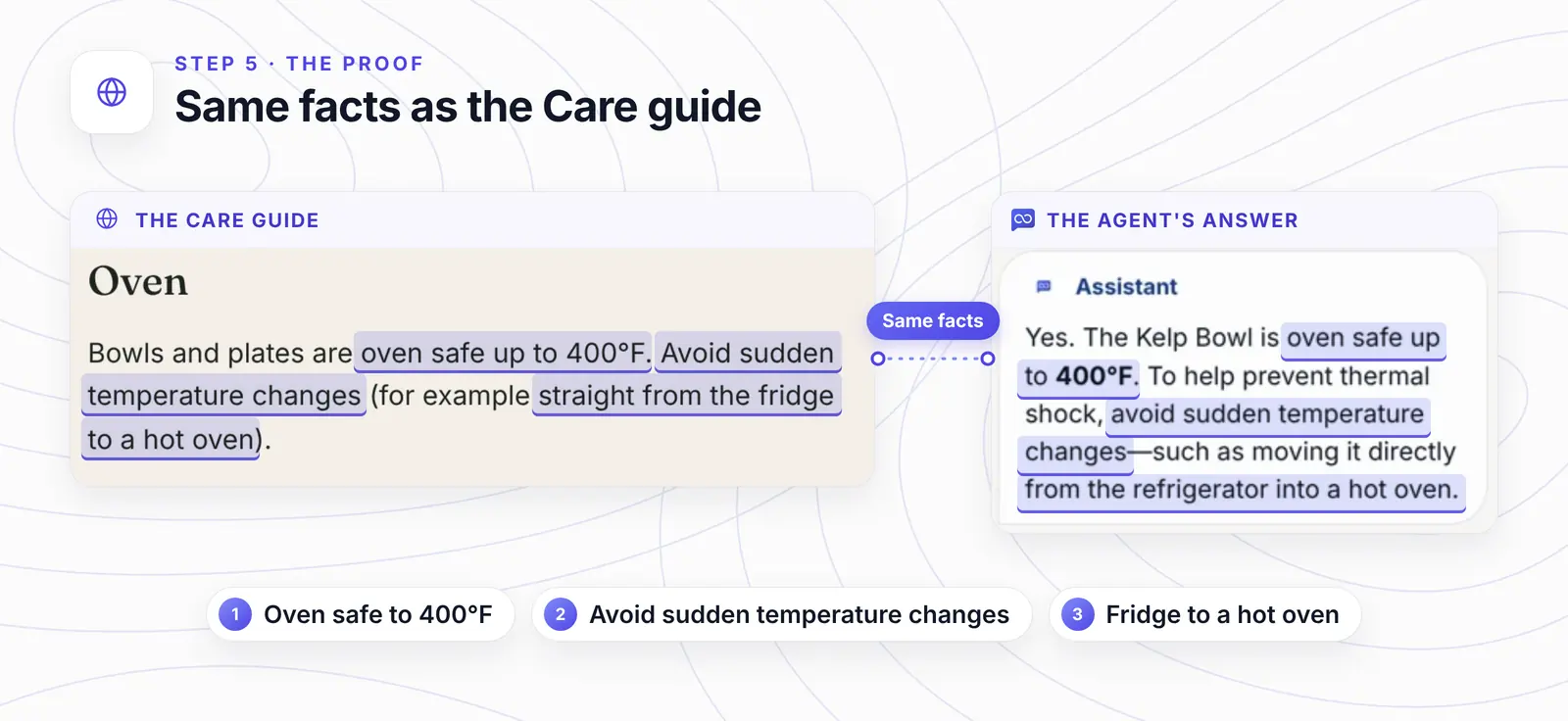
Same rule in two places: the Care guide's Oven paragraph and the agent's reply.
Mid-chat we clicked through to the Shipping policy, and the conversation came along, since that page renders inside theme.liquid as well.
What the agent tells a shopper is your store's word, so check each answer against the page it came from.
Before you call it done, test like a shopper:
Narrow the browser to phone width. The chat button shouldn't cover Add to cart.
Open the store in a private window, so you don't see a cached theme.
Ask one shipping and one returns question, and read each answer beside your policy pages.
Want product pages that answer from your care guide? |
If the agent doesn't show up
Nothing was saved. Leaving the editor before clicking Save keeps the old file. Paste again, save, reload.
The edited theme isn't the live one. Edit code opens any theme in your library. Check you clicked the ··· on the row labelled Current theme.
The snippet sits in the wrong file. It belongs in theme.liquid, above the closing body tag. In a section or template it loads only where that file is used.
A theme update dropped it. When an update can't keep your code edits, the theme card says "Theme added: code edits could not be included" (Updating themes). Shopify advises saving a copy of customized code before any update. Paste the snippet into the new version's theme.liquid. A different theme always needs the paste again, since the snippet lives in one theme's files.
Your store is in private mode. Visitors get the password page, which usually doesn't show the chat. Enter the store's password (it's under Online Store → Preferences), then open a product page.
The theme is a paid one on trial. Shopify lets you change its code only after you buy it (Editing theme code). Buy the theme, or paste into a free theme instead.
Two chat buttons appear. Either the snippet went in twice, or Shopify Inbox's chat is still on. Search the theme's files for assistloop-widget.js and keep one copy. For Inbox, switch its storefront chat off with the steps in the Shopify app section above.
Still nothing. Try a private window or another browser. A cached page or an ad blocker can hide the button.
How we tested this
In AssistLoop: we created Tidewell Support in our own account and typed the storefront's myshopify.com address into Website/Links. AssistLoop's crawler can't reach our recreated storefront. So Fetch Links on that address was answered with the pages of Tidewell's demo site (tidewell-c1z.pages.dev), which has the same catalogue and policies, listed as the store's paths.
Training and the code: the agent trained on those pages. We copied its code from Widget Installation → Shopify, and Step 5 reproduces its reply exactly as it appeared.
On Shopify: the admin screens in Steps 3 and 4 and in the video are our recreation of Shopify's current admin. We rebuilt them from Shopify's help pages and screenshots, so menu names and the path match its docs.
Our storefront and theme: the storefront and its myshopify.com address are part of the recreation too, served in our test browser from our own theme files. The theme named Horizon in Steps 3 and 4 is those files, not Shopify's Horizon theme. The code editor and the files were working ones, so our pasted code is what loaded the chat. Your file list will differ a little.
The store's content: Tidewell Ceramics is made up. The agent learned only from the Tidewell site's pages: products, policies, the care guide, the journal and the info pages. The Care guide in the Step 5 figure is that site's page (tidewell-c1z.pages.dev/care-guide), captured on 18 October.
The screenshots: stills from our 9 October 2026 recording, with the Care guide page captured on 18 October, cropped, with details enlarged and numbered rings around controls. Nothing inside the interface was changed.
What to do next
An agent answers only from what it has read, so add your FAQs, return rules and product details as training data. Set its tone and limits with six short sections of instructions. When a chat shows a gap, correct that answer with a Q&A pair.
Match the button to your brand with widget customization. For chats a person should take, like a cracked mug or a refund, switch on human handoff and the agent passes the conversation to your team.
Frequently asked questions
What about Shopify Inbox?
Shopify Inbox is Shopify's own free chat app, with an AI sales associate. It and AssistLoop each add a chat button, so use one per store. Inbox's assistant runs inside Shopify; AssistLoop's agent also answers on your other sites and hands chats to your team. If you add the snippet, switch Inbox's storefront chat off in the theme editor.
Which pages does the chat show on?
Every storefront page built on theme.liquid, from home to collections and policy pages. It doesn't show at checkout, which Shopify doesn't build from your theme, or on a page whose template uses its own layout, such as the password page in Dawn and most themes. A conversation stays open as the shopper moves between those pages.
Will it slow my store down?
It's built not to block your page. Shopify's performance guide asks theme developers to defer non-critical scripts and to use async only for independent third-party scripts whose order doesn't matter. The snippet adds the widget's script from JavaScript, and a script added that way loads asynchronously by default, so your HTML keeps loading. To see the effect on your theme, run PageSpeed Insights on a product page before and after.
Can it see my products, cart or orders?
It reads your pages, so a product's size, glaze or care rule is fair game. A shopper's cart and your Shopify orders aren't part of its training. For tracking questions, add an action that looks up the order (how an AI support agent checks order status).
Does it work with Online Store 2.0 themes like Dawn?
Yes. Shopify requires theme.liquid in every theme, Online Store 2.0 themes such as Dawn included. Our demo theme was built for filming, so your file's last lines will differ.
How do I take it off again?
Open Edit code, open theme.liquid and search it for assistloop-widget.js. Delete the script block around it, opening tag to closing tag (plus the AssistLoop comment above, if you pasted that), then click Save. Or roll back: in the code editor, theme.liquid's Timeline view restores an earlier version of the file.
Back to the 11 pm shopper: the fridge-to-oven warning now reaches them right on the Kelp Bowl page, before they buy.
On Shopify, two habits are worth keeping. Search theme.liquid for assistloop-widget.js after each theme update, and retrain the agent whenever a policy changes.
Running a site outside Shopify too? The same snippet can add AI customer support to an HTML website. Start with the store, though: set up an agent trained on your store.
 | Written by AssistLoop Team We build AssistLoop, an AI support agent that answers customers from your own website and documents, and hands the chat to your team when a person should step in. ★★★★★ "…easy to set up in about ten minutes…" Ryan N., Managing Owner, Working Nomads, on G2 |
Build Custom AI Chatbot for Your Business FREE
Create intelligent AI agents that handle customer support, boost conversions, and work 24/7 for your business.
Build Your Agent